How to Add Alt Text to Shopify Images

How do you add alt text to a Shopify image?
To add alt text to a Shopify product image, open the product, click the image and fill in Alt text; images in theme sections get theirs in the theme editor, and Content → Files edits an image wherever it’s used. Describe what the image shows in 125 characters or fewer, for shoppers using screen readers first and for search second.
Note: The Shopify settings, labels and limits on this page were checked against Shopify’s help documentation, and in the admin of our development store, on 6 November 2026.
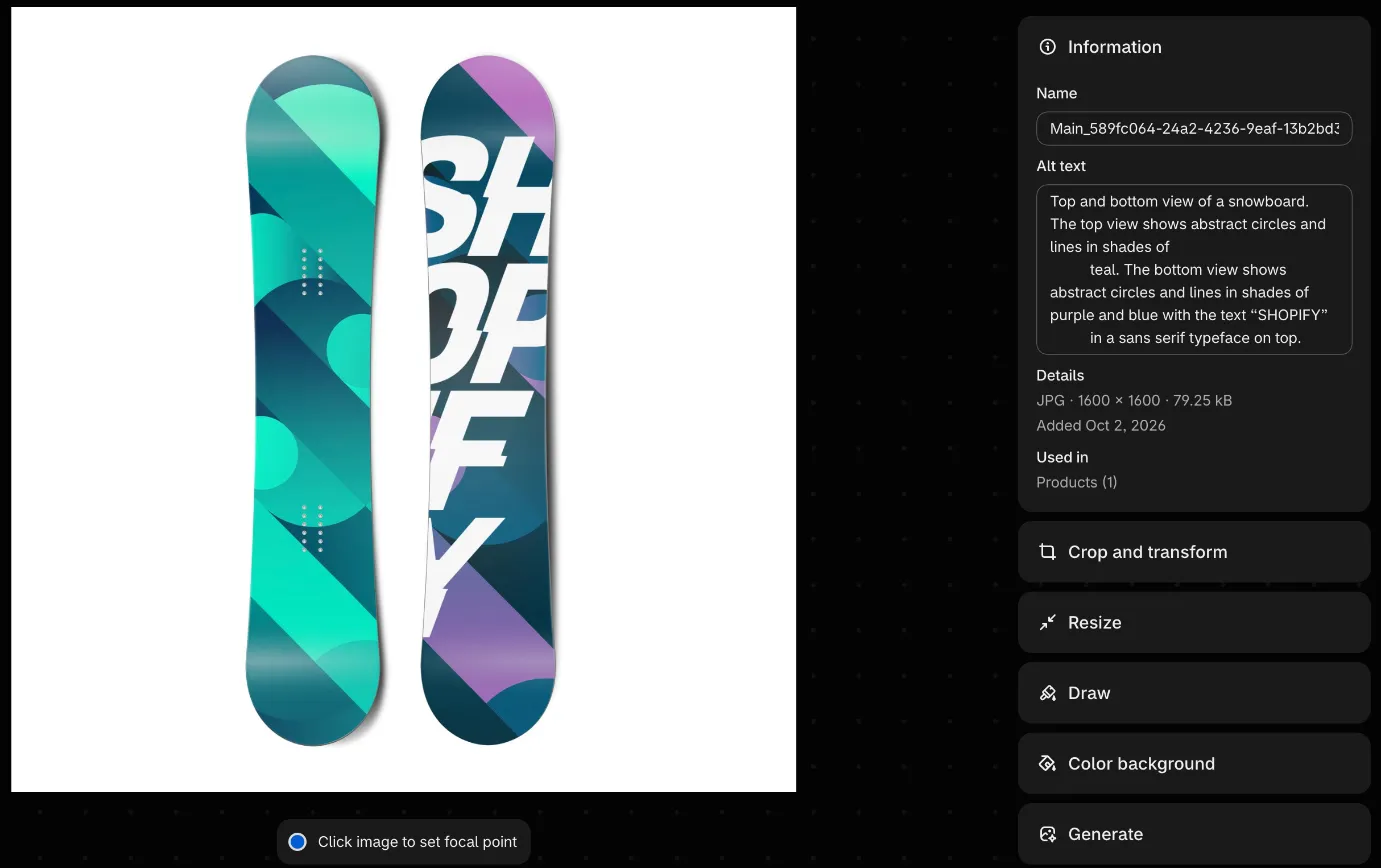
For a product image, the steps on our development store follow Shopify’s media editor help:
- In your Shopify admin, go to Products and open the product.
- Click the image to open it in the media editor.
- In Alt text, describe the image. If Shopify has suggested some, review it, then click Accept or edit it.
- Click Save.
Each kind of image has its own place for alt text:
| Image | Where you add its alt text | Shopify’s help |
|---|---|---|
| Product images | The product → click the image → Alt text | Media editor |
| Collection and blog post featured images | The collection or post → under the image, Update → Edit image | Adding keywords for SEO |
| Images in theme sections, such as a banner or slideshow | The theme editor → the section → Edit on the image | Theme image alt text |
| Any image in Files | Content → Files → the image’s thumbnail; edits apply wherever the file is used | Files |
| Images inside a description, page or blog post | The rich text editor: double-click the image → Edit image | Rich text editor |
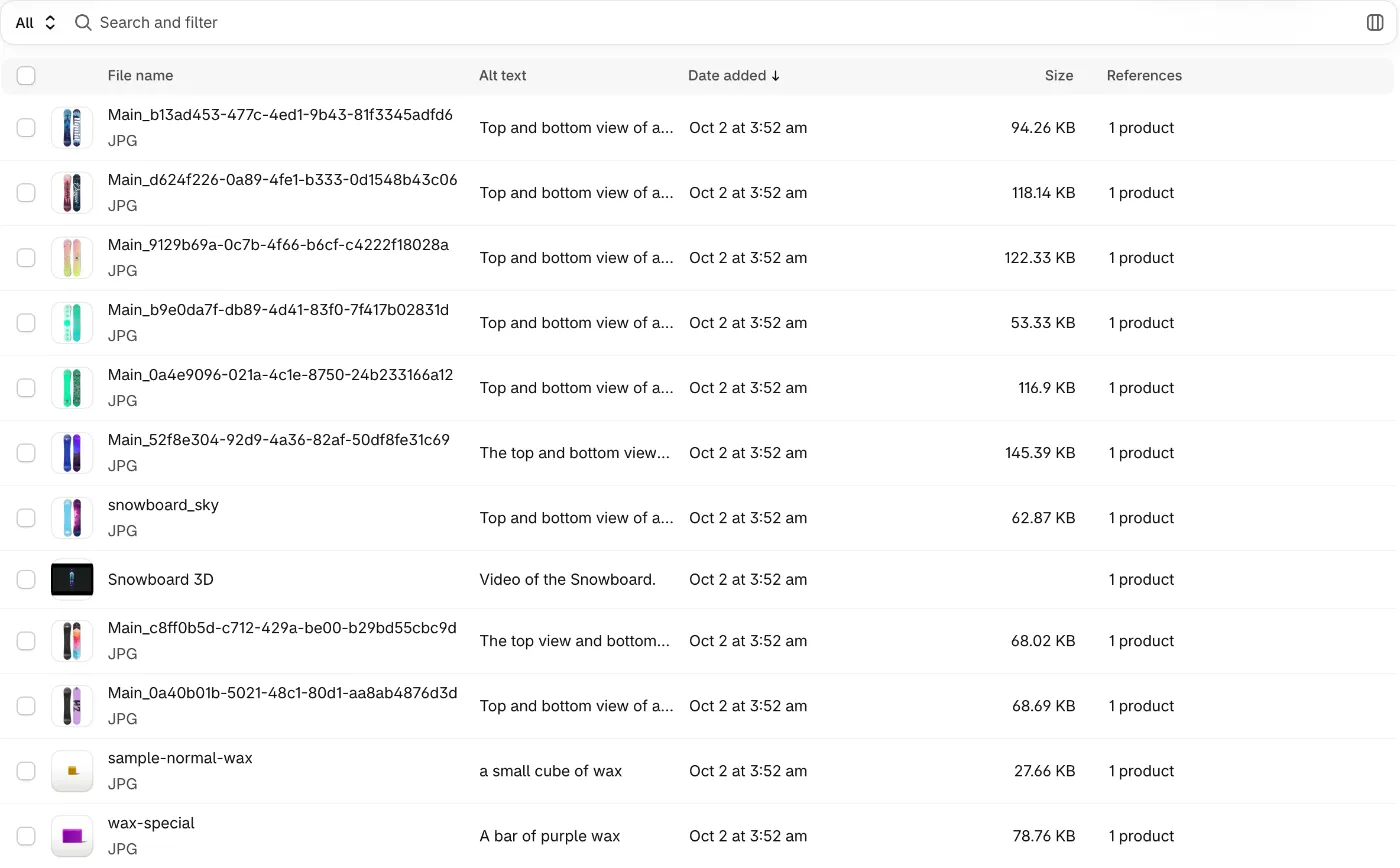
The Files list shows each image’s alt text in its own column, so gaps are easy to spot, and Shopify’s help says the list can be filtered by alt text.
What should alt text say?
Alt text should tell a shopper who can’t see the image what it shows: the product, the detail or colour in view, and any words printed in it. Google reads alt text together with what it recognises in the image and the page around it, and Shopify asks you to describe what’s displayed, “not what you want someone to think about the image”.
- Google asks for “useful, information-rich” alt text “in context of the content of the page”, without keyword stuffing, which it says can make a site look like spam. Its own example marks “Dalmatian puppy playing fetch” best, “puppy” better, and a string of dog words bad (Google: image SEO best practices, last updated 2 March 2026).
- Shopify says to keep alt text “brief and descriptive” (Shopify: adding alt text to media), with readable phrases that use the words of the page the image is on (Shopify: adding keywords for SEO).
- W3C’s alt decision tree says to “use an empty alt attribute” for a purely decorative image, and to put an image’s text in its alt text when that text appears nowhere else (W3C: an alt decision tree, updated 13 May 2024).
The first row below is Shopify’s own test data; the rewrites and the other two rows are ours.
| Image | Before | After | Why |
|---|---|---|---|
| The Complete Snowboard, a test product on our development store | Shopify’s test description: three sentences, more than 230 characters | Snowboard with a teal top sheet and a purple and blue base printed with SHOPIFY in large white letters | The main facts in 102 characters, the subject first |
| The same image, keyword-stuffed | snowboard, snowboards, best snowboard, cheap snowboard, snowboarding gear | The same 102 characters | The keyword stuffing Google warns against: it says nothing about the picture |
| Every image in one product’s gallery | The Complete Snowboard, on each | Base of the snowboard, purple and blue with SHOPIFY in white | Each image says what it shows, not just the name again |
How long can alt text be in Shopify?
Shopify accepts up to 512 characters of alt text and recommends 125 or fewer, in its help on adding alt text and in the rules for the product CSV file. One clear sentence is usually enough.
Shopify’s help on adding alt text gives both numbers, its media editor help recommends around 125, and its CSV help calls 125 or fewer the optimal length for the Image alt text column. The test description in the capture above runs past 230; our rewrite in the table above keeps its main facts in 102.
Can Shopify suggest alt text?
Yes. Shopify’s media editor may suggest alt text, generated using AI, for an image that has none, and you can accept it, edit it or write your own. Accepting saves it to the image file, so read it first: Google asks for AI-written alt text to be checked like any other AI content.
The suggestion appears in the media editor, one image at a time, only where the alt text is empty (Shopify: media editor); the test images we opened on our development store already had alt text, so we have no capture of one. Google’s guidance on generative AI content (last updated 1 October 2026) calls it “critical to manually factcheck and review all AI-generated content” before publishing, and names image alt text among what that covers. Check that the colour, the material and any text in the picture are right.
For a few dozen images, the media editor is enough: open each one, read the suggestion, accept or fix it.
How do you add alt text to many images at once?
Shopify’s product CSV file has an Image alt text column, so you can write alt text for every product image in a spreadsheet and import it; the bulk editor had no alt text column when we checked. Images outside products are edited one at a time, in Files or the theme editor, or with an app.
- Export your products to a CSV file, and keep a copy as it is.
- On each image’s row, fill Image alt text: no more than 512 characters, and ideally 125 or fewer.
- Import the file with Overwrite products with matching handles.
Shopify’s CSV help warns that in such an import a blank optional column empties that field in your store, while a column left out of the file keeps its value. The untouched export is your way back.
Shopify’s bulk editor has Page title (SEO) and Meta description (SEO) columns, used in how to write Shopify meta titles and descriptions, but on our development store on 6 November 2026 its Columns search found nothing for alt text.
How do you write alt text with an app?
An alt text app writes alt text for many images in one run, from a template filled with each product’s details or with AI that looks at each image. Look for one that shows examples before it writes, fills only images with none, and lets you undo the run.
XSeo, which we build, writes alt text for product images and the other images in Content → Files. Its Home lists Images with no alt text with Write alt text, and the Images page has the same fix for the images you select. The fix reads your images and shows three examples, Now beside XSeo writes, and how many images the run changes, then writes only images with no alt text: alt text you or your team wrote is left as it is. To read every line before it’s written, select three images at a time on Images.
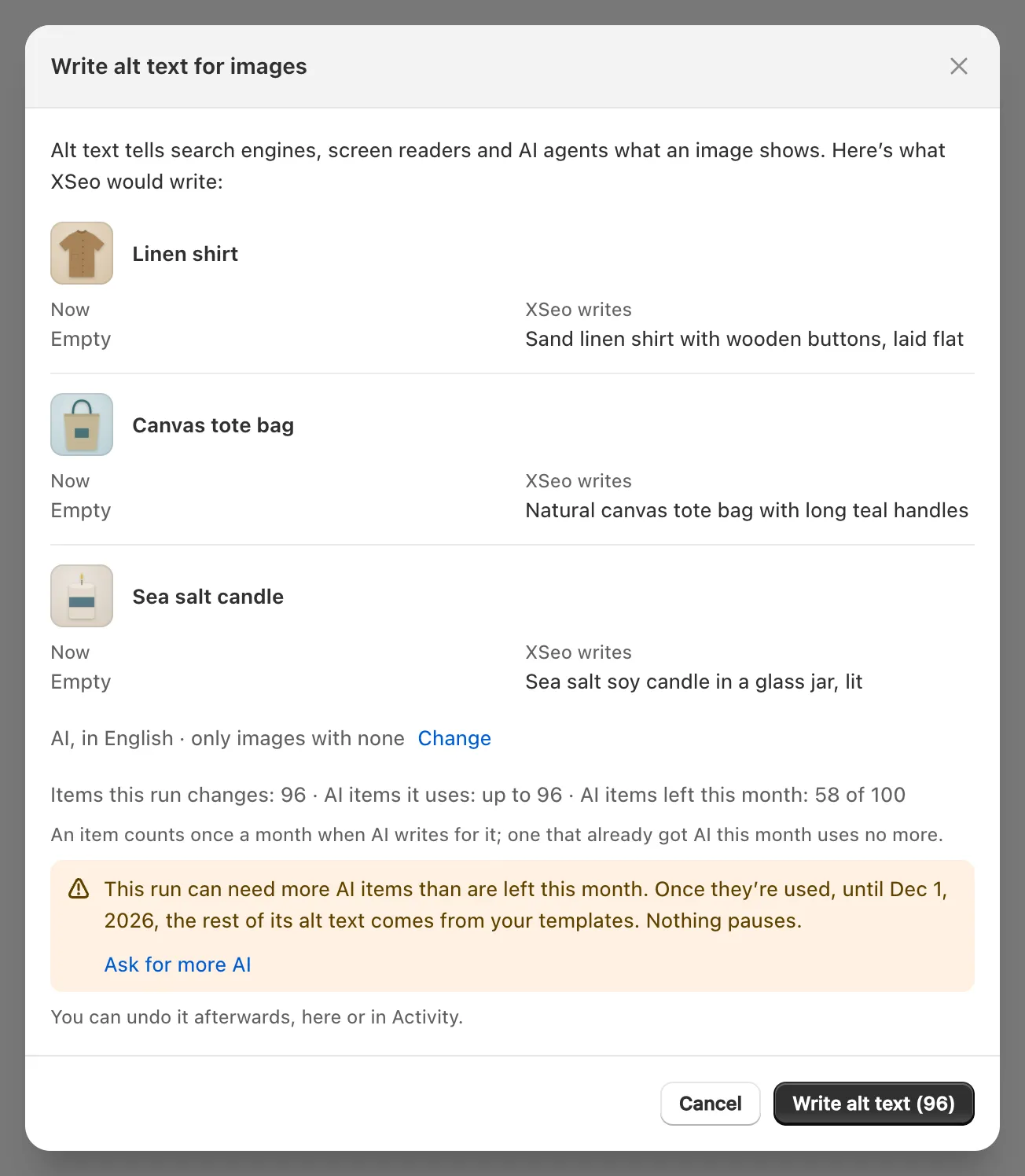
- Templates: two of them, Product images and Other images (Files), in Settings → Writing → Edit templates. Words in
{curly brackets}become each image’s details, such as{product_title}, and text in[square brackets]is dropped when its detail is missing. An image whose template text would start with a camera file name, such as IMG_4471, is skipped, and AI can write it. - AI, the default writer: Google’s Gemini API looks at a 768-pixel copy of each image with the product’s title, brand, type, variant colour and collection, and writes in your store’s language, or in another of the 20 languages XSeo offers.
- Undo: Activity → the run → Undo gives every image the alt text it had before, unless it was edited since. An alt text run is undone as a whole, not image by image.
- Other languages: XSeo can translate alt text into the other languages your store publishes, saved as Shopify translations.
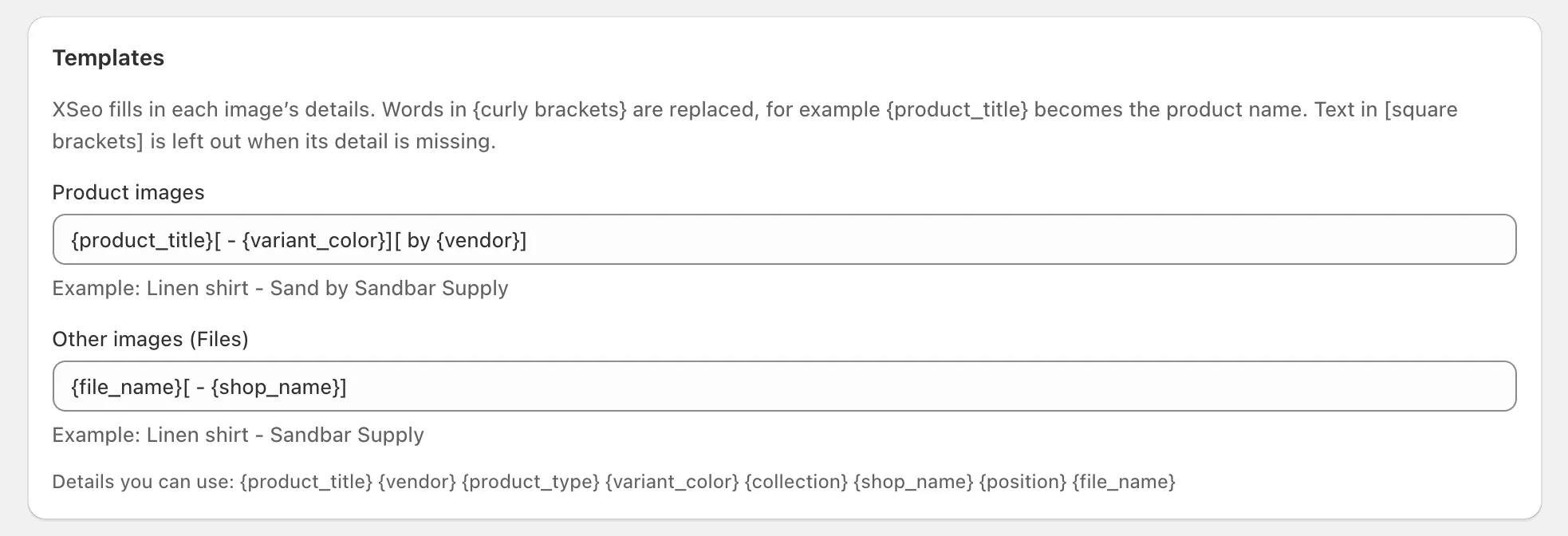
XSeo’s fix never replaces alt text you wrote, and XSeo doesn’t write alt text for new images by itself: they join Home’s count the next time XSeo reads your store, and you run the fix again. Since its launch on 6 November 2026, XSeo is free. Its AI writes for up to 100 items a month, the examples included; past that, until the next month (UTC), your templates write the alt text. The steps are in how XSeo writes alt text.
| Way | Who looks at the image | Images at a time | Before it’s saved | Undo |
|---|---|---|---|---|
| Shopify’s media editor | You, or Shopify’s AI for an image with none | One | You accept or edit | Edit the field |
| Theme editor | You | One | You type it | Edit the field |
| Product CSV | Nobody: you write in a spreadsheet | Every product image in the file | The file | Re-import an earlier export |
| XSeo, templates | Nobody: the template fills in product details | Up to 10,000 a run | Three examples | The whole run, in Activity |
| XSeo, AI | Google’s Gemini API, from a copy of each image | Up to 10,000 a run | Three examples; the rest after the run | The whole run, in Activity |
Tip: XSeo, which writes SEO titles, meta descriptions and alt text you preview and undo, is free, with AI for up to 100 items a month.
Does alt text help in Google Images?
Alt text helps Google understand an image: Google calls it the most important attribute for telling it more about an image, and reads it alongside what its computer vision recognises and the content of the page. It doesn’t decide on its own whether an image appears in Google Images.
Google’s image SEO best practices add two things you control:
- File names give “very light clues”. Name files before you upload them: Google prefers
my-new-black-kitten.jpgtoIMG00023.JPG. - Placement matters: put images near the text they relate to, on pages about them.
A sitemap won’t carry alt text to Google. Shopify’s sitemap lists each product’s “primary product image” (Shopify: finding your sitemap); on Shopify’s Dawn demo store on 6 November 2026, each came with an image:title and an empty image:caption tag. Google deprecated both in 2022, saying they “will have no effect on indexing and search features” (Google Search Central Blog), and its image sitemap documentation (last updated 10 December 2025) asks only for the image’s address, image:loc. Google reads alt text on your pages. How heavy those images are is a separate question: does Shopify compress images.
Frequently asked questions
Do theme images need alt text?
Yes, when they carry information, such as a banner with an offer printed on it or a photo of the product in use. W3C’s decision tree gives a purely decorative image, such as a texture or a divider, an empty alt attribute instead, and puts the words of a text image into its alt text unless they’re also on the page.
Should alt text repeat the product name?
Once, on the main image, is often useful, because Google reads alt text in the context of the page. The product name alone on every image tells a screen reader user nothing new: say what each one shows, such as the back, a detail or the product in use.
Do translated stores need translated alt text?
Yes, if you sell in more than one language, so that shoppers using a screen reader hear it in theirs. Shopify keeps a translation of an image’s alt text like other translatable fields (shopify.dev: translatable resource types), and XSeo can write it for you (XSeo’s translations).
