Write Image Alt Text with XSeo
How do I write alt text with XSeo?
XSeo writes alt text for your Shopify product images and the other images in Content › Files, from a template or with AI that looks at each image. Open the fix from Home, Images or Listings, read the three examples, then apply. XSeo writes only where an image has no alt text, and Activity can undo each run.
Open the fix from one of these places:
- Home: Images with no alt text → Write alt text.
- Images: Add alt text on the Missing alt text tile, or select images, for example in the No alt text view, and click Write alt text.
- Listings: the No image alt text view → Write alt text (N), for those products’ featured images.

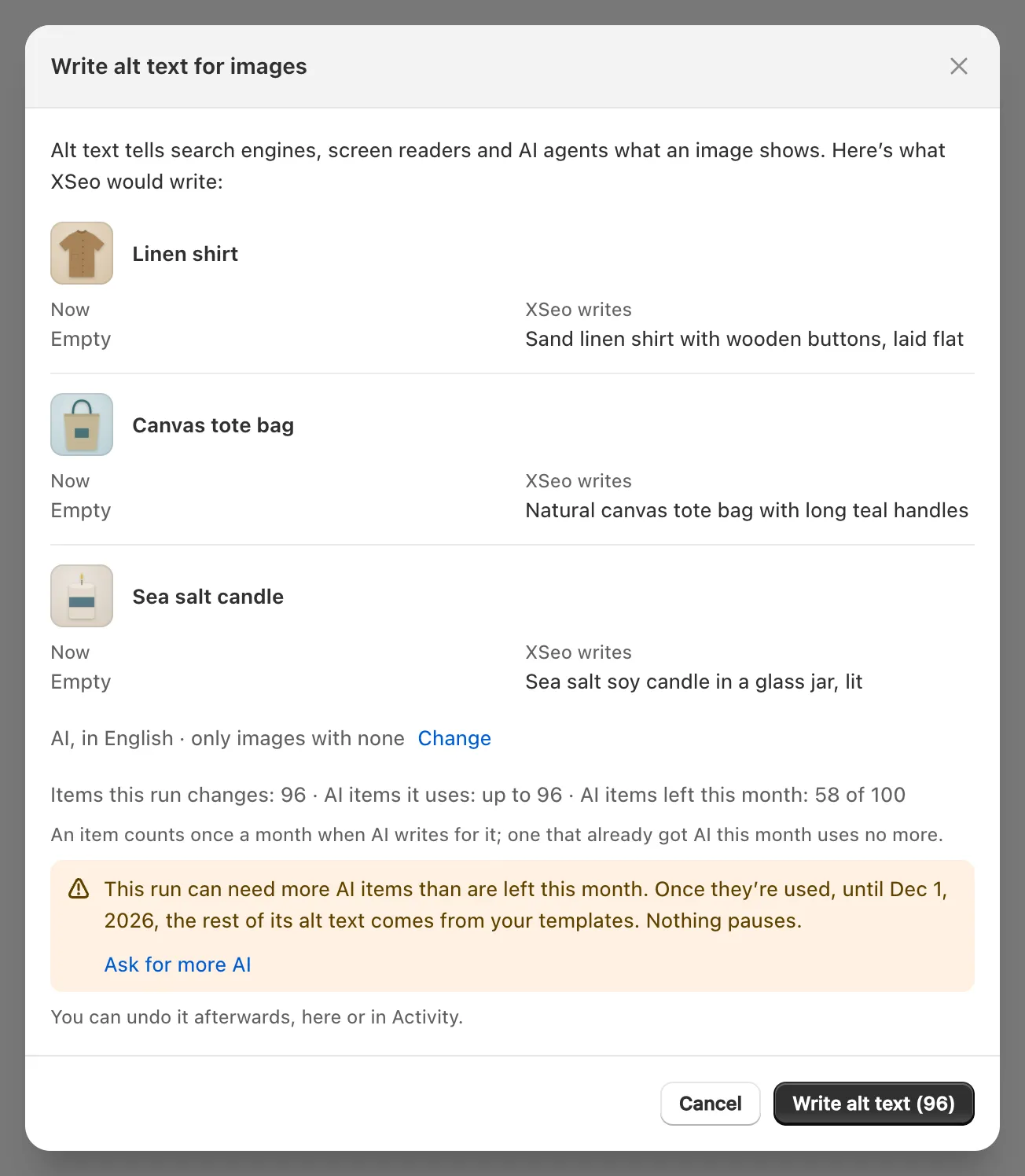
- In Write alt text for images, read the three examples from your store: Now beside XSeo writes.
- Check the settings line, such as “AI, in English · only images with none”. Change sets Written by (AI or Your templates) and Language, and the examples are written again.
- Check Items this run changes and, with AI, AI items it uses.
- Click Write alt text (N). It ends with Alt text written, Undo and See it in Activity.
One run covers up to 10,000 images. To give images you add later alt text, run the fix again.
Should I use AI or a template?
Use XSeo’s AI when you want each image described as it looks, and a template when a pattern built from product details is enough or you want no AI. Set the default in Settings → Writing → Alt text → How to write it, which starts at AI.
| With AI (Google Gemini) | From a template | |
|---|---|---|
| Written from | The image, sent as a 768-pixel copy, with its product’s title, brand, type, variant colour and collection, or the file name for an image on no product | Your template, filled in with the image’s details |
| Describes what the photo shows | Yes | No |
| Uses AI items | Yes, once per image a month | No |
AI goes through Google’s Gemini API and writes in your store’s language, or in one of 20 languages you pick under Write AI alt text in. Since its launch on 6 November 2026, XSeo is free, and its AI writes for up to 100 items a month (UTC); the dialog’s AI examples count, even if you cancel it. Past that, the run writes your template instead (how XSeo counts AI items). Google asks sites to check AI-written alt text for accuracy (Google’s guidance on AI-generated content), so read the examples.
Templates are in Settings → Writing → Edit templates (click Done, then Save):
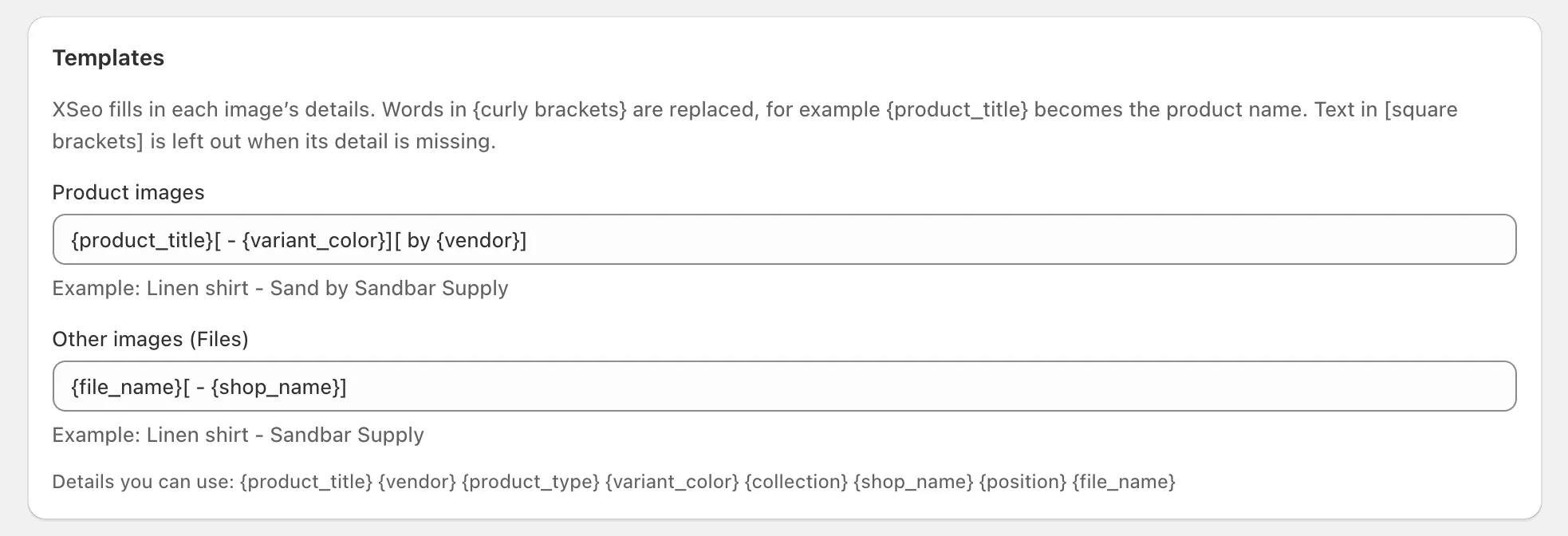
- Product images starts as
{product_title}[ - {variant_color}][ by {vendor}]in an English store; in other languages, “by” becomes that language’s word or a dash. - Other images (Files) starts as
{file_name}[ - {shop_name}], where the file name is turned into words. - Details you can use:
{product_title}{vendor}{product_type}{variant_color}{collection}{shop_name}{position}{file_name}. Text in[square brackets]is left out when its detail is missing.
A template that would start the alt text with a camera file name, such as “IMG_4471”, is skipped for that image, and the dialog suggests AI. XSeo writes at most 512 characters, Shopify’s limit; Shopify recommends 125 or fewer (Shopify’s help on alt text, checked 6 November 2026).
Will XSeo change alt text I wrote?
No. XSeo’s alt text fix writes only images that have no alt text: images you choose that already have some are counted and left as they are (“Already have alt text, left as they are”). Optimising or restoring an image doesn’t change its alt text either.
To change alt text that’s already written, edit it in Shopify: how to add alt text to Shopify images. To write it in your store’s other languages, see translating alt text with XSeo.
Which images does XSeo cover?
XSeo covers the images in Shopify’s Files: your product images, written with the Product images template, and the other images in Content → Files, written with Other images (Files). Collection images, and images that are part of your theme’s own files, aren’t covered.
Listings’ Image alt text column checks each product’s featured image. For images in your theme’s sections, you add alt text in Shopify’s theme editor (Shopify’s help on theme image alt text).
How do I undo an alt text run?
To undo an alt text run, open Activity, show Alt text, click Undo on the run and confirm with Undo this run: “Every image this update changed gets back the alt text it had before.” Right after a run, Undo in the dialog does the same.
Show changes lists each image’s alt text before and after, but alt text is undone one whole run at a time, not image by image. An image whose alt text was edited since keeps the edit. Undoing uses no AI, and doesn’t give back AI items the run used. The history is kept while XSeo is installed and deleted 48 hours after you uninstall.
