How to Create URL Redirects in Shopify

How do you create a URL redirect in Shopify?
To create a URL redirect in Shopify, go to Content → Menus → View URL Redirects, click Create URL redirect, enter the old path in Redirect from and the new page in Redirect to, and save. Shopify redirects only from an address that no longer loads a page, so remove or rename the old page first, and keep the redirect for good.
Note: The Shopify settings, labels and limits on this page were checked against Shopify’s help documentation on 6 November 2026, and the Google pages it cites were read the same day.
From your Shopify admin, go to Content → Menus and click View URL Redirects. A store without redirects shows Import URL redirects and Create URL redirect.
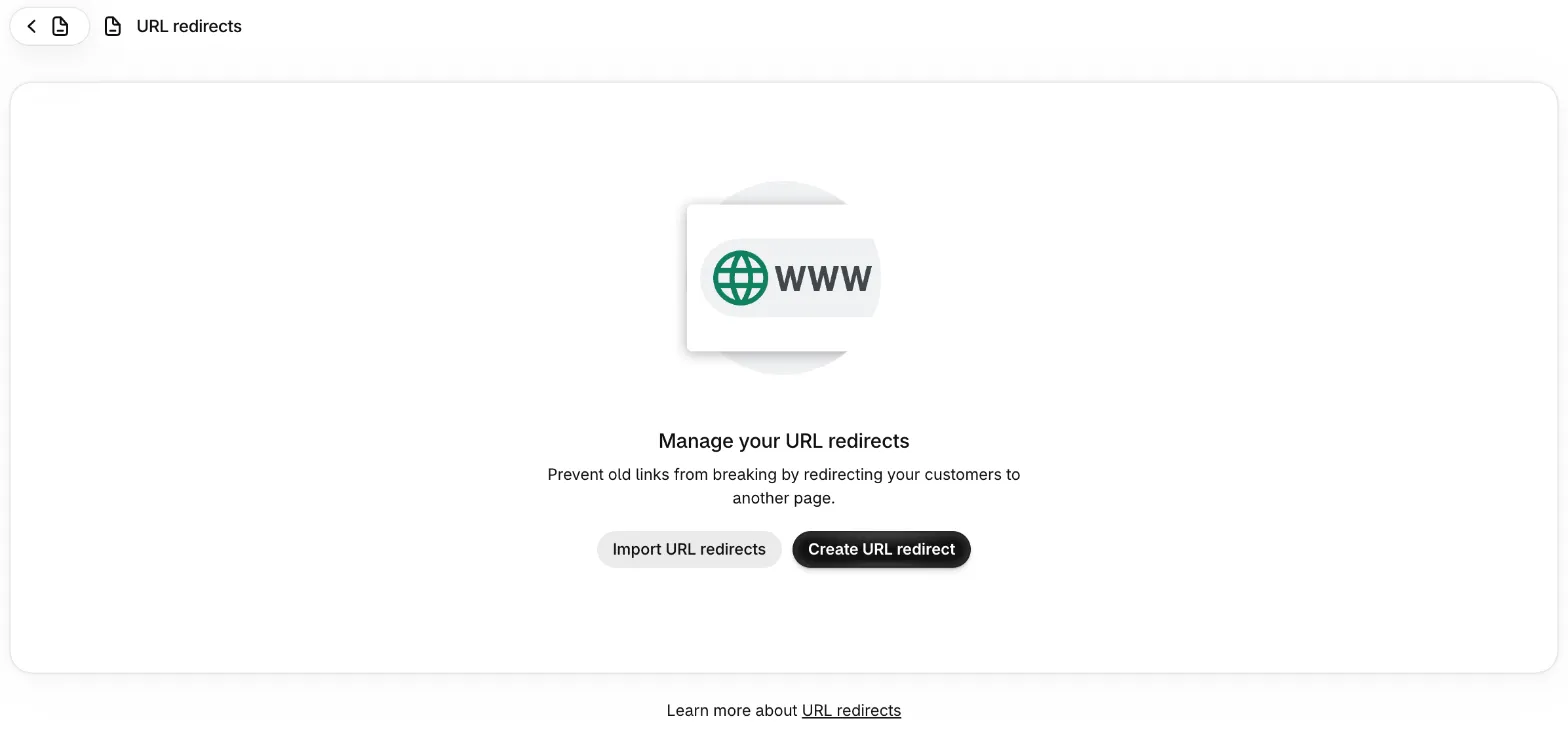
- Click Create URL redirect.
- In Redirect from, enter the old address as a path, such as
/products/linen-shirt-white. - In Redirect to, enter where visitors should land: a path on your store such as
/products/linen-shirt, a full URL for another website, or/for your home page. Click Save redirect. Shopify says redirects start working immediately.
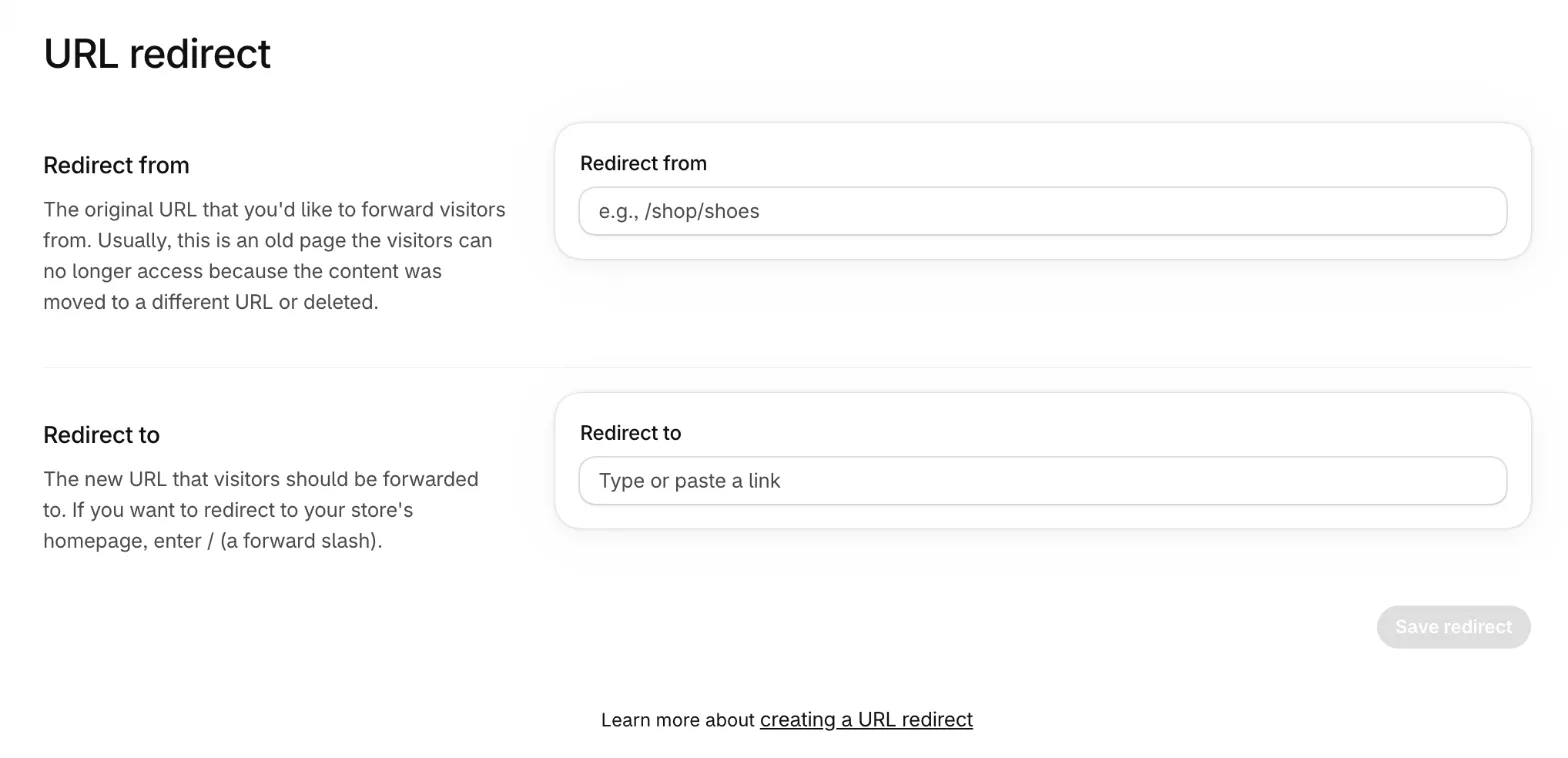
Three details from Shopify’s help (Shopify Help Center: URL redirects):
- Inside your store, use a path; elsewhere, a full URL. A relative URL keeps visitors on your primary domain.
- Check your market and language subfolders. Shopify’s example says a redirect from
/products/blue-t-shirtto/collections/t-shirtsalso sends/en-ca/products/blue-t-shirtto/en-ca/collections/t-shirts, yet the same page lists “URL redirects don’t automatically apply to all market subfolders” among its limits. After saving, open the old address in a subfolder; if it still shows a 404, add a redirect for that subfolder too. - They are 301s, and browsers cache them. A redirect you delete can keep working in a browser that already followed it, until its cache expires.
Does Shopify add redirects for you?
Shopify adds a redirect for you when you change a collection’s or a blog post’s URL handle with its redirect option selected, but not for a deleted product or collection: that old address shows a 404 until you add a redirect yourself.
| What changed | Redirect from the old address | Source |
|---|---|---|
| A collection’s URL handle | Yes, if you choose to create one when you change it | Collection settings |
| A blog post’s URL handle | Yes: the option is pre-selected | Blog posts |
| A product’s URL handle | Shopify’s product help names no option: check URL redirects after saving | Products |
| A product or collection you delete | No: Shopify’s own example adds a redirect to a similar product | URL redirects |
| A collection you hide, or a product set to draft | No, but its address now shows a 404, so a redirect you add works; making it visible again deletes that redirect | URL redirects |
Change handles rarely: Shopify warns that a product whose handle you edit too often “might not display in search engine results”. The handle sits in the Search engine listing section, beside the page title and meta description covered in how to write Shopify meta titles and descriptions.
Why isn’t my Shopify redirect working?
A Shopify redirect doesn’t fire while a page still loads at the old address: Shopify redirects only from broken URLs, the ones that show a 404 or Page not found, so a live page always wins.
- Someone asks for the old URLA shopper, a link on another site, or Googlebot.
- Shopify finds no page thereA redirect works only where the address no longer loads a page.
- Your redirect answers with a 301The visitor lands on the new page.
- Google shows the new URLOnce it recrawls, the permanent redirect tells it to show the new page.
Source: Google Search Central, redirects and Google Search, checked 6 November 2026
| Cause | How to check | Fix |
|---|---|---|
| A page still loads at the old address | Open it in a private window: you see a page, not a 404 | Delete, rename or hide that page, then test again |
| The address is one Shopify reserves | It starts with /apps, /cart, /orders, /services or /shop, or is exactly /products, /collections or /collections/all |
It can’t be redirected: change your links instead |
| It’s a collection tag filter | /collections/<collection>/<tag> |
It can’t be redirected, even when no product has the tag |
It ends in .html |
/pages/about.html to /pages/about |
Shopify treats both as the same URL |
| It has a query string | Something after ? |
Shopify says these “might not work as expected”: test each one |
| A typo | Compare Redirect from and Redirect to | Edit the redirect and save |
| A cached 301 | It still redirects after you changed or deleted it | Clear your browser’s cache, or try another device |
| A hidden collection was made visible | The redirect has gone from your list | Shopify deleted it: add it again the next time you hide the collection |
A redirect from /404 to / |
The theme editor shows your home page instead of your 404 page | Delete it: Shopify says it interferes with the theme editor’s display of your 404 page |
Source: Shopify Help Center: URL redirects, which also lists /application, /carts, /collections/vendors, /collections/types, /a/, /community/ and /tools/ among the paths it can’t redirect.
Shopify’s redirect help describes no wildcard redirects, so moving many pages means one redirect for each old address. That is what the import is for.
How do you import redirects in bulk?
To add many Shopify redirects at once, import a CSV file on the URL redirects page, using the sample template Shopify offers in the import dialog. A store can hold up to 100,000 URL redirects, or 20,000,000 on Shopify Plus.
- Go to Content → Menus → View URL Redirects and click Import URL redirects (Shopify’s help calls the button Import).
- Download the sample CSV template from the dialog and fill in one row per old address.
- Click Add file, choose your file, then click Upload file.
- Review the import, then click Import redirects.
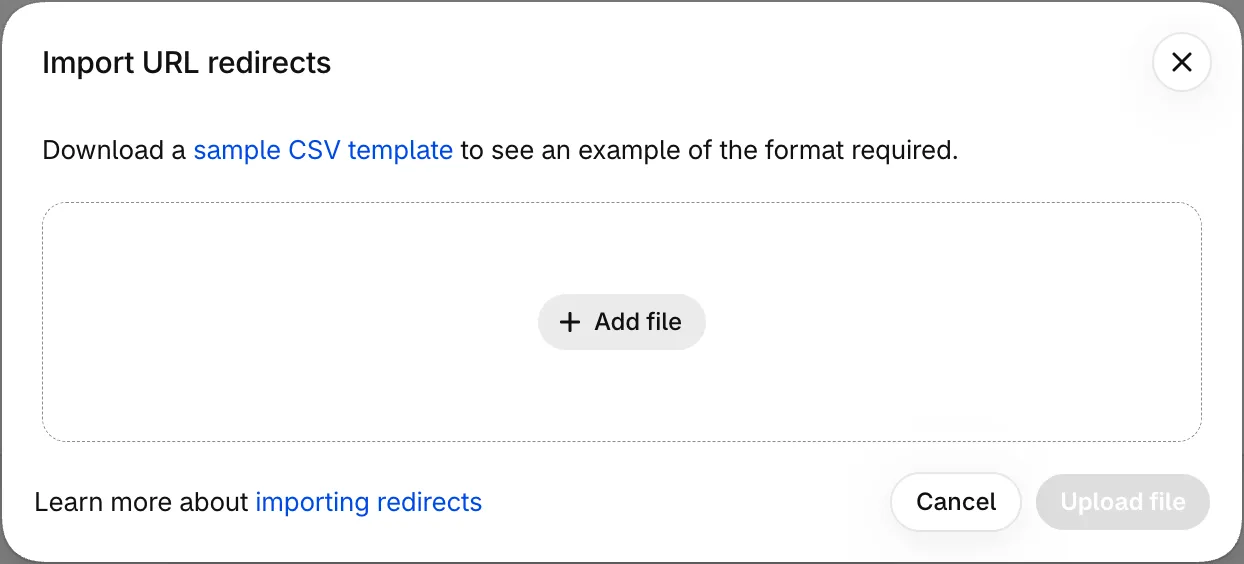
To export, click Export on the same page, choose the redirects and the type of CSV file, and click Export URL redirects. For a large number of redirects, Shopify’s help itself suggests you “consider using a third-party app” (Shopify Help Center: URL redirects).
Where should a deleted product redirect?
Redirect a deleted Shopify product to the page that replaces it, a similar product, or the collection that sells its kind. If nothing related exists, a 404 is fine; sending many old products to your home page is the choice Google warns against.
| Situation | Do this | Why |
|---|---|---|
| A new version replaces it | Redirect to the new product | A permanent redirect shows its target in Google’s results (Google: redirects) |
| A similar product exists | Redirect to that product | Shopify’s own example for a deleted product |
| Nothing close, but a related collection | Redirect to that collection | Shoppers still land among products like it |
| Nothing related at all | Leave the 404 | A 404 is “not necessarily a problem” for a page removed without a replacement (Search Console Help: Page indexing) |
| Many products at once | Don’t send them all to the home page | Google says that “might be treated as a soft 404” (Google: site moves) |
| It comes back next season | Leave its page live and sold out instead of redirecting it | Shopify’s redirects are permanent, and Google says to use those “when you’re sure that the redirect won’t be reverted” (Google: redirects) |
Sending every missing page to your home page is the soft 404 case Google describes, so a store needs no catch-all redirect. Keep each real redirect for as long as you can: Google says “generally at least 1 year” for its signals to move, and suggests keeping redirects indefinitely for the people who still use old links (Google: site moves, last updated 20 August 2026).
How many redirects in a row are too many?
Point every Shopify redirect straight at its final page: Googlebot follows up to 10 redirects in a row, but Google advises keeping a chain to ideally no more than 3, because each hop slows visitors and not every browser follows long chains.
A chain forms when a page moves twice: the redirect from its first address still points at its second, which now redirects again. To find chains by hand, export your redirects and look for any address that appears in both columns, then edit the first redirect to point at the final page (Google: site moves; Google: HTTP status codes, last updated 4 February 2026).
Search Console’s Page indexing report lists a chain that was too long, or a redirect loop, as a Redirect error (Search Console Help: Page indexing report).
How do you find 404s that need a redirect?
Search Console’s Page indexing report lists the addresses on your Shopify store that Google found returning Not found (404); Shopify’s URL redirects page lists only the redirects you have, not the missing pages people reach.
Google’s advice on that status is short: a 404 is not necessarily a problem for a page removed without a replacement, and a page that moved should get a 301 to its new address (Search Console Help: Page indexing report). The report shows what Googlebot found, not every missing page a shopper opens from an email, an ad or another site. Where a broken link sits in your own product description or page, editing the link saves visitors a hop.
How do you manage redirects with an app?
XSeo, which we build, manages your store’s URL redirects on its Links page, the ones you made in Shopify included, and adds what Shopify’s redirect page doesn’t have: the 404 pages visitors actually open, a check of every row before an import, and a list of chains and loops. Since its launch on 6 November 2026, XSeo is free.
- Missing pages. With Record 404 pages on, as it is by default, XSeo’s app embed reports each visit to a page that isn’t found: the address without anything after a
?, and the site the visitor came from, nothing about the visitor. Each address shows the visits recorded and a suggested Redirect to: a renamed page’s new address, the page suggested for a deleted product or collection, the page with the most similar address, or your home page when nothing is close. Check it, then Create redirect, or Dismiss it. The embed must be on in your theme, and nothing is recorded while the store is password-protected.
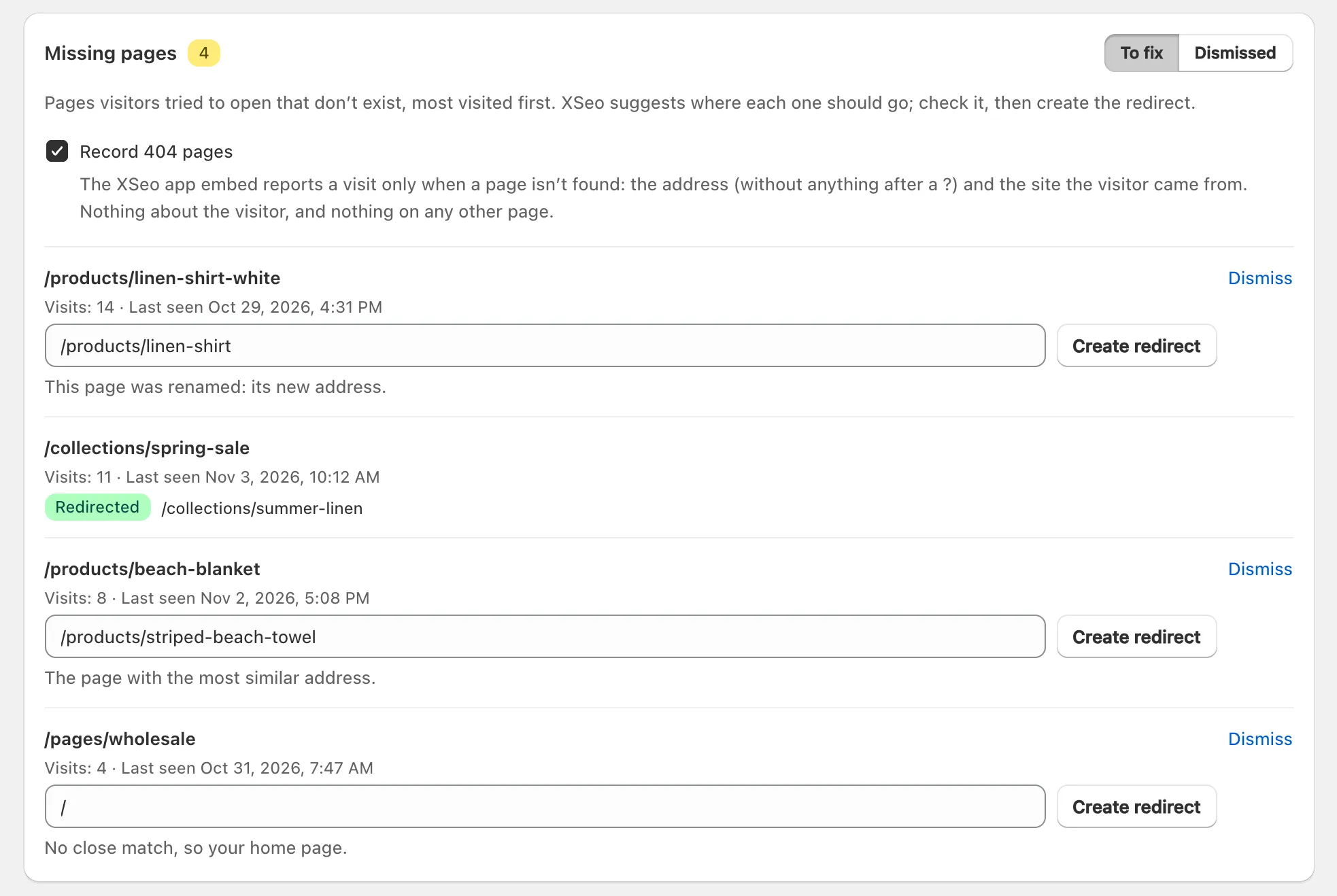
Given Google’s soft 404 warning, swap a home page suggestion for a related page, or dismiss it.
- Redirects to check. Chains, loops and redirects that end on a missing page, with Point straight to the last page to fix a chain in one click. All redirects lists every redirect in your store, with Add redirect, Edit and Delete.
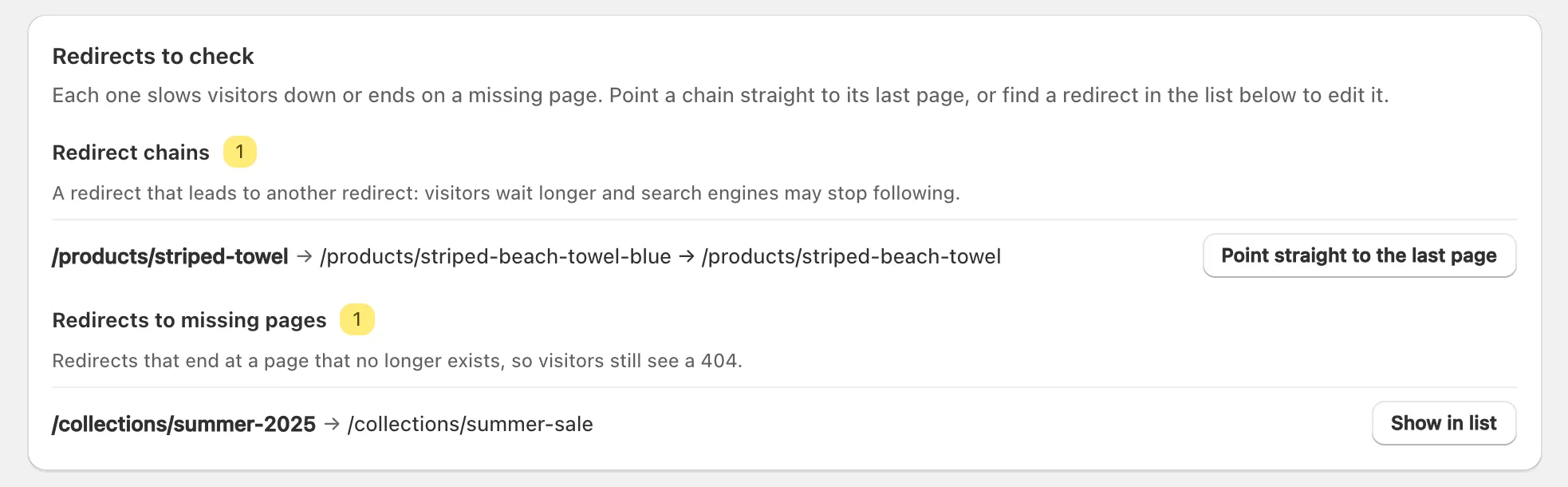
- Import and export. XSeo reads a CSV file of up to 2 MB “with the columns Redirect from and Redirect to (Shopify’s own format)”, checks every row against your redirects and pages, and shows What this import does, such as new redirects, two hops, loops and live pages, before Shopify’s own import runs.
- Deleted products and collections. XSeo suggests a redirect to the collection the item was in, a similar collection or your home page, and creates it at once only if you tick Create these redirects automatically.
- URL handles. Find weak handles proposes clean product and collection handles; after Rename selected, XSeo checks that Shopify added the redirect from the old address, and creates it if it’s missing.
Activity lists the redirect changes XSeo makes, with Undo while the redirect is still as XSeo left it, and Undo this import for a whole import; handle renames are undone from the product’s or collection’s own page. The details are in how XSeo manages Shopify redirects and XSeo’s 404 pages and broken links.
Tip: XSeo, which shows the missing pages your visitors hit and suggests a redirect for each, is free, and creates no redirect until you choose one or turn automatic redirects on.
Why does Google still show the old URL?
Google keeps showing an old Shopify URL until it recrawls that address and finds the redirect; a permanent redirect, which is what Shopify’s are, then tells Google to show the new page instead.
Google uses a permanent redirect as a signal that its target should be canonical, the address it shows in results (Google: redirects, last updated 14 April 2026). In the Page indexing report, the old address then shows as Page with redirect, a status that isn’t indexed (Search Console Help: Page indexing report). To ask Google to crawl the new page, inspect it with URL Inspection and click Request indexing; a live test of the old address tests the target without saying it followed a redirect (Search Console Help: URL Inspection).
