Shopify Schema Markup: What Your Theme Adds

Does Shopify add schema markup?
Yes. Shopify’s own Dawn and Horizon themes print schema markup without any app: each product with its price, brand and variants through Shopify’s structured_data filter, each blog post as an Article, and an Organization for the store. They leave out breadcrumbs, return and shipping policies, ratings, and any barcode you haven’t entered. Add only what’s missing.
Note: The Shopify and Google pages cited in this guide were checked on 6 November 2026, the day we read the structured data on Shopify’s Dawn and Horizon demo stores.
Schema markup, or structured data, is code that describes a page in schema.org’s vocabulary; Google recommends JSON-LD, a <script type="application/ld+json"> block in the HTML (Google: introduction to structured data, last updated 10 December 2025).
In Dawn and Horizon, product and blog post markup comes from Shopify’s structured_data Liquid filter: a Product for a product without variants, a ProductGroup for one with variants, an Article for a blog post. Shopify’s example output has a brand, an image and an offer with price, currency and availability, and nothing about ratings, shipping or returns (shopify.dev: structured_data). Organisation and website markup is the theme’s own code, so it varies by theme.
What does your theme print, and what’s missing?
Shopify’s Dawn and Horizon themes print product, blog post and organisation markup, and Dawn a site name. On their demo stores we found no breadcrumbs, no return or shipping policy and no ratings on any page we read, and a gtin only on variants that have a barcode.
| What Google reads | Google’s rule | Dawn 15.0.0 | Horizon 4.4.0 |
|---|---|---|---|
Organization |
No required properties; recommended on the home page | Every page: name, URL, social links, and the logo if set | Every page: name, URL, and the logo if set |
WebSite |
Name and URL, on the home page | Home page | Not printed |
Product or ProductGroup, with offers |
Required: name, image, an offer with price and currency | ProductGroup, a price per variant |
ProductGroup, a price per variant |
brand |
Recommended | The product’s vendor | The product’s vendor |
gtin |
Recommended | Variants with a barcode (1 of 2) | Variants with a barcode (7 of 14) |
aggregateRating |
Recommended | Not printed | Not printed |
shippingDetails |
Recommended; one store-wide policy under Organization preferred |
Not printed | Not printed |
hasMerchantReturnPolicy |
Recommended; one store-wide policy under Organization preferred |
Not printed | Not printed |
BreadcrumbList |
At least two items; shown on desktop | Not printed | Not printed |
Article |
No required properties | Blog posts | Blog posts |
Source: our reading of Shopify’s Dawn demo store and Horizon demo store on 6 November 2026 (the home page, a product, a collection and a blog post on each, with no microdata on any of them) and each theme’s code (Dawn 15.0.0, Horizon 4.4.0). Google’s rules: merchant listings, Organization, breadcrumbs and Article (each last updated 8 September 2026), and site names (10 December 2025).
What the table means for your own store:
- Barcodes become the
gtin. Horizon’s demo jacket has agtinon exactly the 7 of its 14 variants with a barcode in Shopify, and it is that barcode; Dawn’s demo bag, on 1 of 2. Fill in the product’s Barcode, or use Edit barcodes for variants (Shopify Help Center: barcodes). - The vendor becomes the brand. Both themes print the product’s vendor as its
brand, so Horizon’s demo jacket is branded “Horizon (Default)”. Whatever your Vendor field holds is the brand Google reads. - Nothing says how variants differ. Neither theme prints
variesBy, the options that tell variants apart, which Google recommends for a product group (Google: product variants, last updated 8 September 2026). - Collection pages carry no product markup, as Google’s rules expect: product rich results support only pages about a single product or its variants (Google: merchant listings).
A theme from another developer may print more, less, or the same thing twice, so check your own pages before adding anything.
Which schema types matter for a Shopify store?
For a Shopify store, the schema types that matter are a product with its offers on product pages, Organization on the home page, BreadcrumbList on product, collection and blog post pages, and Article on blog posts. LocalBusiness matters only if customers visit a shop, and FAQ results are gone from Google.
| Type | Page | What Google uses it for |
|---|---|---|
Product or ProductGroup with Offer |
Product pages | Merchant listings: price, availability, and shipping, returns and ratings if given |
Organization (Google suggests the OnlineStore subtype) |
Home page | Your logo, contact and business details, and a return and shipping policy for the whole store |
WebSite |
Home page | The site name Google shows |
BreadcrumbList |
Product, collection and blog post pages | The trail above a result, on desktop only |
Article |
Blog posts | Better title text, images and dates for the post |
LocalBusiness |
Home page or a page about the shop | Address and opening hours of a shop people visit; address and name are required |
Review, aggregateRating |
Inside the product | Review stars, when Google chooses to show them |
| FAQ | None | Nothing: Google stopped showing FAQ results on 7 May 2026 |
Source: Google’s pages above, plus local business (last updated 8 September 2026) and documentation updates.
For returns and shipping, Google prefers one store-wide policy under Organization, with an offer-level policy only where a product’s differs or there is no store-wide one. Merchant Center and Search Console also take both as account-level settings (Google: merchant listings, last updated 8 September 2026).
How do you check what Google reads?
To check what Google reads on a Shopify page, run its live address through Google’s Rich Results Test, then look at Search Console’s reports. The page’s source shows the JSON-LD blocks in its HTML.
- Open a product page on your live store and view its source in your browser. Search for
ld+json: each match is one block. - Paste the page’s address into the Rich Results Test and run it. It shows the rich result types it found, such as merchant listings, product snippets or breadcrumbs, with any errors or warnings. It can’t read a page behind your store’s password, so paste the page’s code instead (Search Console Help: Rich Results Test).
- Repeat with the home page, a collection and a blog post: each page type has its own markup.
- In Search Console, open Merchant listings and Product snippets under Shopping, and Breadcrumbs under Enhancements. A report appears only once Google finds valid markup of that type (Search Console Help: rich result reports).
- For one page, use URL Inspection to see what Google indexed, and Test live URL to test the page as it is now (Search Console Help: URL Inspection).
Search Console has no report for Organization, WebSite or Article. Test Organization and Article in the Rich Results Test, and WebSite in the Schema Markup Validator: Google says the Rich Results Test doesn’t support site names (Google: site names).
How do you add what’s missing?
Add missing schema markup on Shopify in this order: fill in the Shopify fields your theme already prints, then add the rest through your theme’s code or an app embed. Whatever you add should join the theme’s product, never print a second one beside it.
| Approach | What it can add | What it takes | What to watch |
|---|---|---|---|
| Fill in Shopify’s fields | gtin (Barcode), brand (Vendor), category |
Nothing new: the theme prints them | Only what your theme’s markup already includes |
| Edit the theme’s code | Anything, breadcrumbs and policies included | A developer who writes Liquid | The code lives in that theme: a new theme starts without it |
| An app embed | What the app offers | Switching it on in the theme editor, and again after a theme change | A second product beside the theme’s |
| Merchant Center or Search Console settings | Return and shipping policies, for Google only | A Merchant Center account, or a verified Search Console property | They are settings, not markup on your pages |
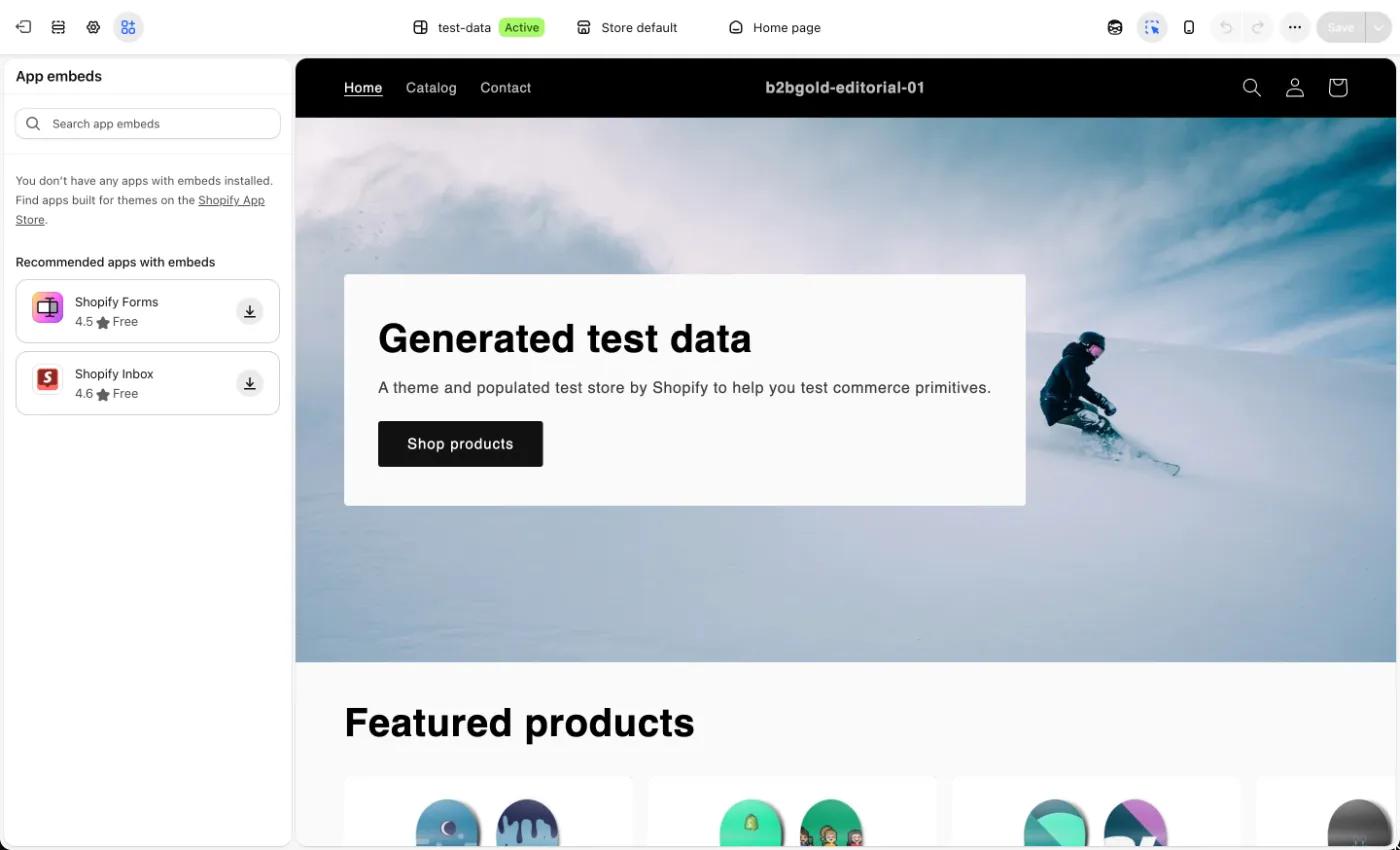
An app embed adds an app’s code to your store without editing the theme’s code (shopify.dev: theme app extensions). To switch one on, go to Online Store, click Edit theme, click the App embeds icon, turn the embed on and click Save. Sidekick can also turn an installed embed on or off from the theme editor. After you publish a different theme, turn your embeds on again in it: they aren’t active there by default (Shopify Help Center: apps in your theme).
Shopify’s filter gives the product an @id, and Google asks for related items on a page to be linked by @id, or it may not know they belong together (Google: general structured data guidelines, last updated 10 July 2026). More on that in why Google sees two products on one page.
- Your theme prints the productShopify's structured_data filter, with price, vendor and barcodes.
- Your review app adds ratingsInside the theme's product, or as a product item of its own.
- An app embed adds what's missingBreadcrumbs and policies, linked to the theme's product by its @id.
- Google reads the page as a wholeIt may not connect items that aren't linked by @id.
Source: Google Search Central, general structured data guidelines, checked 6 November 2026
Will schema markup get you rich results?
Schema markup on a Shopify store makes a page eligible for a rich result, never certain of one: Google decides for each search whether to show it, weighing things such as the searcher’s location and device.
In Google’s words, structured data “enables a feature to be present” but “does not guarantee” it, even when the markup is correct (Google: general structured data guidelines). The same guidelines rule out marking up content shoppers can’t see, so the return window in your markup should be the one your policy states.
How do you add it with an app?
XSeo, which we build, adds structured data through one app embed, XSeo structured data, and only what your theme and other apps don’t already print. It reads your storefront first and joins product additions to your theme’s own product markup. Since its launch on 6 November 2026, XSeo is free.
- In XSeo, open Settings → Structured data → Manage. The Storefront page opens.
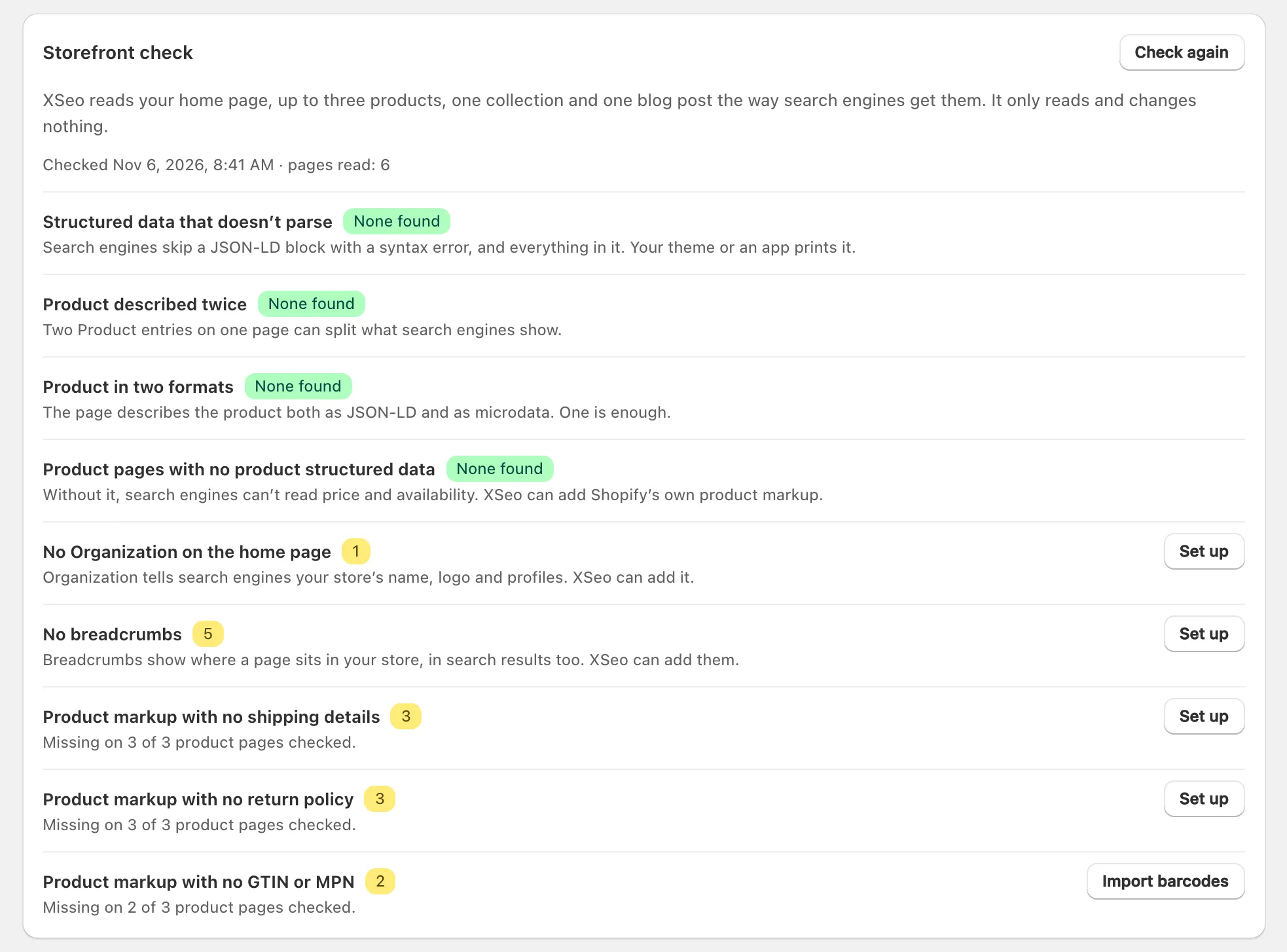
- XSeo checks your storefront: the Storefront check reads your home page, up to three products, one collection and one blog post the way search engines get them, and changes nothing.
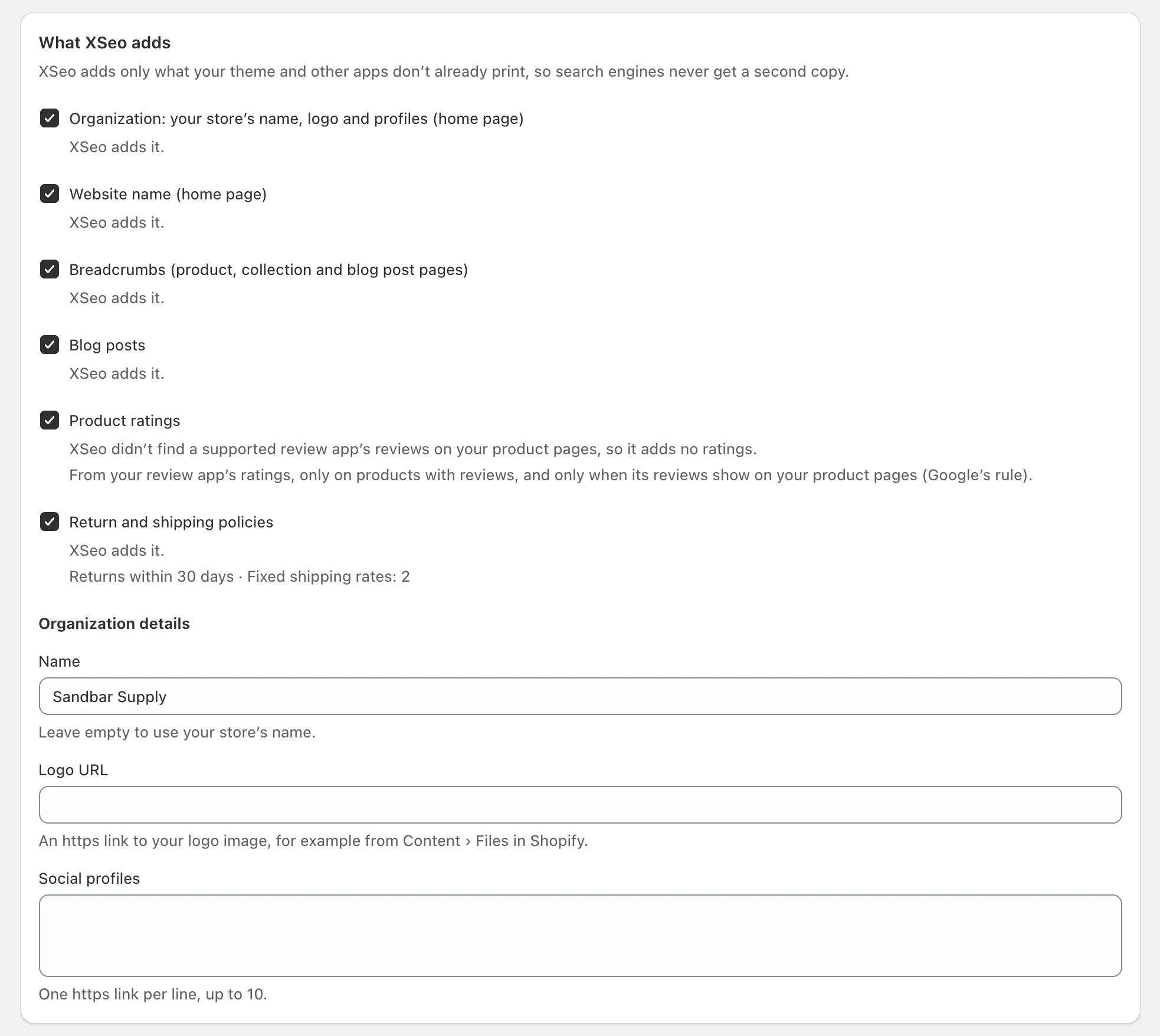
- Choose what XSeo adds (below): under What XSeo adds, each type says whether XSeo adds it, skips it because your theme already has it, or adds only what your theme’s version leaves out.
- Turn on the app embed: Turn on in theme editor opens the theme editor with XSeo structured data switched on, and you select Save there. An app can’t switch its own embed on.
The check lists each gap with its fix. It also names problems XSeo can’t fix, such as structured data that doesn’t parse or a product described twice, and, where it can tell, what printed each copy.
| XSeo can add | Where | From |
|---|---|---|
| Organization: name, logo, social profiles | Home page | The Organization details you enter |
| Website name | Home page | The name in Organization details, or your store’s name |
| Breadcrumbs | Product, collection and blog post pages | Your store, collections and blogs |
| Blog posts | Posts whose theme prints no article | Shopify’s own article markup |
| Product ratings | Products with reviews | A review app XSeo supports, only when its reviews show on your product pages and nothing prints a rating already |
| Return and shipping policies | Home page and product offers | Shopify’s return rules; the fixed shipping rates of your general shipping profile |
| Your shop’s location | Home page, off by default | The address and opening hours you enter, only if customers can visit |
What it doesn’t do:
- No second product. When your theme’s product markup can’t be added to without a second copy, XSeo leaves product pages alone and says so.
- Nothing before a check. No type is added until a storefront check has read your store, and a password-protected store waits until it opens.
- Not every shipping rate. Carrier-calculated, weight-based and “rest of world” rates are skipped, and stores on Shopify’s market-driven shipping get none.
- No FAQ markup, and no fixes inside your theme’s own markup.
The embed never edits your theme’s files, and nothing stays behind when you turn it off or uninstall XSeo. XSeo writes to your theme only if you apply its AI crawler rules, and then only its own marked lines in robots.txt.liquid. Every type and state is in how XSeo’s structured data embed works. XSeo improves what search engines read; they decide what they show.
Tip: XSeo, which adds the structured data your Shopify theme leaves out, is free, and its structured data stays off until you switch its app embed on.
Frequently asked questions
Do I still need FAQ schema?
No. Google stopped showing FAQ rich results on 7 May 2026 and removed their documentation on 15 June 2026 (Google Search Central: documentation updates, last updated 26 October 2026). Keep your questions and answers on the page for shoppers.
Does structured data help in ChatGPT or Gemini?
Google says its AI Overviews and AI Mode need no special schema.org markup, and asks that your structured data match the page’s visible text (Google: AI features and your website, last updated 10 December 2025). Shopify makes your products available to AI channels through Shopify Catalog, or through the Google & YouTube channel or Merchant Center for Google AI Mode and Gemini (Shopify Help Center: agentic storefronts); whether to keep those on is in Shopify agentic storefronts: keep them on or opt out.
Why are my review stars missing?
Review stars need your review app’s rating in the product’s markup, the reviews visible on the page, and Google’s decision to show them. Work through the five checks in why Shopify review stars don’t show in Google. Stars on Google Shopping ads come from a reviews feed instead: Google Shopping product ratings for Shopify.
