Structured Data with XSeo's App Embed
How do I turn on XSeo’s structured data?
XSeo adds structured data (JSON-LD) to your Shopify store through one app embed, XSeo structured data, that you switch on in your theme editor. It checks your storefront, then adds only what your theme and apps don’t print: your organisation, website name, breadcrumbs, blog posts, supported review apps’ ratings, and return and shipping policies. The embed never edits theme files.
Your theme probably prints some already: what Shopify themes print, and how to check it.
- Open XSeo’s Settings → Structured data → Manage. The Storefront page opens on Set up structured data.
- XSeo checks your storefront runs by itself.
- Choose what XSeo adds (below): every type is ticked; untick any you don’t want, then Save.
- Turn on the app embed: click Turn on in theme editor. The theme editor opens with XSeo structured data switched on; click Save there.
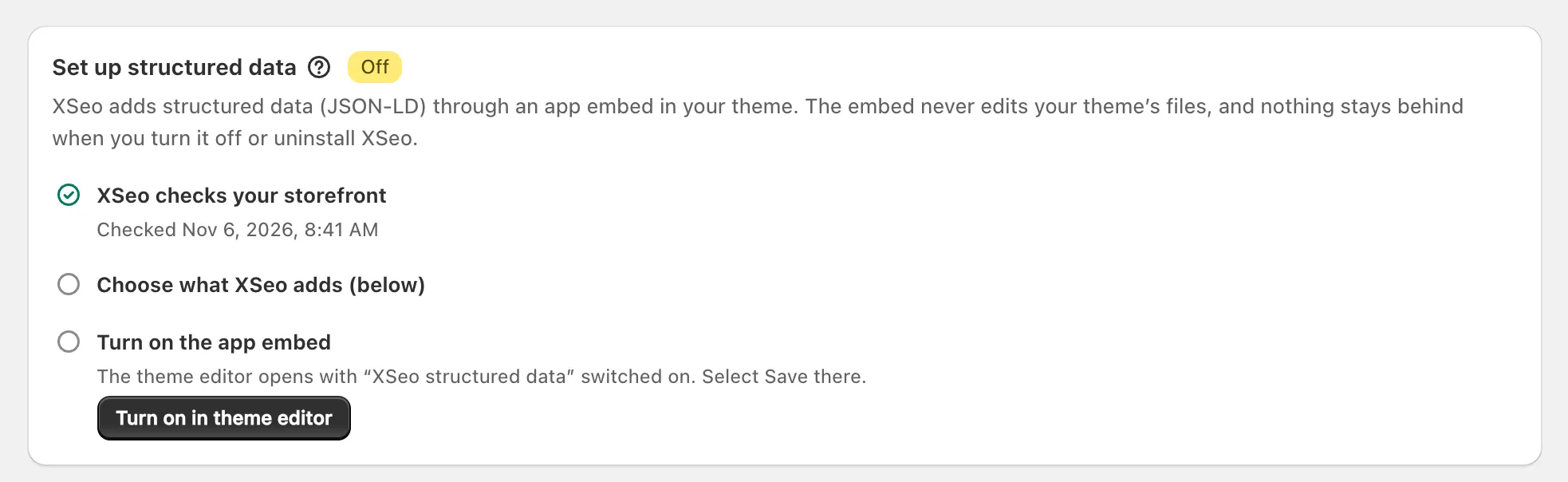
The badge then reads On, or On, waiting until a check has read your pages or your store opens. XSeo can’t switch the embed on: you do, in the theme editor, where Shopify also lets you ask Sidekick to (Shopify: apps in your theme, checked 6 November 2026).
What does XSeo add?
XSeo adds six kinds of structured data, all ticked at first and each only where your theme and other apps don’t print it: your organisation and website name, breadcrumbs, blog post markup, product ratings from a supported review app, and your return and shipping policies.
| Page | What XSeo can add |
|---|---|
| Home | Organization (name, logo, profiles) or only what your theme’s lacks, the website name, your return policy, your shop’s location |
| Product | Breadcrumbs; ratings and return and shipping details, inside your theme’s product markup |
| Collection | Breadcrumbs |
| Blog post | Breadcrumbs, and Shopify’s own article markup if your theme prints none |
Additions join your theme’s markup by its @id, so search engines never get a second copy of a product. Under Organization details, set a Name, Logo URL and up to 10 Social profiles.
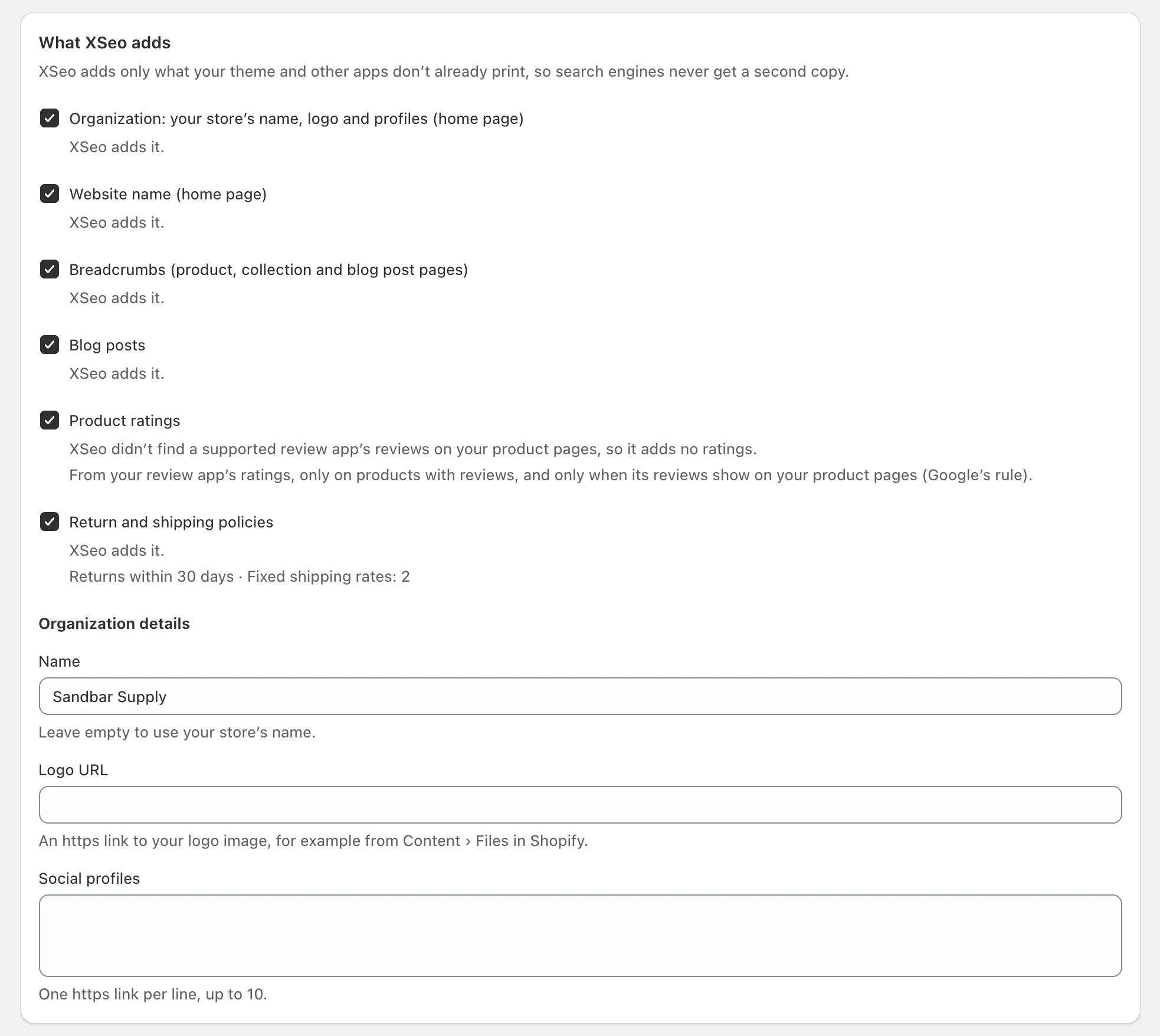
- Ratings come only from review apps XSeo supports, on products with reviews, and only when those reviews show on your product pages, as Google’s rules ask (Google: review snippets, checked 6 November 2026).
- Returns come from your return rules in Shopify, such as Returns within 30 days, without fees; shipping, from your general profile’s fixed-price rates. Carrier-calculated, weight-based and “rest of world” rates are skipped, and stores on Shopify’s market-driven shipping get none.
Google decides what it shows: “Google does not guarantee that your structured data will show up in search results” (Google: structured data guidelines, checked 6 November 2026).
Why does XSeo skip a type?
XSeo skips a type of structured data when your theme or another app already prints it, when you untick it, or when adding it would mean a second copy; the line under each type in What XSeo adds says which.
- Your theme already has it, so XSeo skips it. If the theme’s version lacks parts, XSeo adds them: XSeo adds what your theme’s version leaves out.
- Waits for the storefront check. Nothing is added before a check has read your pages.
- Your theme’s product markup can’t be added to without a second copy, so XSeo leaves product pages alone.
- Ratings are skipped when a rating is printed already, or no supported review app’s reviews show on your product pages.
If your theme prints no product markup, XSeo prints Shopify’s own, but only to carry the ratings or policies it adds.
What does the storefront check find?
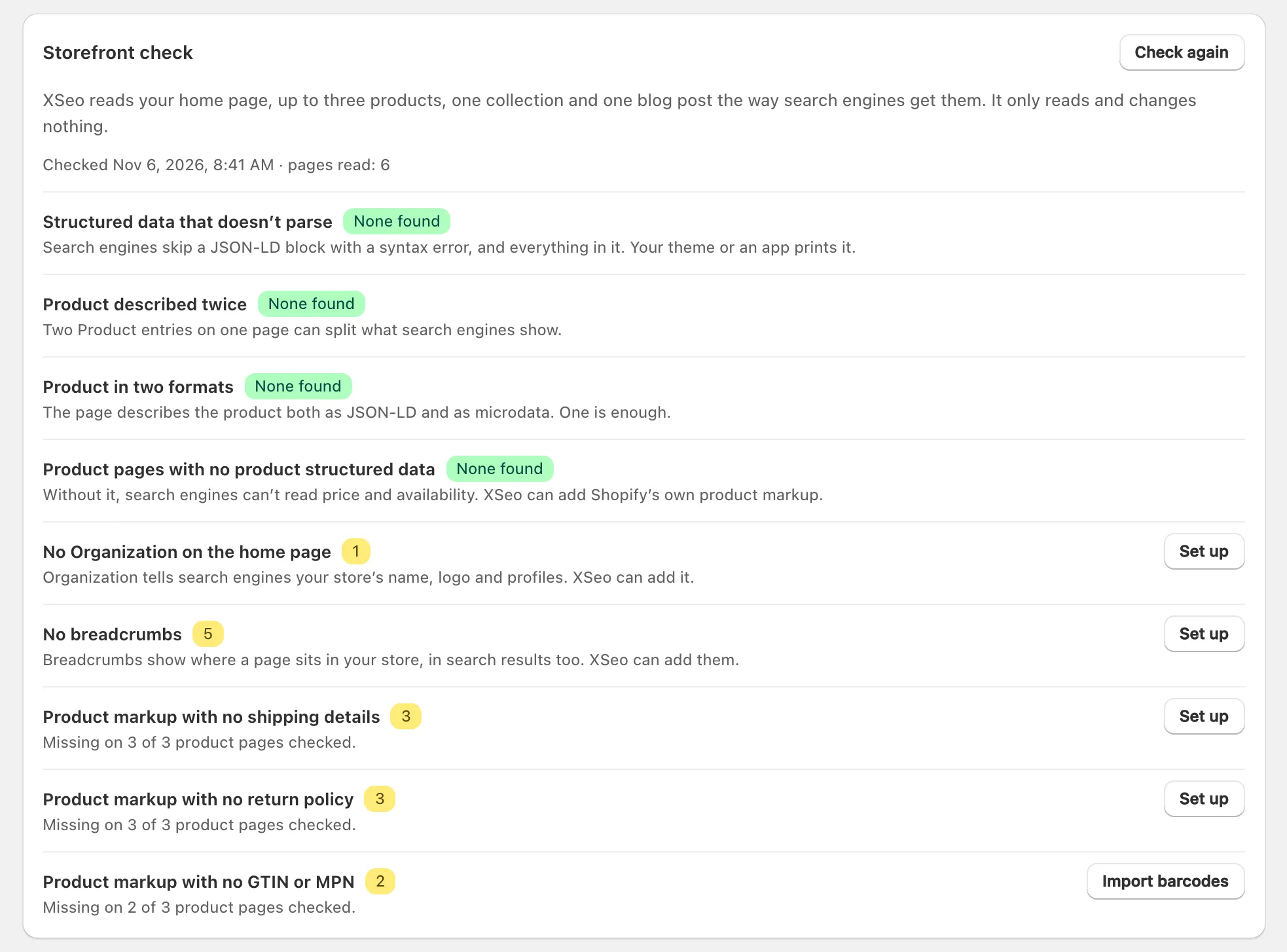
XSeo’s storefront check reads your home page, up to three products, one collection and one blog post the way search engines get them, then lists problems in their structured data and each one’s fix. It only reads, changes nothing and uses no AI items.
It runs weekly (daily while your store is password-protected or a check failed); Check again runs it now.
| Finding | Button |
|---|---|
| Structured data that doesn’t parse, Product in two formats | Open theme editor |
| Product described twice | Open app embeds |
| Product pages with no product structured data, No Organization on the home page, No breadcrumbs | Set up |
| Product markup with no GTIN or MPN | Import barcodes |
| Product markup with no brand | Review products |
| Product markup missing shipping details, a return policy or ratings | Set up, or Open theme editor if XSeo can’t add to it |
| Product markup missing an image, description, price or availability | Open theme editor |
To test a page in Google’s own tool: how to check what Google reads.
How do I add my shop’s address and opening hours?
To add your shop’s address and opening hours to your Shopify home page’s structured data, tick Customers can visit my shop: add its location to the home page on XSeo’s Storefront page, fill in the details and save. It’s off by default; leave it off for an online-only store.
- Under Your shop’s location, tick that box.
- Pick the Kind of business; “Shop” fits any other kind of shop.
- Click Fill from my store address and check what it copies from Shopify, or type the address.
- Add the Phone number, with your country code, and if you like Opening hours and Map coordinates.
- Click Save.

XSeo adds it as a LocalBusiness linked to your organisation, unless your theme or another app prints one. Google requires a local business’s address and name (Google: local business, checked 6 November 2026).
What happens when I turn it off or uninstall?
When you switch the XSeo structured data embed off in your Shopify theme editor, or uninstall XSeo, its structured data and 404 recording stop, and the embed leaves nothing in your theme: it never edits your theme’s files.
- Turn it off: in the theme editor’s App embeds, switch off XSeo structured data and click Save.
- Another theme: apps aren’t active in a newly published theme by default: turn the embed on there (Shopify: apps in your theme).
- Uninstall: Shopify removes the embed, and XSeo deletes its storefront settings.
XSeo writes to your theme only if you apply AI crawler rules, which stay after an uninstall: how to remove XSeo’s crawler rules.
