Manage Shopify Redirects with XSeo
How do I add a redirect in XSeo?
To add a redirect in XSeo, open Links → Redirects, click Add redirect, and enter the old address in Redirect from and the new page in Redirect to. XSeo’s Links page manages every URL redirect in your Shopify store, including those you made in Shopify, and Activity undoes XSeo’s changes while a redirect is still as XSeo left it.
XSeo is a Shopify app for SEO and images; its other Links tabs cover 404 pages and broken links.
- In XSeo, open Links → Redirects and click Add redirect.
- In Redirect from, enter the old address, starting with
/, such as/products/old-name. - In Redirect to, enter an address on your store, such as
/collections/sale, or a full URL. - Click Save redirect. A message says Redirect created.
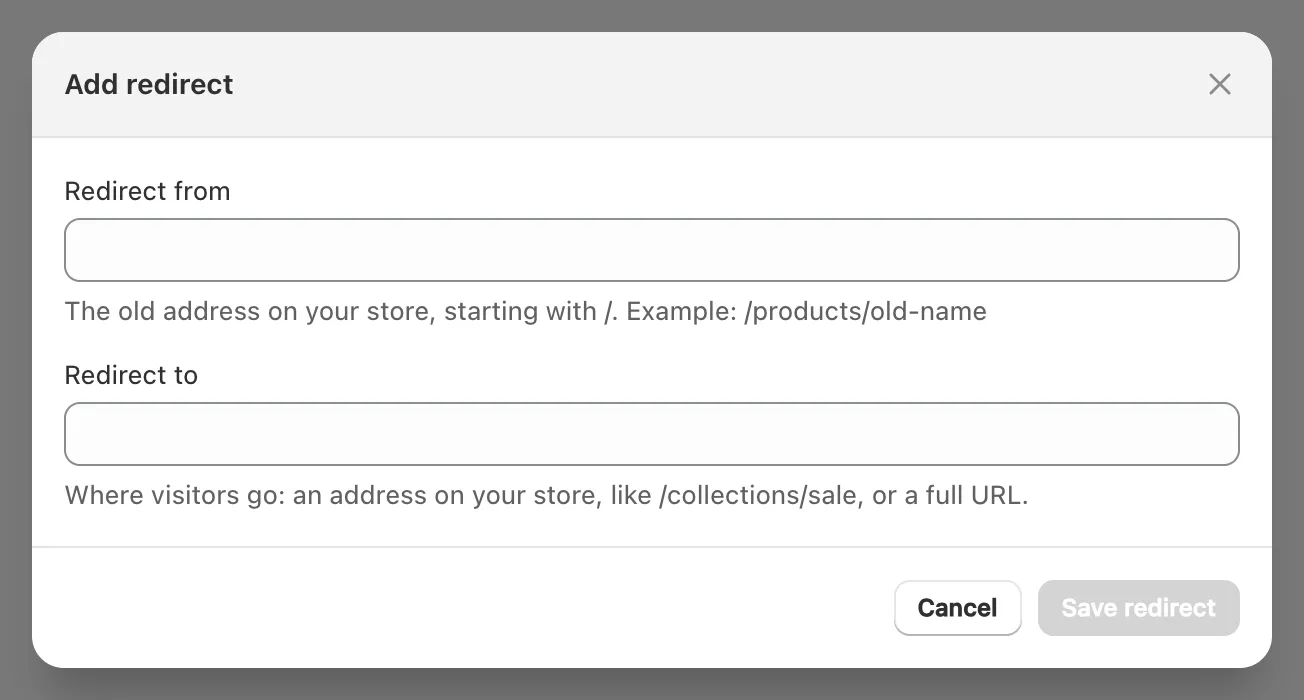
All redirects lists every redirect, newest first, with Search redirects, Edit and Delete; deleting asks first.
Important: A redirect works only while nothing else answers at its old address, so delete, rename or unpublish the old page first: why a Shopify redirect doesn’t fire.
How do I import redirects from a CSV file?
To import redirects with XSeo, choose a CSV file in Import and export on Links → Redirects: XSeo checks every row against your redirects and pages and shows What this import does. Nothing changes until you import, through Shopify’s own redirect import.
- Make a CSV file with the columns Redirect from and Redirect to, Shopify’s format, up to 2 MB and 10,000 rows.
- Click Choose a CSV file, or drop the file on the card.
- Read What this import does and Rows XSeo skips, each with its line and why.
- Click the import button, such as Import 3 redirects. The card then says what Shopify created, updated or failed.
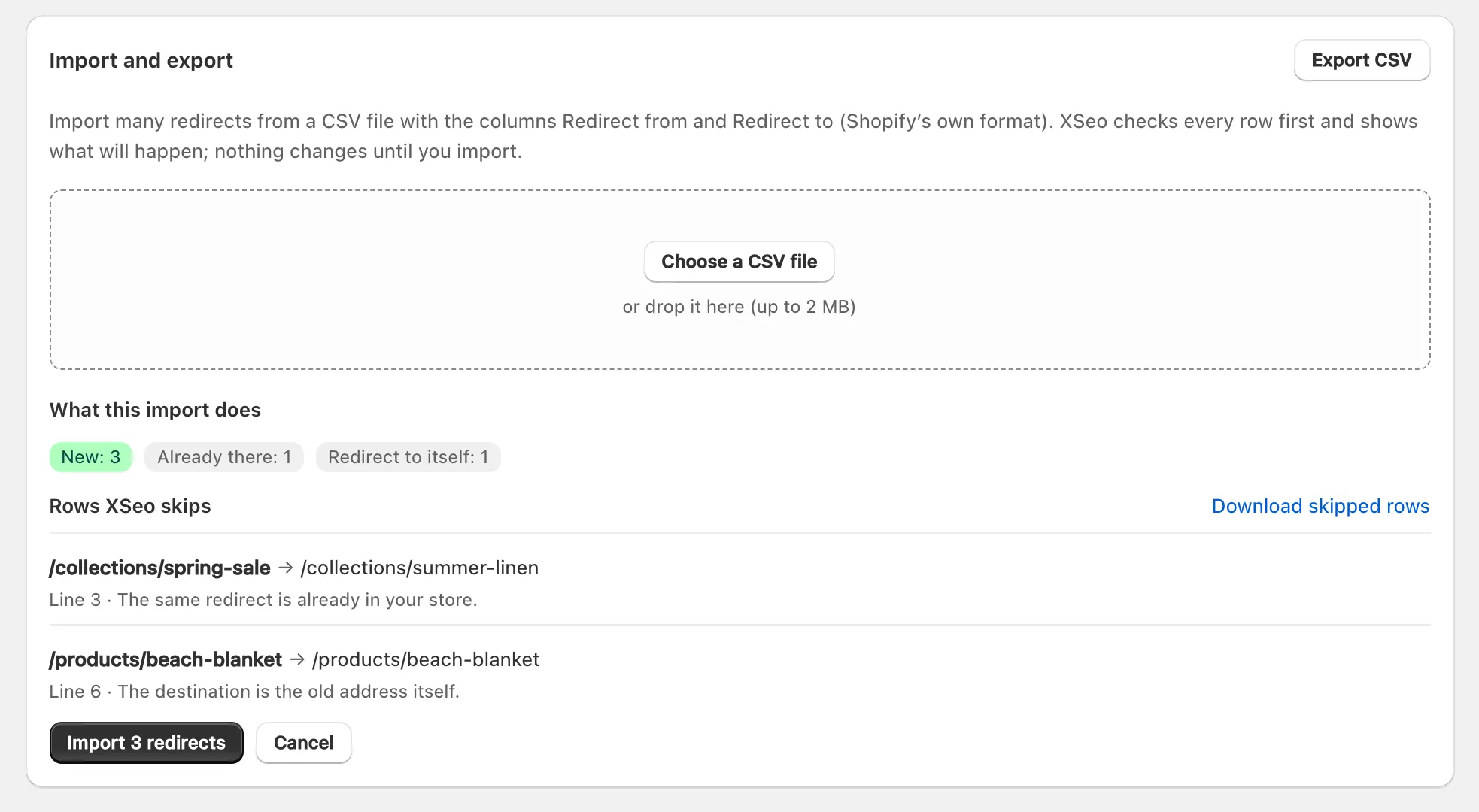
XSeo imports New, Replace an existing redirect and Two hops rows, the last working but leading to another redirect. It skips Already there, Repeated rows, Conflicting rows, Redirect to itself, Loops, Invalid old address, Invalid destination and Live pages, where a live page answers, so the redirect would never be used.
Export CSV downloads every redirect. A store holds up to 100,000 URL redirects, or 20,000,000 on Shopify Plus (Shopify’s help: URL redirects, checked 6 November 2026).
Which redirects need checking?
XSeo lists redirect chains, redirect loops and redirects that end on a missing page under Redirects to check, at the top of Links → Redirects, whenever it finds one.
- Redirect chains lead to another redirect. Point straight to the last page points the first one at the chain’s final page in one click, and Activity can undo it.
- Redirect loops lead back to where they started, so the page never loads.
- Redirects to missing pages end at a page that no longer exists, so visitors still see a 404.
For the others, Show in list finds the redirect in All redirects to edit. The card shows up to 8 of each kind, from up to 10,000 redirects.
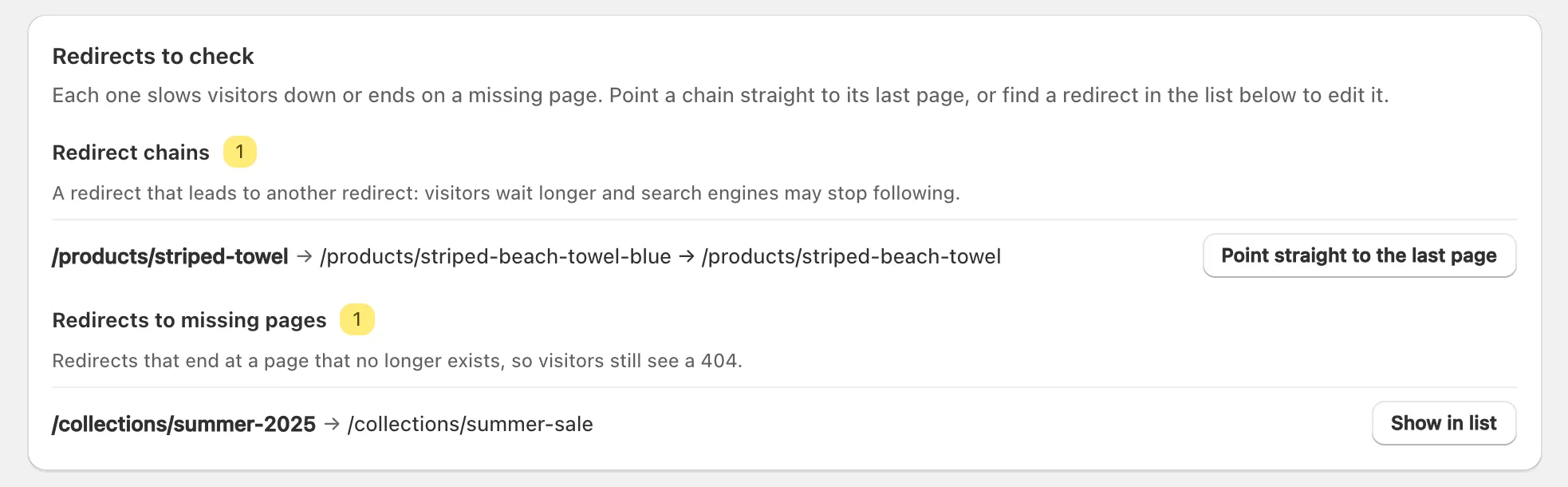
Google advises pointing a redirect straight at its final page, with ideally no more than 3 in a chain (Google Search Central: site moves with URL changes, checked 6 November 2026).
What happens when I delete a product?
When you delete a product or collection, XSeo suggests a redirect for its old address under Deleted products and collections on Links → Missing pages, and creates nothing until you click Create redirect, unless you turn on automatic redirects.
XSeo suggests the collection a deleted product was in, else the most similar collection, else your home page, for products and collections it has known since you first opened it. Each row has Create redirect and Dismiss.
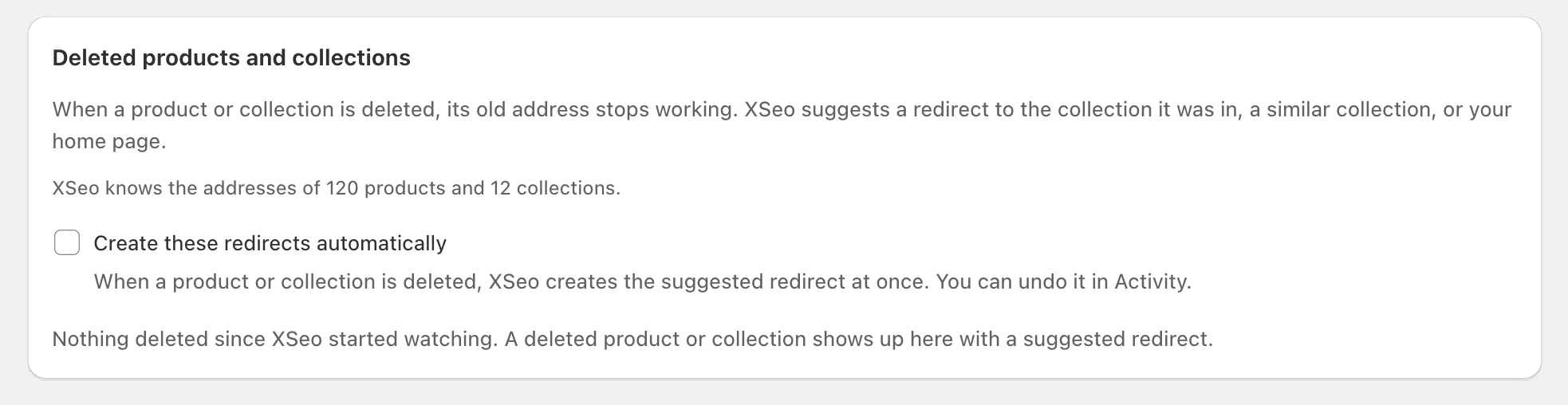
Create these redirects automatically, off by default, creates the suggestion at once; it’s also Settings → Autopilot → Redirects for deleted products, and Activity can undo each one.
Tip: With nothing close, automatic redirects go to your home page, which Google warns can count as a soft 404 when many pages do it: where a deleted Shopify product should redirect.
How do I clean up URL handles?
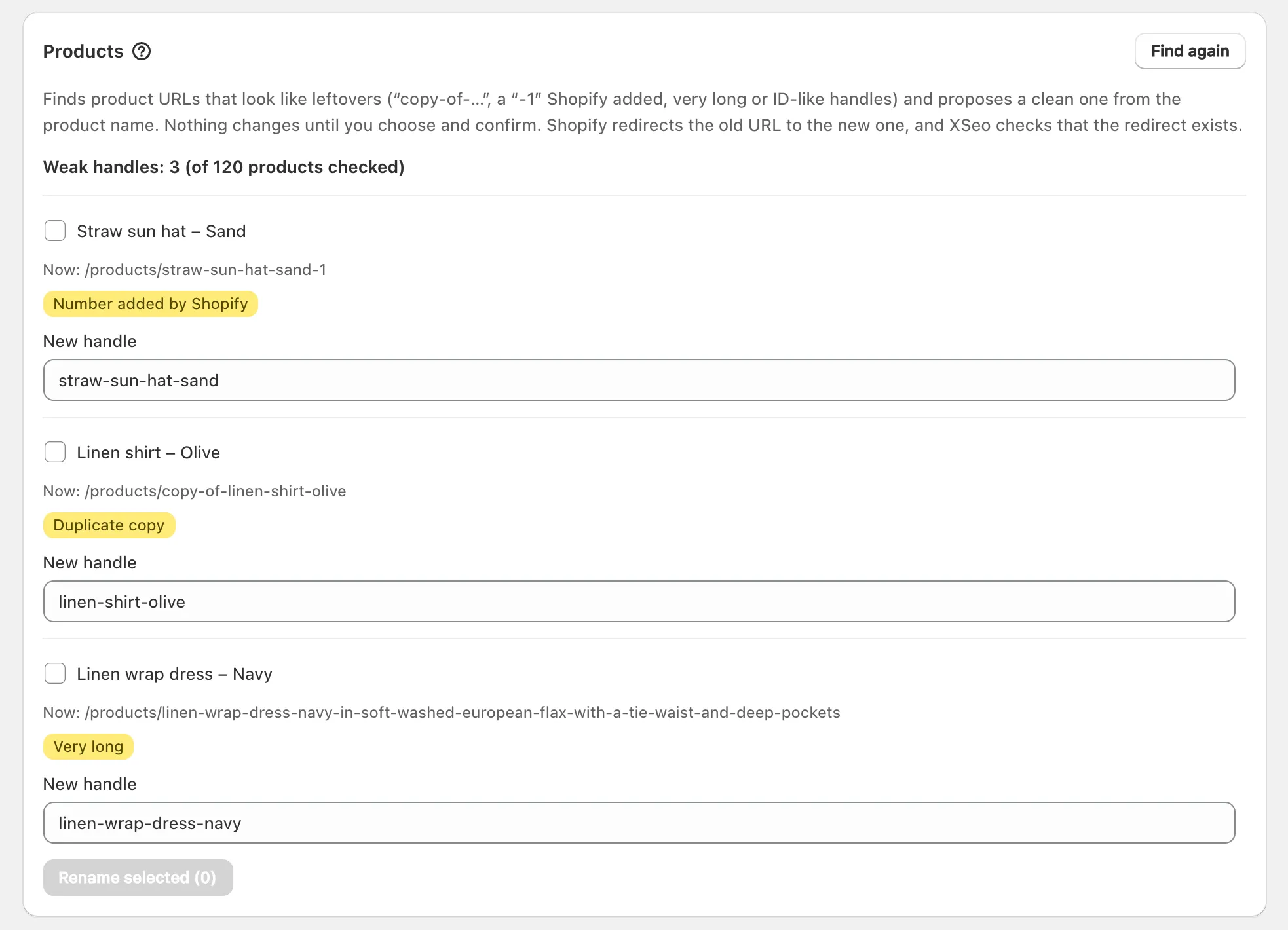
To clean up URL handles with XSeo, open Links → URL handles and click Find weak handles: XSeo lists product or collection handles that look like leftovers and proposes a clean one from each name. Rename the ones you tick; Shopify redirects each old URL, and XSeo checks the redirect.
| Badge | What XSeo flags |
|---|---|
| Duplicate copy | Starts copy-of- or ends -copy, as Shopify’s Duplicate leaves it |
| Number added by Shopify | Ends in a number, such as -1, the name doesn’t have |
| Very long | Over 70 characters |
| Looks like an ID | No letters, or a long run of digits the name doesn’t have |
| Special characters | Non-ASCII letters, in a store whose language uses Latin script |
- Click Find weak handles. XSeo reads every handle, drafts included.
- Check each New handle, the name as a handle of up to 60 characters, and edit it if you like.
- Tick the rows, click Rename selected, then Rename.
- Each row says Renamed to its new address, and whether XSeo found Shopify’s redirect from the old one or created it.
A new handle changes the page’s address, so rename only what needs it. Google recommends readable words separated by hyphens (Google Search Central: URL structure, checked 6 November 2026). XSeo never renames by itself, and pages and blog posts aren’t covered.
How do I undo a redirect change?
To undo a redirect change, click Undo beside it in XSeo’s Activity, under Redirects: XSeo puts the redirect back as it was, while it’s still as XSeo left it. A CSV import is one run, Redirect import, with Undo this import.
- Activity lists XSeo’s last 100 redirect changes, grouped per import or per day.
- Undo this import deletes that import’s redirects one at a time, except any changed since; keep the page open.
- A redirect changed since reads Changed since, so it can’t be undone.
- A URL handle rename is undone on its row, or later on the item’s page in Listings under Changes made by XSeo, while the item still has XSeo’s handle; XSeo then deletes the redirect from the old address.
Undoing costs nothing: undo changes in XSeo with Activity.
