404 Pages and Broken Links in XSeo
How does XSeo record 404 pages?
XSeo records the 404 pages visitors open on your Shopify store through its app embed, and lists them on Links → Missing pages with a suggested redirect for each. On Broken links, it also finds links in your products, collections, pages and blog posts that lead to a page that no longer exists. Nothing changes until you apply a fix.
XSeo is a Shopify app for SEO and images. Its 404 recording comes from the same theme app embed as its structured data, XSeo structured data, which stays off until you switch it on in your theme editor. On a page that isn’t found, and nowhere else, the embed sends XSeo the address, without anything after a ?, and the site the visitor came from. XSeo keeps the visit count, the first and last visit and up to five of those sites, and nothing about the visitor.
- In XSeo, open Links. Missing pages is the first tab.
- If the card says the app embed is off in your theme, click Turn on in theme editor, then Save in the theme editor.
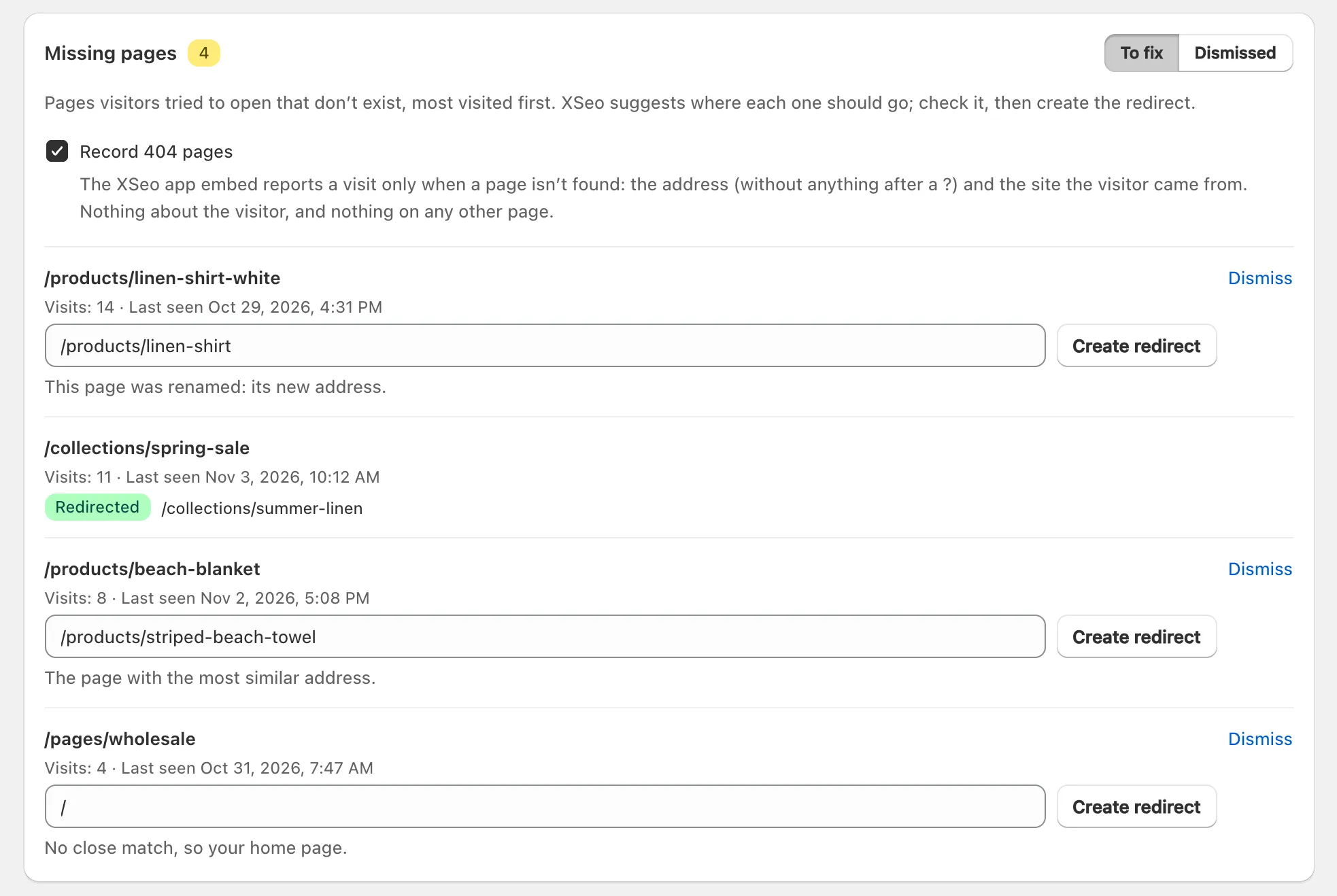
- Keep Record 404 pages ticked, as it is by default. Addresses appear as visitors open them, most visited first, each with its visits, when it was last seen and the sites visitors came from.
XSeo keeps up to 2,000 addresses per store and deletes one that nobody has opened for 90 days; the tab shows the 100 most visited. Nothing is recorded while your store is password-protected: recording starts once it’s open to visitors.
Note: Visit counts are the visits XSeo recorded since it first saw each address. Home’s row and its Create redirects dialog label them “Visits in the last 30 days”.
How do I redirect a missing page?
To redirect a missing page in XSeo, check the suggested address in its Redirect to field on Links → Missing pages, change it if you like, and click Create redirect. The row then reads Redirected, and Activity can undo the redirect.
Each suggestion says why XSeo chose it, tried in this order:
| XSeo’s reason | Where the redirect goes |
|---|---|
| “This page was renamed: its new address.” | The product’s or collection’s new address |
| “This product or collection was deleted: the page XSeo suggested for it.” | The page suggested under Deleted products and collections |
| “The page with the most similar address.” | An existing page whose address is close to the missing one |
| “No close match, so your home page.” | Your home page |
Google warns that sending many old addresses to an unrelated page, such as the home page, can be treated as a soft 404 (Google Search Central: site moves with URL changes, checked 6 November 2026). Replace a home page suggestion with a related page, or click Dismiss; Show again, under Dismissed, brings an address back. For a page gone for good, a 404 is fine: where a deleted Shopify product should redirect.
On Home, the to-do row Missing pages people still visit opens Create redirects: the same suggestions for every open address, each in a field you can change, or clear to leave that page out, created together and removed together with Undo.
How do I fix broken links?
To fix broken links with XSeo, open Links → Broken links and click Check links: XSeo reads your products, collections, pages and blog posts without changing anything, and lists each link that leads to a page that no longer exists, with a suggested new link where it has one. Click Fix link on one, or Fix all with a suggestion for every link that has one.
A link counts as broken when it points to a product, collection, page, blog or blog post on your store that isn’t live, and no redirect exists from that exact address. Links to other websites, /collections/all, vendor, type and tag pages and Shopify’s system addresses aren’t judged.
- Click Check links, or Check again for a new check. The card says when it checked and how many broken links it found.
- Read each row: the broken link, where it is, such as In blog post: and its title, and the suggestion’s reason.
- Check the new link in its field, and change it if you like.
- Click Fix link, which applies that row at once, or Fix all with a suggestion, which asks first with how many texts change; confirm with Fix links. The rows say Being fixed, then the card says how many items changed.
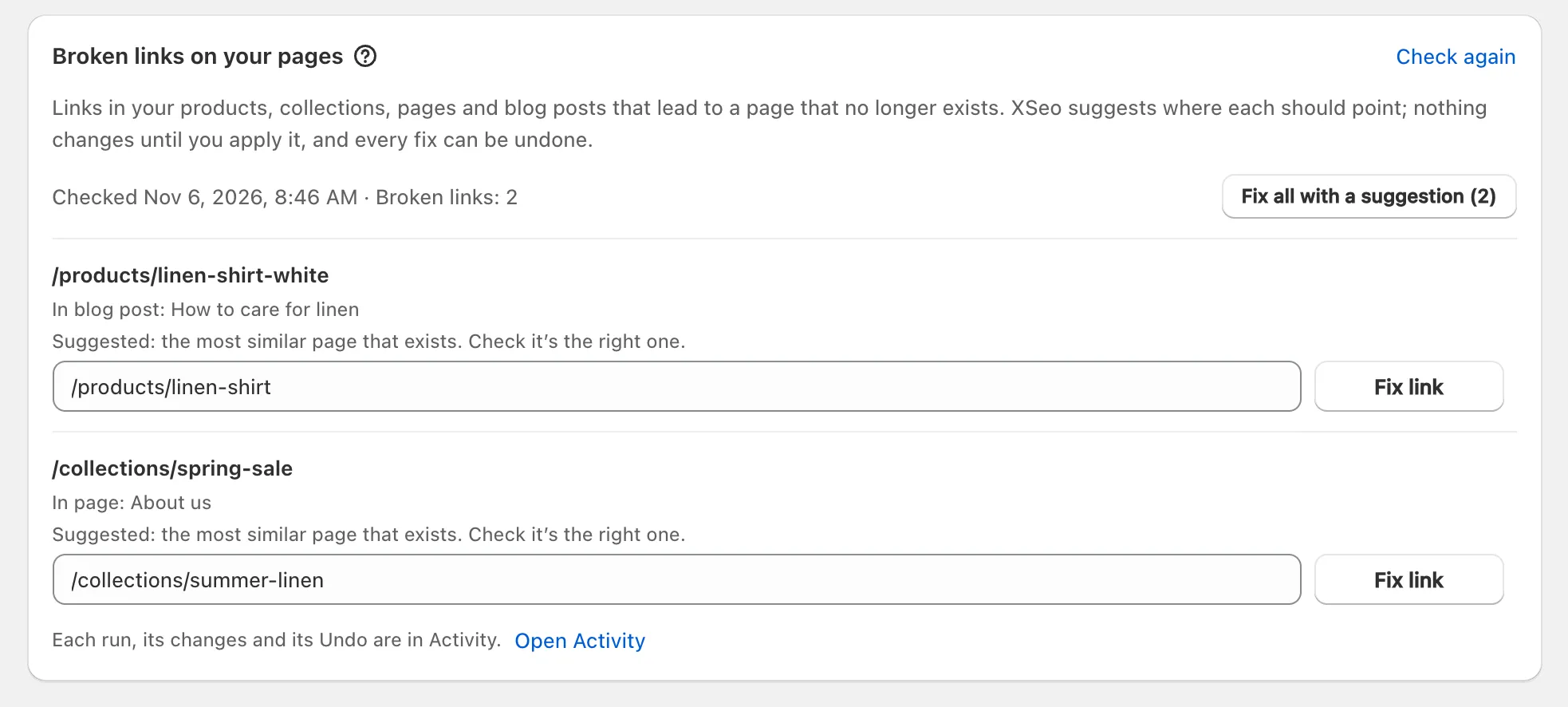
XSeo suggests, in this order: where your redirect for that address goes, the item’s new address after a rename, the page proposed for a deleted item other than the home page, then the most similar page that exists, which you should check. Without a suggestion, enter where the link should go, or edit it in Shopify.
A fix changes only that link, in each text as it is now, and XSeo never fixes a link by itself. The check reads up to 4,000 each of pages, blog posts and collections and 10,000 products, and on a bigger store says how many links it couldn’t check. Opening Home starts a new check when the last is over an hour old.
When does XSeo add a redirect instead of editing a link?
XSeo adds a redirect instead of editing your link when its 404 recording saw visitors reach that missing address from other sites: a redirect from the address fixes your link and theirs. The row says “Visited from other sites”, names them, and offers Create redirect in place of Fix link.
Fix all with a suggestion counts these separately before you confirm, as redirects added instead of edits. Such a redirect stays when you undo the link fix run; undo it on its own in Activity, under Redirects.
How do I undo a link fix?
To undo a link fix, open XSeo’s Activity, find the Link fixes run and click Undo: XSeo puts back each text as it was before the fix, unless it was edited since. Show changes lists each text, with an Undo of its own.
In XSeo’s words: “Redirects added for broken links stay; remove them in Activity.” Each redirect has its own Undo under Redirects, as described in how to undo a redirect change. Undoing costs nothing.
