Add Avis Review Widgets to Your Theme
Which review widgets does Avis have?
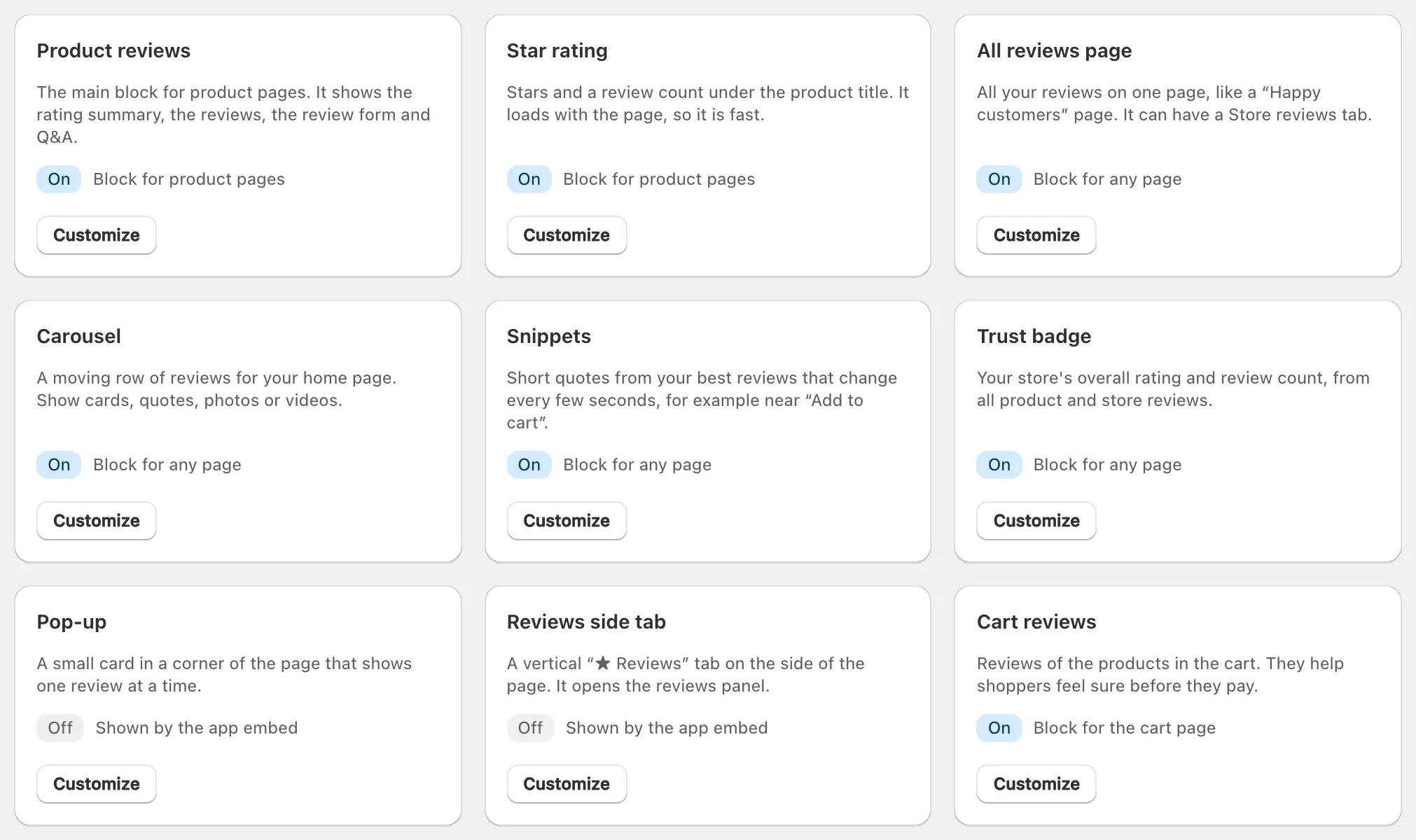
Avis Product Reviews adds its widgets as theme app blocks: Avis Reviews on the product page, plus star ratings, an all-reviews page, a carousel, snippets, a trust badge, and cart and collection reviews. Click Add to theme on a widget’s page in Avis, then save the theme. The pop-up, side tab and floating badge come from the Avis app embed.
| Block in the theme editor | Where | What it shows |
|---|---|---|
| Avis Reviews | Product pages | The rating summary, customer photos, the reviews, the review form, and questions and answers if you turn them on |
| Avis Star Rating | Product pages | Stars and a review count, with no JavaScript |
| Avis All Reviews | Any page | All your reviews on one page, with your store’s rating |
| Avis Review Carousel | Any page | A row of reviews: cards, quotes, photos or videos |
| Avis Review Snippets | Any page | Short quotes that change every few seconds |
| Avis Trust Badge | Any page | Your store’s rating and review count |
| Avis Cart Reviews | Cart page | Reviews of the products in the cart, featured and photo reviews first |
| Avis Collection Reviews | Collection pages | Reviews of the first 12 products on the page, up to two each |
| Avis Review Stories | Product pages | Swipeable stories made by AI from a product’s reviews, labelled as AI |
Every widget in this table works on the Free plan except AI review stories, which is Pro. AI parts inside widgets, such as the AI summary and topic filters, and the carousel’s Move slides automatically need Growth (compare Avis plans).
Product reviews options
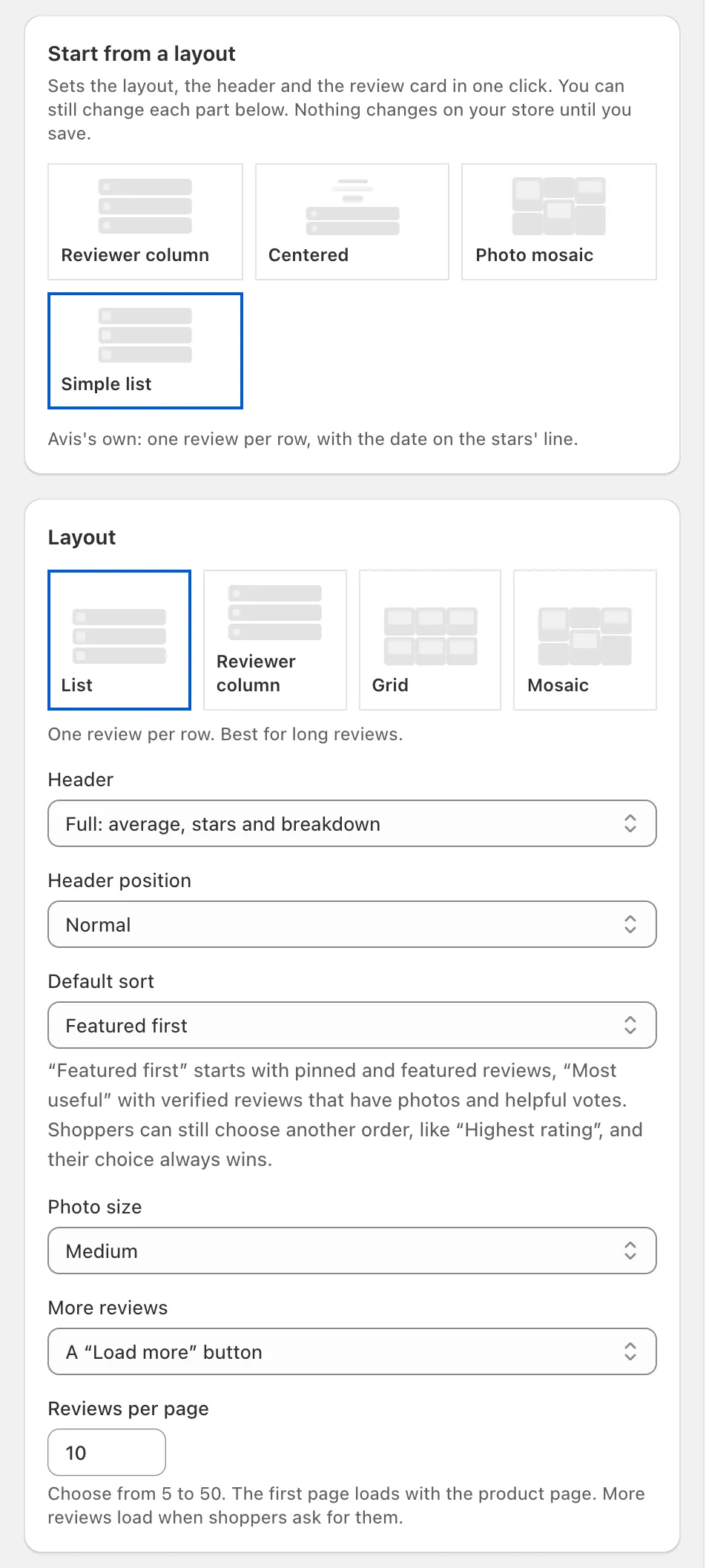
The Product reviews page in Widgets offers Start from a layout (such as Reviewer column or Photo mosaic), a Layout of List, Reviewer column, Grid or Mosaic, a Default sort that shoppers can change, and Reviews per page from 5 to 50. Show Q&A, off by default, adds a questions and answers tab.
How do I add a widget to my theme?
To add an Avis widget to your theme, open it in Widgets, click Add to theme, then click Save in the theme editor that opens.
- In Widgets, click Customize on the widget and check that Show on your storefront is on.
- Click Add to theme. The theme editor opens in a new tab with the block already added.
- Drag the block where you want it and click Save. Back in Avis, the widget reads Live.
Add to theme opens product-page blocks on your default product template, and Avis All Reviews, Avis Review Carousel and Avis Trust Badge on your home page. For another page, open it in the theme editor, click Add block or Add section and choose the block under Apps.
Blocks need an Online Store 2.0 theme. If a widget doesn’t appear, see reviews not showing.
Which widgets need the Avis app embed?
Three Avis widgets need the Avis app embed and no block: the Pop-up, the Reviews side tab and the Trust badge in its Floating, on the pages you choose layout. Every other widget is a block and works without the embed.
| Widget | What it shows | When you install |
|---|---|---|
| Pop-up | A small card in a corner of the page, one review at a time | Off |
| Reviews side tab | A tab on the side of the page that opens a reviews panel | Off, and hidden on phones |
| Trust badge, floating | Your store’s rating in a corner of the page | Shows once you choose that layout |
Show on picks their pages. The embed doesn’t run in the theme editor, so check these on your live store; to switch it on, see why Avis needs its app embed.
How do I make reviews match my theme?
Avis widgets take your theme’s look by default on a new install: Widgets → Design → Look → Match your theme reads your theme’s text colour, font, buttons and corners on the page, with no AI involved. As the app says, “The preview shows a plain theme, so check your store too.”
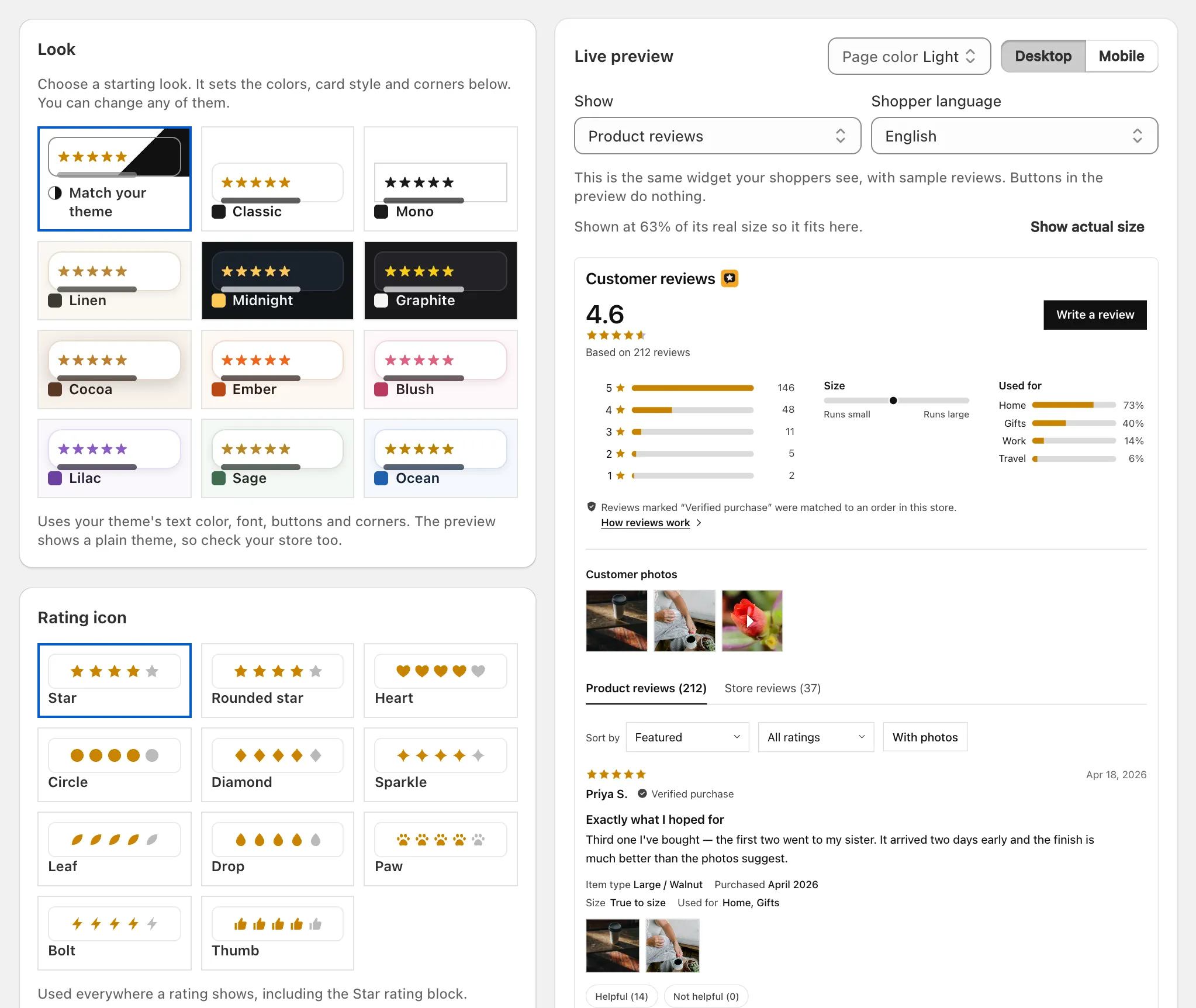
The other looks, such as Classic, Mono or Ocean, set colours, card style and corners that you can change one by one. Design also has a Rating icon (11 shapes, such as Star or Heart), Font and text size, Cards and corners and Review card (name format and dates). Custom CSS (Growth) is added after Avis’s own styles, and all widget class names start with avis-; never use it to hide labels such as Incentivized review or Added by store.
Ratings carry a text version for screen readers, and reduced-motion settings stop autoplay and animation.
Wording and languages
The Copy tab changes any text the widgets show. Show built-in translations to shoppers, on by default, gives shoppers Avis’s storefront text in their language, from 39 languages (all but English machine-translated) on every plan. Writing your own text in a language other than English needs Pro.
Can I show star ratings elsewhere on my store?
Yes. Avis Product Reviews saves each product’s average rating and review count in Shopify’s standard rating fields, reviews.rating and reviews.rating_count, which Shopify asks themes that display product ratings to read (standard metafield definitions). The rating counts only published reviews; reviews you added yourself and staff reviews never count.
- Under the product title: the Avis Star Rating block.
- On collection pages: your theme’s own rating display, if it has one, reads these fields; otherwise use Avis Collection Reviews.
- Store-wide: the Avis Trust Badge shows your store’s overall rating.
- In a sticky add-to-cart bar: UpBar, which we build, shows these star ratings in UpBar’s sticky add-to-cart bar.
- In Google: the app embed adds review structured data to product pages, and Google decides whether stars show (review stars in Google).
Can I remove the small Avis icon?
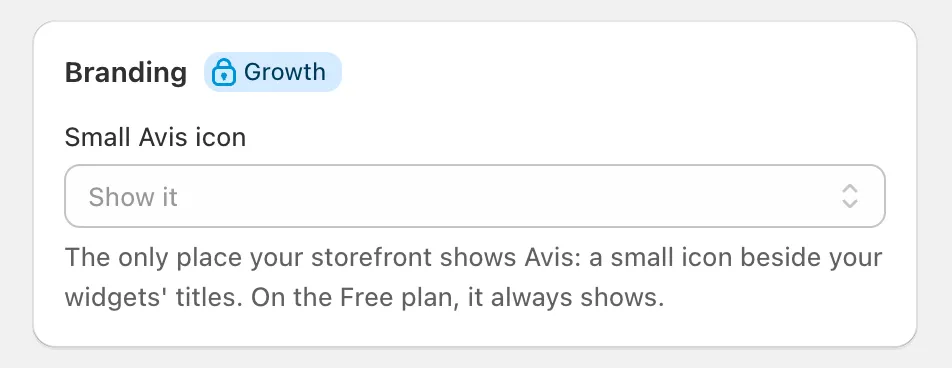
Yes, on the Growth and Pro plans: open Widgets → Design → Branding and set Small Avis icon to Hide it. On the Free plan, it always shows: a small icon beside your widgets’ titles, linking to Avis on the Shopify App Store and named “Reviews by Avis” for screen readers.