Issue Documents Automatically with Rules in Ori
How do automation rules work?
Ori’s automation rules issue a document when something happens to a Shopify order. In each rule, When sets the event, If (all must match) the conditions, Then the document type, action and template, and Send what happens to the PDF. As the app says: “Checked from the top; the first rule that matches is the one that applies.”
Rules issue documents on every plan; emailing them needs Standard or Pro (plans and pricing).
To add a rule:
- In Ori, open Sending and choose the Automation tab.
- Choose Add a rule and type a Rule name.
- Under When, tick one or more events.
- Under If (all must match), choose Add a condition for each test, or add none to match every order.
- Under Then, choose the Document type, Action, Template and Send, then save.
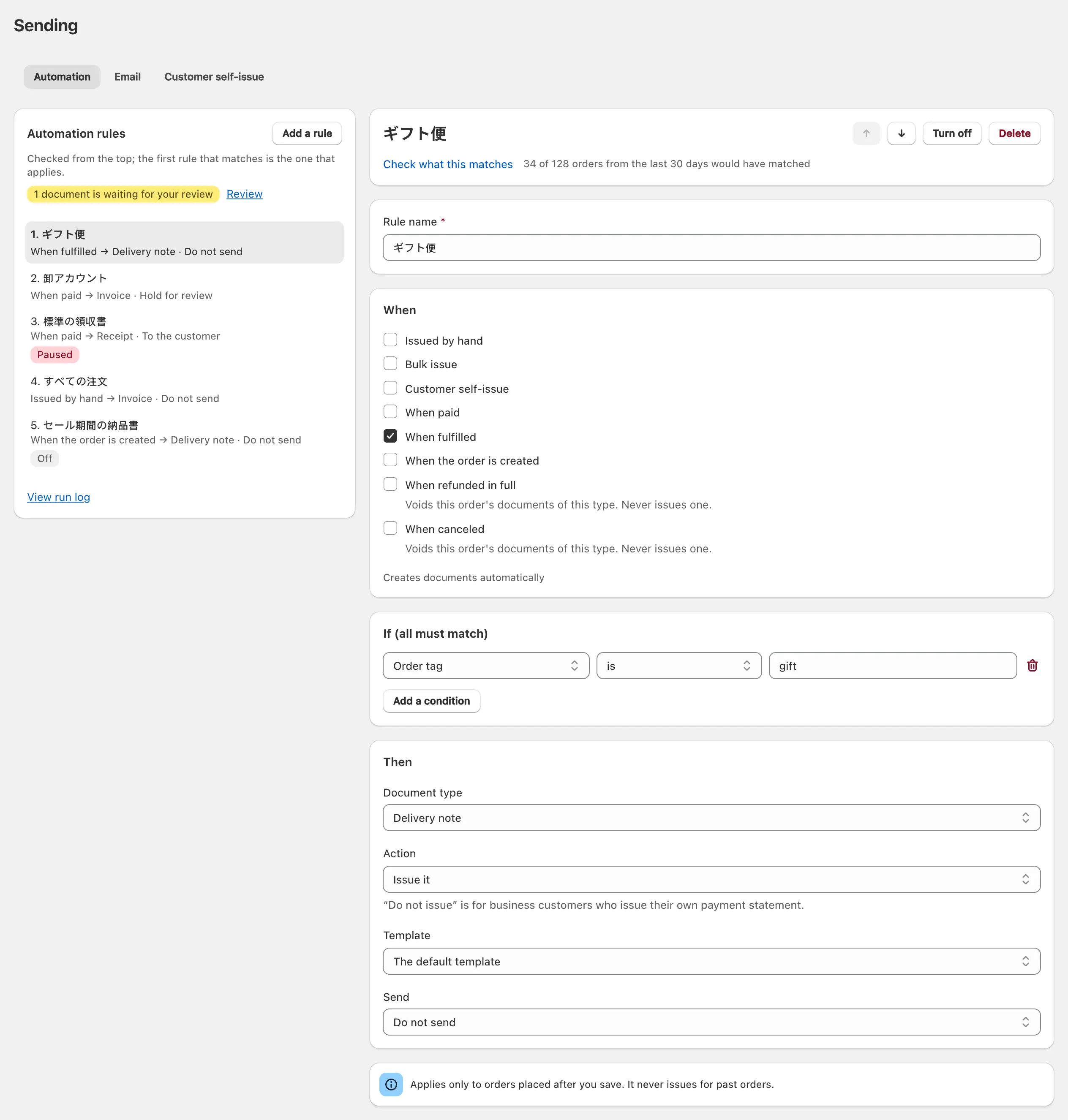
Move up and Move down set the order rules are checked in; Turn off stops one. Rules never give an order a second document of a type it already has.
Which events can start a rule?
An Ori rule starts on a Shopify order event, or chooses the template when a document is issued another way:
| When | What the rule does |
|---|---|
| When the order is created | Issues as soon as the order is placed, paid or not |
| When paid | Issues when the order is paid: the usual choice for receipts |
| When fulfilled | Issues once the whole order is fulfilled, not at a partial shipment |
| When refunded in full | “Voids this order’s documents of this type. Never issues one.” |
| When canceled | Voids the order’s documents of the rule’s type, as above |
| Issued by hand, Bulk issue, Customer self-issue | “Chooses a template only — creates nothing” |
Rules skip test orders, and a partial refund voids nothing (what happens on a refund).
The last three choose the template, or block the document, when you issue by hand, use Bulk issue, or a customer issues their own receipt.
Which conditions can a rule test?
A rule’s conditions test the order and its customer, and all of them must match.
| Condition | Tests |
|---|---|
| Customer | One customer |
| Customer tag | A tag on the customer |
| Order tag | A tag on the order |
| Sales channel | The channel the order came from |
| Customer language | The language the customer shopped in |
| Payment method | How the order was paid |
| Order total | The order’s total, in your store’s currency |
| Gift order | An order tagged “gift”, 「ギフト」 or 「のし」, or with a cart attribute whose name includes one of them |
| Order date | The date the order was placed, in Japan time |
Depending on the field, a condition compares with is, is not, contains, is at least, is at most, is before or is after. For anything else, tag the order in Shopify and test Order tag.
What can a rule do?
An Ori rule issues a document, blocks it or voids it, and then sends it, holds it or does neither. The Action choices:
- Issue it uses the chosen Template, or The default template.
- Do not issue keeps the rule’s events from issuing that document type: ““Do not issue” is for business customers who issue their own payment statement.” On Issued by hand, Ori’s issue dialog leaves the type unticked, though you can still tick it.
- Void it is the only action for When refunded in full and When canceled.
The Send choices:
- Do not send issues the document and stops there.
- To the customer emails the PDF to the address on the order, on Standard and Pro (email documents to customers).
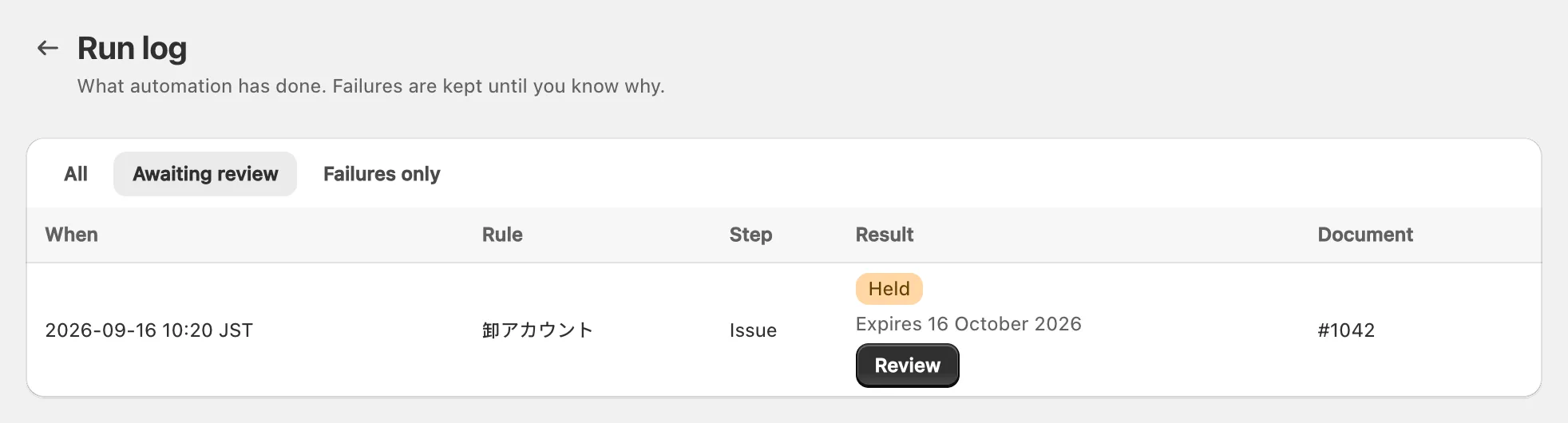
- Hold for review: “Nothing is issued or sent until you approve it in the run log. Unreviewed items expire after 30 days.”
To review held documents, open the Run log and filter by Awaiting review. Review shows the document; choose Issue and send (Issue when nothing will be emailed) or Dismiss. A held run takes no number until approved.
Do rules work for past orders?
No. Ori’s rules apply only to orders placed after the rule is saved: “Applies only to orders placed after you save. It never issues for past orders.” Issue documents for older orders by hand (issue documents from your orders).
Before relying on a rule, choose Check what this matches on its card: Ori shows how many orders from the last 30 days it would have matched, and issues nothing.
Why did my rule stop?
An Ori rule stops issuing when it pauses after two failures in a row, or when the Free plan reaches its monthly document limit. Check the Run log (View run log on the Automation tab): it lists every run, with the reason for any that issued nothing.
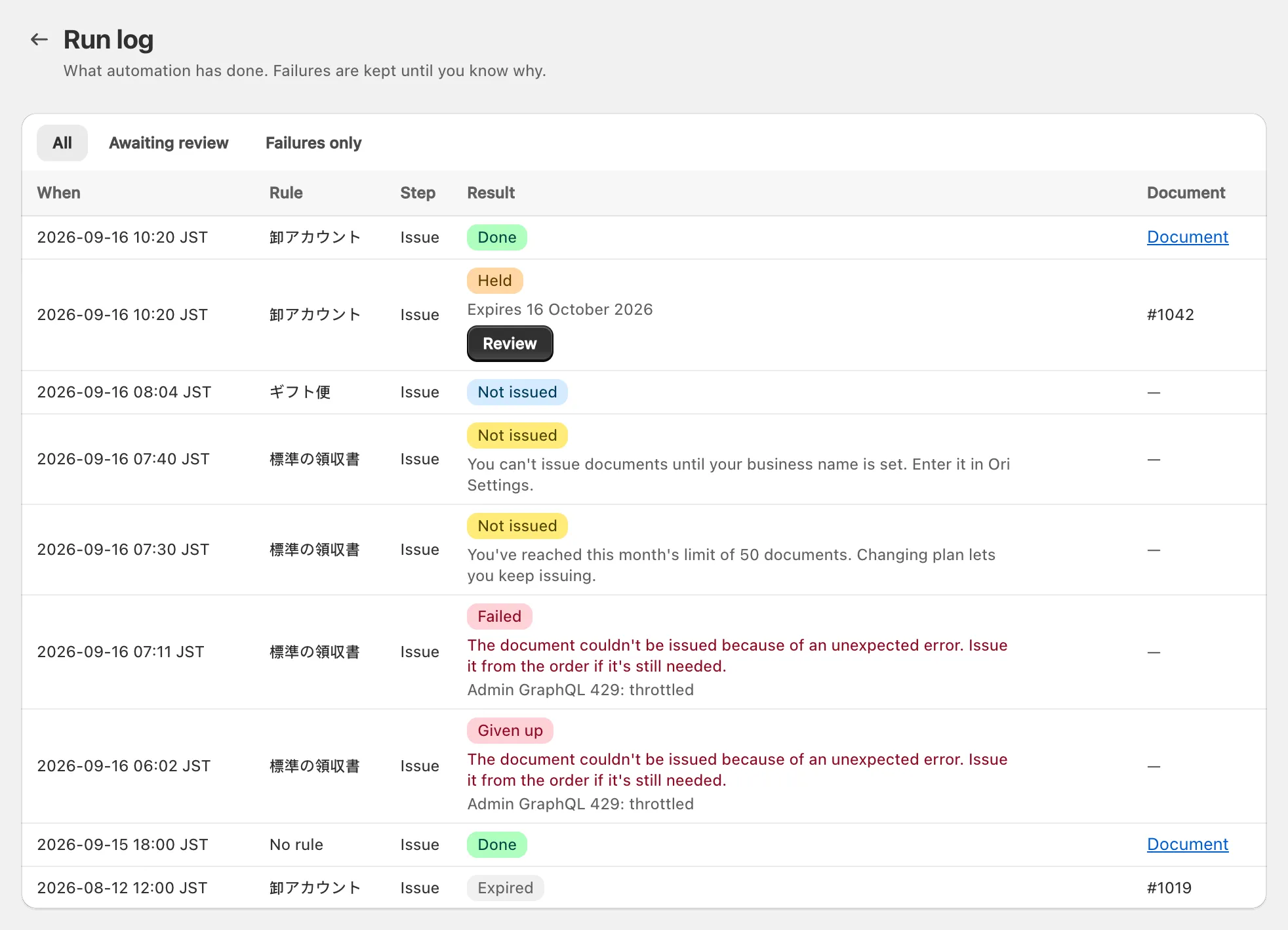
Paused after two consecutive failures. The rule’s card shows this, and the list marks it Paused. Filter the run log by Failures only, fix the cause, then choose Resume on the card. Issue any document a failed run missed from its order.
The monthly limit, on the Free plan. At 50 documents in a calendar month (Japan time), rules stop issuing, and only the run log says the rules stopped, with a Not issued run per order: “You’ve reached this month’s limit of 50 documents. Changing plan lets you keep issuing.” The rule isn’t paused and issues again from the 1st of the next month; the orders it skipped get nothing unless you issue by hand (what counts toward the monthly document limit).
Other Not issued runs give their reason:
- “You can’t issue documents until your business name is set. Enter it in Ori Settings.”
- “An invoice needs a recipient name.” Issue it by hand and type a name.
- “This document has already been issued for this order.”
- “A rule is set not to issue this document for this order.”
- “This order was placed before the rule was saved, so the rule doesn’t apply to it.”
No run at all usually means the rule is off, its conditions didn’t match, or the order was a test order. Ori has no Shopify Flow trigger or action.
