Issue Invoices and Receipts from Orders in Ori
How do I issue a document from an order?
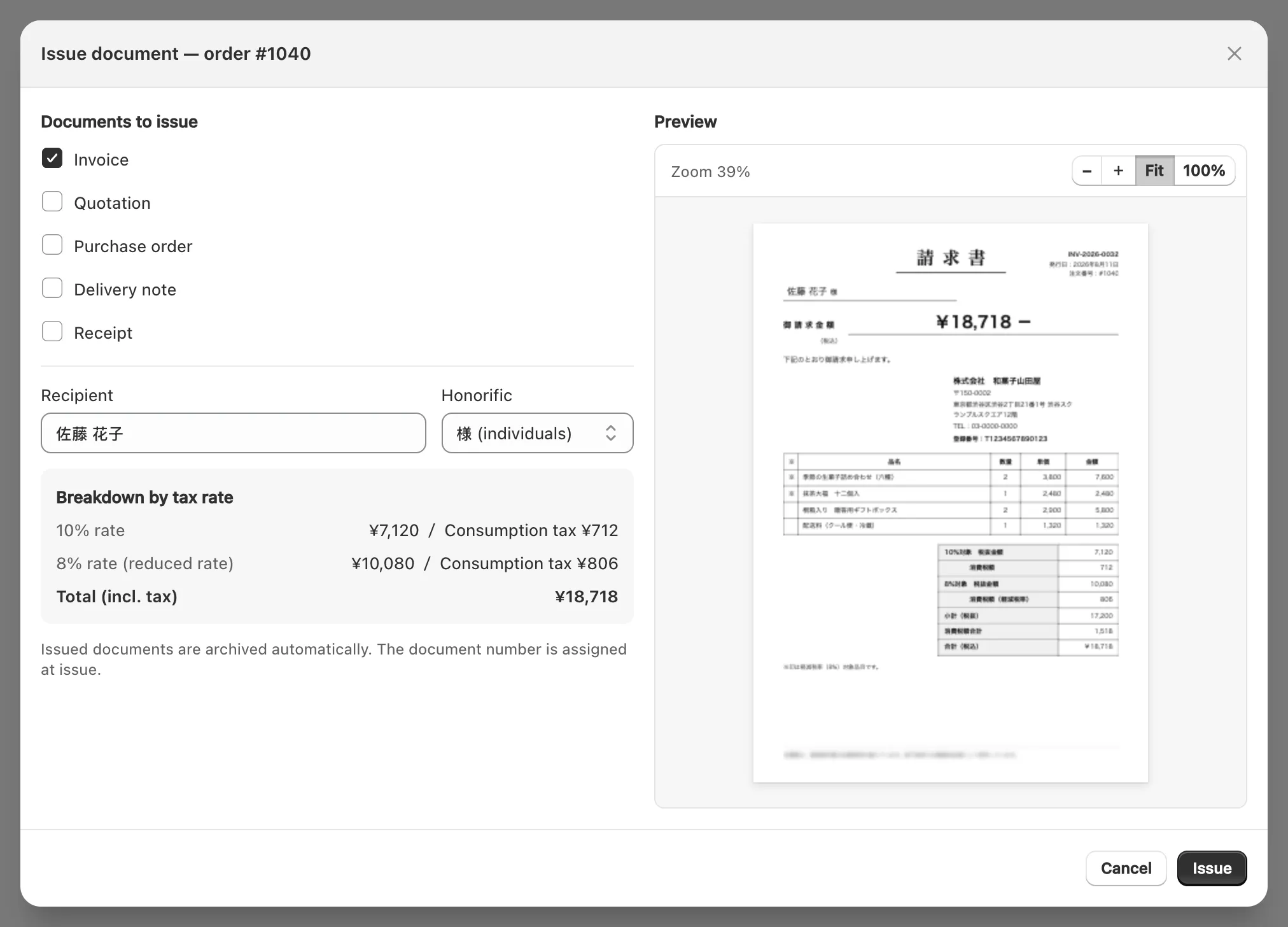
To issue a document in Ori, choose Issue documents on an order in Ori’s Orders list, or on Shopify’s order page choose More actions → Issue documents. Tick the document types, check the recipient name, honorific and line description, and click Issue. Ori numbers each document, makes its PDF and saves it to the archive.
From Ori’s Orders list
- In Ori, open Orders and find the order by tab, such as Not issued, or by its number or customer.
- Click Issue documents on the order’s row.
- Under Documents to issue, tick one or more types. Ori ticks Receipt on a paid order and Invoice on an unpaid one.
- Check Recipient and Honorific, and Subject and Line description where your design prints them. Preview shows the document as it will print.
- Click Issue. The dialog lists each new document’s number, with Print, Download PDF and Send email (Standard and Pro).
From Shopify’s order page
- In Shopify, open the order and click More actions → Issue documents.
- Tick the types under Documents to issue, and check Recipient name and the fields under it.
- Click Issue. Ori shows Issued and “Saved to the archive automatically.”
The order page’s Documents card then lists them with their status, such as Issued or Creating PDF.
Which documents can Ori issue?
Ori issues five document types: Invoice, Receipt, Delivery note, Quotation and Purchase order. Each type has its own unbroken number sequence, and a document is numbered when you issue it.
| Document | In Japanese | Default first number | Qualified-invoice items |
|---|---|---|---|
| Invoice | 請求書 | INV-2026-0001 | Printed, with your registration number set |
| Receipt | 領収書 | RCP-2026-0001 | Printed, with your registration number set |
| Delivery note | 納品書 | DLV-2026-0001 | Printed, with your registration number set |
| Quotation | 見積書 | EST-2026-0001 | Not printed |
| Purchase order | 発注書 | PO-2026-0001 | Not printed |
- The year in a number is the year of the document’s date. What a qualified invoice (適格請求書) carries, and when Ori prints it: Japan’s qualified invoice in Ori.
- Shopify’s own document for a shipment is the packing slip; Ori’s is the Delivery note.
- Ori does not issue credit notes: see reissue, void and refunds in Ori.
- A quotation or invoice with no order behind it starts from New document in Ori’s Orders.
What goes in the issue dialog?
Ori’s issue dialog asks which document types to issue and who each is made out to. Everything else comes from the order and your design.
| Field | What it does |
|---|---|
| Documents to issue | The types to issue, several at once. A type the order already has shows “Issued” with its number. If a type has more than one design, choose which to use |
| Recipient (Recipient name on Shopify’s order page) | The name the document is made out to (宛名), filled in from the order |
| Honorific | 様 (individuals), 御中 (companies) or None, printed after the name. Shown when the design prints one |
| Subject | “Printed as the document’s subject line.” Shown only when a ticked design prints one |
| Line description | The purpose line (但し書き), the “for …” line on a receipt. Shown when a ticked design prints one |
- “Left blank, a receipt is issued without a recipient name — as a simplified qualified invoice.” This note shows for a shop set as eligible to issue simplified qualified invoices (適格簡易請求書).
- On a refunded order, the dialog says “This order has refunds”, and the document shows the amounts after the refund.
Why won’t an invoice issue for a guest order?
Ori won’t issue an invoice without a recipient name, so a guest order with no customer name is refused: “Invoices require a recipient name.” on Shopify’s order page, “An invoice needs a recipient name” in Ori.
Type the customer’s or company’s name in the recipient field, or issue a Receipt, which may be left blank. The exception is an invoice design with Allow the recipient to be omitted switched on, available only to a shop eligible for simplified qualified invoices.
Can I issue the same document twice?
Yes. Ori lets you issue a second document of a type the order already has, after a warning, and it takes a new number.
- In Ori’s dialog, “This order already has documents” offers Issue anyway (new number).
- On Shopify’s order page, Already issued says “Issuing again creates a second document with a different number.” and offers Issue new.
Each one counts toward the Free plan’s 50 documents a month. To correct a document instead, void it and issue a new one with a new number; Ori doesn’t warn about a voided one (how to void a document). Reissue reprints a document unchanged.
How do I print or download the PDF?
To print or download an Ori document, open it from the Documents column in Ori’s Orders and click Print or Download PDF, or on Shopify’s order page choose Print → Print documents. One document prints as its archived PDF; several printed together are redrawn from what each froze at issue.
- Until Ori has made the PDF, the document shows “Creating the PDF” and the buttons wait. If it shows “Couldn’t create the PDF”, click Recreate PDF.
- Print opens your browser’s print dialog; Download PDF saves the file.
- On Standard and Pro, Ori’s Orders has Bulk print, Bulk PDF (a ZIP) and Send email for up to 100 documents at a time: email invoices and receipts to customers.
Can I issue documents for old orders?
Yes. Ori lists your store’s whole order history, not only the 60 days Shopify shows apps by default, so you can issue a document by hand for an order of any age.
- A document is dated with the order’s date, in Japan time, not the day you issue it.
- Automation rules don’t reach back: “Applies only to orders placed after you save. It never issues for past orders.”
- For many past orders, select them in Shopify’s Orders list and choose Bulk issue documents. It works on every plan, within the Free plan’s monthly limit, and lets you correct recipient names first.
