Templates, Seals and Logos in Ori
How do I choose a design?
In Ori, a design is called a template. Each template belongs to one document type and prints in one language. To add one, open Templates, choose New template, pick the document type and language, and choose one of the 34 looks in the Template library. Use this template adds it and leaves your default as it is.
Setup already gave each of the five document types one template. The library sorts its looks into Plain, Color, Formal and Receipts & special, shown with your shop’s details and a sample order. To start from the document you use today instead, choose Request a template import in Templates: Ori’s team builds the design for you, free on every plan.
To make a template the default:
- In Templates, open the template’s More actions menu and choose Set as default.
- Choose Set. A message confirms the new default.
The default prints unless you pick another in the Template field when you issue, or an automation rule picks one (issue documents automatically with rules).
How do I edit a design?
You edit an Ori template element by element. Open it from Templates with Edit, make your changes on the Elements and Page tabs, and save. There is no HTML, CSS or Liquid to write.
- Elements lists everything the document prints, in five groups: Header, Customer and business, Amount and terms, Items and totals and Footer. Each element has Show on the document and its own settings under Content, Text, Appearance, Image or Position and size: text from 7 to 72 pt, bold, italic or underline, alignment, and a colour of black, grey or the accent colour.
- Page holds the template as a whole: its name and document type, Overall look (Variation or Color, and Reset all elements), Paper, Colors, Background, Border and Format.
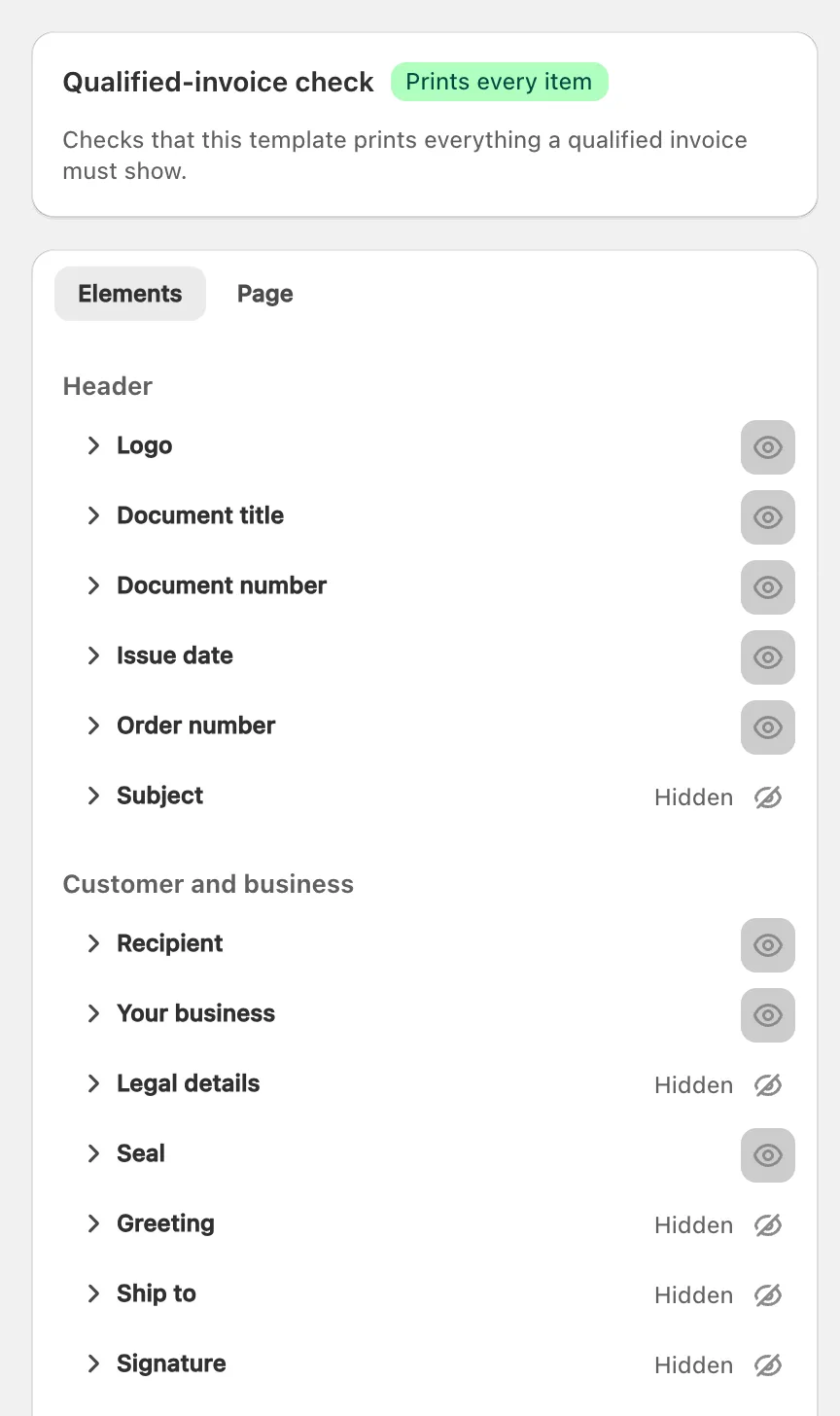
Elements sit where the look’s layout puts them; you can’t drag them around the page. The seal and logo are the exception: Position freely places them in millimetres, “measured from the top-left corner inside the margins”.
Under Format, Document font offers up to five fonts, depending on the template’s language, such as Sans-serif (Noto Sans JP) and UD serif (BIZ UDPMincho). You can’t upload a font. On a Japanese template, Issue-date format offers the Japanese era (令和) as well as Western-year dates.
On a document longer than one page, the logo prints on page 1 only and the line-items heading row doesn’t repeat. Fit on one page shrinks a long order onto one sheet instead, down to 60%.
On a shop set to Japanese qualified invoice rules, the Qualified-invoice check card in the editor of an invoice, receipt or delivery note template shows whether it prints every qualified-invoice (適格請求書) item (Japan’s qualified invoice in Ori).
Which paper sizes can I print on?
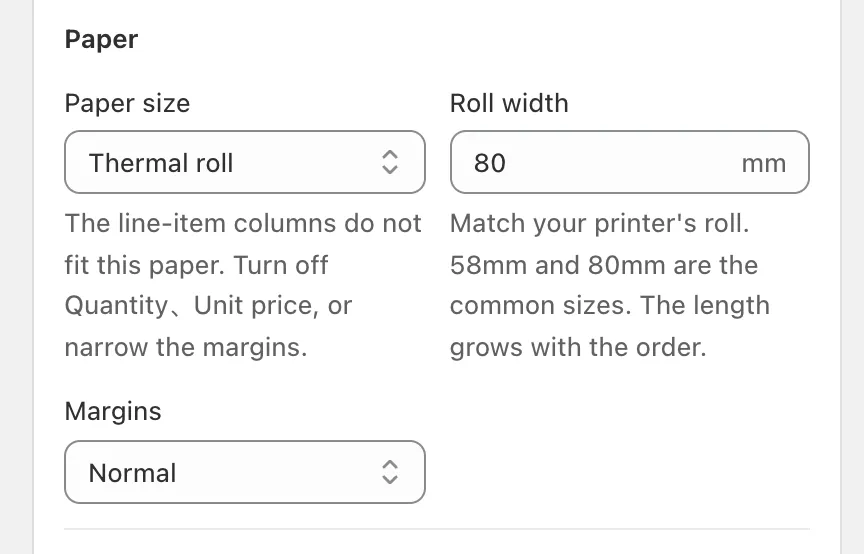
Ori templates print on A3, A4, A5, A6, B4, B5, B6, Letter, Legal, Half Letter, Tabloid or a thermal roll. Choose one under Page → Paper → Paper size, then the orientation and Normal, Narrow or Wide margins.
- Thermal roll swaps the orientation for Roll width, from 50 to 112 mm (80 mm by default). Its help says: “Match your printer’s roll. 58mm and 80mm are the common sizes. The length grows with the order.” The Receipt roll look is laid out for it.
- Window envelope, a variation of the Standard look, places the address for a Japanese Nagagata No. 3 (長形3号) window envelope on an A4 sheet folded in three. The Boutique look has address-window variations too. Each says “test-print one first”.
How do I add my company seal and logo?
Upload your company seal (印鑑) and logo in Ori under Settings → Seal & logo, then choose in each template whether and where it prints them. Uploads are “PNG, JPEG, WebP or SVG, up to 2 MB”.
- In Ori, open Settings and choose the Seal & logo tab.
- Under Seals or Logos, choose Add and pick the image.
- In Name this seal (or Name this logo), type a name such as “Company seal”, then choose Add.
- To use it wherever a template doesn’t name one, choose Make default.
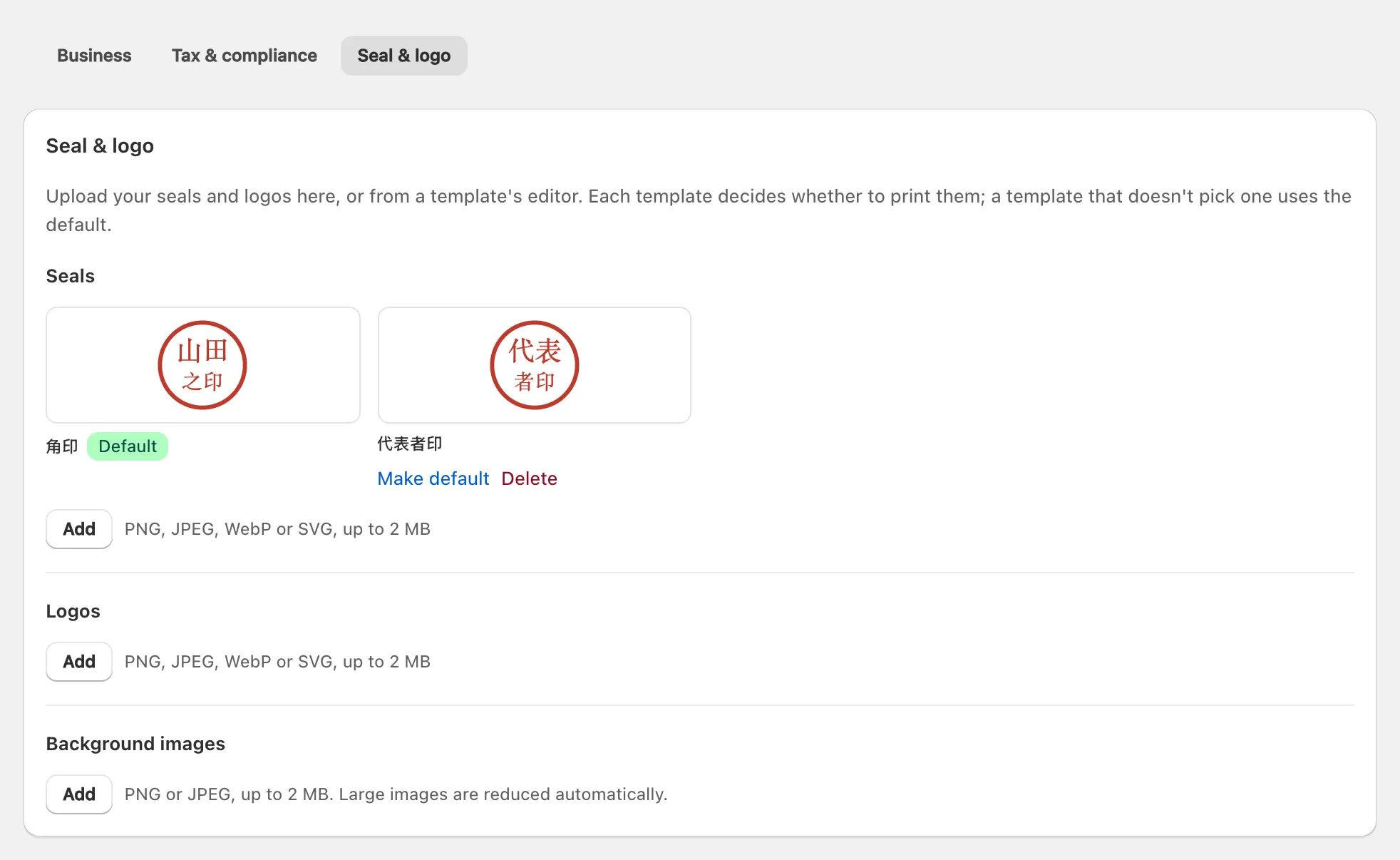
In the template editor, Seal to use and Logo to use pick one by name or the shop default, and you can add an image there too. Seal position offers Top right (over your business details), Bottom right or Position freely, and a seal is sized between 10 and 40 mm. Deleting a seal or logo changes future documents only: “Already-issued documents are not changed.”
The same tab holds Background images for a template’s Background, which prints at up to 15% strength.
Can a design print in two languages?
Each Ori template prints in one language, set when you create it: “it can’t be changed”. Second language, under Page → Format, adds one more language in brackets after every heading and label, so a Japanese invoice can label its sections in English as well. Your products, customer names and amounts print as they are.
To issue separate Japanese and English documents, keep a template in each language and pick one when you issue, or let an automation rule choose by the Customer language condition. Ori prints in Japanese, English, German, French, Italian, Dutch, Danish, Swedish, Finnish and Czech.
How many designs can I keep?
Ori lets you keep 1 template per document type on the Free plan, 3 on Standard and 5 on Pro (plans and pricing).
Ori checks the limit only when you add a template: with Use this template or Duplicate, or by moving one to another document type. Over the limit, it says “This document type already has as many designs as your plan allows”. Delete a template you no longer need, or change plan.
If you move to a smaller plan, every template you have stays. Duplicate can copy a template into another document type, so a quotation can share your invoice’s look. Deleting a template leaves the documents issued with it in the Archive.
How do I undo a change?
Ori keeps the 30 most recent versions of each template. In the editor, open Version history, pick a version and choose Restore this version. As the history says, “Documents you’ve already issued don’t change. They keep the version they were issued with.”
To undo every change to the elements at once, use Reset all elements under Page → Overall look.
