Get Started with Ori
How do I set up Ori?
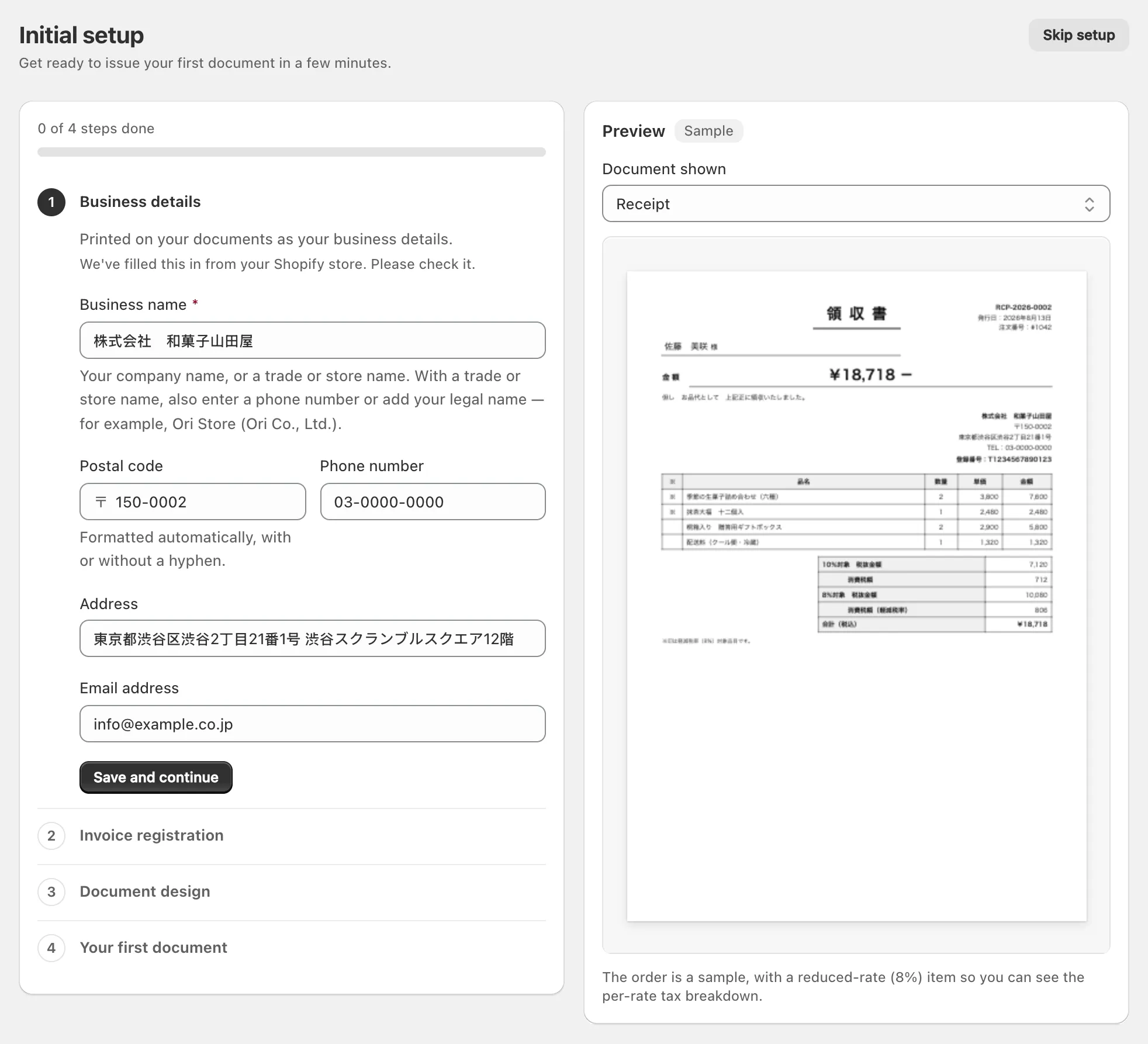
Install Ori from the Shopify App Store and it opens on Initial setup, four steps: Business details, Invoice registration (Tax ID outside Japan), Document design and Your first document. Ori fills in what it can from your Shopify store. Finish them, or choose Skip setup and come back from Home, then issue a document from any order.
Until you finish or skip setup, every Ori page opens on it. Skip setup keeps the steps you’ve saved, and Home then shows Setup isn’t finished with Resume setup.
What does each setup step ask for?
Each step ends with Save and continue, and you can change what it saves later in Settings and Templates.
Business details
Business name, Address, Phone number and Email address, filled in from your Shopify store for you to check. They print as the issuer on every document. Business name is required: until it’s set, Ori can’t issue a document from anywhere. Email address is also where customers’ replies to Ori’s emails go.
Invoice registration
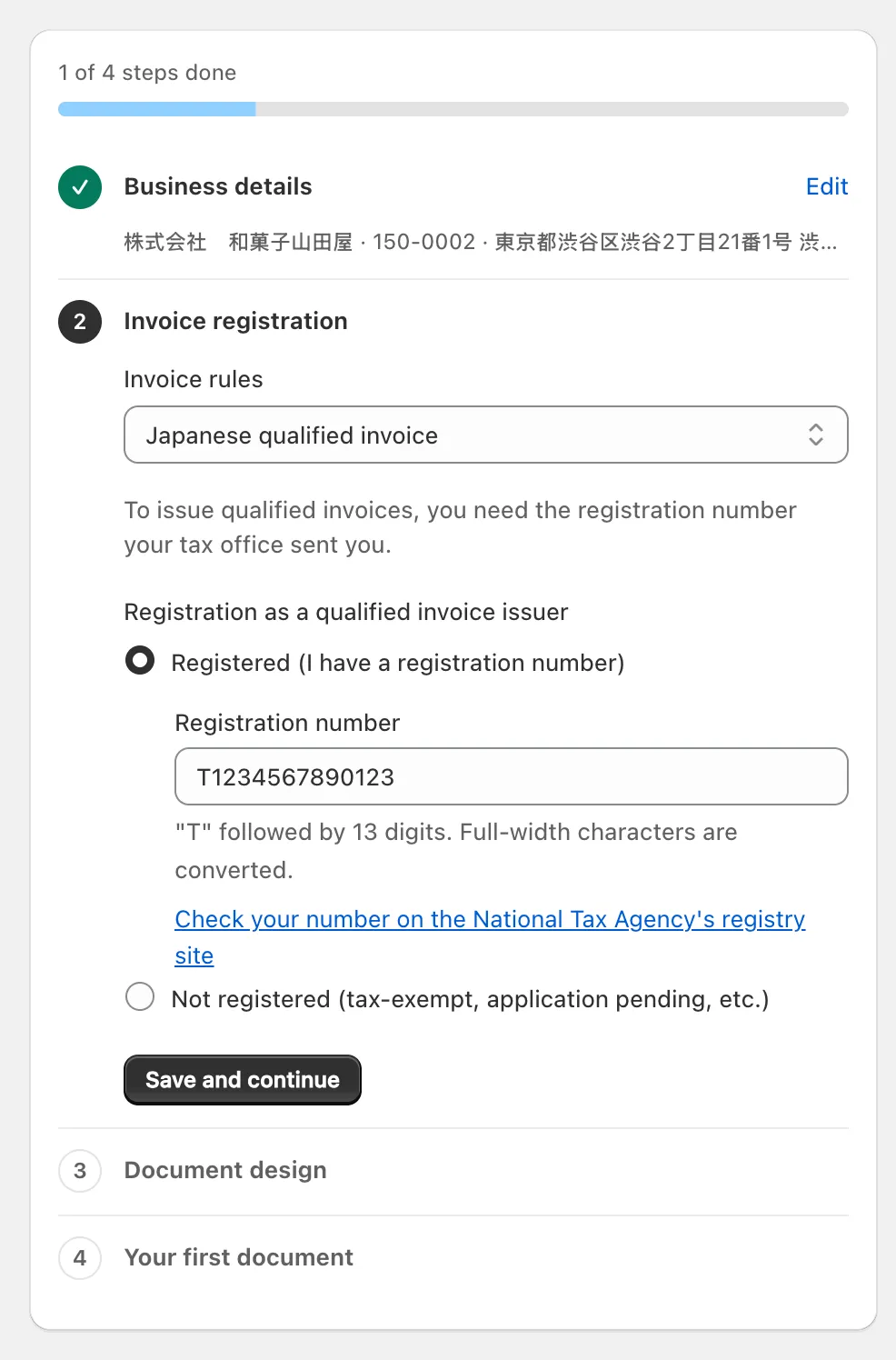
The step opens with Invoice rules, set from the country your store is billed in: Japanese qualified invoice for a store billed in Japan. Then choose one:
- Registered (I have a registration number): enter your registration number (登録番号) in Registration number, “"T" followed by 13 digits. Full-width characters are converted.” Ori checks only the format, so confirm your number once with the link Check your number on the National Tax Agency’s registry site.
- Not registered (tax-exempt, application pending, etc.): documents are issued without a registration number and aren’t labelled as qualified invoices (適格請求書). Enter the number in Settings when it arrives.
What each choice prints: Japan’s qualified invoice in Ori.
Tax ID
A store billed outside Japan starts on International invoice, and this step asks for a Tax ID name (such as VAT or ABN) and an optional Tax ID.
Document design
Pick one look for all five document types, in the language the step names. Add your company seal (印鑑) under Seal (optional) and your logo under Logo (optional): “PNG, JPEG, WebP or SVG, up to 2 MB”.
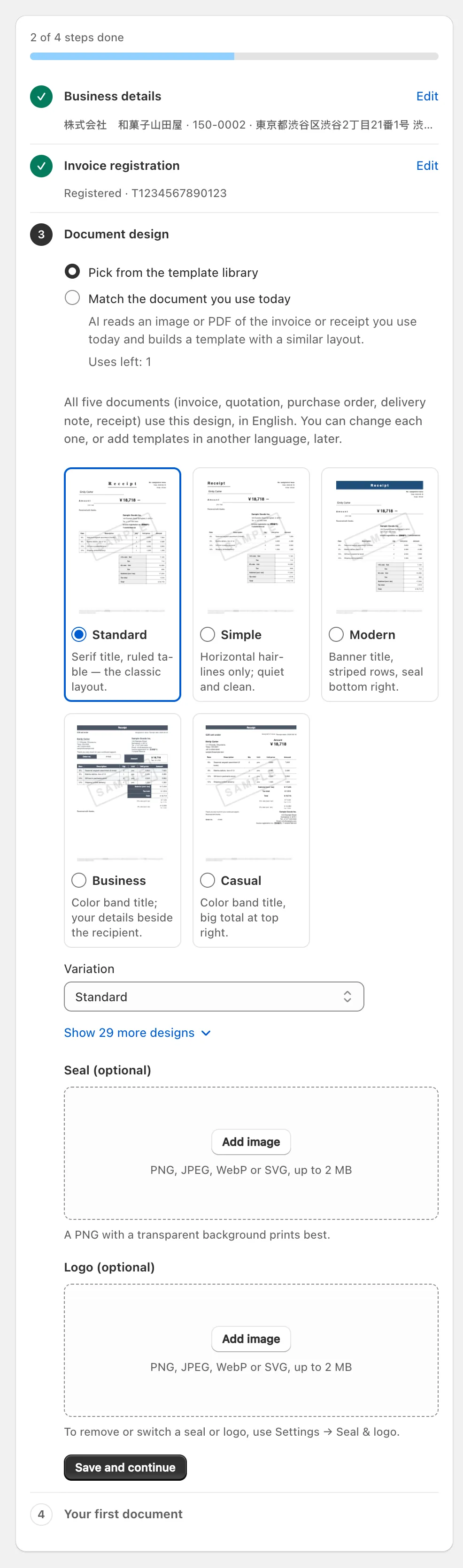
To keep the layout you use today, Ori’s team can build it as a design, free on every plan: send it through Support with the topic Template import.
Your first document
Issue from an order finishes setup and opens Orders. Check a sample PDF first draws your design on a sample order, with an 8% item for a store on Japanese rules: “The sample has no document number and isn’t kept in the archive.”
What does Ori change in my Shopify store?
Ori changes nothing in your theme, in Shopify’s own notifications or in your store’s data: it asks only to read, and writes nothing back. It adds its own actions to Shopify’s order pages, and two blocks for customers that appear only if you place them.
| Where | What Ori adds |
|---|---|
| Theme and storefront | Nothing: no theme blocks, no storefront script |
| Shopify’s emails to customers | Nothing; Ori’s own emails are separate (email invoices and receipts to customers) |
| An order’s page | More actions → Issue documents, a Documents card, and Print → Print documents |
| The Orders list | Bulk issue documents, and Print → Bulk print documents |
| Thank-you and order status pages | Nothing until you add Issue a receipt and View and reissue documents in Shopify’s checkout editor and switch on customer self-issue (Standard and Pro) |
| Orders, products, customers, files | Nothing: no tags, metafields or files written |
Ori’s five permissions are all read-only:
| Permission | Why Ori needs it |
|---|---|
| Read orders | Every document is built from an order |
| Read all orders | Apps see only the last 60 days of orders by default (Shopify’s access scopes); this lets Ori list and issue for older ones |
| Read customers | Customer details to print, tags for rules, and who is asking for a receipt |
| Read products | Product details a design can print, such as vendor or country of origin |
| Read metaobjects | The name behind a metafield value, such as a fabric or colour |
How do I issue my first document?
To issue your first document, open Ori’s Orders, click Issue documents on an order, check the ticked document type and the recipient name, and click Issue.
Ori ticks Receipt on a paid order and Invoice on an unpaid one, numbers the document, makes its PDF and saves it to the archive. Each document takes a real number, so preview designs with Check a sample PDF instead. More: issue documents from your orders.
Why does Ori say “Development store not supported”?
Ori shows “Development store not supported” on a Shopify development store, and “Trial store not supported” on a store still on a Shopify trial whose storefront is password-protected. Both list what’s needed: “Upgrade your store to a paid Shopify plan”, or “Install the app on a live store with an active subscription”.
What should I set up next?
Then set up the parts of Ori your shop uses, in any order:
- Japan’s registration and rounding settings: Japan’s qualified invoice in Ori. The 8% rate itself: set the 8% reduced rate in Shopify.
- Designs, seal and logo: choose and edit a design.
- Receipts customers issue themselves, on Standard and Pro: customer self-issue.
- Automation rules, which issue documents on every plan and email them on Standard and Pro.
- Ori plans and billing. Prices are on Ori’s pricing table.
What happens if I uninstall Ori?
If you uninstall Ori, it keeps your issued documents, every earlier version and their records, along with your settings and designs. It also prepares an export of your archive, which its team sends you on request.
- Export what you need first: Archive → Export → Audit ZIP (PDFs + index CSV), on every plan. An audit ZIP of over 5,000 documents is refused, and the uninstall export holds at most 5,000, so export a larger archive period by period (search and export the archive).
- Uninstall in Shopify: Settings → Apps, the app’s ⋯ menu, Uninstall (Shopify’s guide). Shopify notes that “you might still be billed for the current billing cycle.”
- One trial per store: a reinstall doesn’t start another.
