Email Invoices and Receipts to Customers from Ori
How does Ori email documents?
On the Standard and Pro plans, Ori emails a document to the email address on its Shopify order, with the PDF attached. The email comes from Ori’s own sending address with your Business name as the sender, and replies go to the Email address in your business details. Send by hand, in bulk or with an automation rule.
Each document goes in its own email, using the message you set for its document type. The PDF attached is the one kept in the Archive, named after the document’s title and number. Every email sent is recorded in that document’s Audit log in the Archive.
Set the reply address in Ori under Settings → Business → Business details → Email address: “Used on documents, for test emails and as the reply address of customer emails.” With it empty, customers have no address to reply to, and Send test stays unavailable.
Ori sends email only on Standard or Pro, so on the Free plan the send buttons in Orders say “Sending email requires the Standard plan or above”, and automation rules issue documents without sending them (plans and pricing).
How do I send a document by email?
You send a document from Ori’s Orders list, from the document’s own page or with an automation rule. Each email goes to the address on the order; a document whose order has no email address can’t be sent.
| Where | Button | What it sends |
|---|---|---|
| Orders, one order’s row | Send email | Every document issued for that order, after you confirm |
| Orders, several orders selected | Send email | The issued documents on the selected orders, up to 100 documents at a time |
| A document’s page | Resend email | That document again |
| Ori’s issue dialog, once issued | Send email beside each document | That document |
| An automation rule | Send → To the customer | Each document the rule issues, once (issue documents automatically with rules) |
Before a send from Orders, Ori asks you to confirm: “This cannot be undone.” Resend email stays unavailable until the PDF is ready, and on a voided document or an order with no email address.
Ori’s order-page actions inside Shopify’s admin issue and print documents; emailing is done from Ori itself.
How do I edit the email?
Edit the email for each document type in Ori under Sending → Email. There is one email per document type, used whether you send by hand or a rule sends it.
- In Ori, open Sending and choose the Email tab.
- Select the document type, such as Receipt.
Edit the Subject and the Body. To add an order’s details, choose Insert variable.
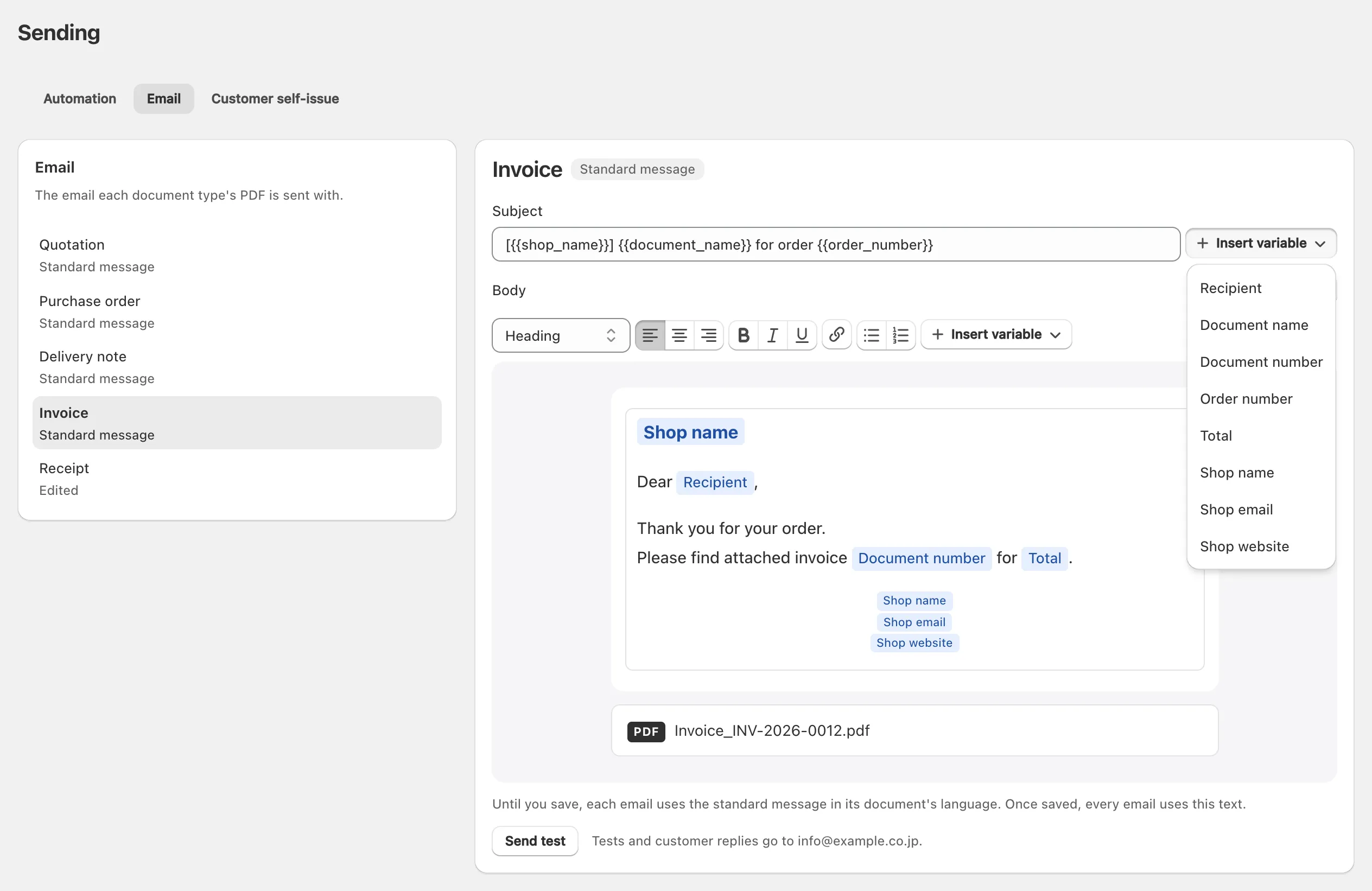
- Choose Preview to see the message, or Send test to send it to your own Email address.
- Save. The document type now shows Edited in place of Standard message.
The variables are Recipient, Document name, Document number, Order number, Total, Shop name, Shop email and Shop website. The body takes text styles, bold, italic and underline, links, and bulleted or numbered lists. The email carries no logo or images: the document itself is the attachment.
Until you save, each email uses “the standard message in its document’s language”, so a Japanese receipt goes with a Japanese message and an English one with an English message. Once you save, every email of that document type uses your text, in the language you wrote it in. Restore the standard message goes back; your edits are lost.
Will Ori change Shopify’s order confirmation email?
No. Ori doesn’t edit, replace or attach anything to Shopify’s order confirmation or any other Shopify notification. Its emails are separate messages that Ori sends itself, so a customer who gets both receives two emails.
You keep managing Shopify’s own emails on Shopify’s Notifications page (Shopify’s help on store notifications). If you’d rather customers download a receipt than receive one by email, see customer self-issue.
Why wasn’t an email sent?
An Ori email isn’t sent when the shop isn’t on Standard or Pro, the order has no email address, the rule was set to hold or not to send, or the document was voided or has no PDF. Check the cause in this order:
- Your plan. Email needs Standard or Pro: “Rules email the customer only on the Standard plan and above.”
- The order’s email address. An order placed without one can’t be emailed: “The order has no email address”.
- The rule’s Send setting. A rule set to Do not send issues only. A rule set to Hold for review issues nothing until you approve the run in the Run log with Issue and send, and the run expires after 30 days.
- A voided document. Ori never sends a voided document: “The document has been voided”.
- The PDF. A document whose PDF failed isn’t sent: “The PDF failed to render”. Open the document and choose Recreate PDF, then send it again.
- The rule itself. If the document was never issued, the rule didn’t run; see why a rule stopped.
A rule emails each document once, even if Shopify sends its event twice. To send the same document again, use Resend email on its page. If the Audit log shows the email as sent and the customer can’t find it, ask them to check their spam folder and the address on the order.
