XSeo's AI Allowance and Support Requests
Is XSeo free?
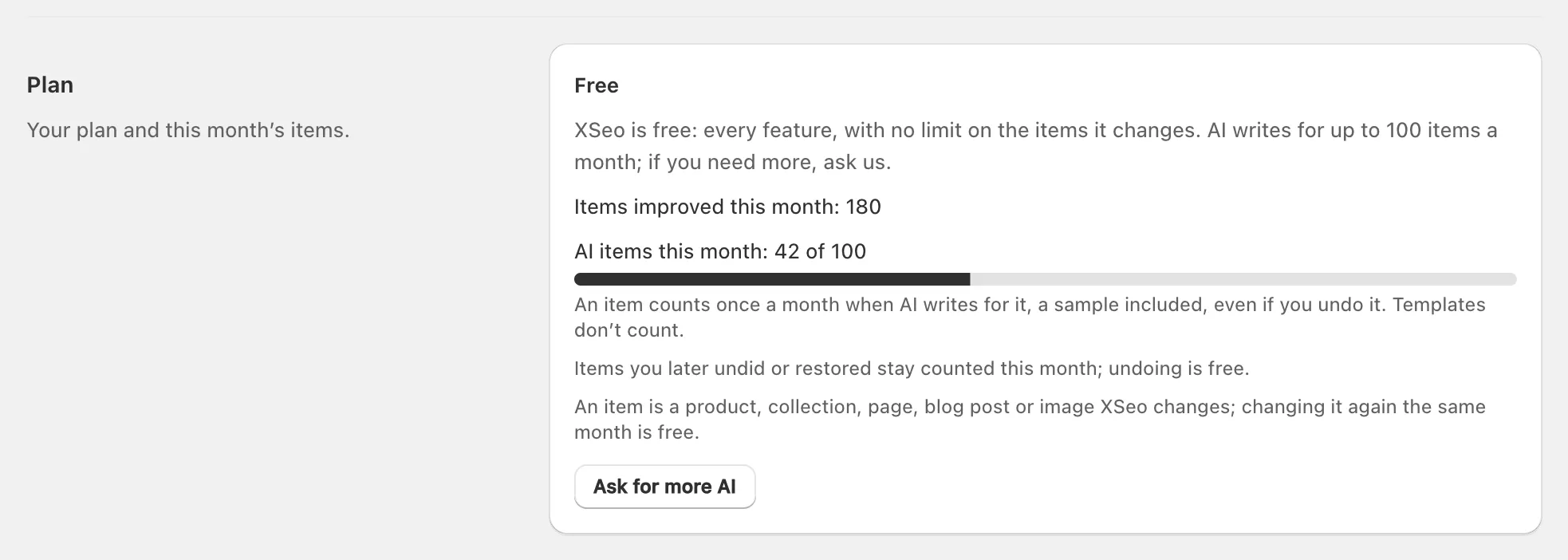
Yes. Since its launch on 6 November 2026, the Shopify app XSeo is free: every feature, with no limit on the items it changes. Its AI writes for up to 100 items a month; past that, until the 1st (UTC), SEO text and alt text come from your templates. Ask for more AI, or anything else, in a support request.
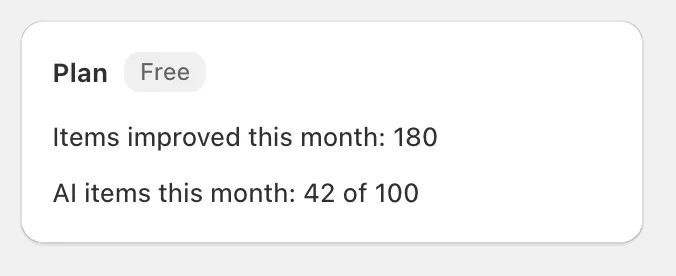
Settings → Plan says the same under Free, with this month’s counts and Ask for more AI.
Nothing stops past 50,000 items in a month, though XSeo’s team may get in touch to check XSeo still fits your store. On the future, XSeo’s terms of service (§6) say: “If we introduce paid plans later, they will be shown in the app and on the App Store listing first, any charge will need your approval on Shopify’s own confirmation page, and XSeo will stay usable without one.” (XSeo’s terms of service, last updated 1 November 2026.)
What counts as an AI item?
An AI item is a product, collection, page, blog post or image that XSeo’s AI writes, drafts or previews anything for, and it counts once a month, whatever AI writes for it. The month is the calendar month in UTC: it turns over at 00:00 UTC on the 1st, whatever day you installed.
| Items | AI items | |
|---|---|---|
| What counts | A product, collection, page, blog post or image XSeo changes | One of those that AI writes, drafts or previews anything for |
| Limit | None | 100 a month, unless XSeo’s team raises it |
| In XSeo | Items improved this month | AI items this month, such as 42 of 100 |
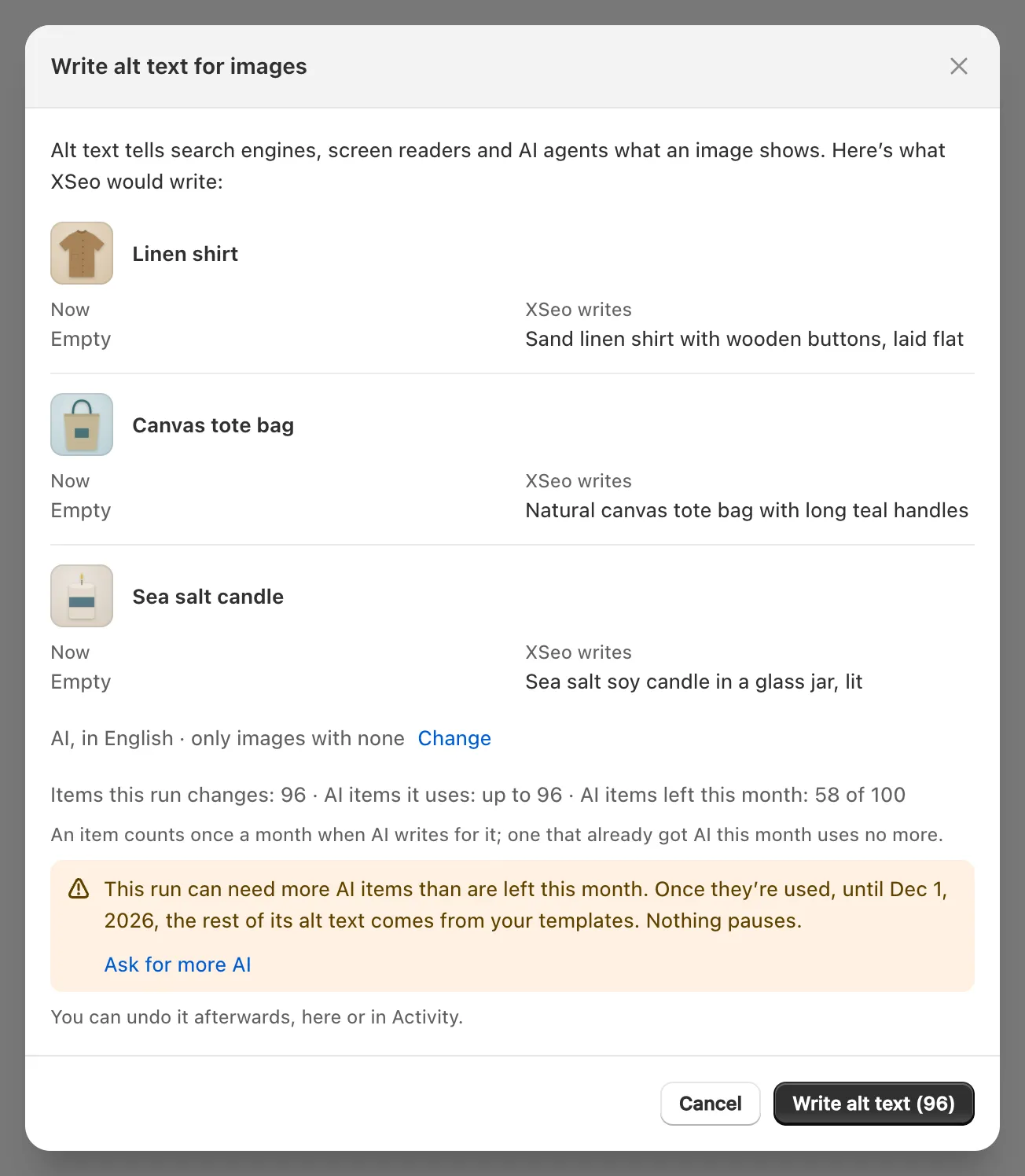
- AI examples count. A fix that writes with AI makes its examples with AI when it opens, and those items count this month even if you cancel. Changing the writer or language makes new ones, which also count toward the three times below. An example you saw is written as shown and doesn’t count again.
- Undo doesn’t give AI items back, but an AI call that failed is given back.
- Three times per item. AI writes the same kind of text for the same item at most three times a month; alt text, SEO text, categories, translations and description drafts count apart, and a translation run counts once whatever the number of languages. Past that, XSeo says “AI was already used 3 times on this item this month.”
- Blog post drafts: up to five a month. They don’t count toward the 100, but none can be made once your AI items are used.
What happens when AI items run out?
When XSeo’s AI items for the month are used, nothing pauses: until the 1st (UTC), SEO text and alt text come from your templates, AI categories and translations are skipped, and AI samples, drafts and blog posts aren’t available.
| What | Once AI items are used, until the 1st (UTC) |
|---|---|
| SEO text, alt text | Written from your templates |
| Categories, translations | Skipped, and the run says how many were left as they were |
| AI examples, description drafts, blog post drafts | Not available |
| Templates, imports, images, redirects, link fixes, restore and undo | Work as usual |
From 80% of your AI items, Settings → Plan and Home’s Plan card show a warning with Ask for more AI. A fix that could run past the limit says so before you start. Autopilot follows the same rules: what autopilot does when AI items run out.
How do I ask for more AI?
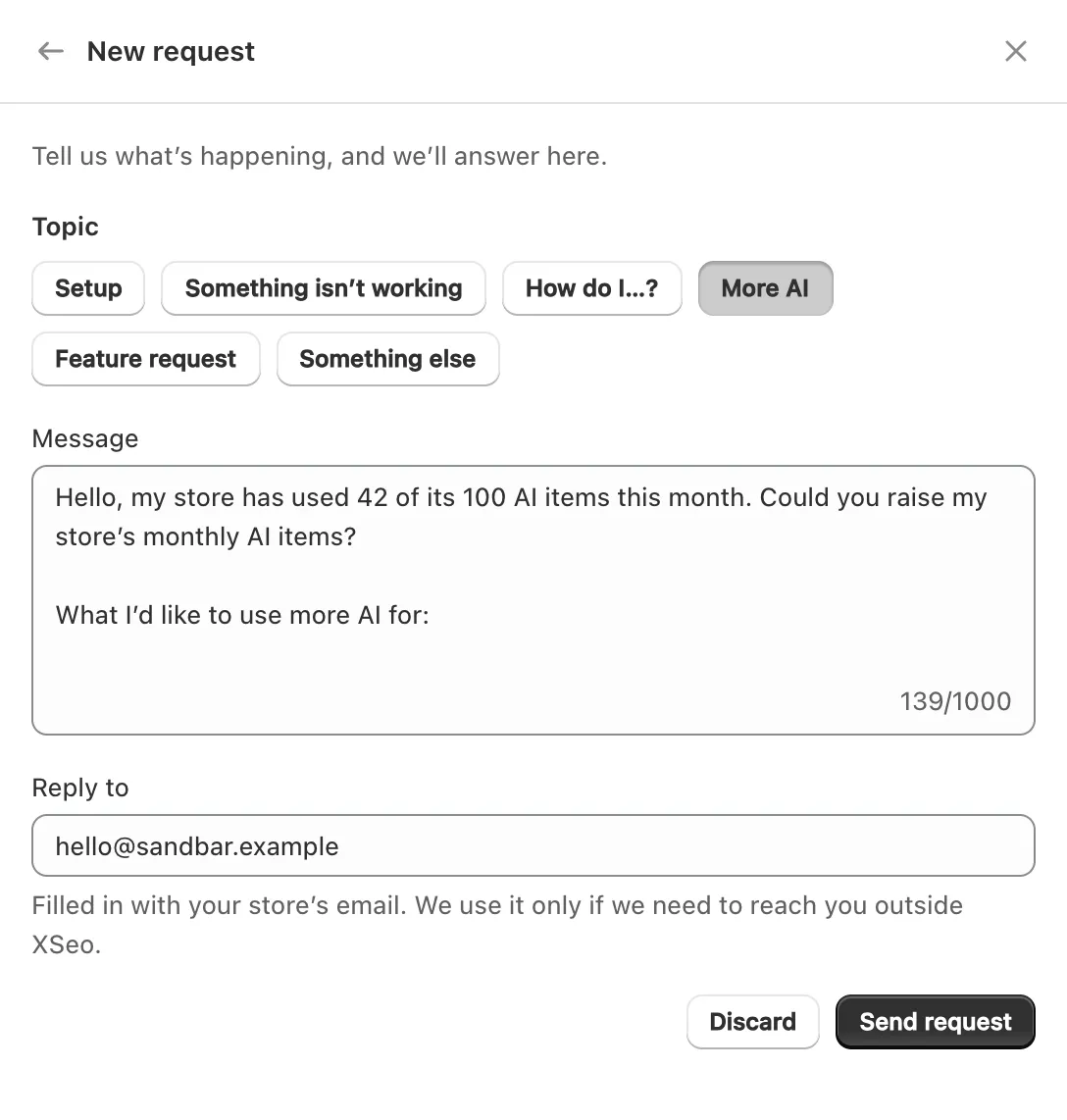
To ask for more AI, click Ask for more AI in XSeo’s Settings → Plan: it opens a support request with the topic More AI and a message already written, and nothing is sent until you press Send request.
- In XSeo, open Settings → Plan and click Ask for more AI. It’s also in the AI warnings.
- The Support panel opens on New request, with More AI selected and a message giving this month’s count, such as “Hello, my store has used 42 of its 100 AI items this month.”
- Under “What I’d like to use more AI for:”, say what you’d use it for. Reply to holds your store’s email, used only if XSeo’s team needs to reach you outside XSeo.
- Click Send request. A message says Request sent.
XSeo’s team can raise your store’s monthly AI items, and a raised limit applies at once. XSeo’s terms add that the team “may lower them again with notice”.
How do I contact XSeo support?
To contact XSeo support, click Contact support on Home’s Help card: a request form opens inside XSeo, and the answer comes back in XSeo, not by email.
- On Home, click Contact support in the Help card (it reads Your support requests once you have some). The Help page’s Still have a question? has the same button.
- Pick a Topic: Setup, Something isn’t working, How do I…?, More AI, Feature request or Something else.
- Write your Message, up to 1,000 characters, and leave out your customers’ personal information.
- Click Send request.
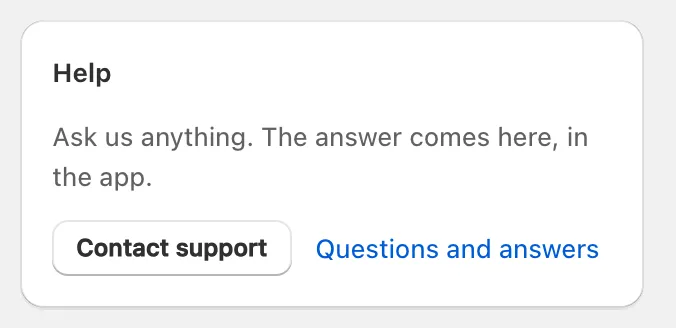
When XSeo’s team replies, a banner on every XSeo page says Support replied to your request, with View reply, and the Help card shows New reply. A request reads Waiting for us, Answered or Closed; replying reopens a closed one. You can have up to five open or answered requests at a time. If the form won’t send, email support@b2bgold.app.
Many answers are already in XSeo: Questions and answers on the Help card opens its Help page. If Sidekick is available in your Shopify admin, it can draft a request for you to send (use XSeo with Shopify Sidekick).
What never counts?
Templates, imports from another app, your own edits, restores and undo never use AI items, and nor does anything in XSeo that doesn’t use AI: Home’s to-do list, image compression, redirects, link fixes, structured data and Search Console numbers.
XSeo’s terms say “Previews, samples, restores and undo never count as items.” That is about items, which have no limit. An AI sample still counts as an AI item, as above.
