Compress Shopify Images with XSeo
How do I compress images with XSeo?
XSeo compresses your Shopify product images and the other images in Content › Files in place: same links, same gallery order, same variant images. Open Images, preview one image at actual size, then optimise one, a selection or all of them. Your browser does the work, and XSeo keeps each original for 60 days while it’s installed.
- Open Images in XSeo. It reads your images as the page opens, biggest first; reading is free and changes nothing. The tiles show Total size, Oversized (over 2,560 px) and Could still save, an estimate.
- Check Compression in the toolbar. It starts from your Settings.
- Click Preview on an image. XSeo makes the lighter copy in your browser and shows Original beside Optimized, at Fit to window or Actual size, with how much smaller it is.
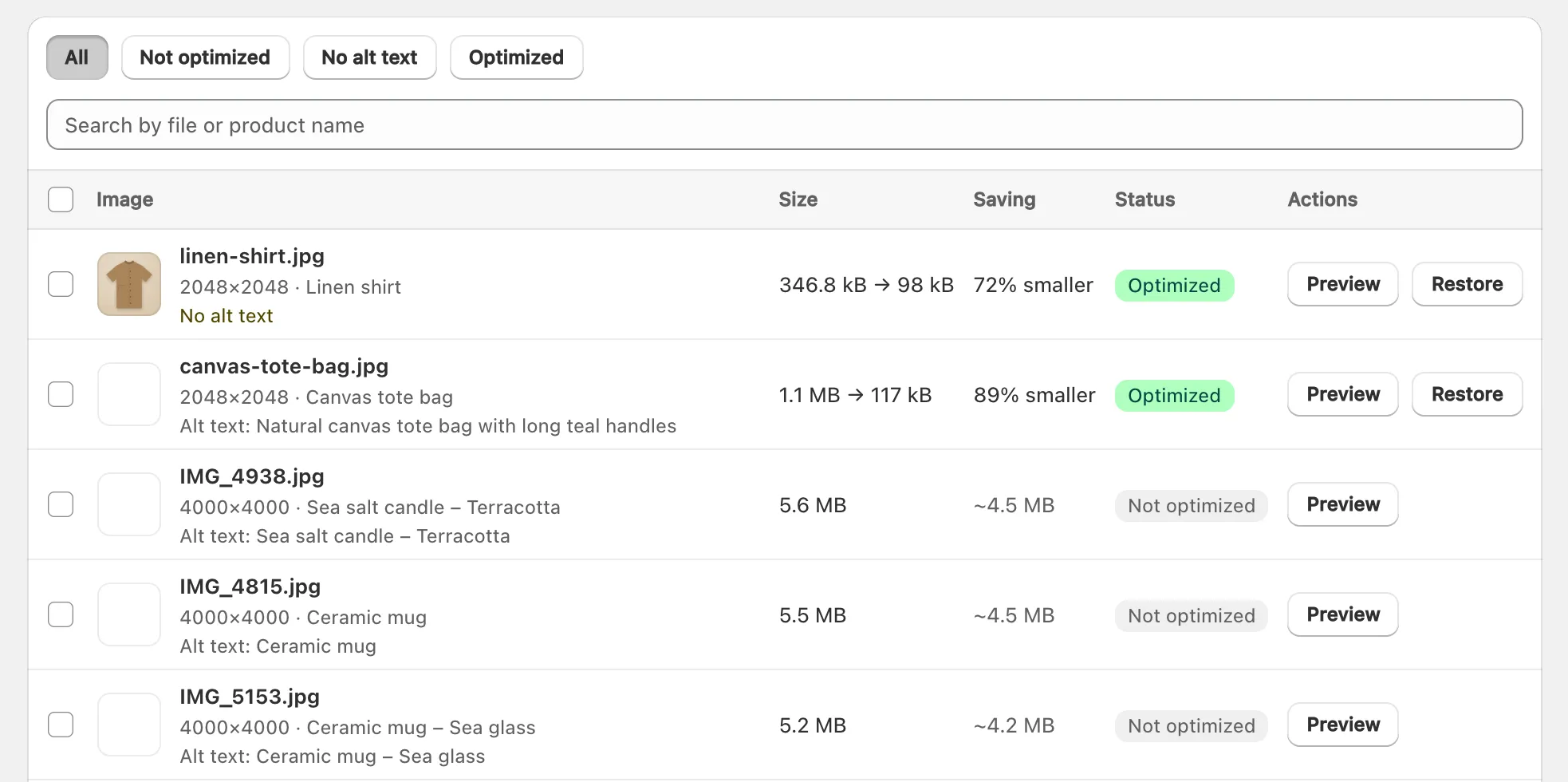
Click Replace in store. A toast says Image optimized, and the row shows Optimized with its size before and after.
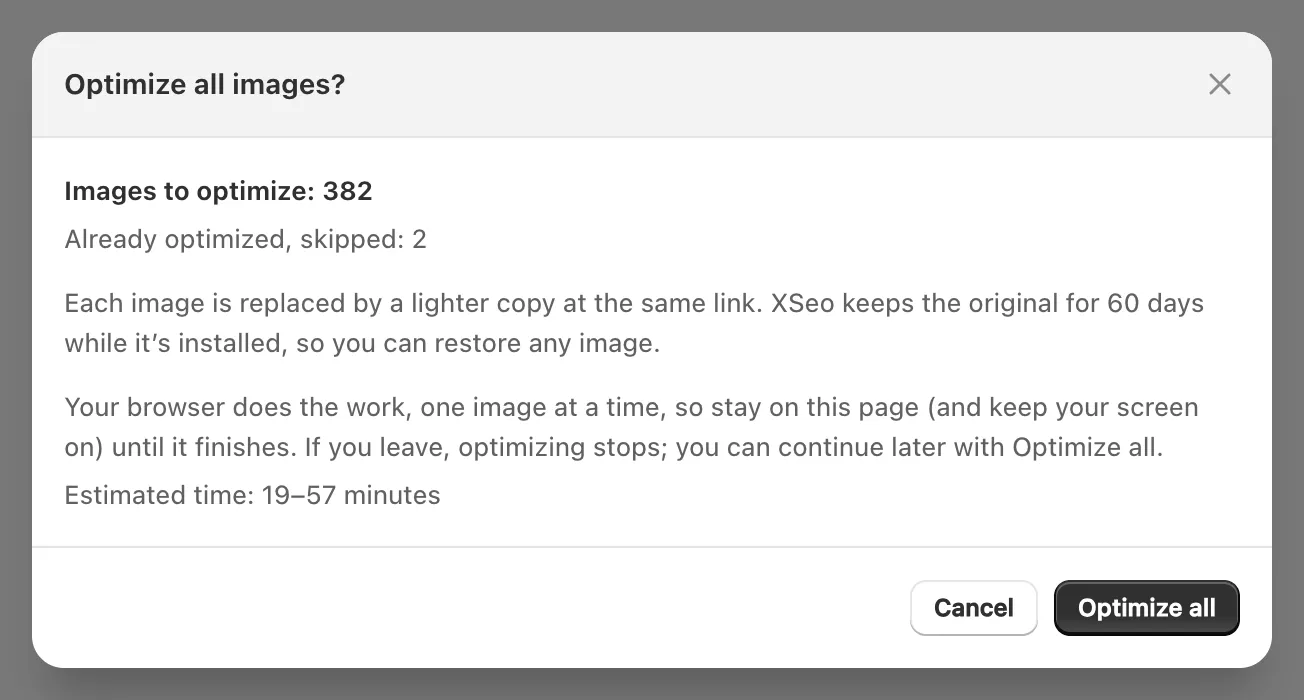
- For many images, click Optimize all, or select rows and click Optimize selected. The confirmation shows the images to optimise, those skipped, and an estimated time; confirm to start.
Stay on the page until it says “Finished”: your browser optimises one image at a time, and you can Pause and Resume. If you leave, it stops after the current image; come back, click Scan again, then Optimize all to continue.
Your browser makes each lighter copy; XSeo’s server saves the original, replaces the file in Shopify, and checks that Shopify serves the new file, putting the original back if it doesn’t match. An image whose copy would save less than 5% or 1 KB stays as it is, marked Already optimal. Home’s Images larger than 2,560 px row leads to Images too.
Images optimised in your browser aren’t runs in Activity: the Images page is their record, with status, sizes and Restore. Images you add later are optimised the next time you run Optimize all.
On a store open to visitors, a run that saved space asks for a new speed check from Google PageSpeed Insights, shown on XSeo’s Results page. Those are Google’s numbers, and XSeo promises no score.
Which compression should I choose?
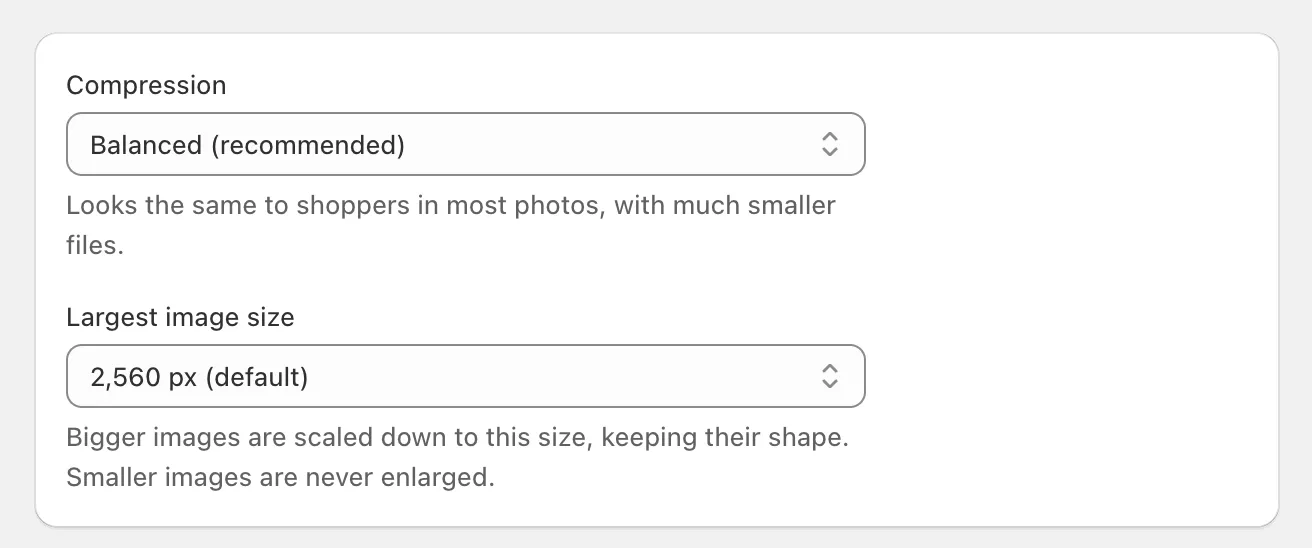
Start with XSeo’s default compression, Balanced (recommended), which the app says “looks the same to shoppers in most photos, with much smaller files”. Change it in Settings → Images, then click Save; the Compression menu on Images starts from it.
| Compression | What XSeo says about it |
|---|---|
| Best quality | “Keeps the most detail. Good for close-up fabric or jewelry photos.” |
| Balanced (recommended) | “Looks the same to shoppers in most photos, with much smaller files.” |
| Smallest files | “The smallest files. Very fine detail can look a little softer.” |
Largest image size offers 1,600, 2,048, 2,560 or 3,200 px, and 2,560 px is the default: “Bigger images are scaled down to this size, keeping their shape. Smaller images are never enlarged.” XSeo also applies a phone photo’s rotation. Previewing an image shows the real result; the tiles’ savings are rough estimates.
Does XSeo convert images to WebP?
No. XSeo keeps each image in its own format and file name: a JPEG stays a JPEG, a PNG a PNG and a WebP a WebP. It optimises JPEG, PNG and WebP images; GIF, HEIC, SVG and other formats are left as they are and marked Not supported.
Shopify doesn’t compress the image you upload, but it delivers images as WebP or AVIF to browsers that support them, and says you don’t need to compress images before uploading (Shopify’s help on uploading images, checked 6 November 2026). How Shopify compresses and serves images looks at when a lighter original still matters.
How do I restore an original image?
To restore an original, click Restore on the image’s row in Images. For several, select them and click Restore selected, or click Restore all at the top of the page. Each image goes back to its exact original, byte for byte, and its gallery order, variant images and alt text stay as they are.
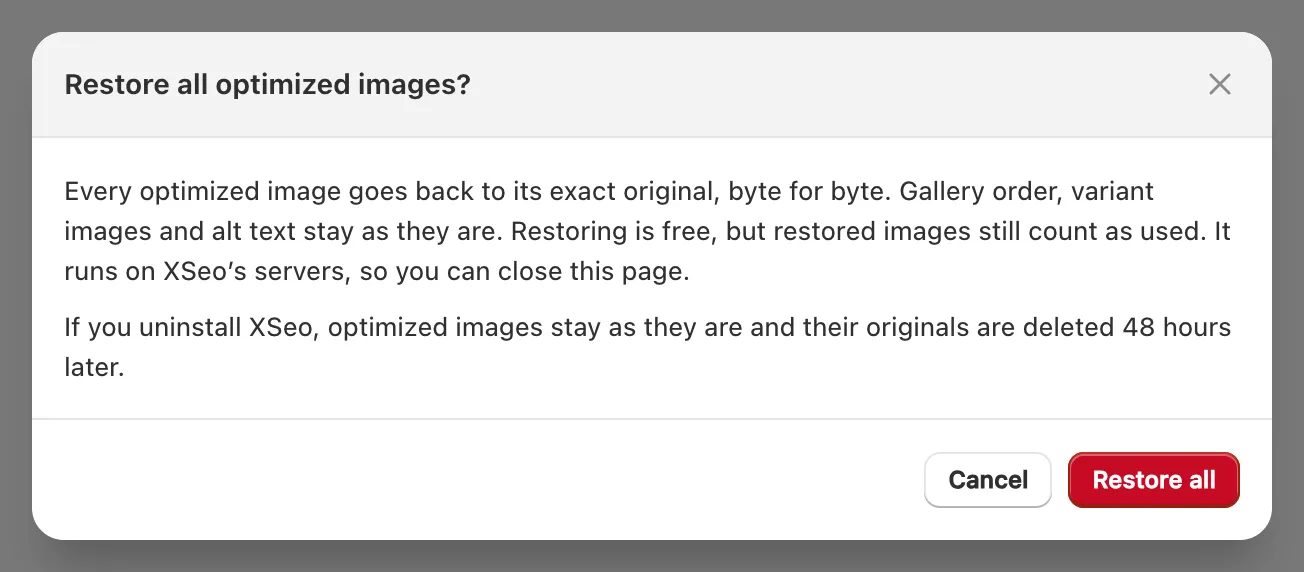
- XSeo keeps each original for 60 days after the image was optimised, while XSeo is installed. Hover over Restore to see the date.
- Restore selected and Restore all run on XSeo’s servers, so you can close the page.
- If an image was replaced in Shopify after XSeo optimised it, XSeo won’t overwrite the newer image and changes nothing.
- If you uninstall XSeo, optimised images stay as they are and their originals are deleted 48 hours later, so restore first.
Restoring is free and uses no AI.
How do I know the backups work?
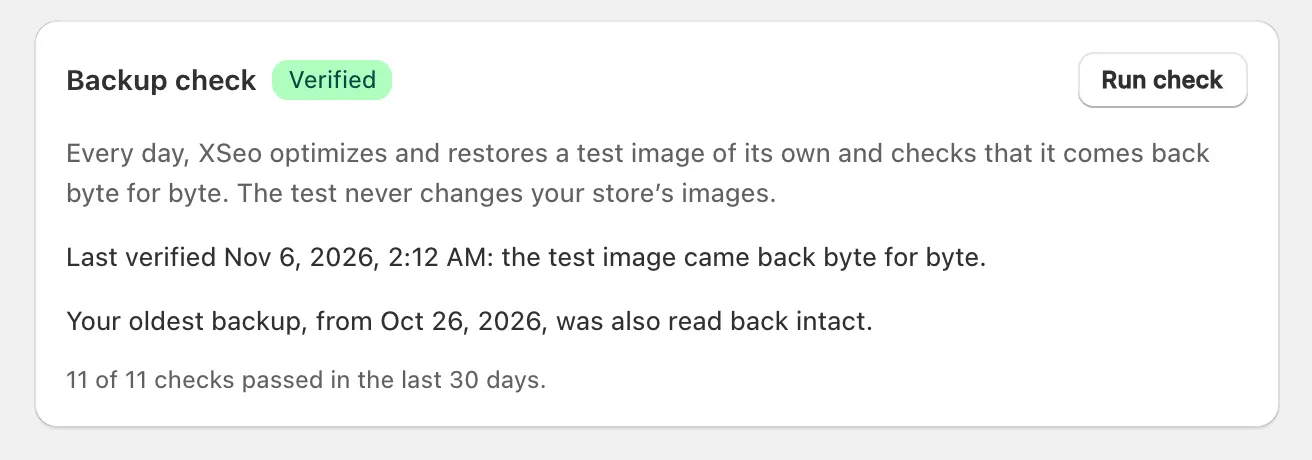
XSeo tests its backups every day once you’ve optimised an image, and Settings → Images → Backup check shows the result. The check adds a test image of its own to Files, optimises and restores it, checks that it comes back byte for byte, reads back your oldest backup, then deletes the test image. It never changes your store’s images.
The badge reads Verified, Failed, Couldn’t run or Running…, and Run check runs it now.