Connect Google Search Console to XSeo
How do I connect Search Console?
Connecting Google Search Console to XSeo is optional: on Results, click Connect Google Search Console and allow read-only access on Google’s page. XSeo then reads only a property covering your Shopify store’s primary domain, and shows Google’s clicks and searches, whether pages are on Google, and searches worth a look. Disconnect in Settings → Connections.
XSeo is a Shopify app for SEO and images; the rest of it works the same if you never connect.
- In XSeo, open Results and click Connect Google Search Console. Google’s page opens in a new tab; if your browser blocks it, click Continue to Google.
- Pick the Google account that has your store in Search Console and allow access.
- Back in XSeo, Results says Google Search Console is connected and starts importing your history: the first numbers show up within minutes.
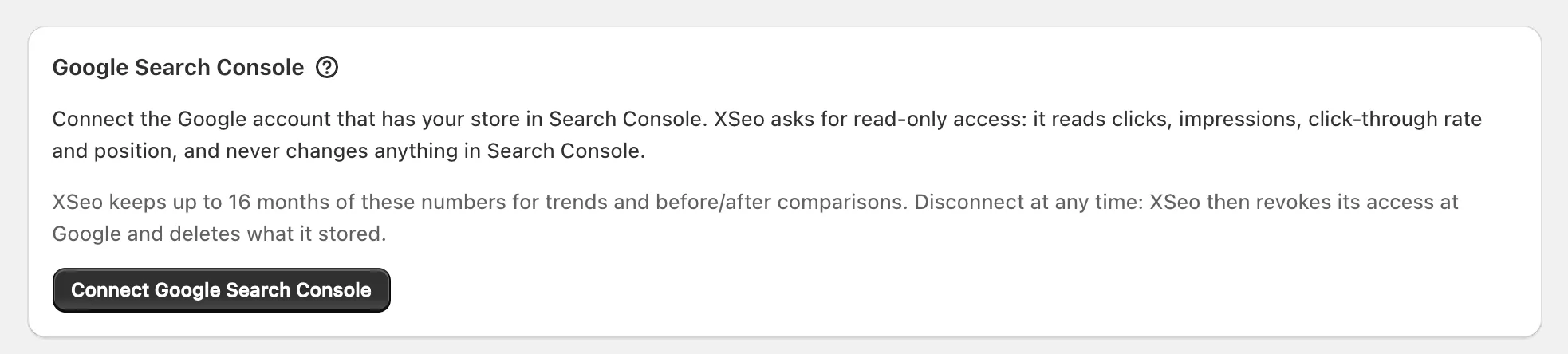
Google asks for one permission, described as viewing Search Console data for your verified sites (Google: OAuth 2.0 scopes, checked 6 November 2026). XSeo never gets your Google account’s name or email address.
Which property does XSeo read?
XSeo reads one Search Console property: one that covers your store’s primary domain, either a Domain property or a URL-prefix property for its exact address, such as https://www.example.com/. If several do, XSeo asks you to choose; if none does, it says how to add one.
- Choose your store’s property: pick one and click Use this property.
- No property for your domain: on a myshopify.com address, add a URL-prefix property with the address XSeo shows; on your own domain, a Domain property, which needs a DNS record (Search Console Help: property types, checked 6 November 2026), or a URL-prefix one. Then click Check again, or Use another Google account.
XSeo never counts a property with a path or for another domain. On a password-protected store, Search Console’s numbers start once it’s open.
What does XSeo read and keep?
XSeo reads your store’s Search Console numbers, read-only, about every 20 hours, and keeps up to 16 months of them: daily clicks, impressions and average position on Google Search and Google Images for the site, its top pages and the pages XSeo changed, plus your top 50 searches of the last 28 days.
It also keeps your tracked searches, the Worth a look lists, whether Google has your active products and checked pages in its index, and the comparisons on XSeo’s Results page. The token is stored encrypted. XSeo’s only write in Search Console is your image sitemap, if you choose Let XSeo submit, and the numbers aren’t sent to AI models, shared, sold or used for advertising: how XSeo uses Google user data.
Is a page on Google?
To check whether a page is on Google, enter its address in Is a page on Google? on Results and click Check: XSeo gives Search Console’s answer in plain words, On Google or Not on Google, with Google’s reason, its last crawl and a fix where XSeo has one.
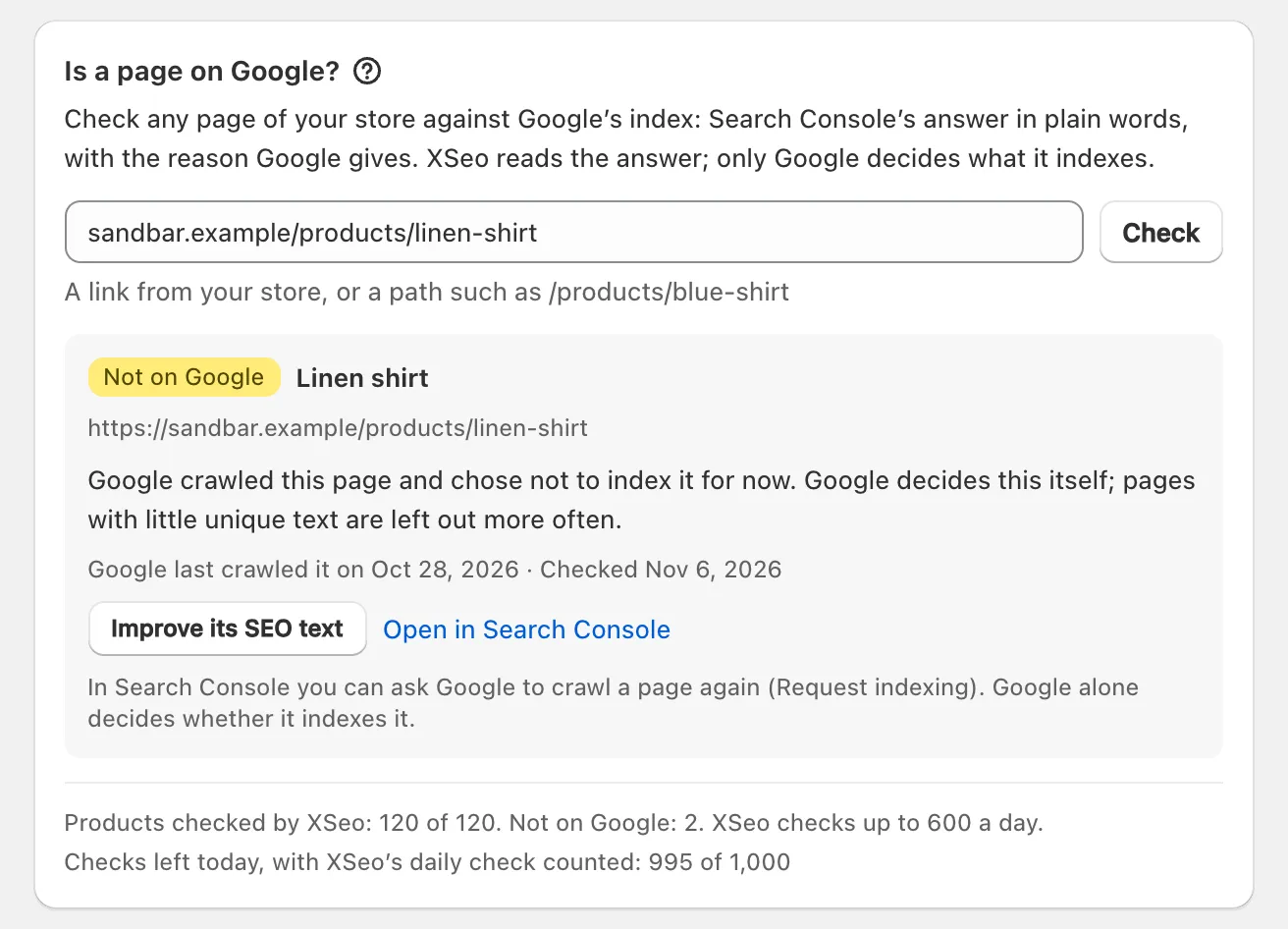
Fixes include Create redirect for a missing page and Improve its SEO text for one crawled but not indexed. XSeo also checks your active products, up to 600 a day, each again after 7 days, or 30 once it’s on Google; Pages not on Google groups those Google left out, by reason.
Open in Search Console opens Google’s inspection, where you can click Request indexing; XSeo never asks Google to index a page, and Google alone decides (Search Console Help: URL Inspection, checked 6 November 2026). XSeo uses at most 1,000 checks a day, half the 2,000 Google allows per property (Search Console API: usage limits, checked 6 November 2026): its product checks take up to 600, so at least 400 stay yours.
What do Worth a look and tracked searches show?
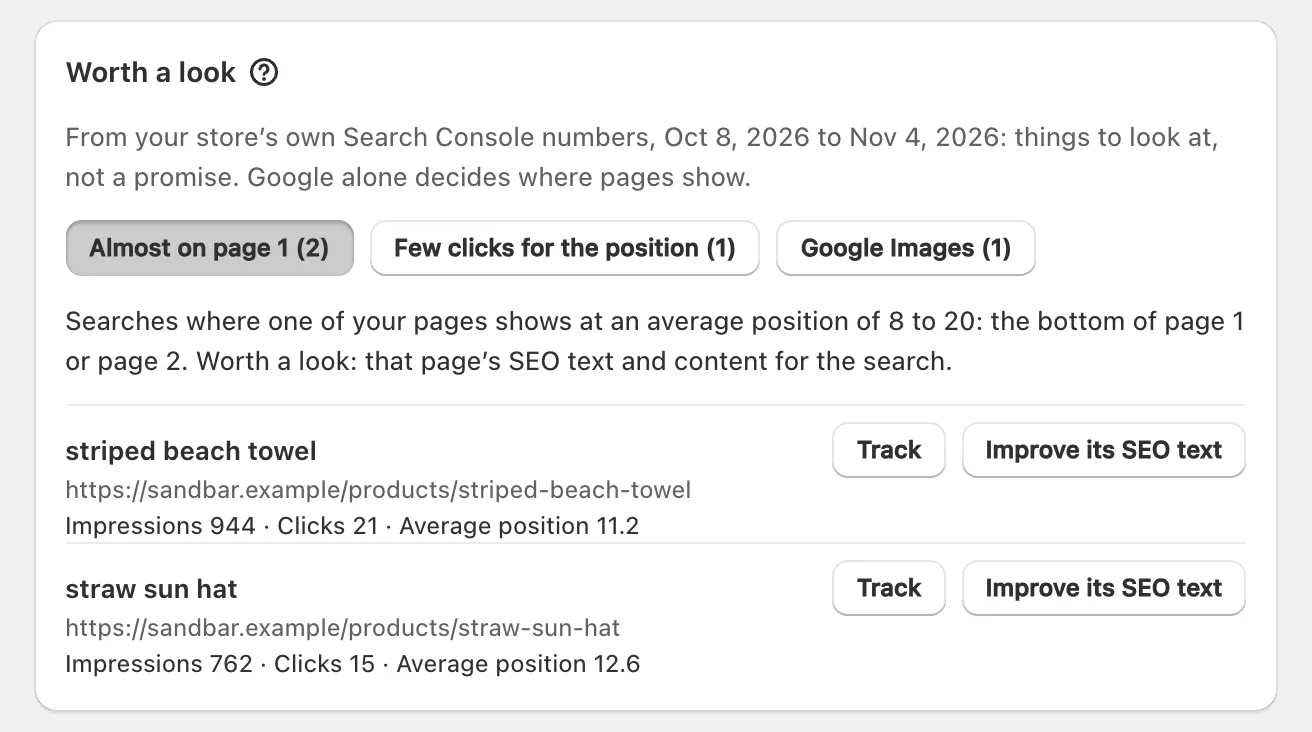
XSeo’s Worth a look lists searches and pages from your last 28 days of Search Console numbers that may deserve attention, and Searches you track follows up to 25 searches you choose. Neither is a promise: Google alone decides where pages show.
Worth a look has three lists, up to 25 rows each:
- Almost on page 1: searches where one of your pages sits at an average position of 8 to 20, with at least 20 impressions.
- Few clicks for the position: page-1 pages, not the home page, with at least 100 impressions and under half the click rate of your other pages at a similar position.
- Google Images: image searches your store shows up for, with at least 20 impressions.
Each row has Track, plus Improve its SEO text or Review alt text.
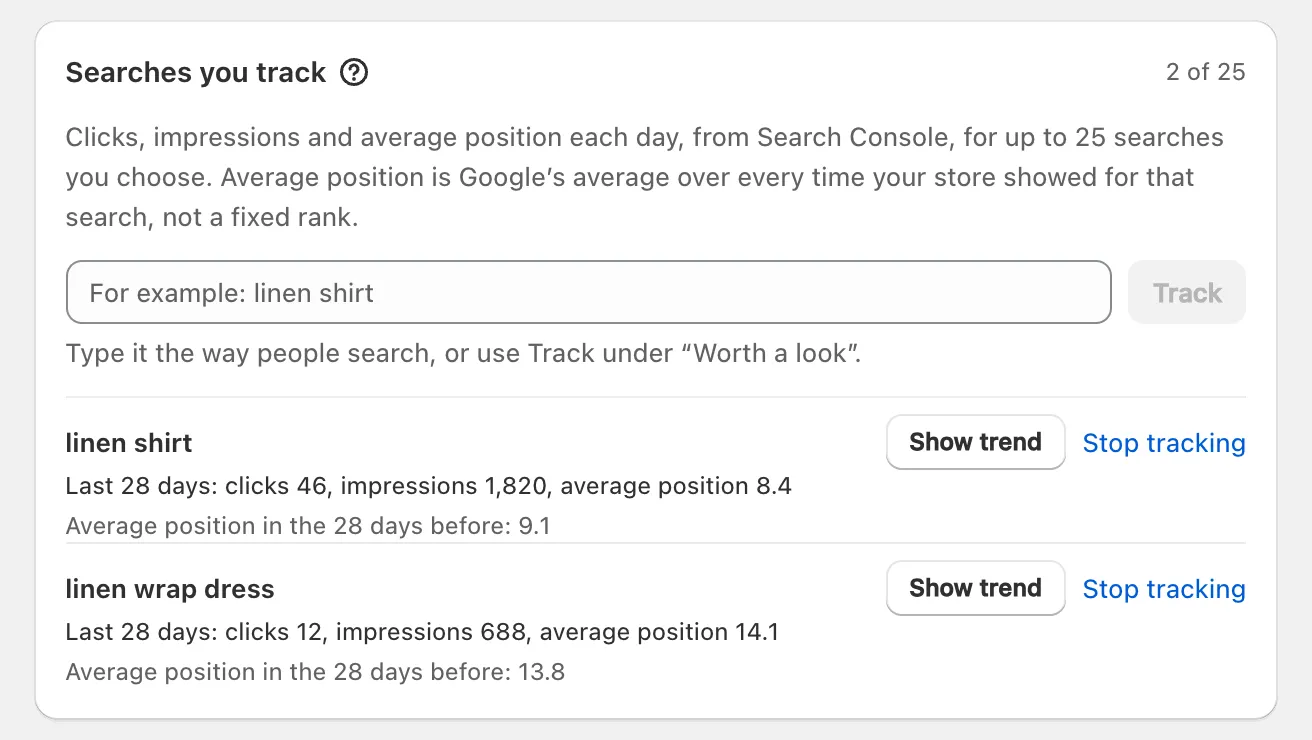
To track a search, type it in Search to track and click Track. Each shows its last 28 days’ clicks, impressions and average position, the position in the 28 days before, Show trend and Stop tracking. Average position is Google’s average over every time your store showed, not a fixed rank.
What does Let XSeo submit do?
The Let XSeo submit button sends XSeo’s image sitemap to your connected Search Console property. It asks Google for a wider permission than the read-only connection, to view and manage Search Console data, which XSeo uses only to submit sitemaps, and only when you click.
- Open Settings → Structured data → Manage, then Image sitemap.
- Click Let XSeo submit, and allow the permission on Google’s page.
- Back on Storefront, XSeo says “XSeo submitted your sitemap to Google Search Console.”, and the card says when, with Submit again.
If Google doesn’t grant it, nothing is submitted; if Google refuses the sitemap, check that your Google account can manage the property.
How do I disconnect Search Console?
To disconnect Search Console, open XSeo’s Settings → Connections and click Disconnect beside Google Search Console, then confirm: XSeo revokes its access at Google and deletes the Search Console numbers and comparisons it stored. Speed, real-visitor, redirect and link data stay.

Connecting again imports the history again; uninstalling XSeo revokes and deletes the same.
Note: Disconnect shows only while the row says Connected to a property. From Reconnect needed or Setup not finished, finish connecting on Results and then disconnect, or uninstall XSeo, to delete what it stored.
If you remove XSeo’s access in your Google Account instead (Google Account Help: third-party access), XSeo reads nothing more and asks you to connect again; what it stored is kept no longer than 16 months.
