XSeo's Image Sitemap for Shopify
What’s in XSeo’s image sitemap?
XSeo’s image sitemap lists every product on your Shopify Online Store with all of its gallery images, while Shopify’s own sitemap names each product’s primary image. XSeo serves it at /apps/xseo/sitemap.xml on your store’s primary domain. Google applies it to your product pages only once it’s submitted in Search Console, by you or with Let XSeo submit.
XSeo is a Shopify app for SEO and images. The image sitemap needs no setup and no app embed: XSeo builds it once you start using XSeo and serves it through Shopify’s app proxy.
- Which products: every active product published to your Online Store, at its address on your primary domain, with the date it last changed.
- Which images: every image in each product’s gallery, in gallery order. Pages, collections, blog posts and your theme’s images aren’t in it.
- Its form: a sitemap index pointing to product files of up to 50,000 addresses each, so the address you submit stays the same as your catalogue grows.
Each image is an image:loc entry, the image tag Google reads, and Google takes up to 1,000 images per page (Google Search Central: image sitemaps, checked 6 November 2026). Shopify’s own sitemap at /sitemap.xml lists your products with their primary image (Shopify’s help: finding your sitemap, checked 6 November 2026). The image sitemap never counts toward your items.
Where do I find the sitemap’s address?
The image sitemap’s address is on XSeo’s Storefront page: open Settings → Structured data, click Manage, and scroll to Image sitemap. Sitemap URL shows the address, and Copy copies it.
- In XSeo, open Settings and find Structured data.
- On the App embed card, click Manage. The Storefront page opens, whether the embed is on or off.
- Scroll to Image sitemap. Under the address, a line says how many products and images it lists and when it was last updated.
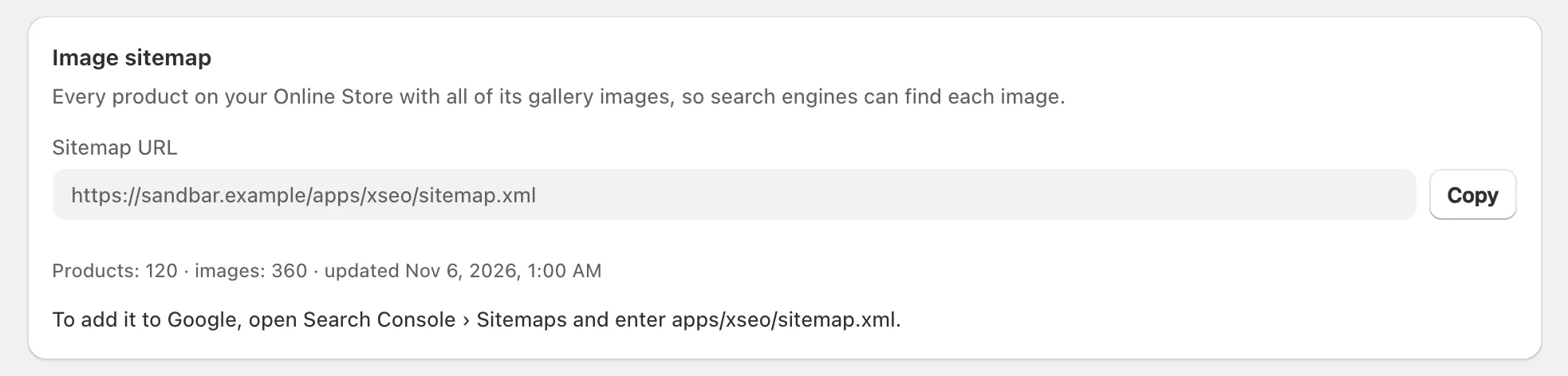
If you changed XSeo’s app proxy URL in Shopify, the sitemap follows your path.
How do I add the image sitemap to Google?
To add XSeo’s image sitemap to Google, submit its address in Google Search Console’s Sitemaps report, or, with Search Console connected to XSeo, click Let XSeo submit on the Image sitemap card. Either way, the sitemap goes to the Search Console property that covers your store’s domain.
Submit it in Search Console
- On XSeo’s Image sitemap card, copy the Sitemap URL.
- In Google Search Console, open your store’s property and choose Sitemaps.
- Enter the address in Add a new sitemap and click Submit. Where Search Console shows your store’s address before the box, enter only the path the card gives: “To add it to Google, open Search Console › Sitemaps and enter apps/xseo/sitemap.xml.”
Google lets only a property’s owners submit a sitemap in that report (Search Console Help: Sitemaps report, checked 6 November 2026).
Let XSeo submit
Once Search Console is connected, which you do on XSeo’s Results page, the card shows Submit to Google Search Console in place of that line.
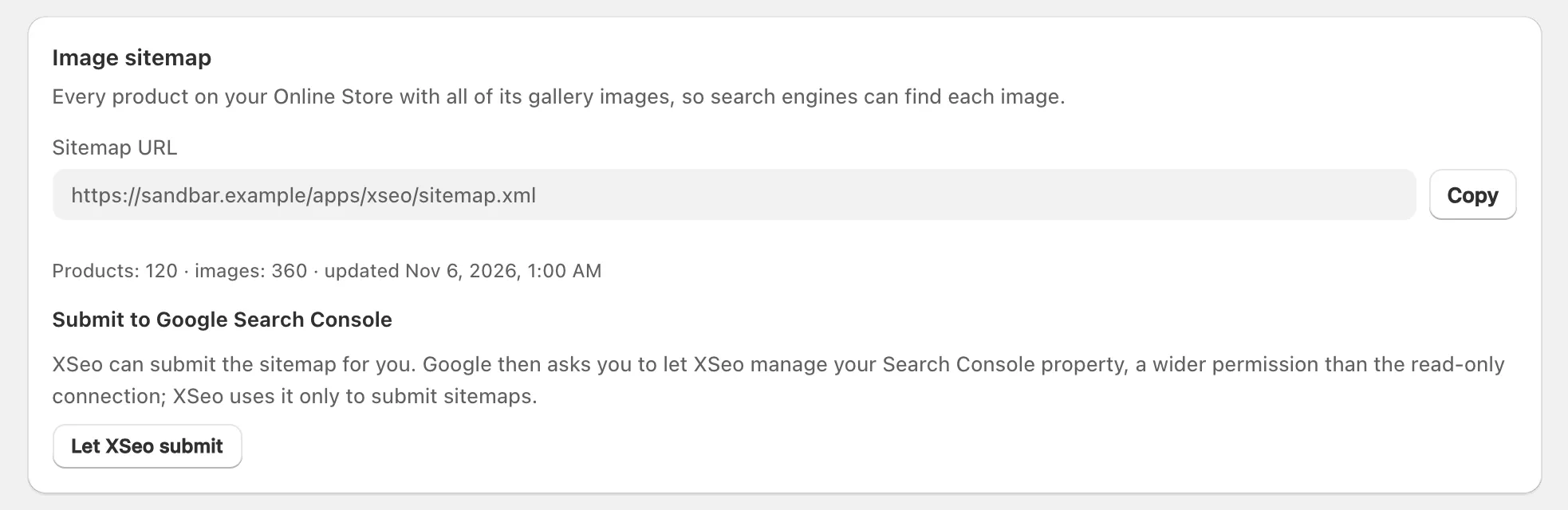
Let XSeo submit asks Google for a wider permission than XSeo’s read-only connection, which XSeo uses only to submit sitemaps, and only when you click. The card then says when and to which property it was submitted, with Submit again. Step by step: what Let XSeo submit does.
Neither the line nor the button shows while the sitemap is empty or your store is password-protected.
Why does Google need it submitted in Search Console?
Google needs XSeo’s image sitemap submitted in Search Console because, otherwise, a sitemap covers only addresses under its own folder. XSeo’s sits under /apps/xseo/ and lists your /products/ pages, so submitting it in Search Console, by hand or with Let XSeo submit, is what lets it cover them.
Google explains the folder rule in its guide to building a sitemap, and adds that submitting one is only a hint: Google still decides what it downloads and crawls (Google Search Central: build and submit a sitemap, checked 6 November 2026).
When does the sitemap update?
XSeo builds the image sitemap the first time you use XSeo or a search engine asks for it, and rebuilds it about once a day while search engines keep requesting it. A sitemap nobody has requested for 30 days is deleted, and built again the next time it’s requested.
The card’s line says where it stands:
- “XSeo is building your sitemap. It’s ready within the hour.”
- The number of products and images, with the date it was updated.
- Empty while your store is password-protected, because Shopify lists no product pages yet, or while no product is published on your Online Store. It fills once your store opens or products are published.
If you uninstall XSeo, it deletes the sitemap with its other storefront data. Remove it from Search Console’s Sitemaps report too: open the sitemap there, then Remove sitemap in its menu. That clears the report; Google doesn’t forget the pages the sitemap listed (Search Console Help: Sitemaps report).
Will the image sitemap get my images on Google?
Not by itself: XSeo’s image sitemap tells Google where your product images are, but Google decides what it crawls, indexes and shows, and a sitemap is a hint. What Google reads about each image, its alt text and the page around it, is covered in whether alt text helps in Google Images.
