Shopify Product Data for AI Shopping in XSeo
Which product data does XSeo check?
XSeo checks the Shopify product data that AI shopping agents and Google read, then helps you fill it: a category from Shopify’s product taxonomy, barcodes (GTINs) imported from a CSV file, and description drafts you approve one by one. It also drafts blog posts from your products, created hidden until you publish them.
XSeo runs eight checks on every active product, in your browser, changing nothing and using no AI items. A product’s page in Listings shows them under Checks; Home’s AI shopping group counts four.
| Check | Passes when | Fix in XSeo |
|---|---|---|
| Product category | A category is set, and it isn’t Uncategorized | Suggest categories |
| Description | It has at least 150 characters | Draft descriptions |
| Featured image with alt text | The featured image has alt text | Write alt text, on Images |
| Vendor (brand), Product type | Neither is empty | Edit product in Shopify |
| GTIN barcode | Its variants have a GTIN (gift cards need none) | Import barcodes |
| SEO title and meta description | Both are the product’s own | Write SEO text |
| On the Online Store, visible to search | Published there, not hidden from search engines | Edit product in Shopify, or the Search engines card |
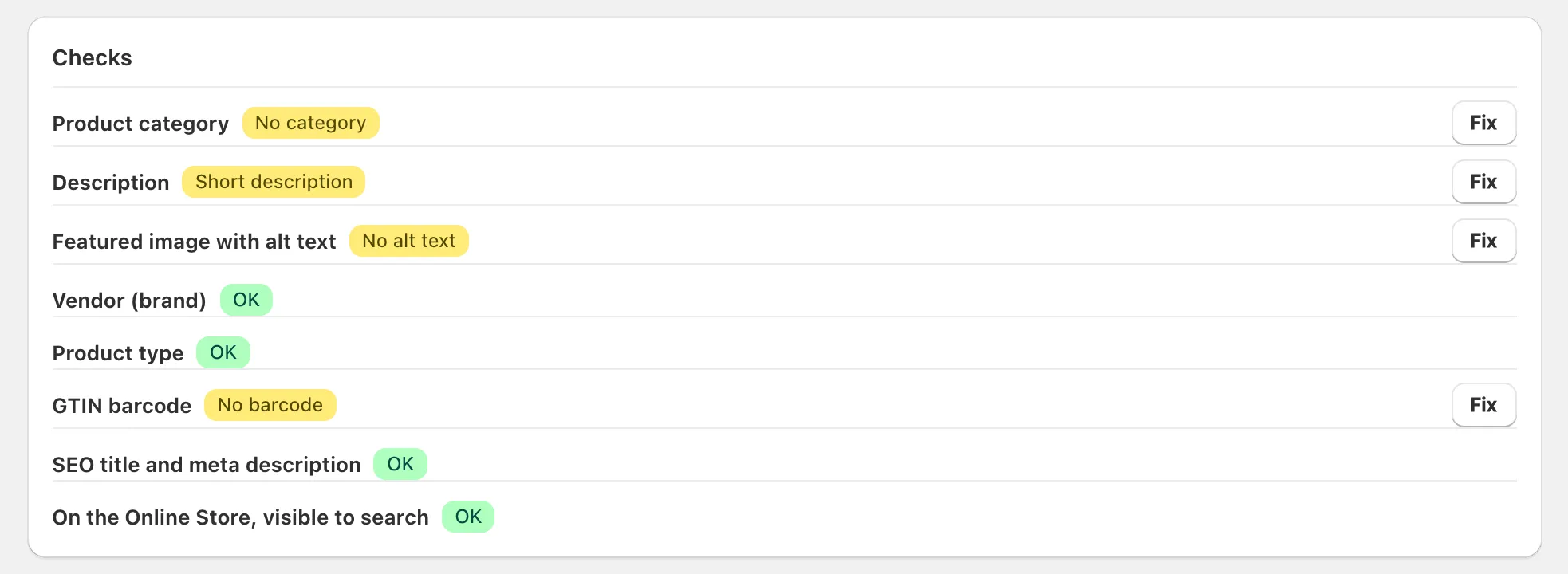
Shopify Catalog also leaves out Uncategorized, Unlisted and search-hidden products (Shopify: Shopify Catalog requirements, checked 6 November 2026).
How do I set product categories?
To set product categories, run XSeo’s Suggest categories fix: its AI picks each product’s category from Shopify’s Standard Product Taxonomy, shows three examples, and writes nothing until you click Set categories. By default it fills only empty ones.
- Click Suggest categories on Home’s Active products with no category row, on Listings’ No category view, or Fix in a product’s Checks.
- Read the examples: Now beside XSeo writes.
- To replace categories already set, click Change, pick Every active product, replacing set categories and tick I understand this replaces categories that are set.
- Click Set categories with its count. XSeo then says Categories set.
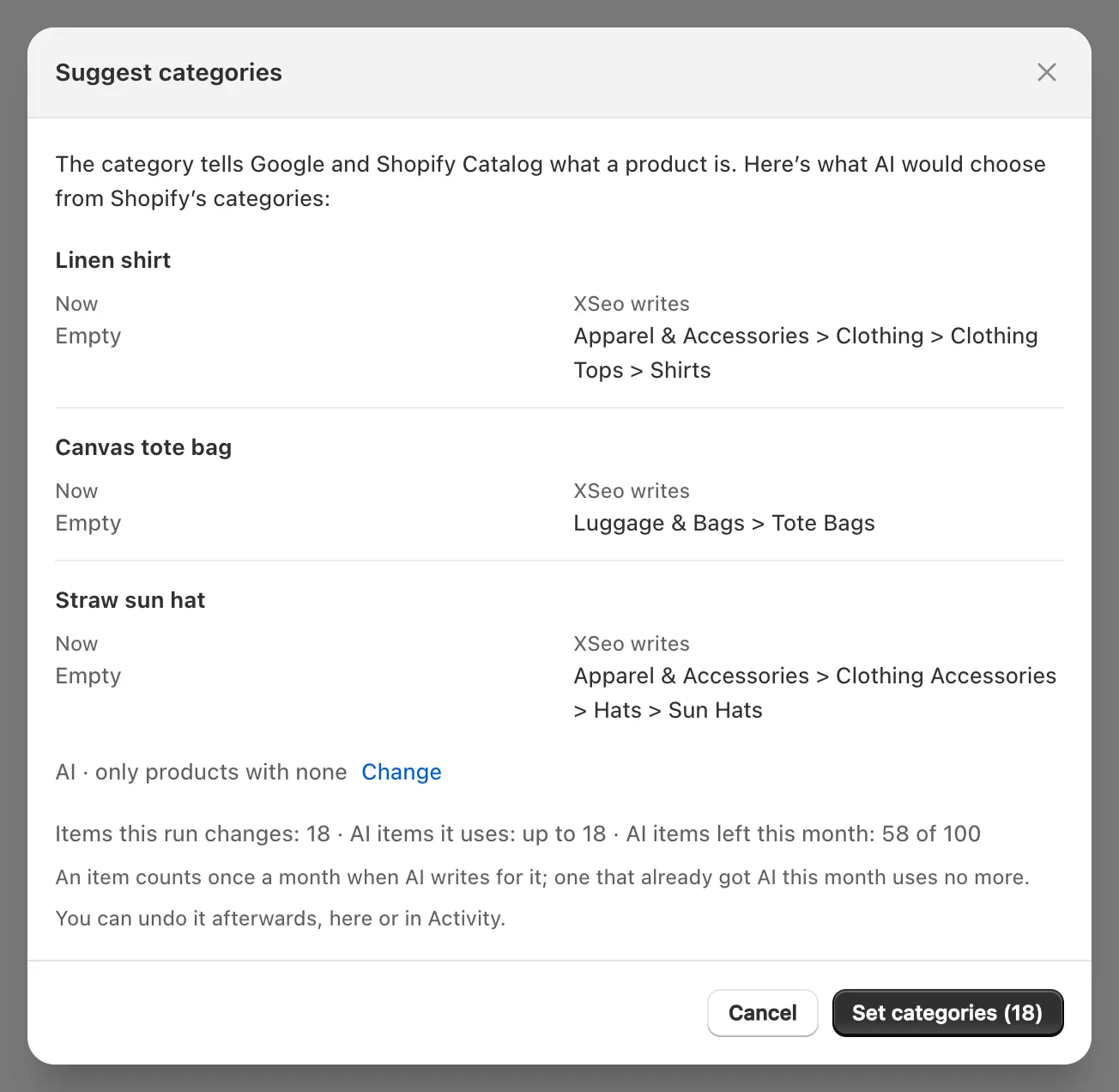
The AI searches Shopify’s taxonomy with the product’s title, type, brand, tags and description, then picks a category, or none: “No fitting category found: left as it is”. Categories are AI-only: past this month’s AI items, the rest of a run is skipped, and examples count even if you cancel (how XSeo counts AI items). Activity undoes a whole run. Shopify’s product page also suggests one (Shopify: Standard Product Taxonomy).
How do I import barcodes (GTINs)?
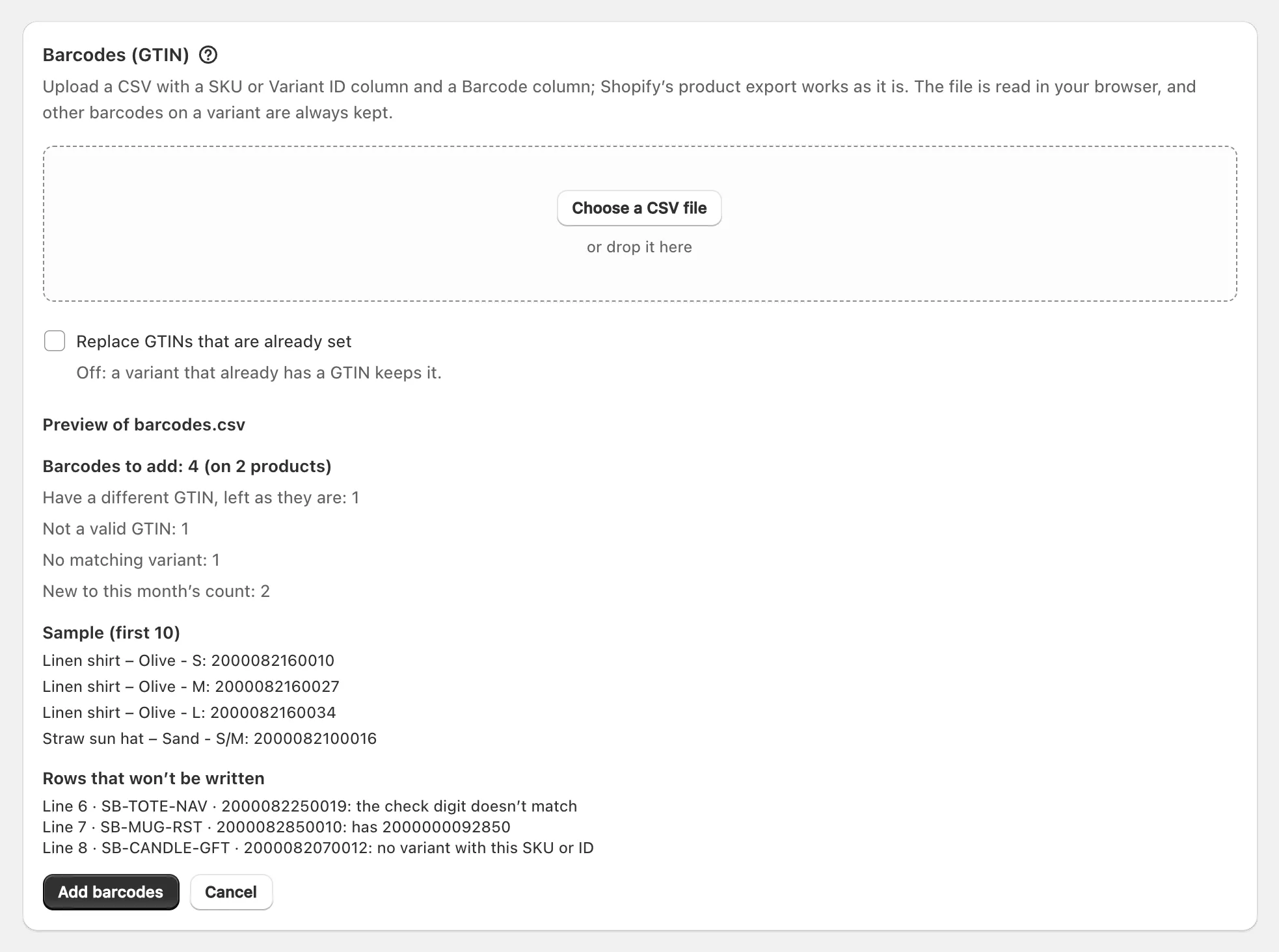
To import barcodes, open Listings → Import barcodes and choose a CSV of SKUs or variant IDs and GTINs: XSeo reads the file in your browser, previews what it would add, and adds nothing until you click Add barcodes.
- In Listings, click Import barcodes, then Choose a CSV file.
- Read the preview: Barcodes to add, counts such as Have a different GTIN, left as they are, and Rows that won’t be written with their reasons.
- To overwrite GTINs already set, tick Replace GTINs that are already set and confirm.
- Click Add barcodes. XSeo then says Barcodes added.
- Columns: SKU or Variant ID, and Barcode (or GTIN, EAN, UPC) with one barcode per row, or the Barcodes column of Shopify’s current product export, which works as it is; up to 2 MB and 10,000 rows.
- Barcodes cells: up to 20 barcodes, typed such as
gtin:or untyped (Shopify: product CSV, checked 6 November 2026). XSeo takes the first GTIN, UPC or EAN, else the first untyped number of a GTIN’s length. A variant with only other codes, such as an ISBN, counts under Rows without a GTIN, skipped and keeps them. - Matching: by variant ID, otherwise exact SKU; a SKU several variants share is skipped.
- Valid: 8, 12, 13 or 14 digits with the right check digit.
- Kept: the variant’s other barcodes; Shopify allows 20.
The import uses no AI; undo it with its Barcodes run in Activity. Spreadsheet apps drop leading zeros: format the barcode column as text.
How do description drafts work?
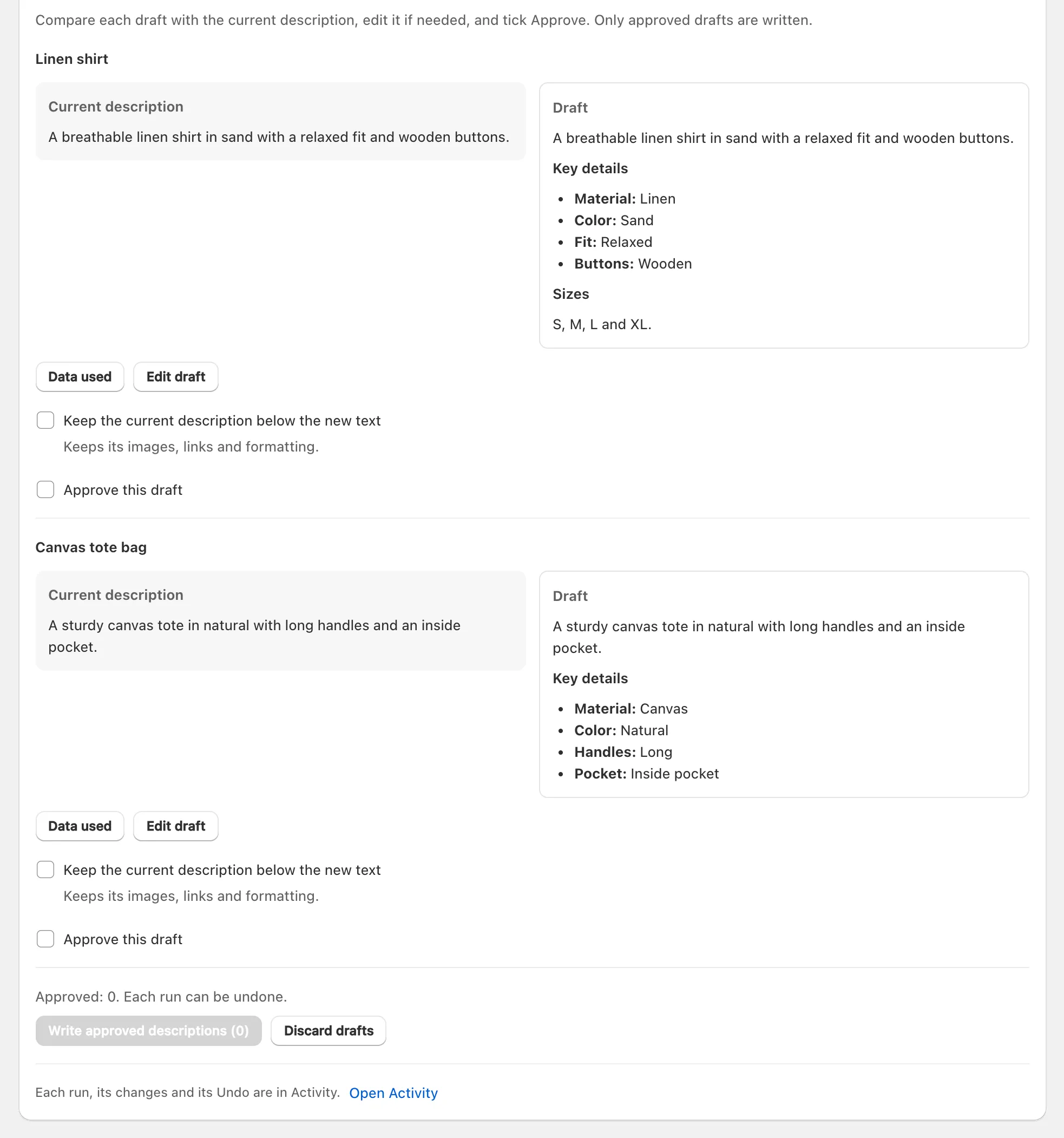
XSeo’s description drafts are AI rewrites of a product’s or collection’s description from its own data, which you compare, edit and approve one by one. Only approved drafts are written; Activity can undo the run.
- In Listings, click Draft descriptions (or Write descriptions on Home).
- Choose Products or Collections, tick up to 10, and click Write drafts.
- Compare each draft with the Current description; Data used shows its sources, and Edit draft changes it.
- Tick Approve this draft, and Keep the current description below the new text to keep the old one.
- Click Write approved descriptions. XSeo then says Descriptions written.
The AI gets the item’s data, never its price, and is told to write only from it. Check these before approving flags numbers and material or claim words, such as “organic”, missing from that data. Each item drafted counts as an AI item this month.
How do blog post drafts work?
XSeo’s blog post drafts are posts its AI writes from your products and notes, one at a time, up to five a month (UTC). XSeo creates each as a hidden post, unseen by shoppers and search engines until you publish it.
- In Listings, click Blog post drafts.
- Pick a Kind of post: Buying guide for a collection, Care and use guide for a product type, Comparison of products or How to choose a size or option, then its collection, type or products.
- Add Your notes (optional): tips, questions customers ask.
- Click Write draft. Drafts left this month counts down, discarded ones included; none are written once this month’s AI items are used.
- Edit the post, its Search result title and meta description, then click Create hidden post.
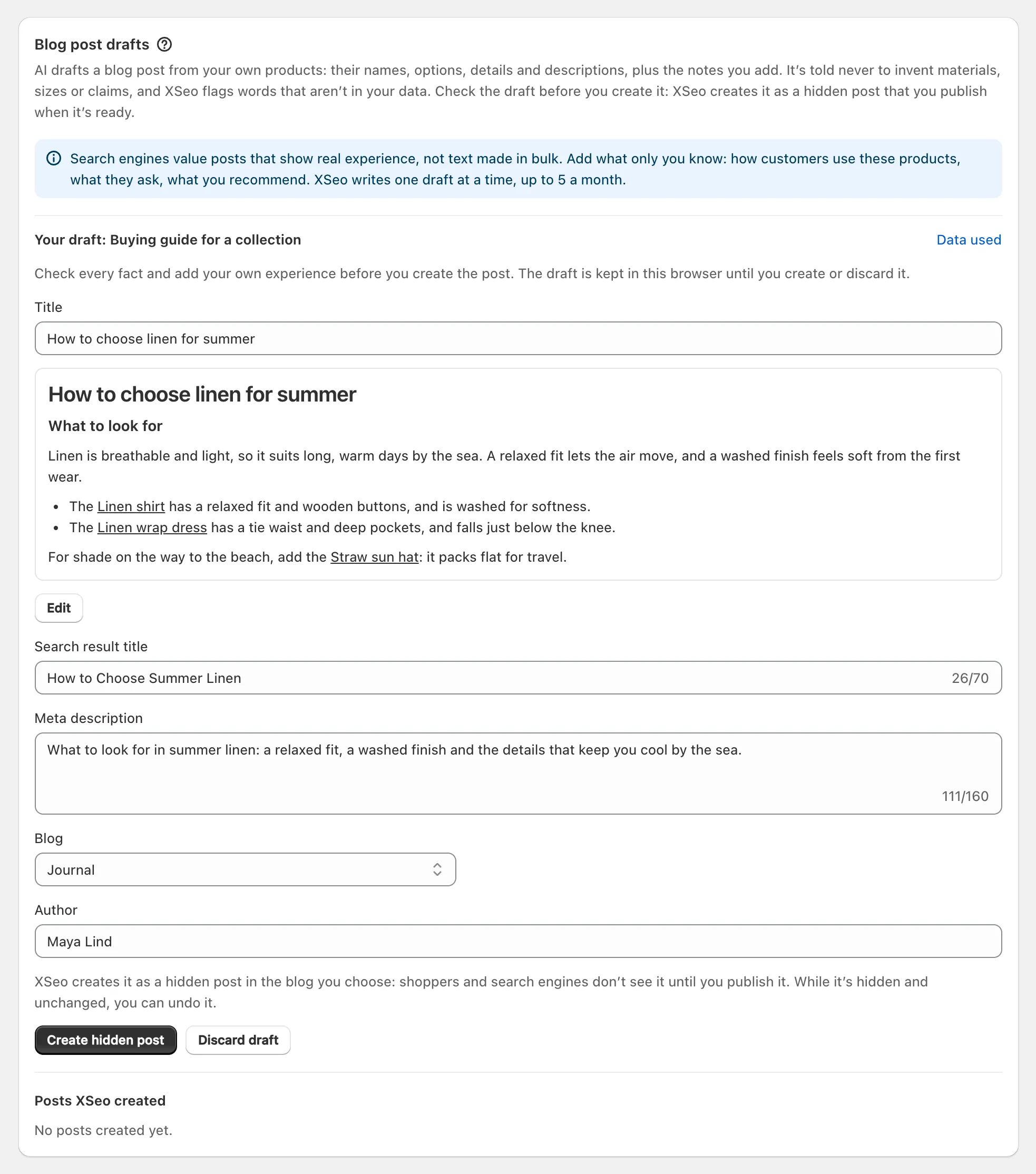
Posts get the same facts check; read every fact anyway. Google warns that generating “many pages without adding value for users” may break its spam policies, and says to fact-check AI content (Google: generative AI content, checked 6 November 2026).
Posts XSeo created lists your last 25, with Publish, Hide again and Undo, which deletes a post only while it’s hidden and unchanged. XSeo never publishes a post itself, and autopilot never writes one.
