XSeo Autopilot for New Products and Posts
What can autopilot do?
XSeo’s autopilot works on Shopify products and blog posts that arrive after you turn it on. Four switches in Settings cover SEO text for new products, categories for new products, translations of their SEO text and SEO text for new blog posts. Each fills only what’s empty and never hides a page from search engines; every run can be undone.
Every switch is off until you turn it on. Autopilot writes without showing you examples first, unlike the runs you start from Home or Listings. It writes with your Writing settings, so check those before you turn it on.
| Switch | What it does, in XSeo’s words | Which items |
|---|---|---|
| SEO text for new products | “Writes the missing SEO title and meta description of new products.” | Products created after you turn it on |
| Categories for new products | “Gives new products with no category one from Shopify’s product taxonomy, chosen by AI.” | Products created after you turn it on |
| Translations of new products’ SEO text | “Translates new products’ SEO text into your store’s other languages, where there’s no translation yet.” | Those new products, once they have SEO text |
| SEO text for new blog posts | “Writes the missing SEO title and meta description of blog posts once they’re published.” | Blog posts published after you turn it on |
| Redirects for deleted products | “When a product or collection is deleted, its address leads to the collection it was in, a similar one, or your home page.” | Products and collections deleted after you turn it on |
SEO text follows your Writing choice: With AI (Google Gemini) by default, in your store’s language, or your product and blog post templates. Categories and translations always use AI. With SEO text for new products on as well, a new product’s SEO text is written first, then translated. Autopilot looks for new items once an hour and waits while another XSeo task is running.
How do I turn autopilot on?
To turn autopilot on, open Settings → Autopilot in XSeo and click Turn on beside a switch: it applies at once, with nothing to save.
- In XSeo, open Settings, or click Manage beside Autopilot in Home’s Status card.
- Under Writing, choose With AI (Google Gemini) or From templates for SEO text, and the language AI writes in. Save with Shopify’s save bar.
- Under Autopilot for new products and blog posts, click Turn on beside each switch you want. Its badge reads On, with On since and the date and time below.
- For Translations of new products’ SEO text, click Allow access when XSeo asks, then approve Shopify’s prompt so XSeo can read your store’s languages and write translations. A store published in one language can’t turn it on: “Your store is published in one language, so there is nothing to translate yet.”
- Redirects for deleted products has its own card: click Turn on there.
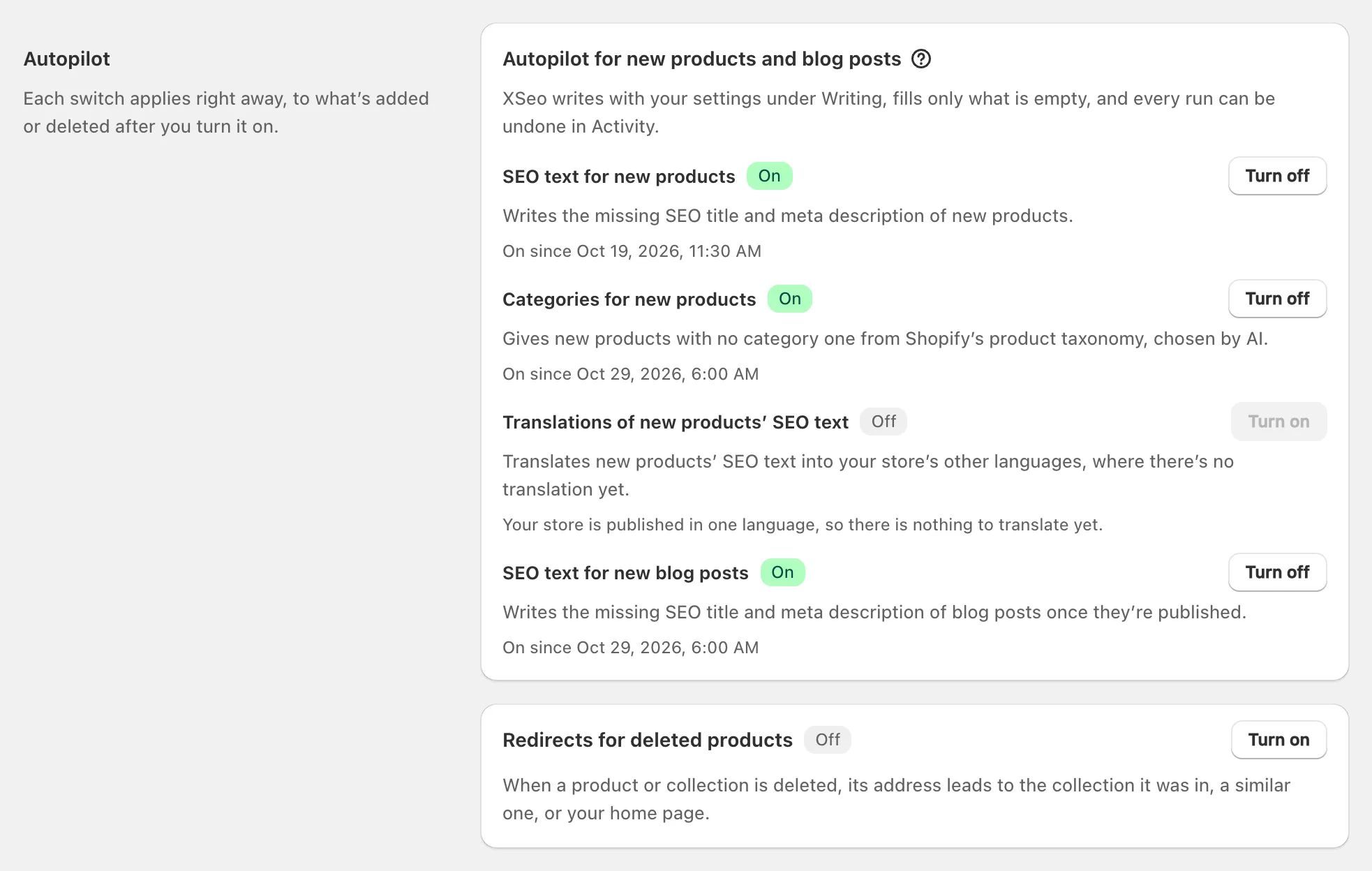
Turn off stops a switch at once. What it already wrote stays until you undo it.
What does autopilot never do?
XSeo’s autopilot never replaces text you or your team wrote: it fills only empty fields, and checks again right before each write.
- It never touches products created, or blog posts published, before you turned it on. Use Home’s fixes for those.
- It never replaces a category that’s set, or a translation that exists. Shopify’s “Uncategorized” counts as no category.
- It never hides a page from search engines.
- It never shows examples first. Runs you start from Home or Listings do.
- It doesn’t work on images: compress them on Images, and write their alt text from Home or Images.
What happens with a bulk import?
When more than 100 new products or blog posts arrive between two of autopilot’s hourly checks, XSeo treats them as a bulk import and leaves them for you. Autopilot carries on with the items that arrive after them.
XSeo’s admin doesn’t flag the skipped items, but Home’s to-do list counts them like any others. Write their SEO text from Products with weak or missing SEO text on Home, or select them in Listings, and set categories from Active products with no category, with fixes that show examples before they write.
What happens when AI items run out?
When this month’s AI items are used, XSeo’s autopilot keeps running: until the 1st of next month (UTC), SEO text for new products and blog posts is written from your templates, and categories and translations are skipped for products that arrive in that time.
Skipped products aren’t picked up again when the month turns. Give them a category from Home’s Active products with no category, and translate them from Listings → Translations. Each run, and the daily email, says how many products were left without a category or translation. Nothing pauses and nothing is charged.
Each new product AI writes for counts once that month as an AI item, whatever AI writes for it: how XSeo counts AI items.
How do I undo what autopilot wrote?
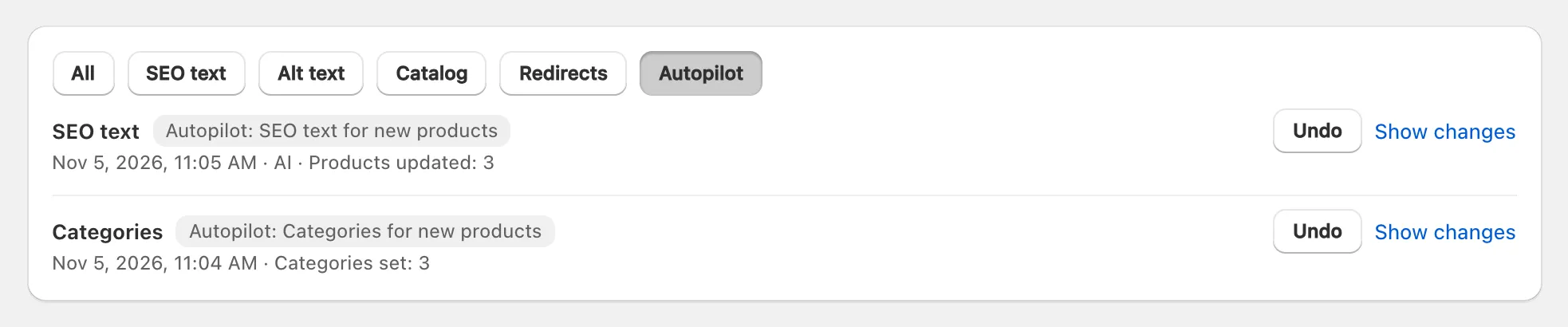
To undo what autopilot wrote, open Activity in XSeo and click Autopilot at the top: each autopilot run is listed with a badge such as Autopilot: SEO text for new products, and its Undo puts back what each item had before.
- In XSeo, open Activity and click Autopilot.
- Click Show changes on a run to see each change. SEO text and translations can be undone one change at a time; a categories run is undone as a whole.
- Click Undo on the run and confirm. XSeo puts back each value unless it was edited again since.
On a product’s page in Listings, Changes made by XSeo marks the SEO text autopilot wrote with an Autopilot badge, each change with its own Undo. Redirects created for deleted products are undone in Activity too.
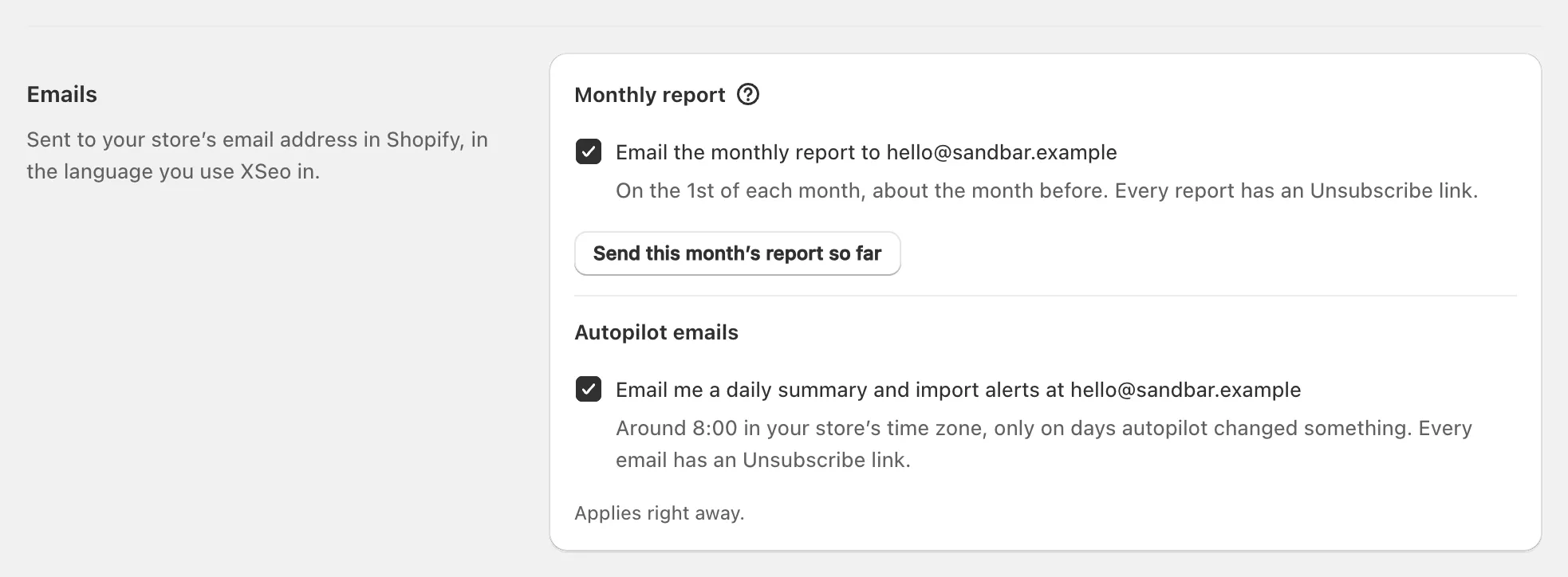
Once an autopilot is on, XSeo emails a daily summary “around 8:00 in your store’s time zone, only on days autopilot changed something”. To stop it, untick Email me a daily summary and import alerts under Settings → Emails → Autopilot emails, or use the Unsubscribe link in any of the emails. Uninstalling XSeo turns every autopilot off.