SEO Titles and Meta Descriptions in XSeo
How do I write SEO text with XSeo?
XSeo writes the SEO title and meta description Shopify keeps for each product, collection, page and blog post. Choose a fix on Home or select items in Listings, pick AI or your templates, read the examples, then apply. Unless you choose to replace it, text you wrote stays as it is, and Activity can undo the whole run.
Open the fix from one of three places (Home has no row for pages and blog posts):
- Home: Products with weak or missing SEO text or Collections with weak or missing SEO text → Write SEO text.
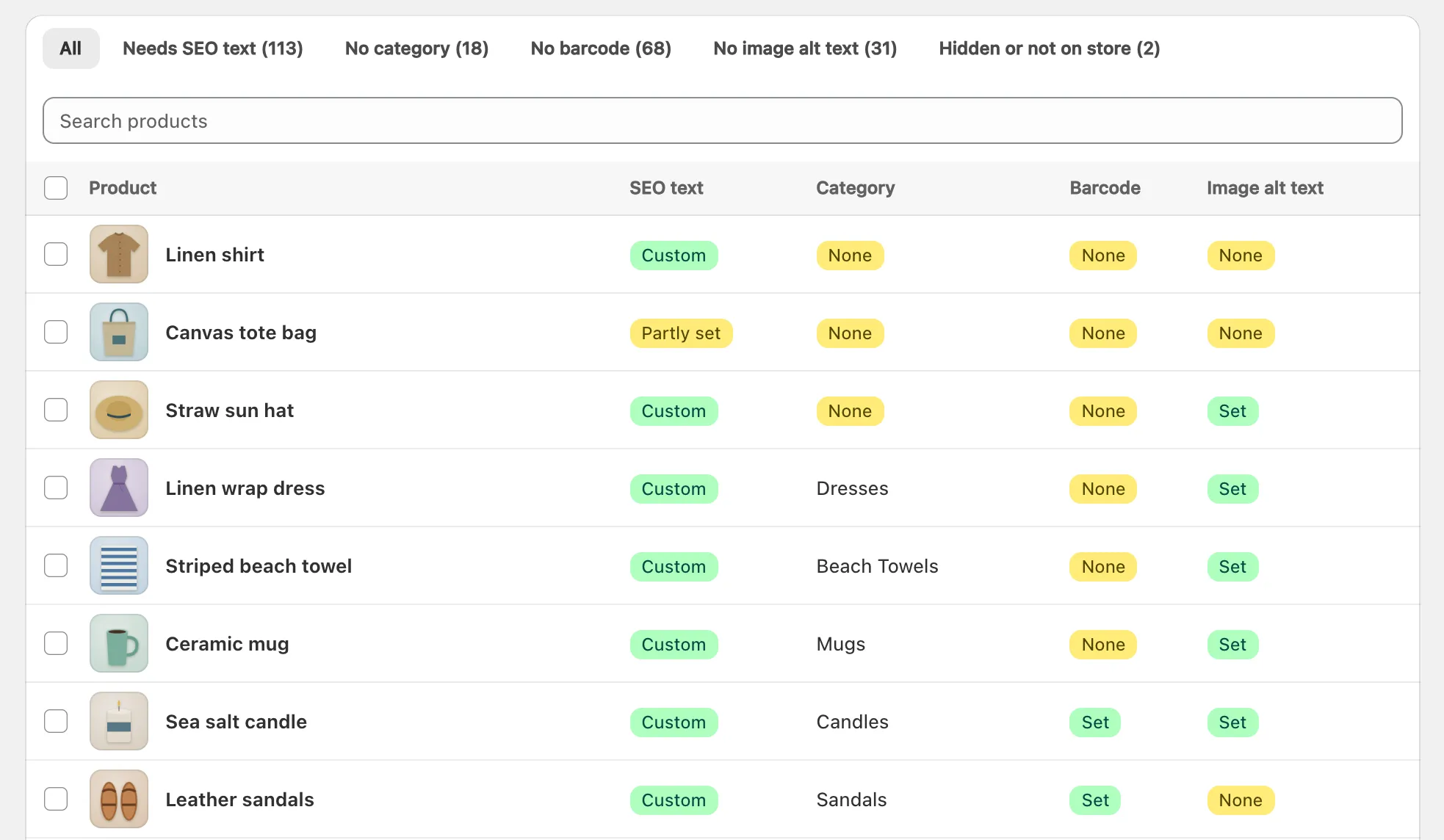
- Listings: select items and click Write SEO text, or open the Needs SEO text view and click Write SEO text (N).
- An item’s page in Listings: Write SEO text on its In Google card.
- Read the three examples from your store: Now beside XSeo writes.
- Check the settings line, such as “AI, in English · fills empty fields only”. Change sets Written by (AI or Your templates), Language and What to write.
- Check Items this run changes and, with AI, AI items it uses.
- Click Write SEO text (N). The run goes on if you close the dialog, and ends with SEO text written, Undo and See it in Activity.
Runs skip draft and archived products.
Should I use AI or templates?
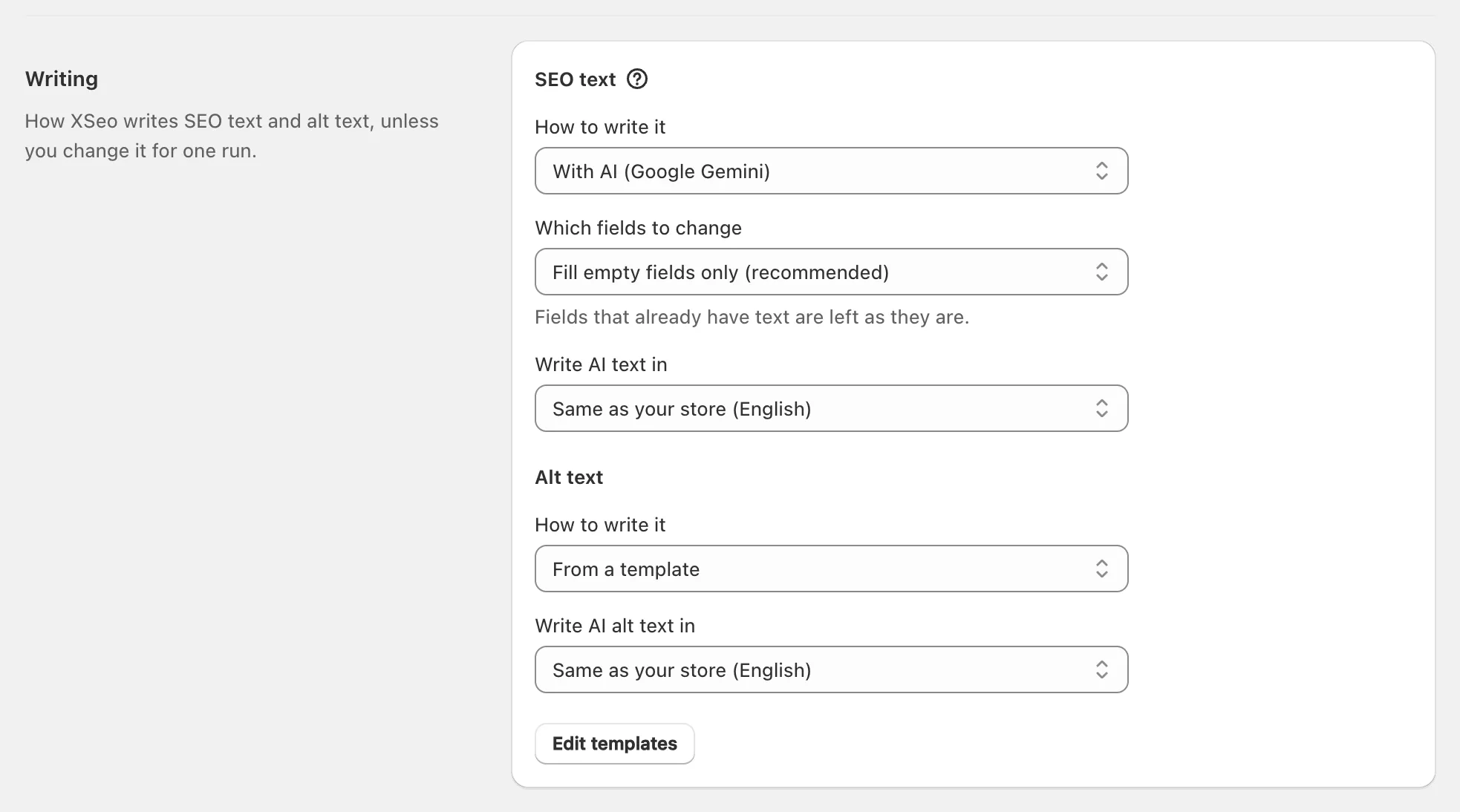
Use XSeo’s AI when your items have descriptions or details worth summarising, and its templates when you want one pattern everywhere and no AI. Set the default in Settings → Writing → SEO text → How to write it, or change it for one run.
AI writes through Google’s Gemini API from the item’s own details, such as its name, type and description, never its price. Gemini is told never to invent facts, and an item whose details only repeat its name gets no AI text. Google asks sites to check AI-written titles and descriptions (Google’s guidance on AI-generated content), so read the examples.
Since its launch on 6 November 2026, XSeo is free, and its AI writes for up to 100 items a month (UTC); the dialog’s AI examples count, even if you cancel it. Past that, SEO text comes from your templates until the 1st (how XSeo counts AI items).
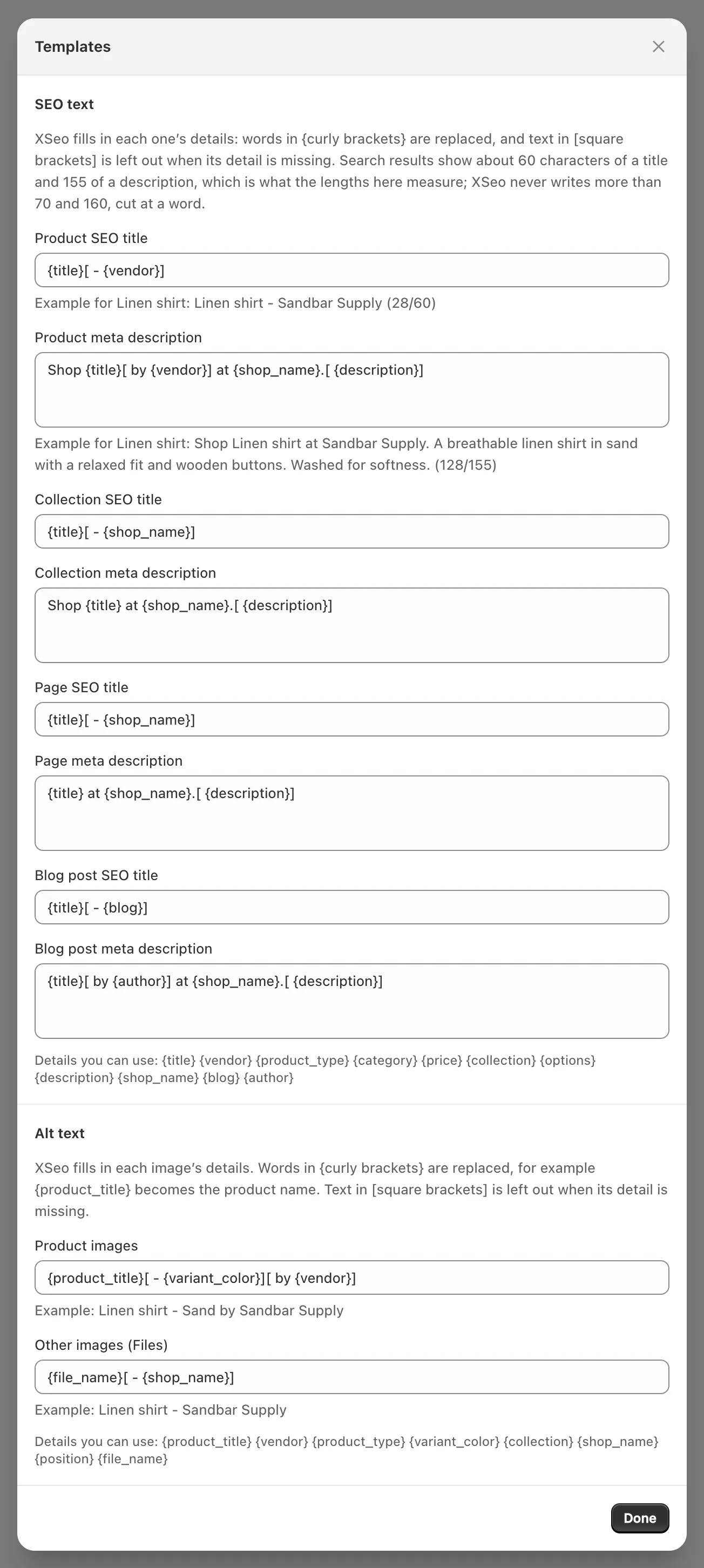
Templates are in Settings → Writing → Edit templates (click Done, then Save). Words in {curly brackets} become the item’s details, and text in [square brackets] is left out when its detail is missing. Every type takes {title}, {description} and {shop_name}; products add {vendor}, {product_type}, {category}, {price}, {collection} and {options}, blog posts {blog} and {author}. Templates use no AI items.
Which fields does XSeo change?
XSeo changes only the SEO title and meta description Shopify keeps for each item, and the dialog’s What to write decides which:
| Option | What XSeo writes |
|---|---|
| Fill empty fields only (recommended) | Empty fields |
| Also replace Shopify defaults | Empty fields, titles that only repeat the item’s name, and descriptions copied from its text |
| Everything, my own text too | Every field, once you tick I understand this replaces SEO text I wrote |
Until you first save XSeo’s Settings, the dialog starts with Also replace Shopify defaults. After that it starts from Settings → Writing, where Which fields to change defaults to Fill empty fields only (recommended).
XSeo doesn’t write your home page’s title and description, which Shopify keeps in Online Store → Preferences (Shopify’s help on titles and descriptions). URL handles are on Links: renaming weak URL handles with XSeo.
How long are the titles and descriptions?
XSeo measures SEO titles against about 60 characters and meta descriptions against about 155, roughly what results show. Google itself sets no length limit and shortens results to fit the screen (Google on title links).
An item’s In Google card shows each length with a verdict: Good length, Results may cut it off, or Short: there’s room for more (a description under 120 characters). Templates never write more than 70 characters for a title or 160 for a description, cut at a word; AI aims for up to 60 and 155. Shopify’s own counters are in how to write Shopify meta titles and descriptions.
How do I check the text before it’s written?
XSeo’s fix dialog shows three real items from your store, and AI examples are written exactly as shown. The rest of an AI run is written unseen, so to read every item first, select three items or fewer in Listings.
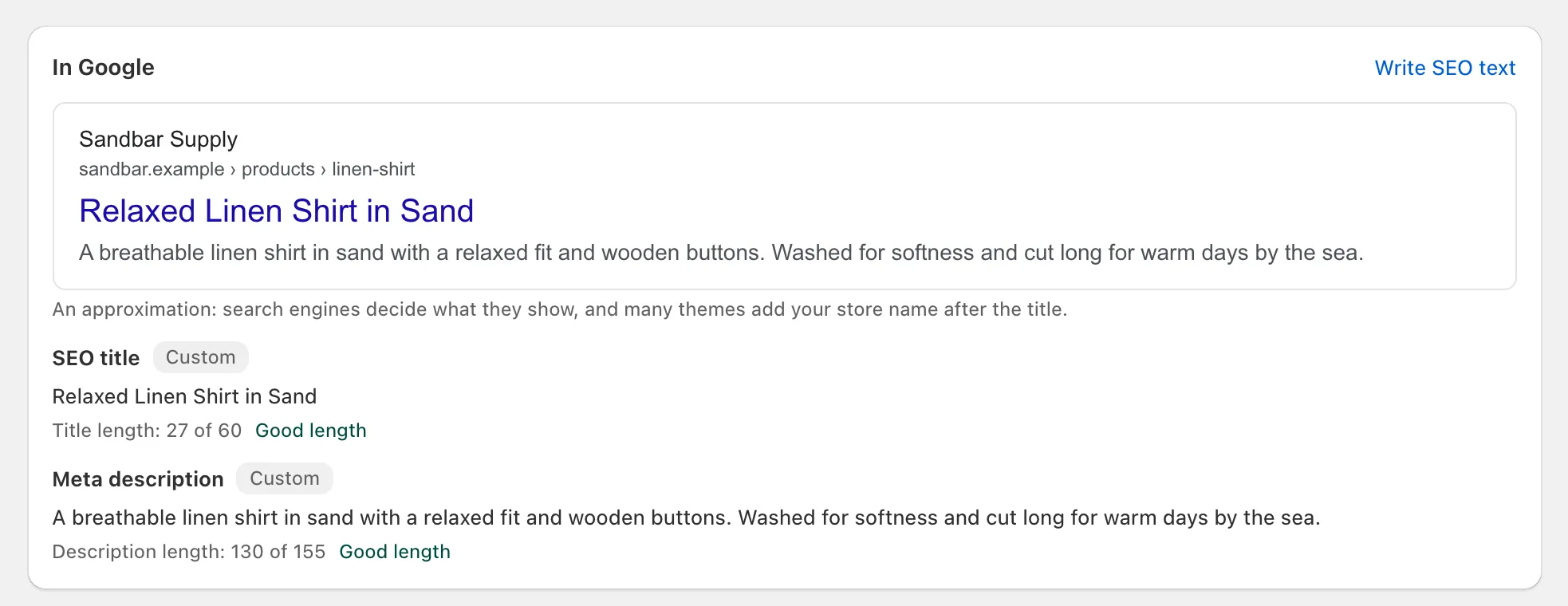
Afterwards, the item’s In Google card draws its result, “an approximation”, and Changes made by XSeo lists each change with Undo. In Activity, a run’s Undo puts back every field it changed, unless edited since (undo changes in XSeo with Activity). XSeo’s autopilot writes new items’ SEO text without examples.
How do I hide a page from search engines?
To hide one product, collection, page or blog post from search engines, open it in Listings, click Hide from search engines on its Search engines card, then Hide it. XSeo asks first and works one item at a time, never in bulk or by autopilot.

XSeo sets Shopify’s seo.hidden metafield, so Shopify adds noindex and nofollow tags to the page and leaves it out of your sitemap and store search (Shopify’s developer docs on seo.hidden). Shopify also removes it from its AI shopping channels; visitors with the link can still open it. Shopify’s help names products, pages and blog posts for this setting (Shopify’s help on hiding pages, checked 6 November 2026), so check a hidden collection’s page source for noindex.
Google drops the page after it next crawls it, which can take months (Google on noindex). To undo, click Show in search engines again, or Undo under Changes made by XSeo; these changes aren’t in Activity.
Why doesn’t Google show my new text?
Google shows new SEO text only after it crawls the page again, and even then it picks the title link and snippet itself, often from the page’s content (Google on snippets).
With Google Search Console connected, Is a page on Google? on XSeo’s Results page shows when Google last crawled a page (checking a page in XSeo’s Results). Asking for a new crawl is Search Console’s Request indexing, which XSeo can’t press for you.
