Get Started with XSeo on Shopify
How do I set up XSeo?
Install XSeo from the Shopify App Store and it reads your store: Home lists what to fix, most important first. Nothing changes until you choose a fix, read its examples and apply it, and Activity can undo each run. Since its launch on 6 November 2026, XSeo is free, with AI writing for up to 100 items a month.
XSeo is a Shopify app that writes SEO titles, meta descriptions and image alt text from templates or AI, compresses images with a 60-day backup, adds structured data through a theme app embed and manages redirects. Home’s list is its setup guide.
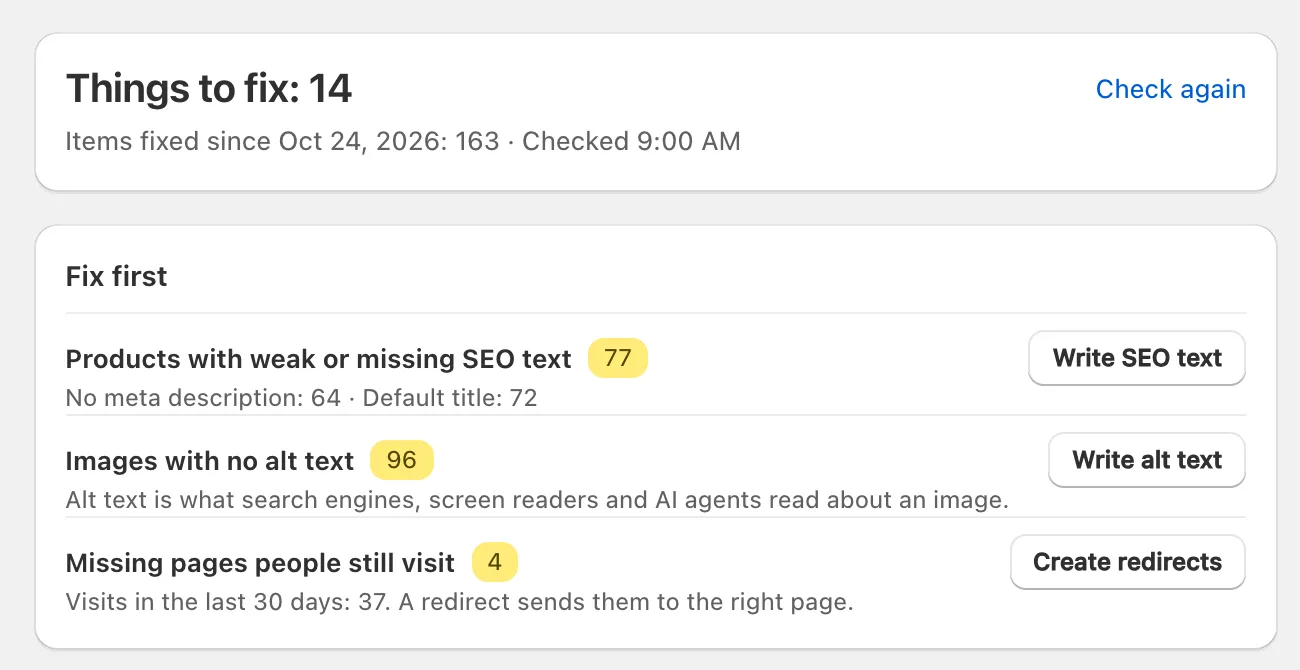
- Open XSeo in your Shopify admin. Home greets you with Welcome to XSeo and shows Checking your store… while it reads.
- Start with Fix first: the three issues whose fix helps most, each with one button.
- Work down More to fix, and click Check again after a run.
XSeo’s menu: Listings, Images, Links, Results, Activity and Settings, with XSeo opening Home. Every check, row by row: what XSeo’s site audit checks.
What does XSeo ask permission for?
XSeo asks Shopify for 10 permissions when you install it: to read and edit your products, collections, Files, pages, blog posts and URL redirects, to read your store policies, shipping settings and themes, and to serve a few addresses under /apps/xseo, such as the image sitemap. It asks for no access to your customers or orders.
Three more are asked only when needed, with Shopify’s own prompt: your store’s languages and translations when you translate or turn on translations for new products, and theme editing when you apply AI crawler rules. The structured data embed never edits your theme’s files. XSeo writes to your theme only if you apply AI crawler rules, and then only its own marked lines in robots.txt.liquid.
XSeo’s listing names device and activity data because Shopify passes visitors’ IP address and browser details with requests to /apps/xseo; XSeo stores none of them. Connecting Google Search Console to XSeo is optional, with read-only access.
How does a fix work?
A fix in XSeo reads your store, shows three real examples of what it would write, and writes nothing until you press its button. Home’s SEO text, alt text and category rows open one:
- On Home, click a row’s button, such as Write SEO text.
- Read the examples: Now beside XSeo writes. An example AI wrote is written exactly as you see it.
- Check the settings line. Change sets Written by (AI or Your templates), Language and, for SEO text, What to write; changing one makes new examples.
- Check Items this run changes and, with AI, AI items it uses.
- Click the button with its count, such as Write SEO text (77). You can close the dialog; the run goes on.
- When it ends, the dialog says what it wrote, with Undo and See it in Activity.
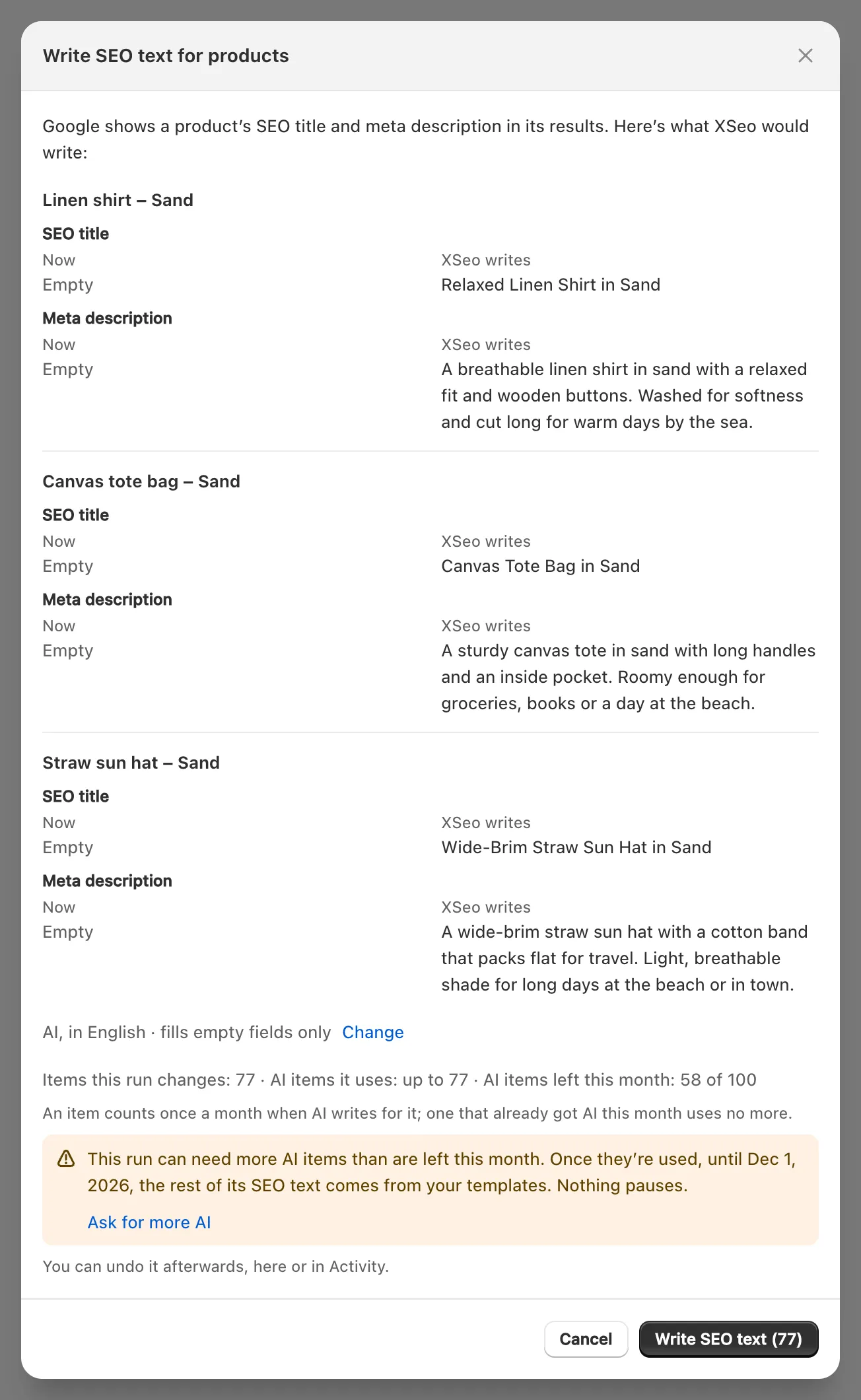
Note: Until you first save Settings, the SEO text fix starts with AI and Also replace Shopify defaults, which also rewrites titles that only repeat an item’s name and descriptions copied from its text; text you wrote is kept. For empty fields only, pick Fill empty fields only (recommended) under Change.
Important: A fix that writes with AI makes its examples with AI, and those items count toward this month’s AI items even if you cancel: how XSeo counts AI items.
Switching from another SEO app?
If you’re switching from another SEO app, copy its SEO text into Shopify’s own fields with XSeo before you remove that app: some apps keep titles and meta descriptions in their own data, which goes with the app.
When Home finds such text, it shows Products whose SEO text another app manages (or collections). Review and copy shows examples, then Copy SEO text writes it as an ordinary SEO text run you can undo in Activity; the other app’s text stays where it is. XSeo can’t read text an app keeps on its own servers or in your theme’s code. Afterwards, follow that app’s own steps to remove what it added to your theme.
What works while my store is password-protected?
Everything XSeo does through your Shopify admin works while your store is password-protected: SEO text, alt text, images, categories and barcodes, What AI agents see, translations, redirects, restore and undo.
What needs your storefront open to visitors waits until it is: structured data on your pages (you can turn the embed on now), the storefront check, 404 records, the image sitemap, the AI crawler check, speed checks, real-visitor data and Google’s answers about your pages. Shopify keeps development stores in private mode, so these never run on one.
Which settings should I check first?
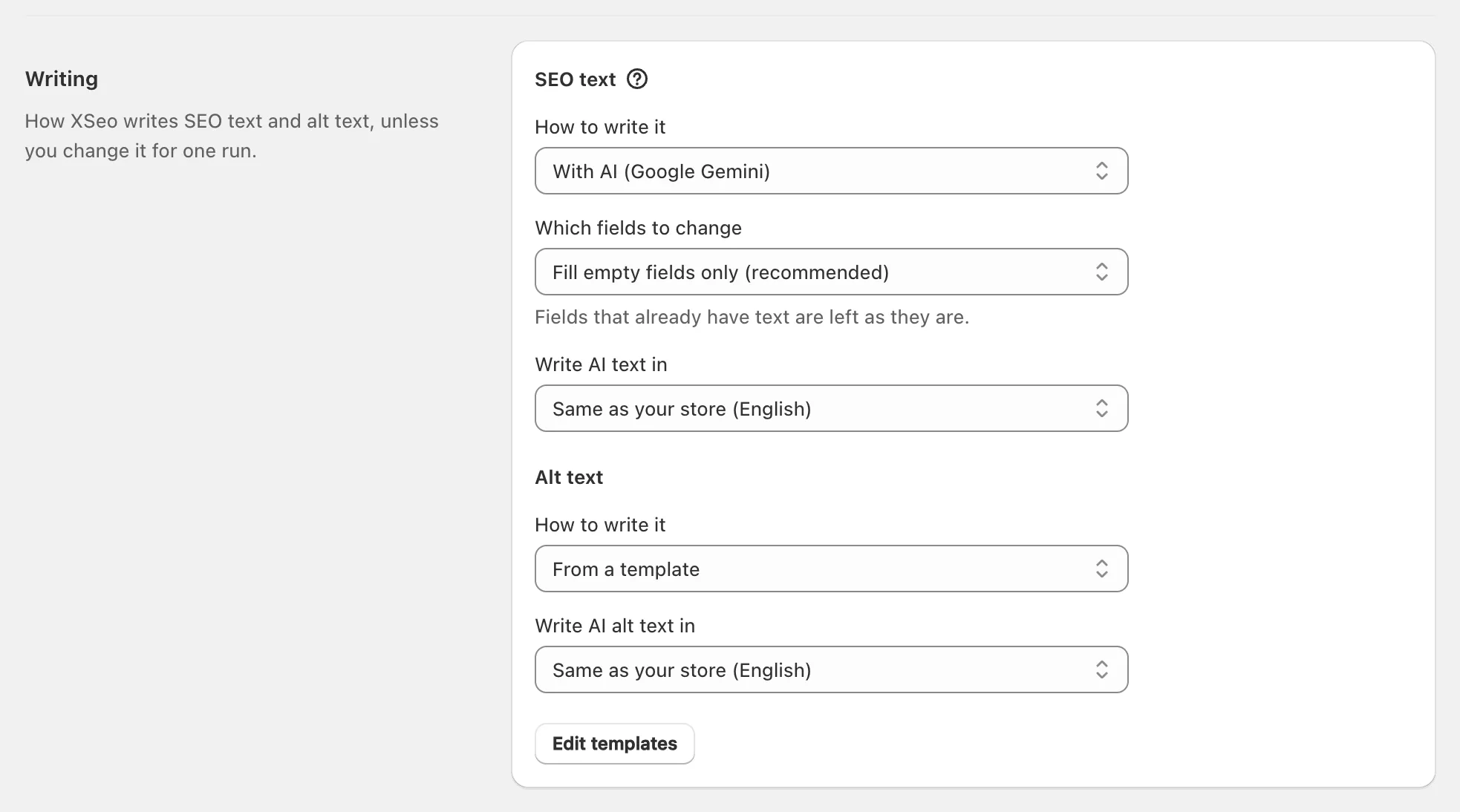
Check Writing in XSeo’s Settings first, because autopilot writes with it, and your fixes do once Settings is saved. The sections start like this:
- Autopilot: every switch off (XSeo’s autopilot).
- Writing: With AI (Google Gemini) for SEO text and alt text, Fill empty fields only (recommended), in your store’s language.
- Images: Balanced (recommended) compression and a Largest image size of 2,560 px (default).
- Emails: the Monthly report is on, sent on the 1st.
- Structured data: the App embed is off.
To turn on structured data, click Turn on beside Structured data is off on Home, then Turn on in theme editor: switch on XSeo structured data, click Save, and come back to Check again (structured data with XSeo’s app embed).
What happens if I uninstall XSeo?
Uninstalling XSeo keeps what it wrote in your store, but XSeo deletes its image originals and change history 48 hours later, so restore or undo anything you want back first.
- Stays in your store: optimised images and everything XSeo wrote, redirects and AI crawler rules included. Remove the rules first with Remove XSeo’s rules on the AI crawlers page if you don’t want them.
- Stops: Shopify removes XSeo’s app embed, so structured data and 404 recording stop; autopilot and emails stop, and XSeo deletes its Search Console numbers.
- Deleted after 48 hours: image originals and the change history.
To uninstall, go to Settings → Apps in Shopify, open the menu beside XSeo and click Uninstall (Shopify’s guide to uninstalling apps, checked 6 November 2026). XSeo is free, so there’s no subscription to cancel.
