Protect Text and Images with X Shield
What does X Shield’s content protection stop?
X Shield’s content protection stops casual copying on a Shopify store: right-click menus, text selection, copy, cut and paste, dragging or downloading images and videos, and the keyboard shortcuts that open developer tools or view source. It can’t stop screenshots, a phone camera or anyone reading your page’s HTML directly, so treat it as friction, not copy-proofing.
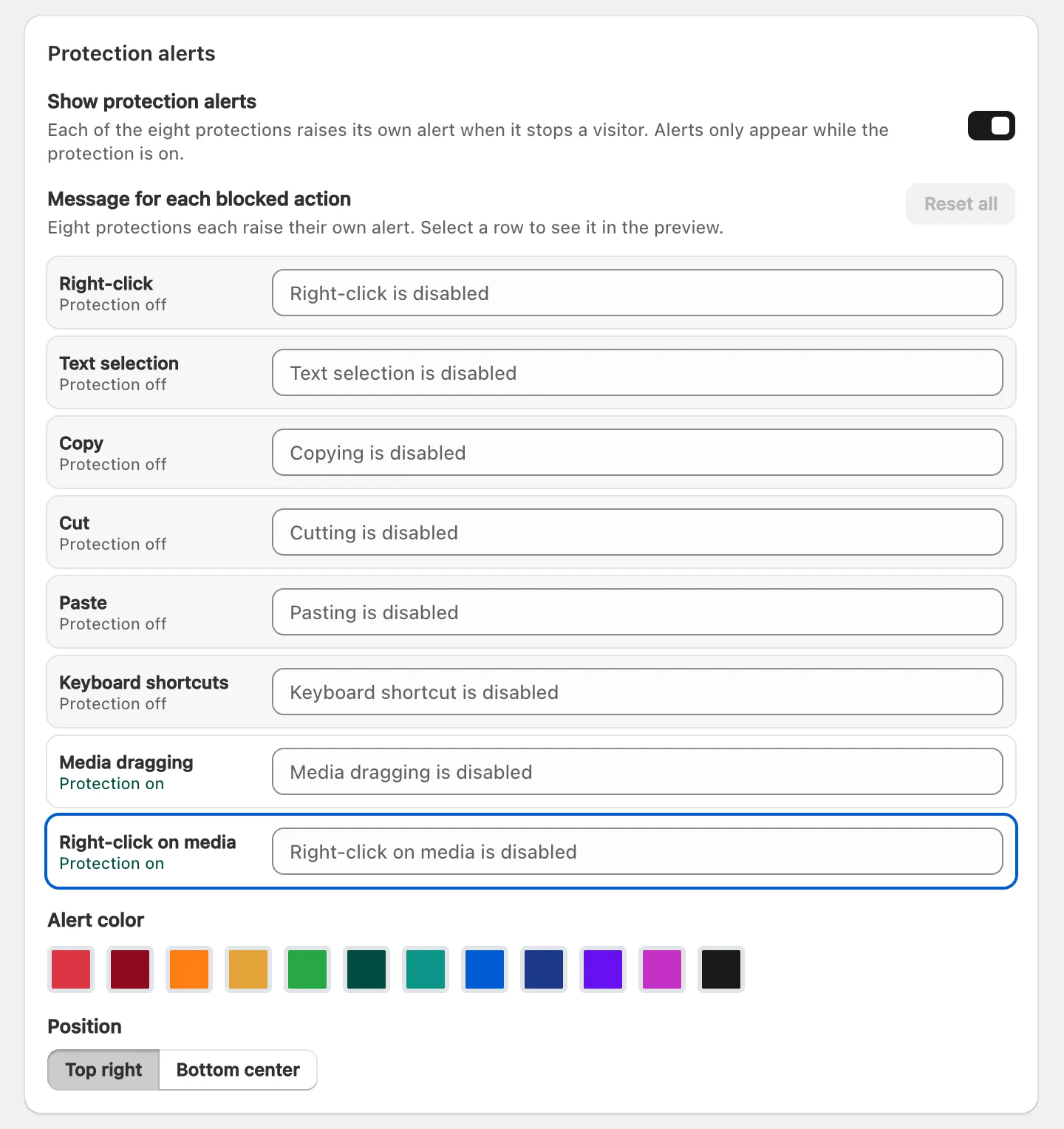
Every switch is free on every plan and starts off. None of them blocks a visitor: X Shield cancels the action and can show a short alert, such as “Right-click is disabled”. These refusals aren’t recorded in Analytics.
Which switches should I turn on?
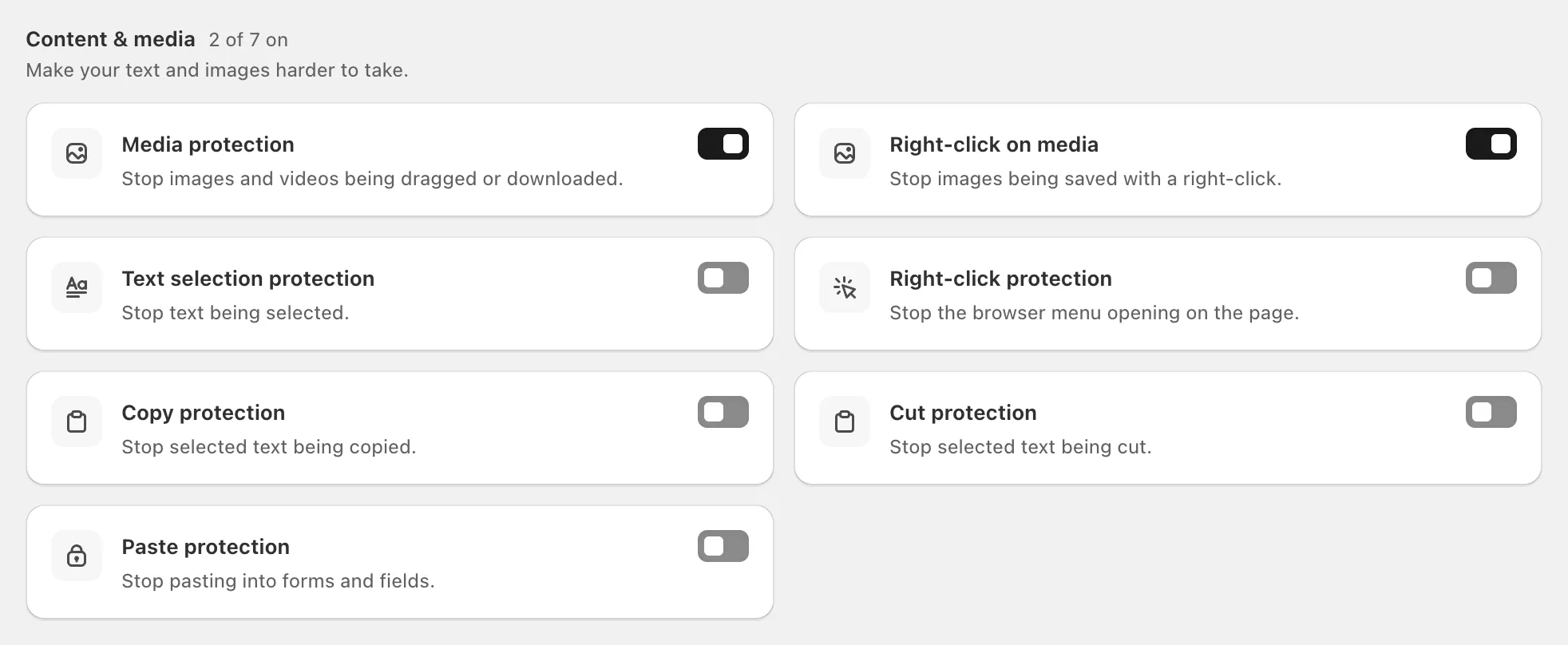
Start with the two image switches. They only touch images and videos, so they cost shoppers the least. Add the others only when you have a clear reason, because each one takes something away from real customers.
| Switch | What it stops | What shoppers lose |
|---|---|---|
| Media protection | Dragging or downloading images and videos | Image zoom or lightboxes that open when the image itself is clicked may stop working; videos lose the browser’s built-in controls |
| Right-click on media | The right-click menu on images and videos | Just that menu, nothing elsewhere on the page |
| Text selection protection | Selecting text, including by double-click | Selecting a word to translate it, look it up or copy it |
| Right-click protection | The right-click menu anywhere on the page | Opening a link in a new tab from the menu |
| Copy protection | Copying selected text | Copying anything, such as a discount code in your announcement bar |
| Cut protection | Cutting selected text | Cutting text in your own forms |
| Paste protection | Pasting anywhere on the page | Pasting an email address or postcode into your contact, newsletter or search forms |
| Keyboard shortcut protection | F12, and Ctrl or Cmd with I, J, U, C, V, X, A, S, P, F or G, or with Shift and I, J or C | Find on page, print, select all and the copy and paste shortcuts, even inside form fields |
Leave Paste protection off unless you have a specific reason: it stops customers pasting into your own forms.
Turn a switch on
- In X Shield, open Overview.
- Find the Content & media group. Keyboard shortcut protection sits under Browser tools.
- Click the switch on the card you want. It turns on and a toast says Feature enabled.
- Reload your store in a private window to check it.
The change applies from the next page load. If you used Turn them all on in the setup guide, Media protection and Right-click on media are already on.
Tip: Test as a shopper would. Your private access link and any address under Global bypass skip content protection too, and nothing runs until the X Shield app embed is on in your theme. Dry run doesn’t pause these switches, because they never block anyone.
Change or hide the alerts
Open Blocked page and find Protection alerts. Turn off Show protection alerts to refuse actions silently, or rewrite the text for each action under Message for each blocked action. You can also change the alerts’ colour and position. Click Save in the save bar.
Does it work on phones?
Yes. The switches run in mobile browsers too, and Text selection protection also suppresses the touch-and-hold menu on iPhone and iPad. Right-click and keyboard shortcuts rarely come up on a touchscreen, so those two switches mostly affect computers. No setting can stop a screenshot, on a phone or anywhere else.
What can’t it stop?
Content protection is JavaScript running in the visitor’s browser, so it slows people down rather than stopping them. It can’t stop:
- screenshots and phone cameras;
- anyone reading the page’s HTML, where your text and the addresses of your images are in plain view;
- the browser’s own menus, such as saving the page or opening developer tools from the menu bar;
- visitors who turn JavaScript off, and scrapers that never run it: they read your pages without loading X Shield at all.
On paid plans, developer-tools and spy-extension protection goes a step further and replaces the page when developer tools open or a known spy extension is installed. It has limits of its own.
Will it hurt SEO or accessibility?
It doesn’t change what search engines read. Your text and images stay in the page’s HTML, and crawlers don’t right-click, select or copy.
Accessibility is the real cost. Screen readers read the page as before, but shoppers who select text to translate it or have it read aloud can’t, and keyboard users lose find on page and select all while Keyboard shortcut protection is on. If many of your customers read in a second language or rely on those tools, leave Text selection protection and Keyboard shortcut protection off.
