X Shield Analytics and Email Reports
What does X Shield Analytics show?
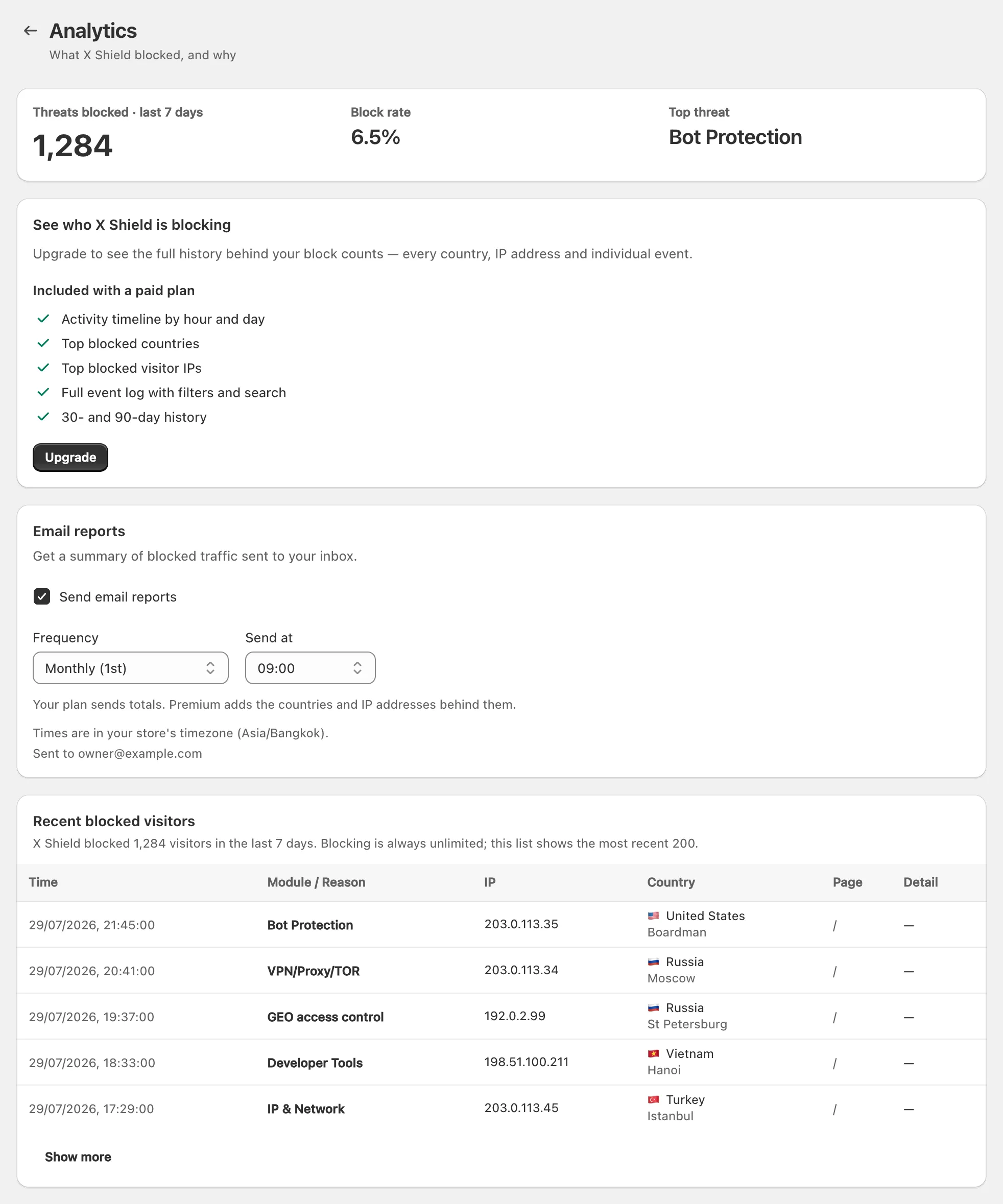
X Shield Analytics shows who X Shield blocked on your Shopify store, and on paid plans who dry run would have blocked, with the time, IP address, network, country, page and the protection that fired. The Free plan lists your latest 200 blocked visitors; paid plans add history, charts, allowed traffic and one-click rules.
Open Analytics in X Shield. Content, media and keyboard protections never appear there: they refuse an action without blocking the visitor.
On the Free plan
You see the last seven days’ totals and Recent blocked visitors, your latest 200 blocks, 20 at a time with Show more. The columns are Time, Module / Reason, IP, Country, Page and Detail; click a row for Event details. The older Pro (Free) plan sees the same.
On paid plans
The full dashboard: Blocked, Allowed, Block rate and Top threat against the previous period, Blocked over time, Blocks by protection, Top countries, Top cities, Top IPs, Top networks (ASN), Suggested to block, Why traffic was allowed and Events. Events lists individual blocked and allowed visits, and you can filter it by blocked or allowed, by protection or reason, or search by IP. In dry run, rows read Would block · GEO access control and so on. The page says Updated every few minutes.
X Shield also records each visitor’s browser and, for signed-in shoppers where your theme exposes it, their customer account. The X Shield section of our privacy page lists everything it keeps.
How far back can I see?
| Plan | What Analytics covers |
|---|---|
| Free and Pro (Free) | The latest 200 blocked visitors from the last 90 days, plus seven-day totals |
| Premium | Today, 7 days or 30 days |
| Enterprise and Plus | Also 90 days |
Every store’s events are kept for 90 days and then deleted, whatever the plan. Upgrading therefore shows visits from before you upgraded, and nothing older than 90 days exists on any plan.
How do I turn a visit into a rule?
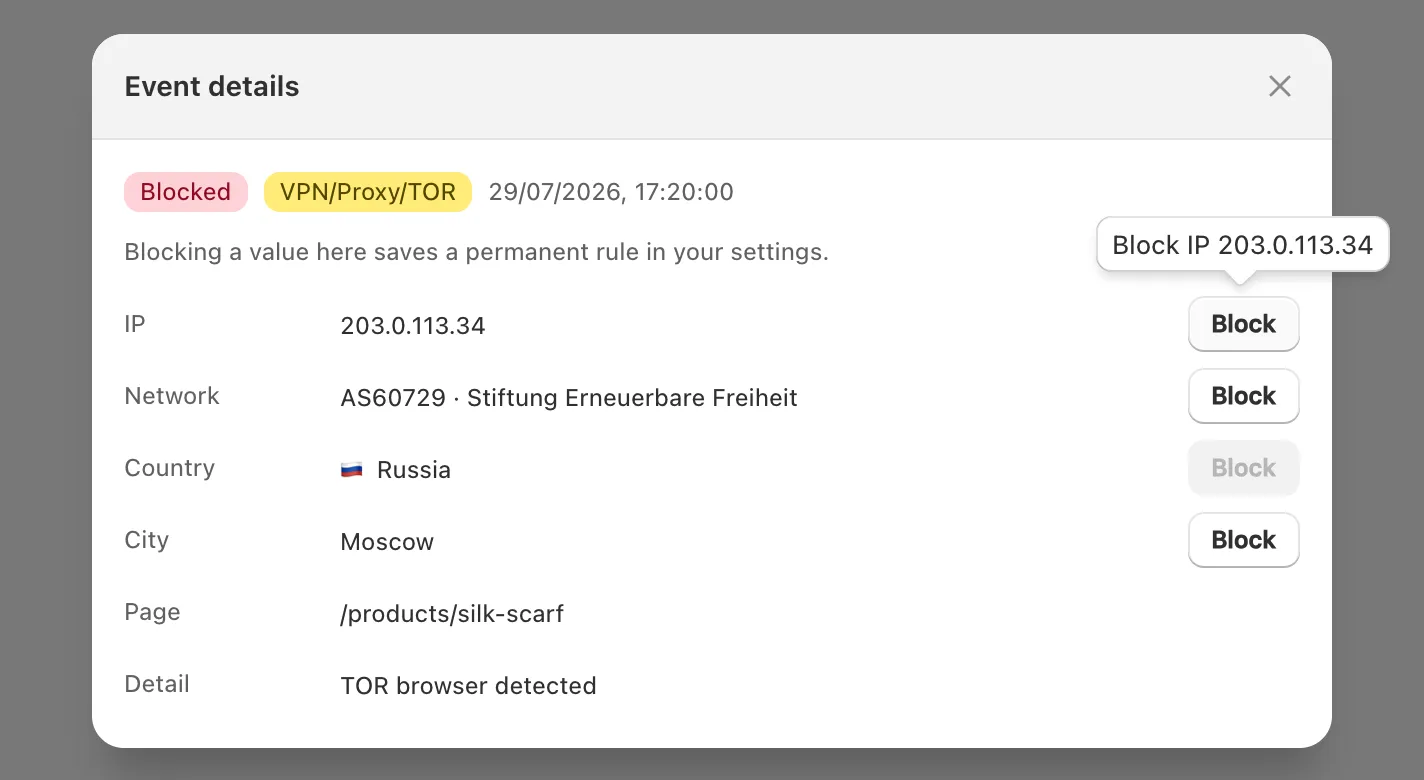
On paid plans, click a row in Events to open Event details. The IP address, network, country and city each have a button that adds that value to your rules: Block, or Allow if that list is set to Allow only listed. The rule saves at once and a toast says Rule added. If a rule already covers a value, its button is greyed out and its tooltip says Rule active. City and network rules need Enterprise or Plus, and a rule only works while GEO control or IP & Network is switched on.
Suggested to block lists sources your protections already blocked often in the selected period. Block country or Block IP stages one, marked Added on save with Undo, and you confirm with Save in the save bar. Dismiss hides a suggestion. If traffic from known scraper networks is getting through, the card can also offer Enable blocking for Scraper network blocking. Before blocking a country, make sure you don’t sell there.
Can I export the events?
Yes, on the Plus plan. Set the range and filters in Events, then click Export CSV. The file holds up to 10,000 events, newest first, matching what the table shows, and a toast says Export ready — check your downloads. Its columns are timestamp, event, block_type, allow_reason, action, reason, detail, ip, country, city, as_name, asnum and page_path.
What does “IP lookup failed” mean?
It marks an allowed visit where X Shield couldn’t work out the visitor’s IP address, often because of a privacy tool in their browser. X Shield lets these visits through rather than guess. The IP column shows 0.0.0.0 (or ::), and the detail says which checks couldn’t run:
- “Visitor IP unresolved — country checked, IP and VPN rules could not run”, when a country was still found;
- “Visitor IP unresolved — country, IP and VPN rules could not run”, when it wasn’t.
A small share of such rows is normal. Don’t block 0.0.0.0: it’s a placeholder, not anyone’s address, so the rule would match no one.
What’s in the email reports, and how often?
An email report summarises blocked traffic. It’s off until you switch it on, and your plan decides the options:
| Plan | Frequency options | Contents |
|---|---|---|
| Free and Pro (Free) | Monthly (1st) | Totals only |
| Premium | Also Weekly (Monday) | Totals, plus the countries and IP addresses behind them |
| Enterprise and Plus | Also Daily | As Premium |
- Open Analytics and find Email reports.
- Select Send email reports.
- Choose a Frequency and a Send at hour, in your store’s timezone.
- Click Save in the save bar. A toast says Settings saved.
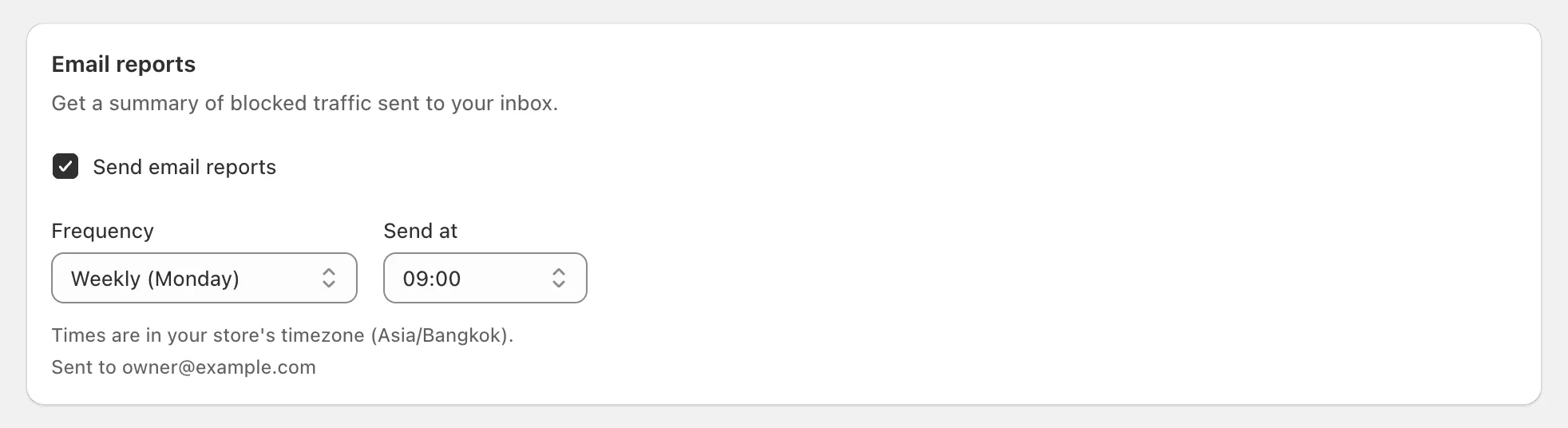
The card shows the address reports go to, your store’s email, under Sent to. Reports are in English, and a period with no traffic at all is skipped rather than sent as a row of zeros. To stop them, clear Send email reports and save, or use the unsubscribe link in a report.
Note: Email reports are new. If you’ve switched them on and nothing has arrived after the first period, check your spam and Promotions folders, then contact support from the app so we can look into it.
Why don’t these numbers match Shopify Analytics?
They count different things. X Shield records a decision each time it checks a storefront page load, while Shopify Analytics counts sessions and can record a visit before X Shield’s blocked page appears. Expect the two to differ; why blocked visitors can still appear in Shopify Analytics explains the gap.
