Get Started with X Shield
How do I set up X Shield?
To set up X Shield on Shopify, first open the app once from your Shopify admin, then switch on the X Shield app embed in your live theme. Until both are done, no visitor is checked and nothing is blocked. Every protection starts off, so next turn on the ones you want, add a rule and test it.
Open X Shield once
X Shield’s storefront script stays idle until you open the app once: that first visit connects it to your store. Open X Shield from Apps and wait for the Overview to load, which can take a little while.
Note: If X Shield shows Development Store Not Supported, install it on a live store on a paid Shopify plan instead.
Why isn’t anything blocked yet?
Usually because the X Shield app embed is off. X Shield runs from your live theme, and until the embed is on, no visitor is checked and the Overview shows Theme extension is not enabled — nothing is being blocked. New stores miss this step more than any other.
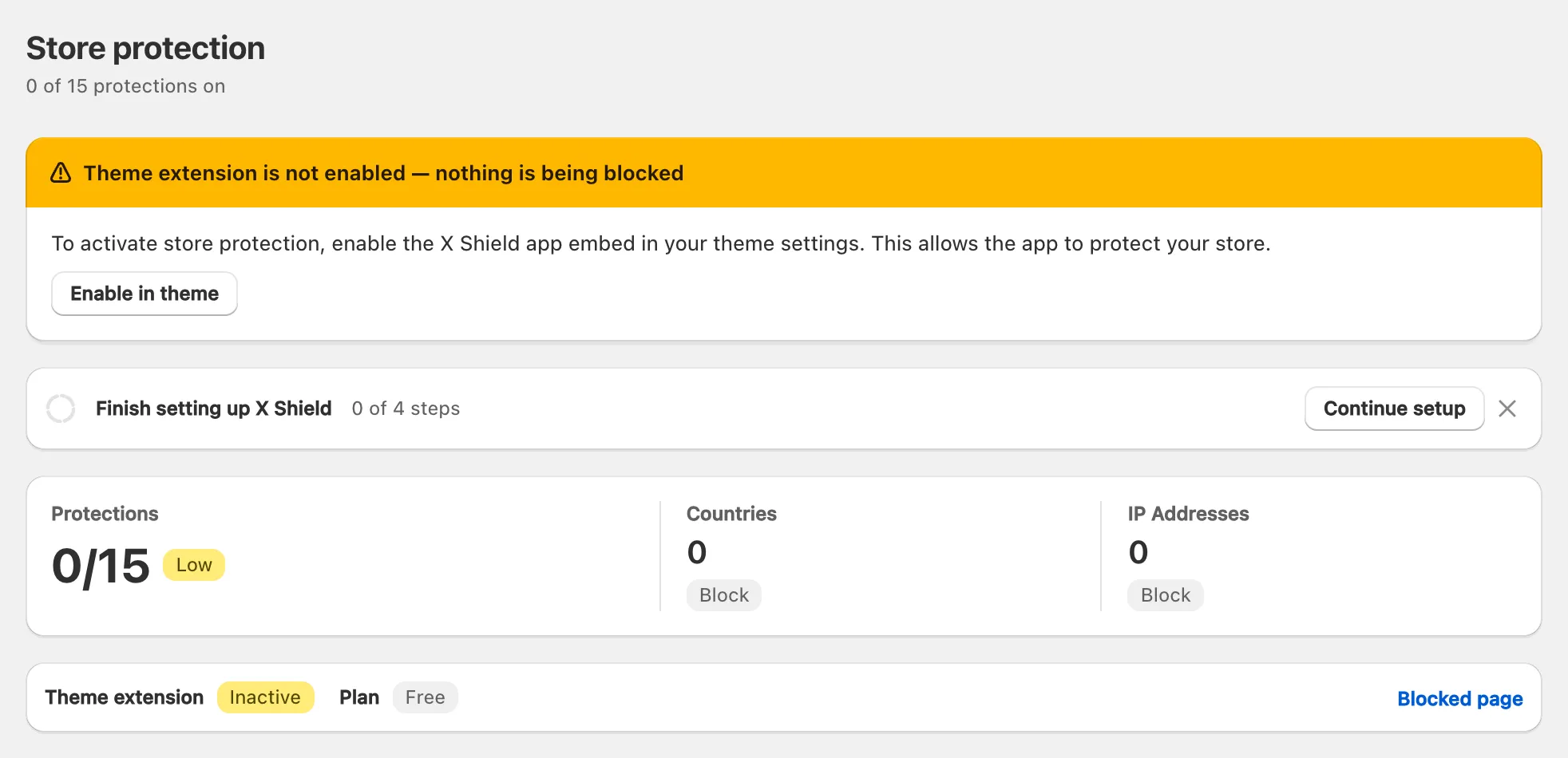
Turn on the app embed
- Click Enable in theme on that banner (in the setup guide, Enable app embed). Your live theme’s editor opens in a new tab with X Shield switched on under App embeds.
- Click Save in the theme editor.
- Go back to the X Shield tab. The banner disappears and the status strip shows Theme extension as Active.
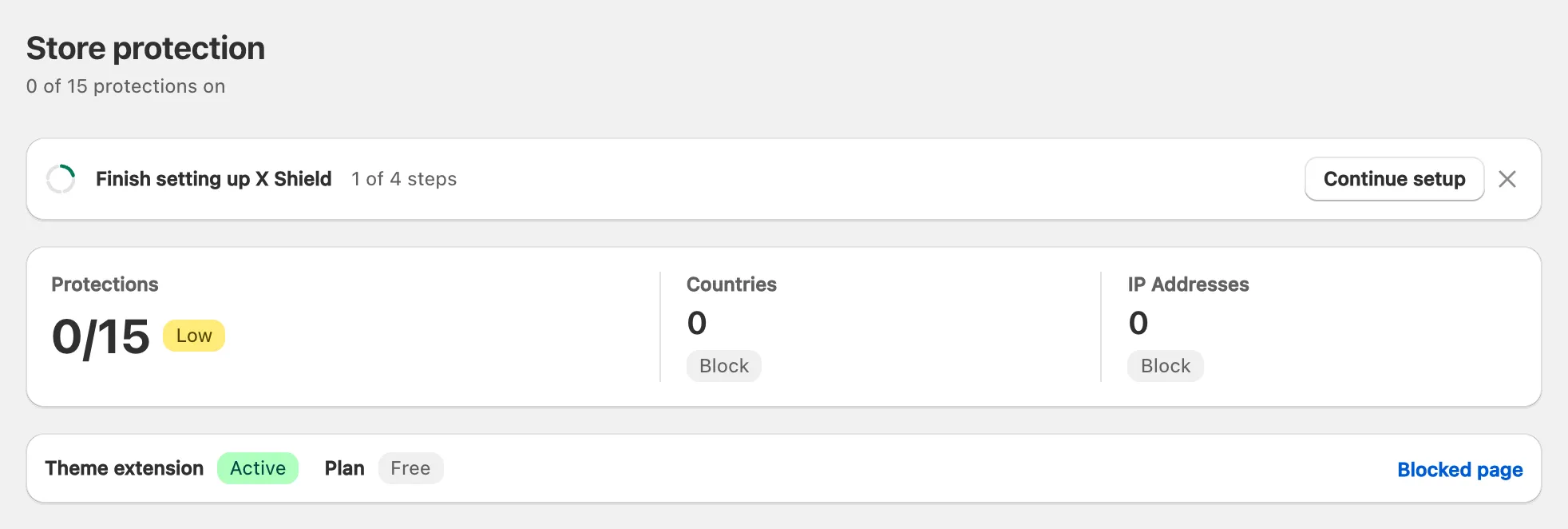
To do it by hand, follow Shopify’s steps for app embeds: Online Store → Edit theme on your live theme → the App embeds icon → switch on X Shield → Save.
Note: The app embed belongs to one theme. If you publish a different theme, switch X Shield on there too; until you do, the banner comes back.
Removing X Shield
X Shield is a theme app extension, so it writes nothing into your theme files. To pause it, switch the X Shield app embed off in the theme editor and save. To remove it, first release any order holds X Shield placed, then uninstall the app from Settings → Apps; Shopify removes the app embed automatically. X Shield deletes your settings within 48 hours of uninstall (privacy policy).
What does the setup guide ask for?
The setup guide, Set up X Shield, has four steps, in any order. Open it with Continue setup on the Overview’s Finish setting up X Shield strip.
| Step | What to do |
|---|---|
| Turn on X Shield in your theme | Enable app embed, then save the theme. |
| Turn on the protections most stores need | Turn them all on switches on Bot protection, Media protection and Right-click on media. |
| Block the countries you don’t sell to | Add countries and click Save country rules, or choose I sell everywhere. |
| Choose your plan | Stay on Free or pick a paid plan. This step waits for the app embed. |
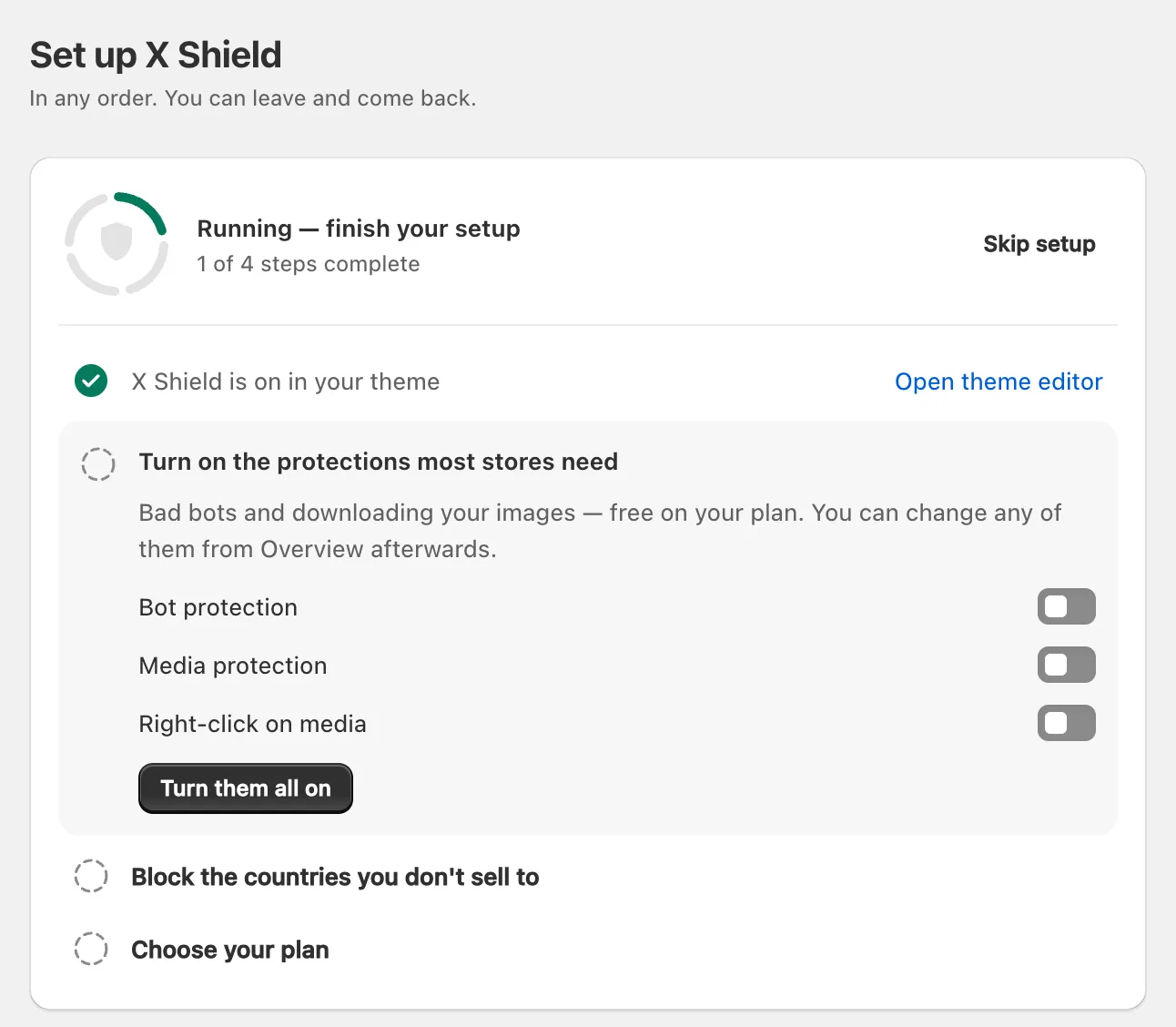
Save country rules switches on GEO control with those countries blocked; the guide never suggests a country you sell to through Shopify Markets. Protections that can turn real shoppers away, such as VPN/Proxy protection, stay off until you choose them.
How do I add my first rule?
Use the setup guide’s country step, or open GEO control or IP & Network: switch the page on, pick an Access mode, add your entries and click Save in the save bar. The Free plan caps how many entries you can list (compare plans); block a country and block an IP address cover every option.
Your own visits are checked like anyone else’s. If a rule you’re editing matches your connection, the page warns These rules would block you before you save.
How do I check a rule before it goes live?
Switch on dry run before you save the rule, then watch what it would do. Both testing tools are on the Safety & testing page.
Observe with dry run
- Under Dry run, click Observe only, then Save. A toast confirms Dry run on — nobody is being blocked right now.
- Save your new rule. X Shield records who your rules would block, but lets everyone through.
- After a day or two, click Block for real and Save.
Dry run is free on every plan, but only paid plans show its results visitor by visitor in Analytics. On the Free plan, Recent blocked visitors lists real blocks only, so rely on Test your rules.
Test one visitor
- Under Test your rules, enter an IP address or a two-letter Country code and click Test, or click Test my own connection.
- Read the result: Blocked or Let through. The test checks your saved country, IP and network rules, not bot, VPN, scraper-network or developer-tools protection.
How do I make sure I can always get back in?
Create your private access link on the first day. Opening your store with it skips every rule, on any network and any device.
- On Safety & testing, under Your private access link, click Create link.
- Click Save. The link starts working when you save.
- Click Copy link and keep it somewhere safe, such as a password manager.
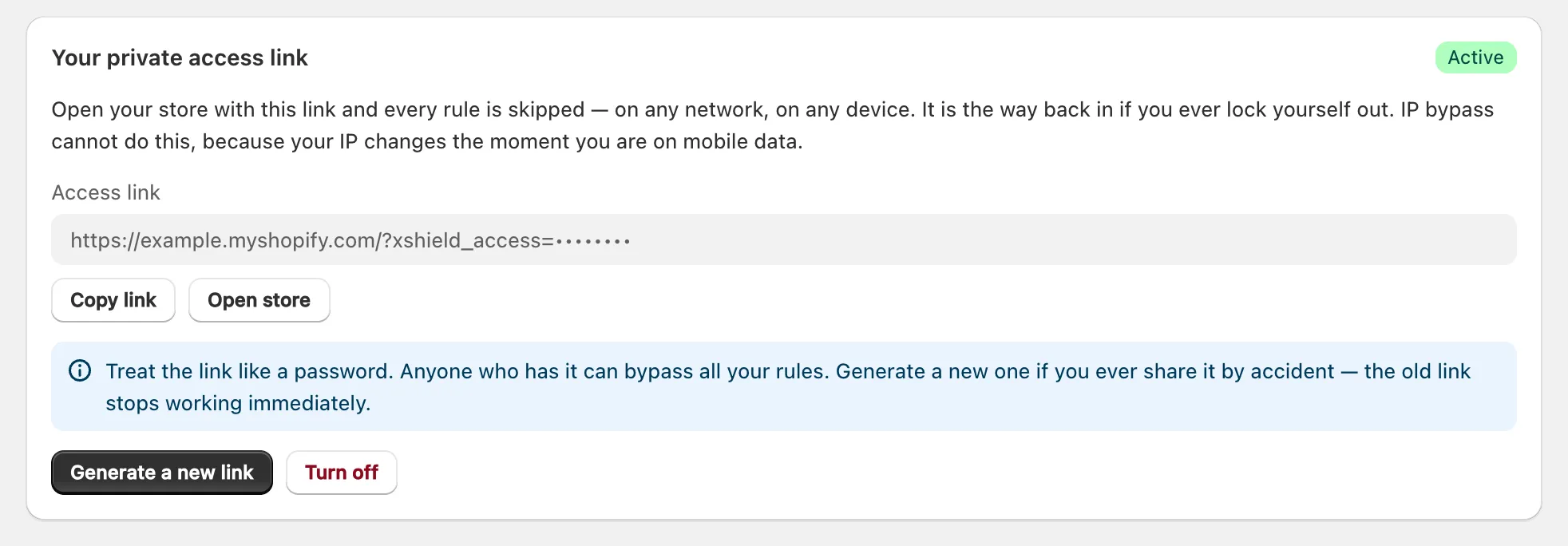
The bypass lasts until you close that browser tab. Treat the link like a password: if it leaks, click Generate a new link and Save, and the old one stops working. Your Shopify admin is never blocked.
How do I know X Shield is working?
Look at the Overview: there’s no warning banner, Theme extension reads Active, and the subtitle shows how many protections are on. Once all four setup steps are done, the setup guide’s status reads Your store is guarded. Rule changes apply from the next page a visitor loads.
- Blocked visitors appear in Analytics as traffic arrives.
- X Shield works in each visitor’s browser, so Shopify’s checkout and tools that don’t run JavaScript are outside its reach, and Shopify may still count visits it blocked: see why blocked visitors can still appear in Shopify Analytics.
- If the embed is on and still nothing is blocked, see what to check when X Shield isn’t blocking.
What should I set up next?
Check how X Shield keeps Googlebot in, then consider VPN and scraper-network blocking for the cloud networks scrapers use.
