Customise the X Shield Blocked Page
What do blocked visitors see, and can I change it?
By default, a visitor X Shield blocks on your Shopify store sees a full-screen Access Denied page with a lock icon, the reason for the block and a Protected by X Shield badge. On the Blocked page screen you can rewrite the title and message, change the icon or upload your logo, or redirect blocked visitors to another website.
The blocked page replaces your store’s content, and the browser tab shows your title. Because X Shield works in the visitor’s browser, the page has already loaded when it acts, so a visitor may glimpse your store first.
To change the message:
- Open Blocked page.
- Under When a visitor is blocked, select Show a custom message.
- In Message, edit the Title and Message. Choose an Icon and its colour and size, then the Font, Weight, Alignment and Body size. The Preview updates as you type.
- Click Save in the save bar. The toast reads Configuration saved successfully.
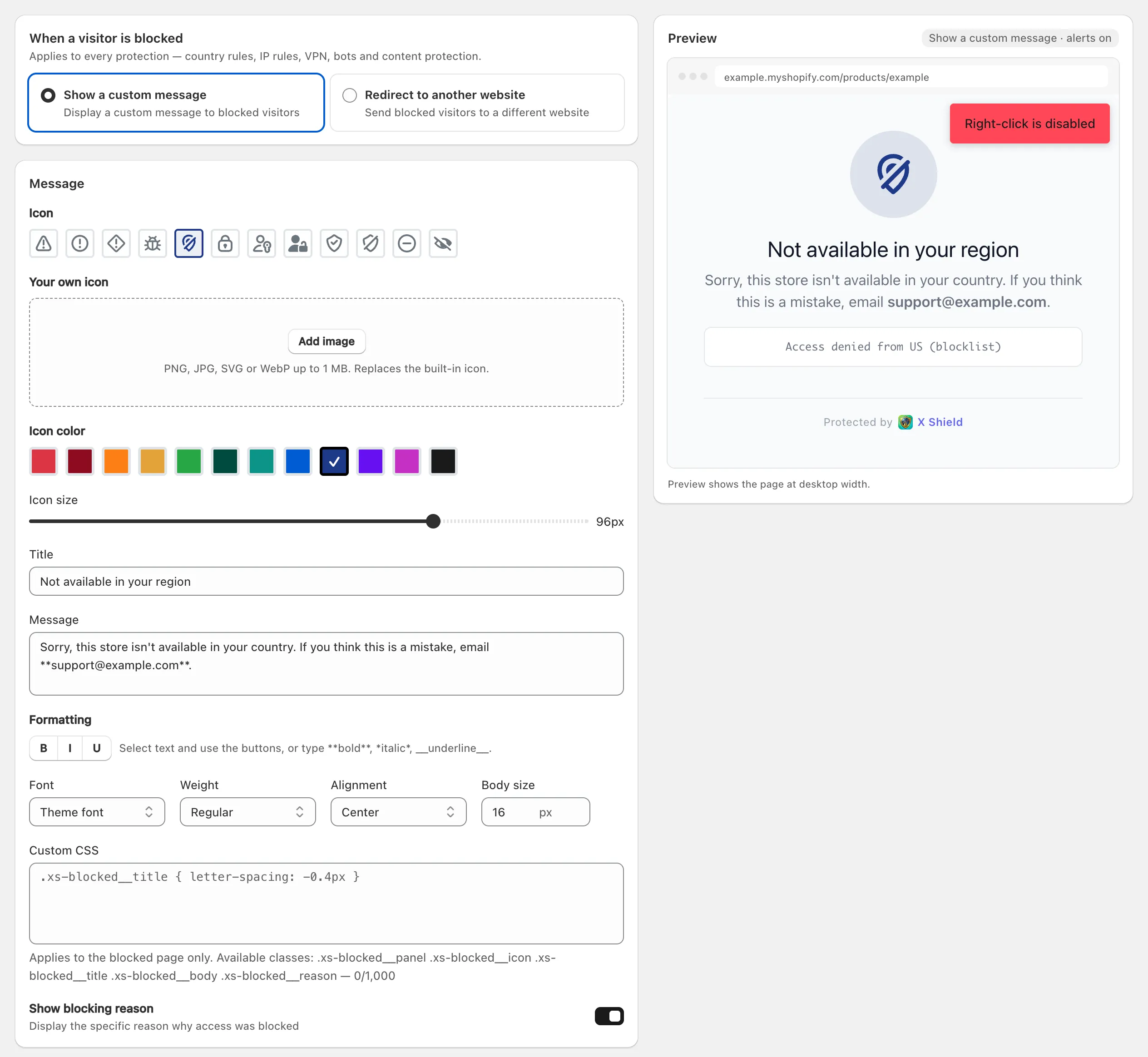
To format text, select it and use the buttons, or type **bold**, *italic* or __underline__. Custom CSS, up to 1,000 characters, styles the blocked page only.
Show blocking reason is on by default, so visitors see technical text such as VPN ASN (64500) or Access denied from FR (B). Turning it off gives a cleaner page, but leaving it on means a customer can tell you exactly why they were blocked. See A real customer was blocked.
Should I show a message or redirect?
Show a message unless you have a better page to send blocked visitors to. Your choice applies to every protection that blocks visitors.
| Show a custom message | Redirect to another website | |
|---|---|---|
| The visitor sees | Your blocked page, at your store’s address | The website you choose |
| Explains why | Yes, if Show blocking reason is on | No |
| Good for | Most stores | Sending visitors to another site you run, such as an explanation page |
To redirect, select Redirect to another website, enter the Redirect URL and click Save. The address must start with http:// or https://.
X Shield prevents redirect loops. If the redirect points at the page being blocked, the visitor sees the blocked page instead. If it points at another page on your own store, your rules check that page too, so a visitor who is still blocked there sees the blocked page.
Can the message change with the visitor’s language?
No. The blocked page has one title and one message for every visitor, whatever their language, and the protection alerts work the same way. If you sell in several languages, write a short message that works for all of them, for example in English and your main market’s language. If you leave the fields empty, visitors see the English defaults: Access Denied and “Access to this store is restricted.”
How do I add my logo or remove the X Shield badge?
Under Your own icon in the Message section, click Add image and choose your logo; it works on every plan. Hiding the Protected by X Shield badge is a paid-plan setting, and on the Free plan you can ask support to remove it.
Your own icon takes a “PNG, JPG, SVG or WebP up to 1 MB” and replaces the built-in icon. The first upload asks for access to your files, because the image is stored in your store’s own Shopify Files.
To remove the badge:
- Paid plans: in Store branding, switch on Hide the “Protected by X Shield” badge and click Save.
- Free plan: in the Preview, click Click to remove under the badge. A support request opens with the message already written. Click Send request, and the toast reads Request sent. Support removes the badge and replies in the app. If you still see the badge afterwards, reload the page once.
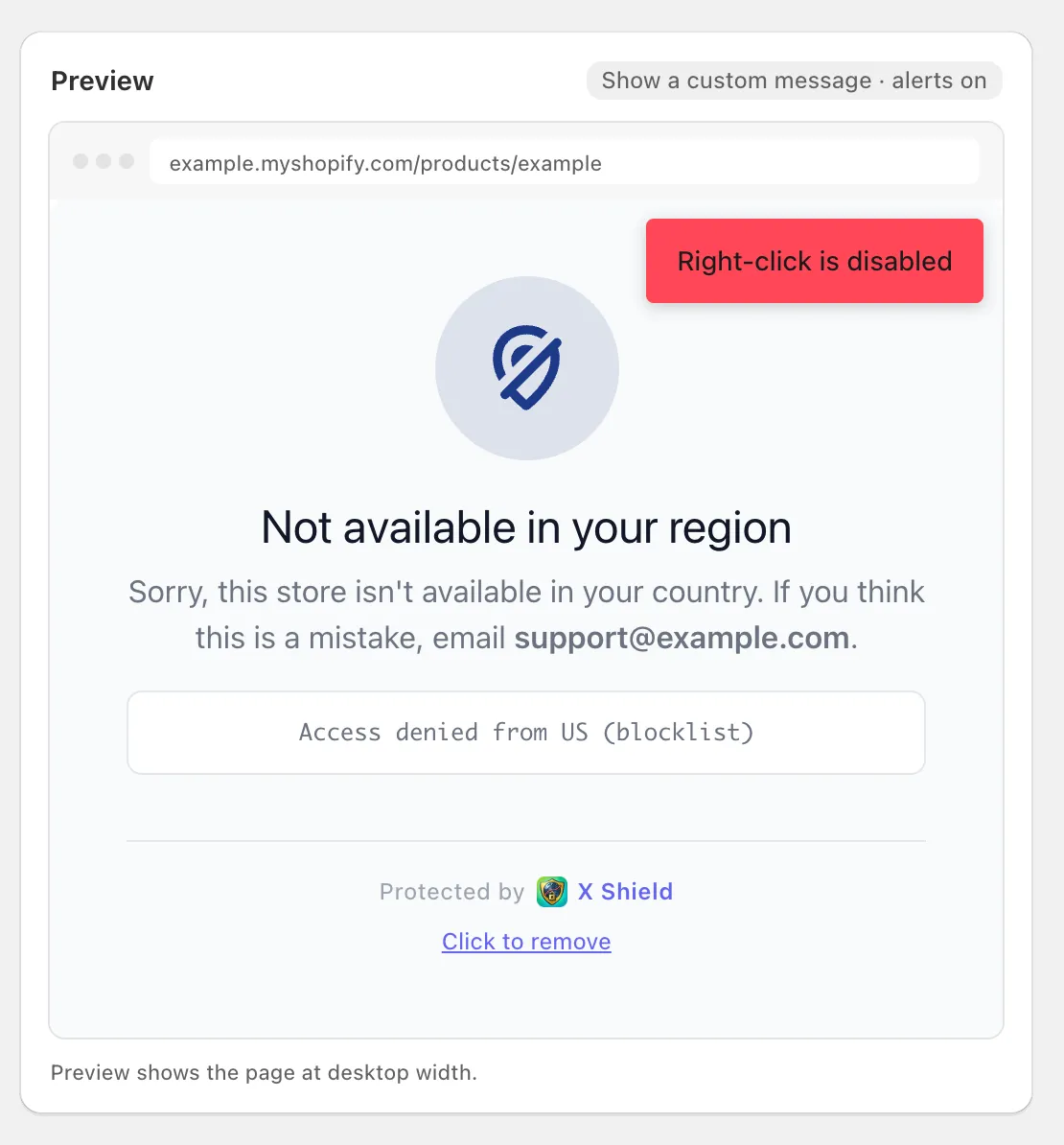
Note: When you test from the connection you last used to open X Shield, the badge is hidden for you. Other visitors still see it.
What are protection alerts?
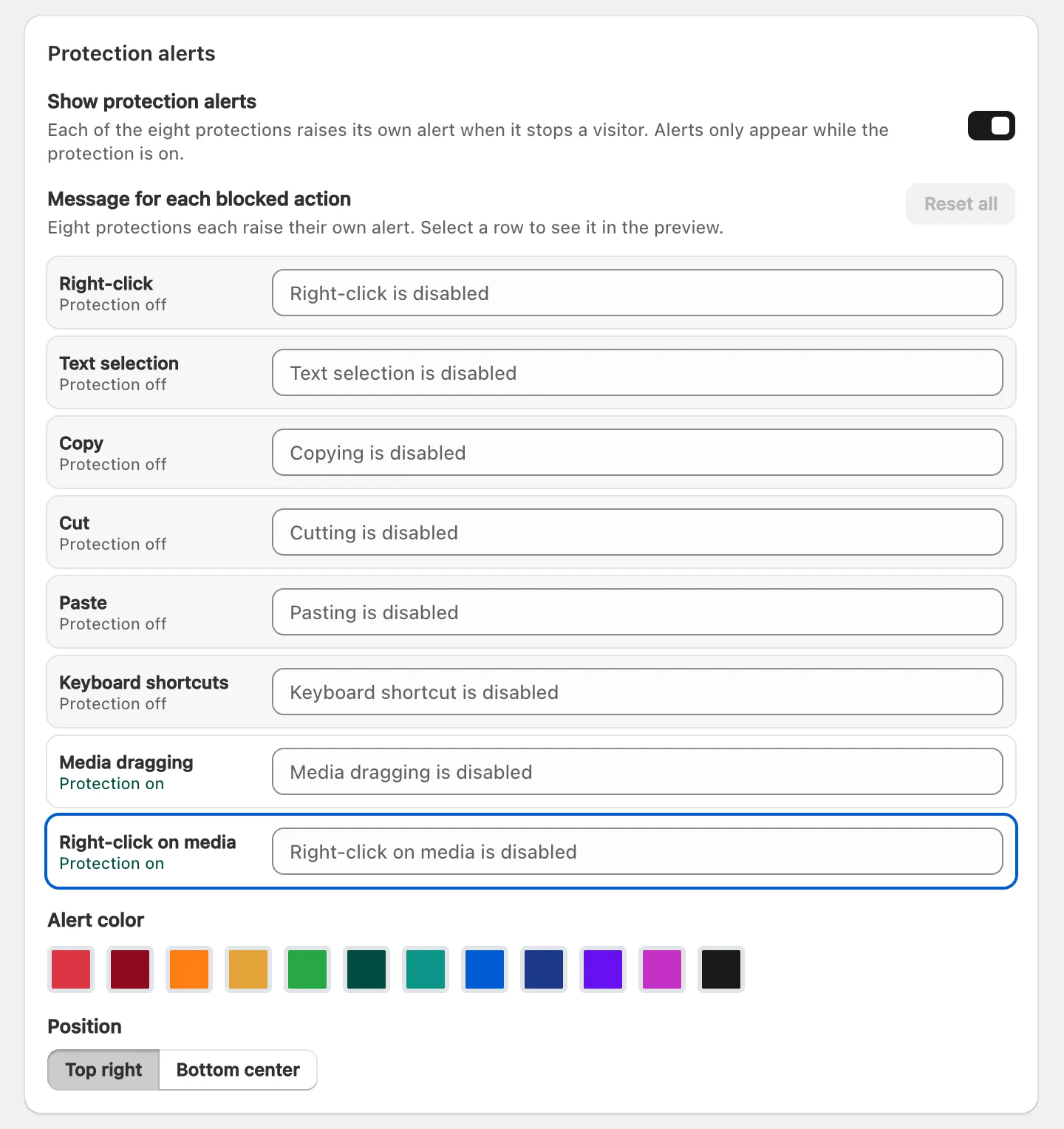
They are short messages that appear when a content, media or keyboard protection stops an action, such as a right-click or a copy. Alerts never block anyone, and they only appear while the matching protection is on.
In Protection alerts:
- Show protection alerts switches them all on or off. It is on by default.
- Message for each blocked action lets you rewrite the eight texts, such as “Right-click is disabled”. Reset all restores the defaults.
- You can also change the alert colour, and choose where alerts appear with Position.
Can Google index the blocked page?
It shouldn’t. The blocked page tells search engines not to index it or follow its links (noindex,nofollow). And verified crawlers you allow under Global bypass → Known bots, with Googlebot allowed by default, skip every rule, so they see your store rather than the blocked page.
If you untick Googlebot, or a crawler can’t be verified, it can reach the blocked page. Because that page is noindex, the address may drop out of search results rather than show “Access denied” as its snippet.
