X Shield Dry Run: Test Rules and Avoid Lockouts
How do I test a rule without blocking real customers?
Turn on dry run. In the X Shield app in your Shopify admin, open Safety & testing, choose Observe only under Dry run and save. X Shield then keeps evaluating your rules and records who would have been blocked, but lets every visitor through. When the results look right, choose Block for real.
- Open Safety & testing.
- Under Dry run, click Observe only. The badge changes from Enforcing to Observing, and a warning says every visitor gets through.
- Click Save in the save bar. The toast reads Dry run on — nobody is being blocked right now, and the same banner stays on the Overview, GEO control and IP & Network pages until you switch back.
- Add or change your rules as usual.
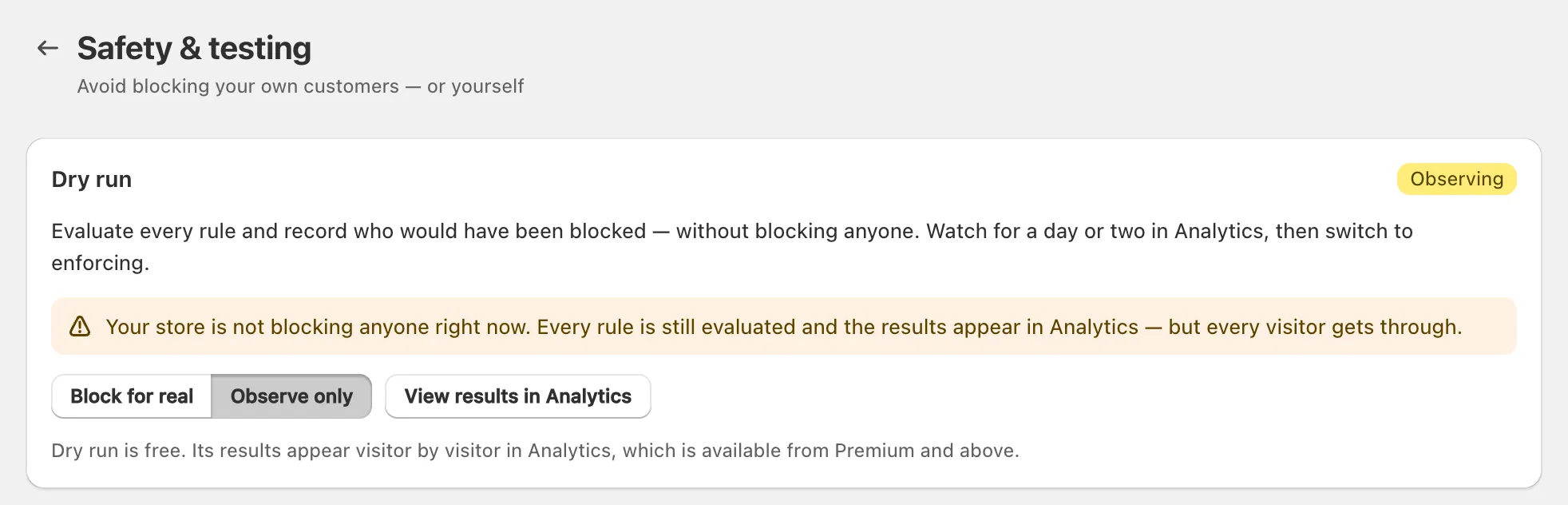
Dry run covers every protection that blocks visitors: country, IP and network rules, and bot, VPN/proxy, scraper-network, developer-tools and spy-extension protection. It is free on every plan.
On paid plans, click View results in Analytics: each visitor who would have been blocked is marked with the protection concerned, such as Would block · GEO access control. On the Free plan, Recent blocked visitors shows real blocks only, so use the rule tester below instead.
Important: Dry run pauses blocking for your whole store, not just the rule you are testing. Rules that were already protecting you stop blocking until you choose Block for real.
Locked out?
Open your private access link: it skips every rule, on any network and any device. No link yet? X Shield only blocks visitors to your storefront, never your Shopify admin, so sign in to Shopify and create one there.
- In your Shopify admin, open X Shield, then Safety & testing.
- Under Your private access link, click Create link, then click Save in the save bar. The link appears under Access link, with the badge Active.
- Click Open store, or click Copy link and open the link on the phone or computer that is blocked.
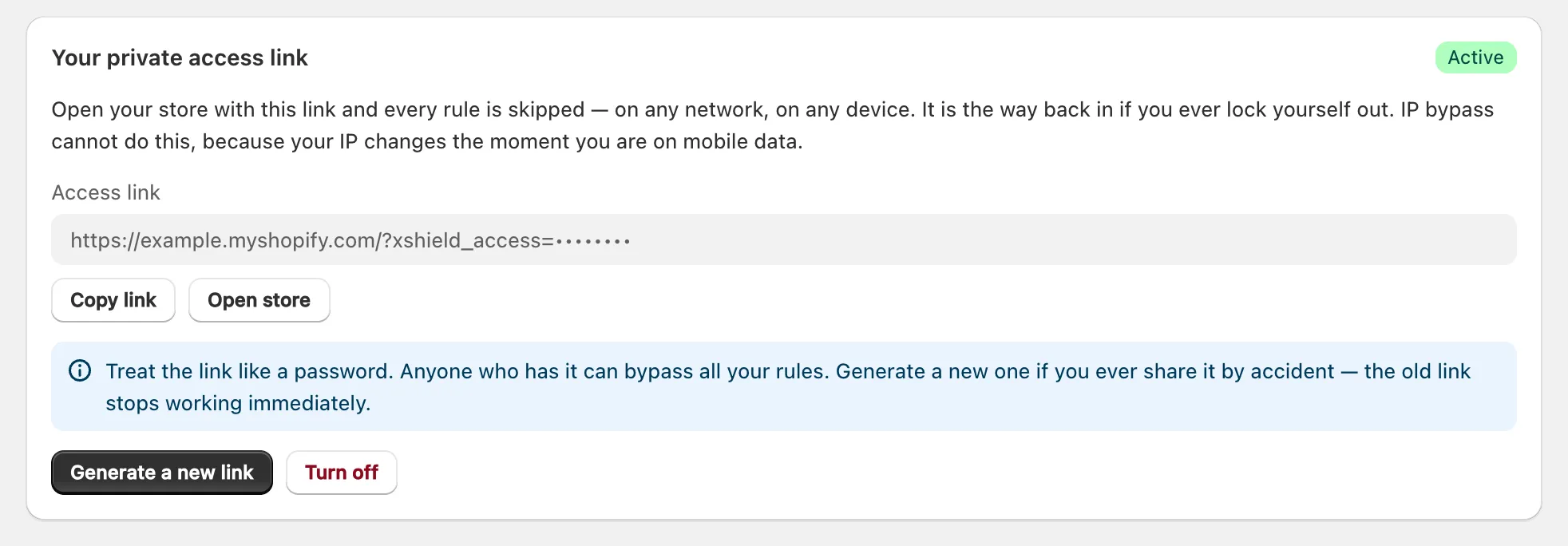
The link works in that browser tab until you close it, and visits through it aren’t recorded in Analytics. X Shield removes the link’s code from the address bar once the page loads, so bookmark the link from Safety & testing, not the page you land on.
Treat the link like a password: anyone who has it can bypass all your rules. If it leaks, click Generate a new link and save; the old link stops working immediately. To disable it, click Turn off and save.
To let everyone in at once while you fix a rule, choose Observe only and save.
How do I check what a rule would do to one visitor?
Use Test your rules on the Safety & testing page. Enter an IP address, a two-letter Country code or both, then click Test, or click Test my own connection to check yours. The result is Blocked or Let through, with the rule type and the reason a blocked visitor would see, such as Access denied from RU (B).
What the test covers:
- Your saved country, IP and network rules, and your Global bypass addresses. To test a new rule before it blocks anyone, switch on dry run, save the rule, then test. In the app’s words: “Bot, VPN, scraper-network and developer-tools protection are not included here, and page targeting needs a URL.”
- A typed IP address isn’t looked up. X Shield checks it against your IP list, and checks the country code you typed against your country rules, so enter both to test both.
- Test my own connection also uses your city and network, so it is the only way to test city and network (ASN) rules. It shows the IP address and country X Shield sees for you.
Why does X Shield say “These rules would block you”?
Because the connection you are using right now matches a rule you are about to save. On GEO control and IP & Network, X Shield checks your own IP address and country against the rules as you edit them, and shows the rule that matched. Customers on the same connection would be blocked too.
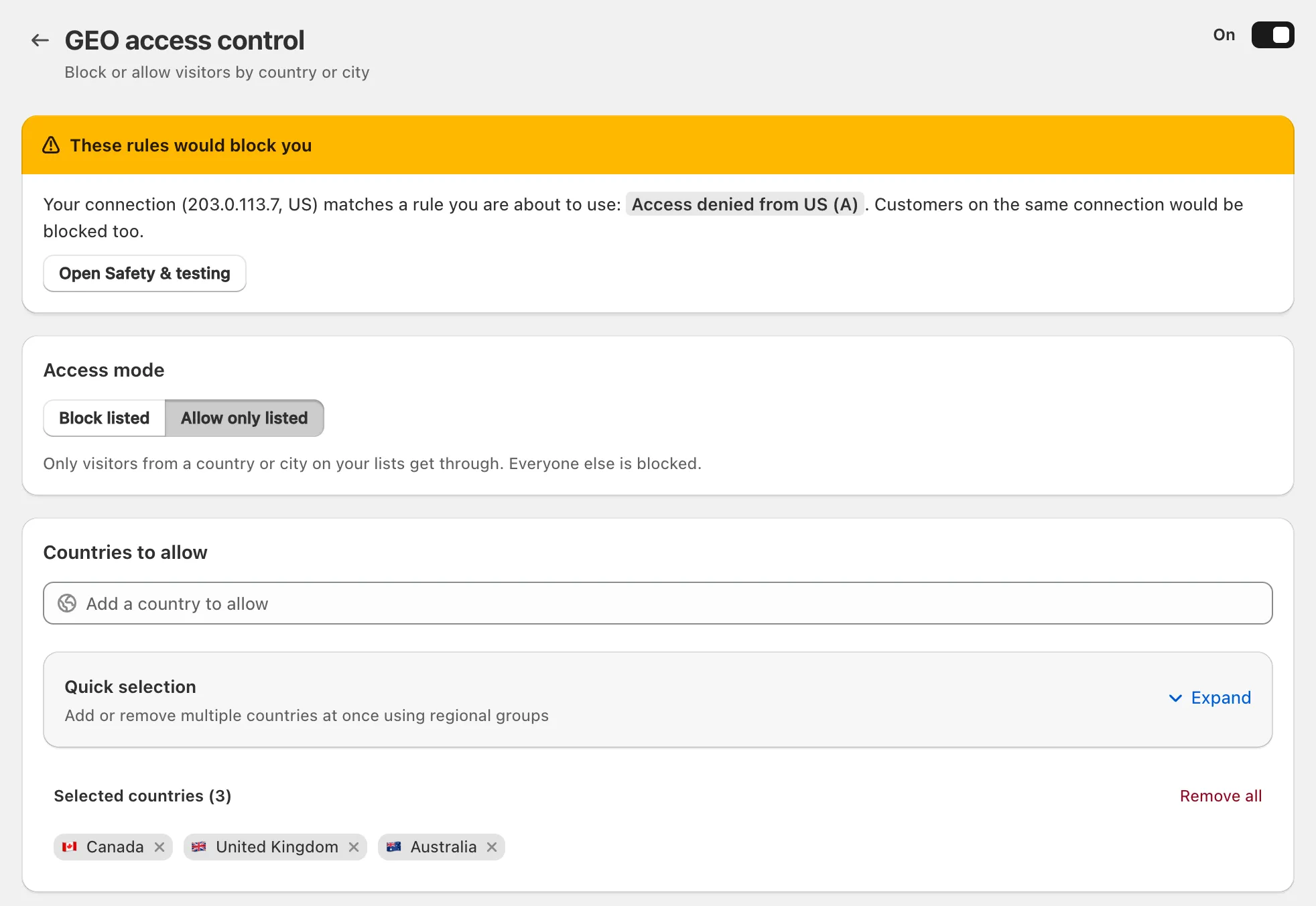
- If you sell where you are, change the rule: add your country to an Allow only listed list, or remove it from a Block listed one.
- If you mean it, for example because you run the store from a country you don’t sell to, create your private access link before you save.
- If X Shield says it “could not read your own connection”, nothing was checked. Try Test my own connection again later.
Should I add my own IP to Global bypass?
Only for a fixed address you control, such as an office or a warehouse. For yourself, the private access link is safer: your IP address changes when you switch to mobile data or another network, and everyone sharing your connection would skip every protection with you.
Both skip every protection, for different people:
| Private access link | Global bypass → Whitelisted IPs | |
|---|---|---|
| Works from | Any network or device, for whoever has the link | Only the listed IP address or range |
| Best for | You and your staff | An office, a warehouse, a monitoring service |
| Shown in Analytics | No | On paid plans, as Global IP whitelist |
To add an address, open Global bypass and click Add my IP, or paste an IP address or CIDR range with a label and click Add. Then click Save; the toast reads Configuration saved successfully.
When should I switch from Observe only to Block for real?
When the would-be blocks are the visitors you meant to stop. The app suggests watching a day or two of ordinary traffic first.
- On paid plans, read the Would block rows in Analytics. Look for countries you sell to, returning customers and your own staff. On the Free plan, run Test your rules for the countries and addresses that matter to you.
- Loosen any rule that catches the wrong people, and keep observing.
- When the results look right, open Safety & testing, click Block for real and click Save. The toast reads Blocking is active again, and the badge shows Enforcing.
