X Shield Blocked a Real Customer? Find Out Why
Why was a real customer blocked?
When X Shield blocks a real shopper on your Shopify store, it is usually one of four things: a country rule they don’t pass, a VPN or data-centre network, a browser extension on the spy-extension list, or an IP rule matching an address they share. Find their visit in X Shield Analytics: it names the protection and the reason.
While you investigate, you can switch to dry run (Safety & testing → Observe only → Save) so nobody else is turned away. It pauses all blocking until you switch back.
How do I find their visit?
Look it up in X Shield’s Analytics, by time or IP address. It helps to ask the customer when it happened and for a screenshot: unless you turned off Show blocking reason, the blocked page shows the reason X Shield recorded.
- Open Analytics.
- On paid plans, go to Events, change the All events filter to Blocked, and type their IP address in Search IP if you have it. On the Free plan, use Recent blocked visitors, which lists your latest 200 blocked visitors.
- Click the row. Event details shows their IP address, network, country, city and page, and a Detail line with the reason.
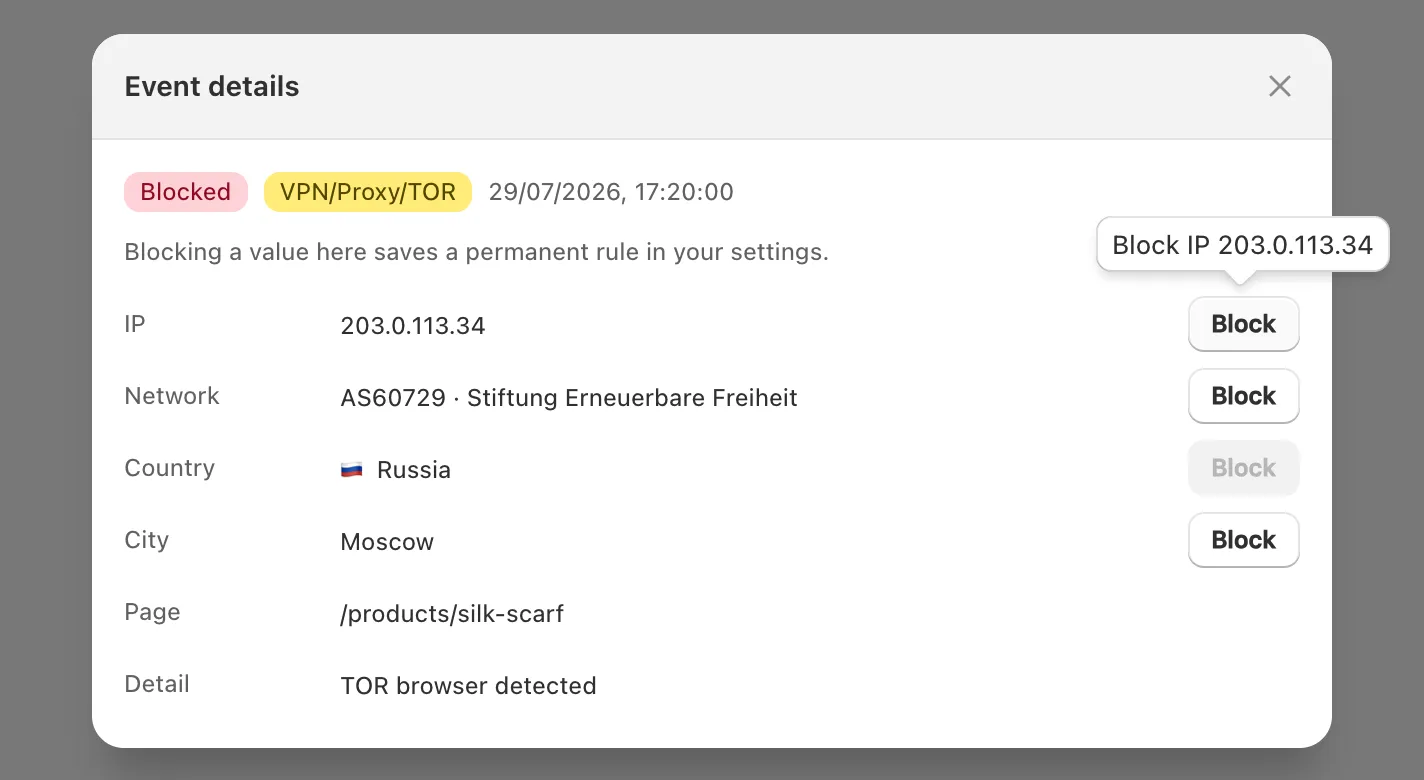
Can’t find the visit? Ask for their public IP address (searching “what is my IP” shows it) and their country. Enter both in Safety & testing → Test your rules and click Test. That checks your country and IP rules only.
What does each block reason mean?
The Detail line tells you which rule fired. “(B)” means the rule is in Block listed mode and “(A)” means Allow only listed. The examples use documentation addresses.
| Detail | What happened | Usual fix |
|---|---|---|
Access denied from FR (B) |
Their country, or city, is on your block list | Remove it if you sell there |
Access denied from FR (A) |
Their country isn’t on your allow list | Add it if you sell there |
IP 203.0.113.7 is blocked |
Their address is on your IP list, or inside a range on it | Narrow or remove the entry |
IP 203.0.113.7 is not allowed |
IP & Network is set to Allow only listed | Switch back to Block listed unless you mean it |
Access denied from AS64500 (B) |
Their whole network is on your list | Remove the network |
VPN ASN (64500), VPN/Proxy cloud ASN (64500) or TOR browser detected |
VPN/Proxy protection caught a VPN, proxy, data centre or Tor | Narrow VPN blocking |
Scraper network ASN (64500) |
Scraper network blocking caught a scraping-prone data centre | Add their IP to Global bypass |
Spy extension detected: … |
An extension in their browser is on the detection list | Ask them to turn it off while they shop |
Developer tools detected - security policy violation |
Developer tools protection: they opened developer tools | Usually staff: give them your private access link |
Two causes surprise merchants. Mobile carriers and offices put many people behind one IP address, so blocking it blocks them all. And the spy-extension list includes general Shopify, SEO and tag-debugging tools, such as DataLayer Checker Plus and Shopify Developer Tools, which agencies and staff use.
How do I let them in without weakening the rule?
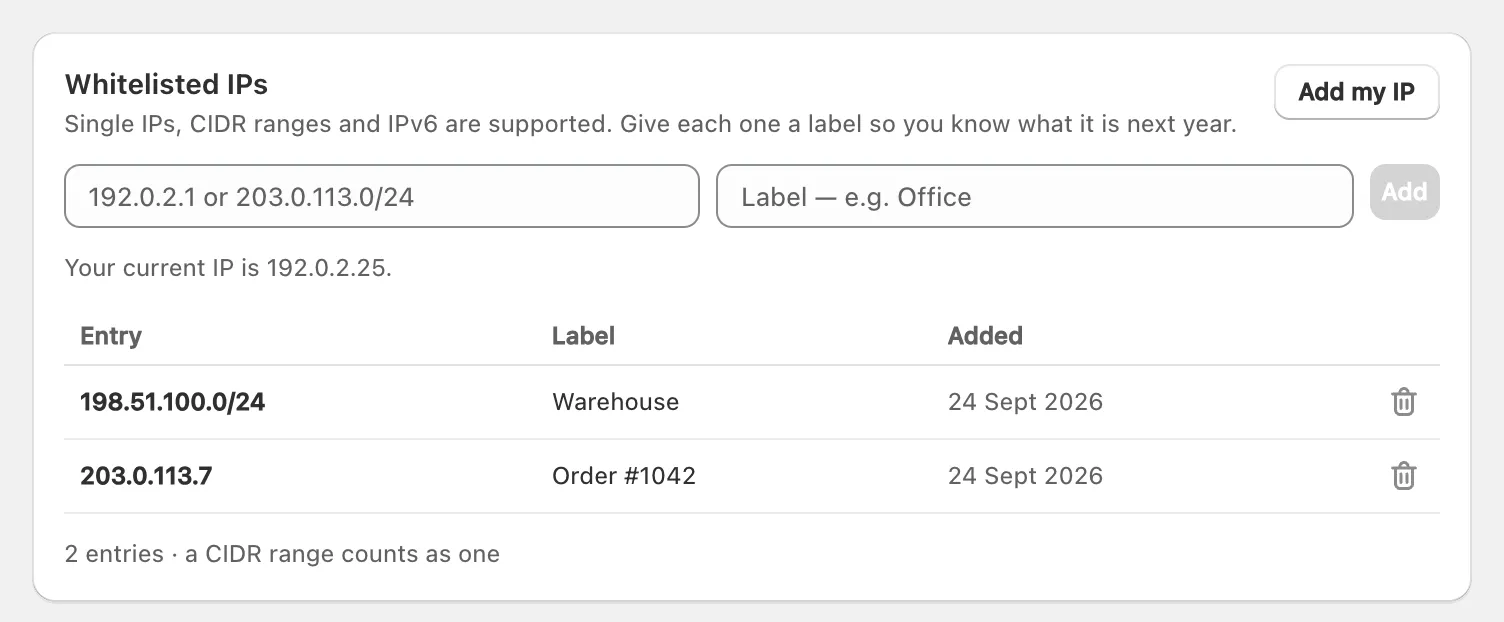
Fix the cause where you can: if a rule catches people you sell to, loosen it. To let one person in while the rule stays, add their IP address to Global bypass → Whitelisted IPs, the list that gets through every protection.
In order of preference:
- Loosen the rule. Add the country to your allow list, remove a range that is too wide, or narrow VPN blocking; block or allow countries and block IP ranges and networks cover each setting. On paid plans, Event details in Allow only listed mode offers Allow buttons that add the country or address to your list.
- Exempt the address from country rules only. Add it to the IP whitelist on GEO control: “These IPs always get in, even from a blocked country.”
- Exempt the address from everything, using Global bypass as below.
Add their IP to Global bypass
- Open Global bypass.
- Under Whitelisted IPs, paste their address, for example
203.0.113.7, and a label such as their order number. Click Add. - Click Save in the save bar. The toast reads Configuration saved successfully.
- Check it in Safety & testing → Test your rules: enter the address and click Test. The result reads Let through.
Important: Don’t switch IP & Network to Allow only listed to let someone in. That mode doesn’t add an exception: it admits only the addresses and networks on its list, and in the app’s words, “Everyone else is blocked.”
Home and mobile IP addresses change, so an exception can stop working later. Never send customers your private access link, which skips every rule for whoever holds it. Keep it for staff and agencies, and for yourself: get back in with your private access link.
Narrow VPN blocking
VPN/Proxy protection is the protection most likely to turn away paying customers, because many people browse through work VPNs and privacy services. If it is catching real customers:
- On the Overview, turn off VPN/Proxy protection and turn on Scraper network blocking instead. It blocks a short list of networks, “Alibaba, Tencent and Huawei clouds, and scraper hosting”, without touching consumer VPNs.
- If a home broadband or mobile network is being treated as a VPN, send support the Detail line. Consumer and mobile networks aren’t meant to be on X Shield’s list, and support can add an exception.
- Try the new setup in dry run before you rely on it.
How do I stop it happening again?
Test every new rule in dry run before you enforce it, keep VPN/Proxy protection off unless anonymous traffic is costing you orders, and use Allow only listed only if every country you sell to is on the list.
- Keep Show blocking reason on (Blocked page → Message), so customers can tell you why they were blocked.
- Not sure what went wrong? On the Overview, click Contact support under Need help? and choose the topic Real customers are blocked.
