Block IPs, Ranges and Networks in X Shield
How do I block an IP address in X Shield?
In X Shield for Shopify, open IP & Network, switch it on, choose Block listed and paste addresses, separated by commas: single IPs, CIDR ranges such as 203.0.113.0/24, start–end ranges or IPv6. On Enterprise and Plus, one entry can block a whole provider by its network number (ASN). Allow only listed does the opposite: only listed addresses get in.
- In X Shield, open IP & Network, or click Configure on the Overview’s IP & Network card.
- Turn on the switch beside the page title. It reads On.
- Under Access mode, choose Block listed.
- Under IP addresses to block, paste one or more entries into the entry field, separated by commas, and click Add. Each appears in the table with its Type: IP, CIDR or Range.
- Click Save in the save bar at the top of the page. A toast says Configuration saved successfully.
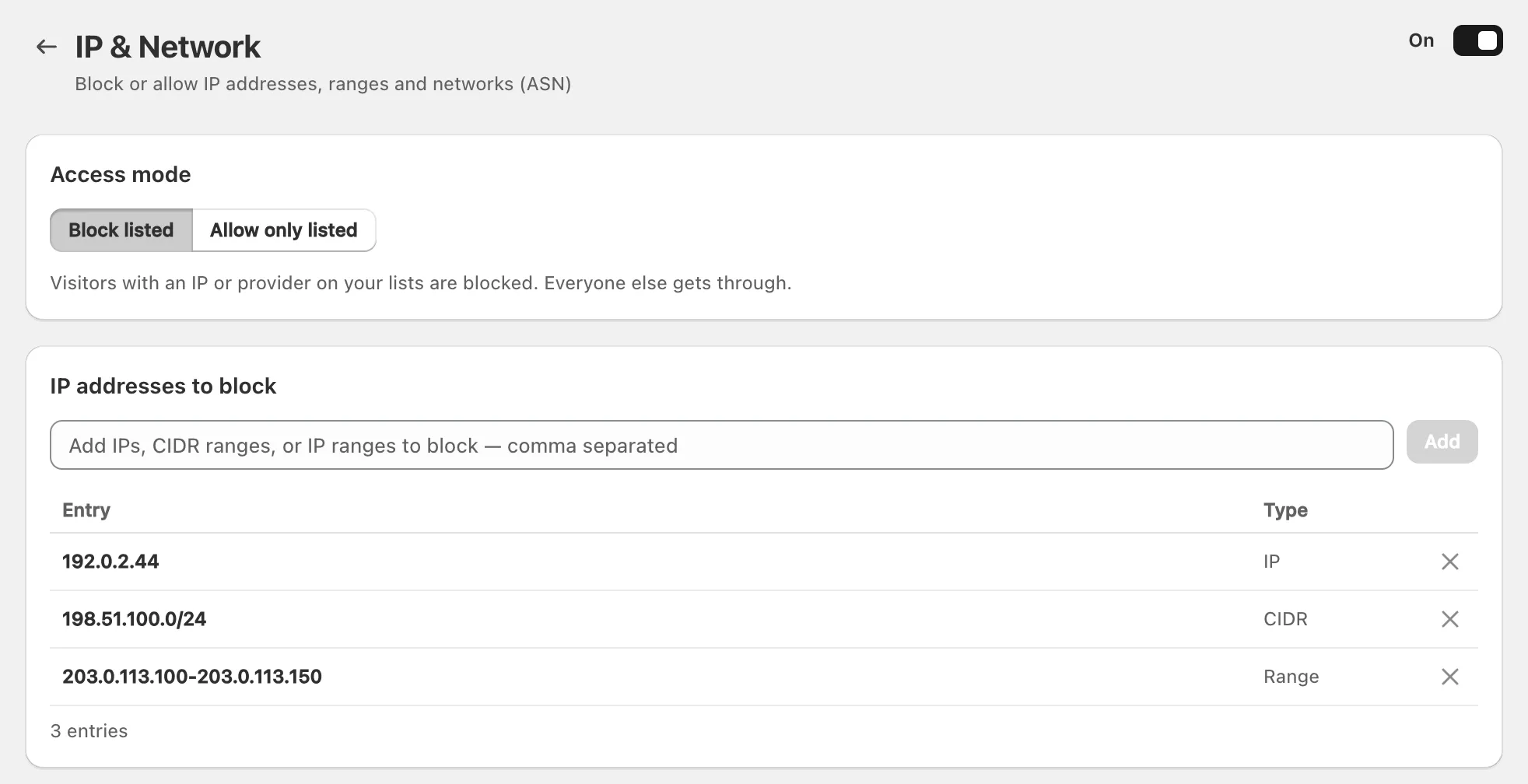
The rule applies from the next page a visitor loads. The Free plan caps how many IP entries you can list, and a CIDR or start–end range counts as one entry (compare plans). If an entry matches your own connection, the page warns These rules would block you before you save.
What formats can I paste?
| Format | Example | Matches |
|---|---|---|
| IPv4 address | 203.0.113.7 |
That address |
| CIDR range | 203.0.113.0/24 |
203.0.113.0 to 203.0.113.255 |
| Start–end range | 198.51.100.10-198.51.100.50 |
Every address between the two, inclusive |
| IPv6 address | 2001:db8::1 |
That address |
| IPv6 CIDR range | 2001:db8::/32 |
Every address in the block |
| Network (ASN), in its own field | AS64500 |
Every visitor on that provider’s network |
A range that covers the whole internet, 0.0.0.0/0 or ::/0, matches nothing on purpose, so a slip can’t close your store. You can also limit the rules to certain pages under Page targeting, which works the same way as for countries.
How do I block a whole network (ASN)?
On the Enterprise and Plus plans, add the provider’s AS number under Networks to block (ASN). One entry covers every visitor on that network.
- Type the number into the field under Networks to block (ASN) (
AS64500and64500both work) and click Add. It appears under AS number, and X Shield looks up the provider’s name for the Network column. - Click Save.
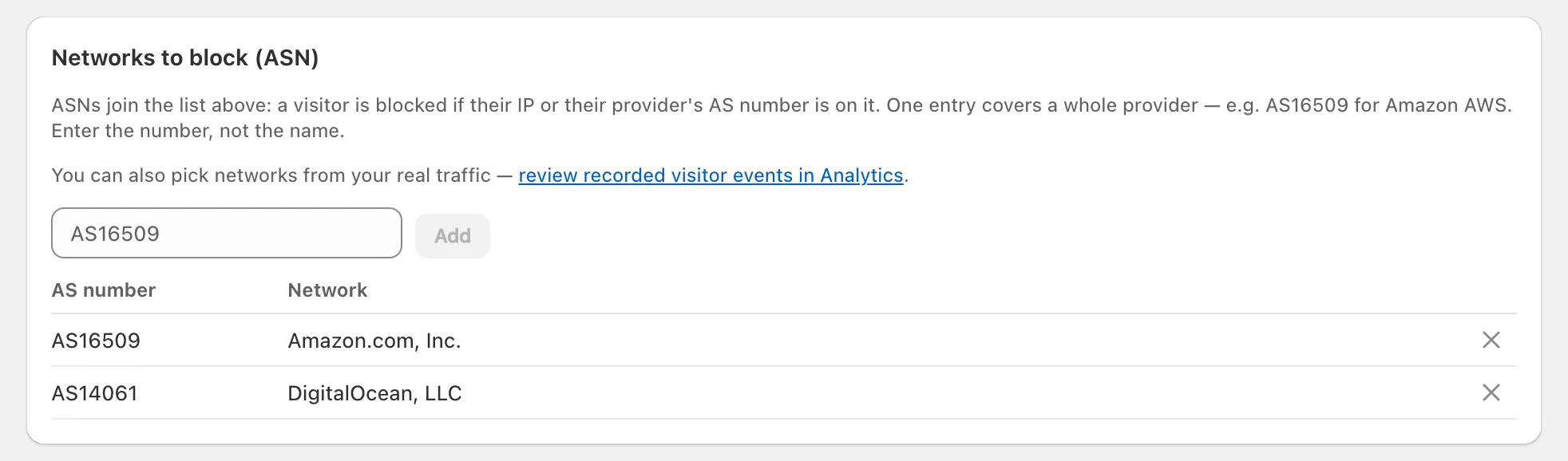
A visitor is blocked if their address or their network is on the list. Use network rules for hosting companies and data centres, never for internet providers your customers use: one entry would block all of their subscribers. For the data centres scrapers use most, Scraper network blocking already covers a curated list on every plan today.
Where do I find the IP to block?
In X Shield’s Analytics, or in the order’s fraud analysis in Shopify.
- On the Free plan, Analytics → Recent blocked visitors shows the IP address of each recently blocked visitor.
- Paid plans add the full event log, Top IPs and Top networks (ASN). In an event’s Event details, the Block button beside the IP address saves the rule for you; the network and city buttons need Enterprise or Plus.
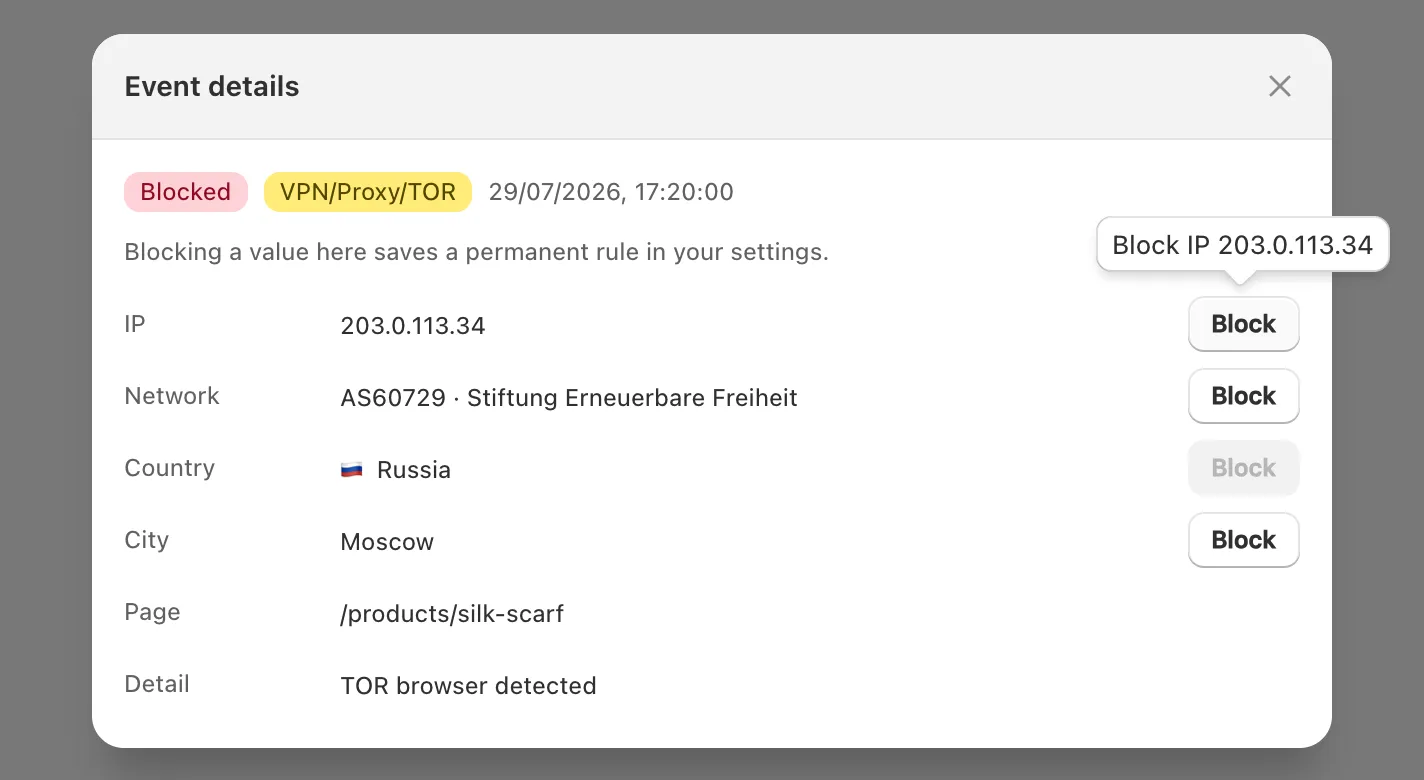
For an order, open it in Shopify and, in the Order risk section, open Order risk evaluation or About this order. Shopify’s fraud analysis lists an available IP address separately from the fraud indicators.
Why isn’t blocking one IP enough?
Because addresses are shared and they change. Mobile carriers and many broadband providers put lots of customers behind one public address, and a person’s address changes when they switch networks.
- Blocking a shared address blocks everyone behind it, so think twice before blocking a mobile address. If a customer is caught, find the rule that blocked them.
- Someone determined gets a new address by switching to mobile data or a VPN.
- X Shield checks visitors in their browser, so a blocked person can still reach Shopify’s checkout through a direct link: see why X Shield can’t stop checkout.
- For automated traffic from hosting companies, block the network or turn on Scraper network blocking. For a person who keeps placing bad orders, see how to block a specific customer and how order protection works.
Can I allow only certain IPs?
Yes. With Allow only listed, only visitors whose address or network is on the list get in, and everyone else is blocked. It suits a store that only your staff or trade partners should reach.
Important: Unlike country rules, Allow only listed with an empty list blocks almost every visitor. To make sure one address always gets in without shutting out everyone else, don’t use this mode: add the address under Global bypass → Whitelisted IPs, which lets it past every protection and leaves your other rules alone.
