Block or Allow Countries in X Shield
How do I block a country in X Shield?
In X Shield for Shopify, open GEO control, switch it on and pick an access mode: Block listed turns away the countries you list, while Allow only listed admits only them. Add countries one at a time, or whole groups such as a continent, the EU or ASEAN with Quick selection. Save, then check the result on Safety & testing.
- In X Shield, open GEO control, or click Configure on the Overview’s GEO access control card.
- Turn on the switch beside the page title. It reads On.
- Under Access mode, choose Block listed.
- Under Countries to block, type a country’s name or two-letter code into Add a country to block and select it. A toast confirms it was added.
- Click Save in the save bar at the top of the page. A toast says Configuration saved successfully.
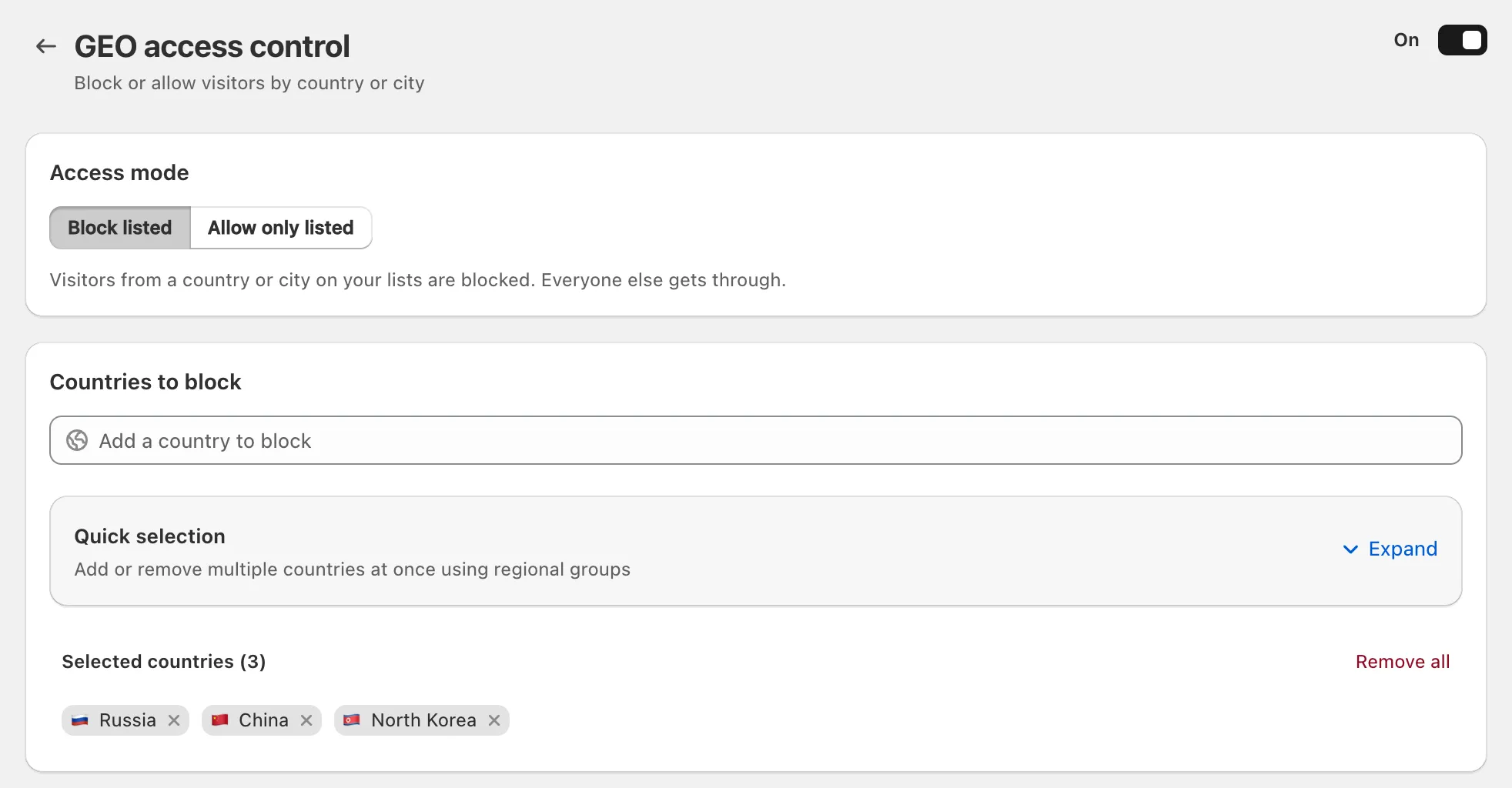
The rule applies from the next page a visitor loads. The Free plan caps how many countries you can list; paid plans are unlimited (compare plans).
Note: X Shield checks each visitor in their browser, so a country rule can’t stop Shopify’s hosted checkout or tools that never run your pages’ JavaScript. See what a storefront blocker can’t stop.
Should I use Block mode or Allow mode?
Use Allow only listed if you sell to one country or a few, and Block listed if you sell widely and want to keep a handful out. The Overview card shows the choice as Block mode or Allow mode.
| Access mode | Who gets in | Suits |
|---|---|---|
| Block listed | Everyone except visitors from listed countries | Stores selling worldwide |
| Allow only listed | Only visitors from listed countries | Stores selling to a few countries |
Important: In Allow only listed, every country you leave off is blocked, including your own if you forget it and your customers while they travel. If a rule would block your own connection, the page warns These rules would block you before you save. If a customer is turned away anyway, find the rule that blocked them.
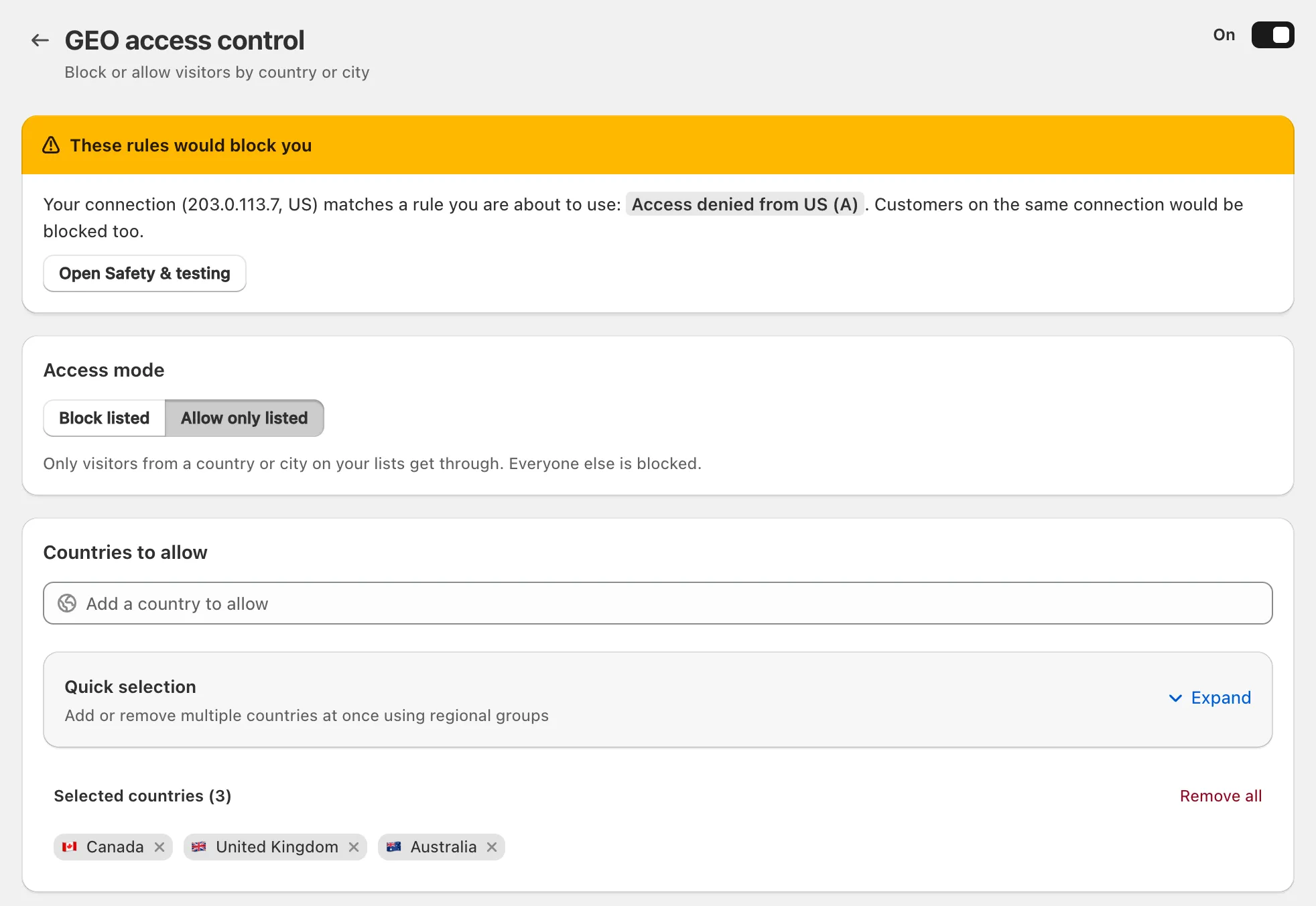
An empty list never blocks anyone, in either mode, and a visitor whose country can’t be determined is let through.
How do I add a whole continent or trade bloc at once?
Under the country search, click Expand on Quick selection, then click a group. It adds every country in the group; click it again to remove them.
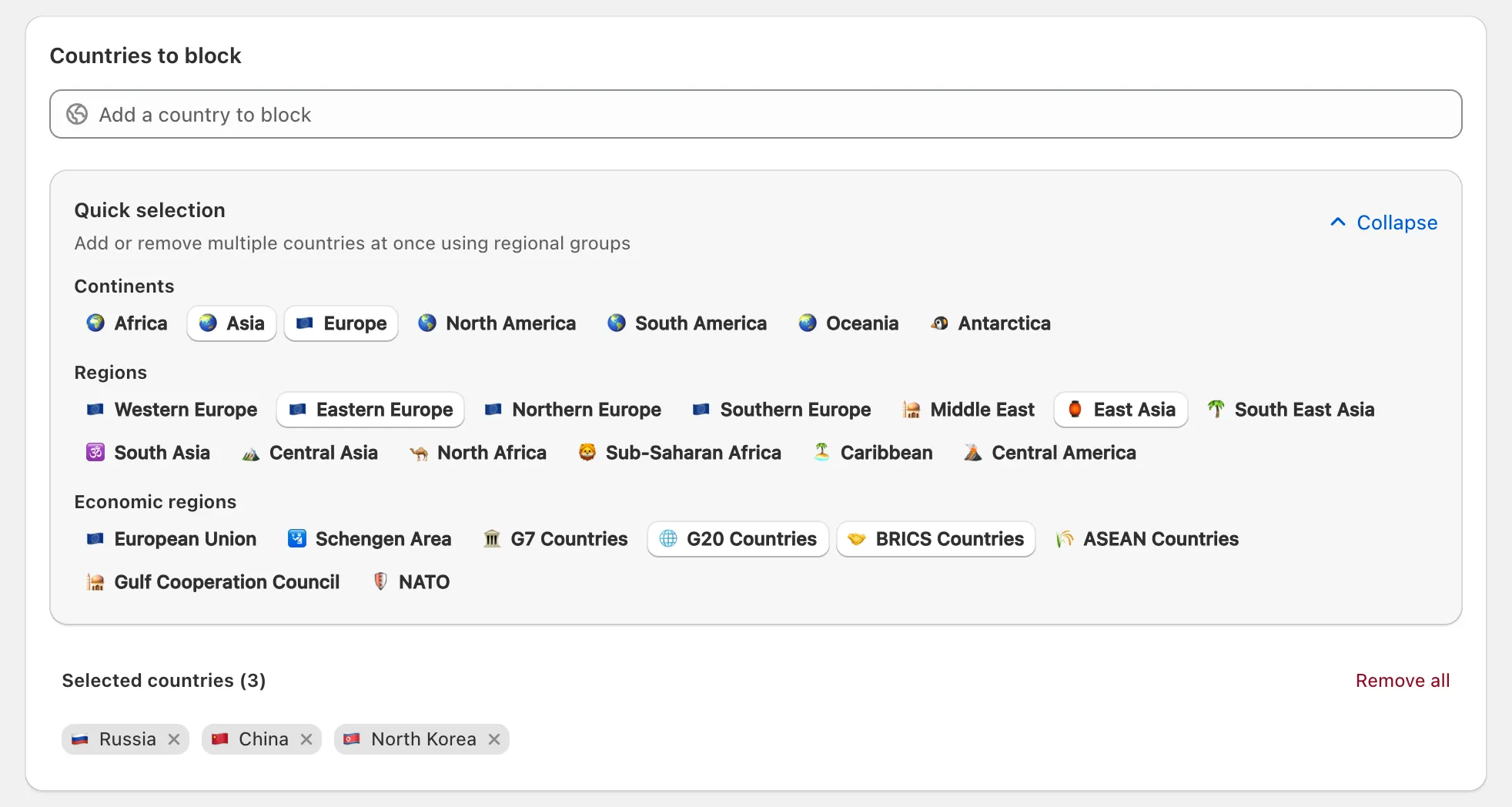
| Heading | Groups |
|---|---|
| Continents | Africa, Asia, Europe, North America, South America, Oceania, Antarctica |
| Regions | Western Europe, Eastern Europe, Northern Europe, Southern Europe, Middle East, East Asia, South East Asia, South Asia, Central Asia, North Africa, Sub-Saharan Africa, Caribbean, Central America |
| Economic regions | European Union, Schengen Area, G7 Countries, G20 Countries, BRICS Countries, ASEAN Countries, Gulf Cooperation Council, NATO |
A group adds individual countries, so each one counts toward your plan’s limit, and on the Free plan a group is added only if all of its countries fit. Groups are always made of whole countries: X Shield can’t block part of a country, though city rules come close.
Can I block a country on only some pages or products?
Yes. Under Page targeting, choose Specific pages only and add the paths the rules should cover; every other page stays open. Each path must start with /, and it matches every address that begins with it.
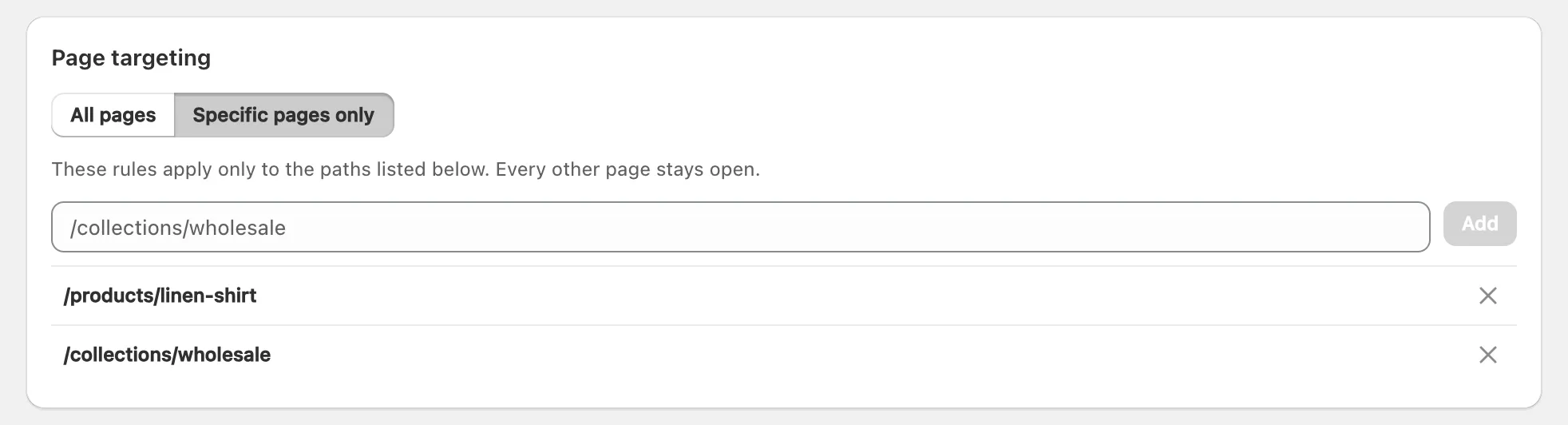
| Path you add | What it covers |
|---|---|
/products/linen-shirt |
That product, and any product whose address starts the same way, such as /products/linen-shirt-blue |
/collections/wholesale |
The collection, and products opened from it, such as /collections/wholesale/products/linen-shirt |
/fr/products/linen-shirt |
The French version of the product page: translated addresses need their own entry |
Note: Each form of an address needs its own entry.
/products/linen-shirtdoesn’t cover the same product opened through a collection link, and a collection path doesn’t cover its products at their own/products/address.
Page targeting applies to the country and city rules on this page. IP & Network has its own, and the other protections always cover the whole store.
How do I let one person in from a blocked country?
Add their IP address to the IP whitelist on GEO control. As the page puts it, “These IPs always get in, even from a blocked country.” Separate addresses with commas, or click Add my IP for your own connection, then Save.
The whitelist lifts country and city rules only. To let an address past every protection, use Global bypass → Whitelisted IPs instead. Home and mobile addresses change, so an IP suits a fixed connection such as an office; for yourself, use your private access link.
Can I block a city?
Yes, on the Enterprise and Plus plans. Cities join the same list as countries: with Block listed, a visitor is blocked if their country or their city is on it.
- Under Cities to block, choose the country in Select country.
- Type the city in the field beside it (it reads e.g. Ashburn until you type) and click Add.
- Click Save.
You can also block a city straight from a visitor event in Analytics. When a visitor’s city can’t be determined, the city rule is skipped rather than guessed, and placing a city from an IP address is approximate, especially on mobile networks. Matching ignores upper and lower case and accents.
Which countries should I block?
There’s no universal list. In X Shield’s own words, “We don’t provide a pre-configured ‘bad list’ because risk varies per store.” Block only countries you never sell to, or switch to Allow only listed if you ship to just a few.
- Much of the unexplained traffic from places like Singapore comes from cloud data centres rather than shoppers. Scraper network blocking turns those networks away without blocking a whole country.
- Visitors on a VPN appear to come from the VPN server’s country, so a country rule alone won’t stop someone determined.
- Verified crawlers such as Googlebot pass country rules while they’re ticked in Known bots, so blocking a country doesn’t hide your store from Google. Before blocking a country where you have search traffic, read does blocking countries hurt SEO?
