cPixel Purchase Not Showing? What to Check
Why didn’t a purchase reach my ad platform?
Start on cPixel’s Home page: a rejected access token stops that account’s server sends until you paste a new one. Then check whether the Free plan’s monthly orders are used up, whether the shopper declined tracking, whether it was a test, POS or draft order, which cPixel skips by default, and when your Shopify purchases are set to send.
If a Live session caught the order, open its row: a Skipped send names its reason under Sent to.
| Reason in Live | Where to look |
|---|---|
| “Test order…”, “The order was already cancelled…”, “A zero-value order…” or “Created outside your online checkout…” | Skipped orders |
| “Paused — you’ve reached your plan’s event limit” (the Free plan’s monthly orders) | The Free plan’s pause |
| “The visitor didn’t consent to this kind of tracking” | Consent |
| “The access token was rejected…”, “No access token stored…” or “This destination is turned off” | The account’s connection |
| “This account’s targeting rules excluded the event” | Where this pixel fires: order rules |
| “Set to run alongside the official app, so we didn’t send” | One sender per pixel |
| “Not enough data to build the payload for this destination” | GA4 had no browser session from this checkout, which its purchase needs |
Is the account still connected?
Check Home. When a platform rejects an access token, Home flags the account with a button such as Fix Meta, and its server sends stop until you paste a new token; browser tracking carries on. Needs your attention and Show checks list anything else cPixel has found.
- On Home, click Fix Meta (or your platform’s name), or on Destinations, click Manage on the account marked Token invalid.
- Create a new token in the platform, as its connect guide shows.
- Paste it into the token field, then click Continue and Save and continue. Server sends then resume.

Also rule out:
- No token, or server sending off. TikTok, OpenAI Ads, Snapchat and Pinterest can’t be connected without one. Meta and GA4 without one, or with Send events from our servers unticked, send from the browser only, so GA4 gets no purchases.
- A wrong GA4 API secret. GA4 accepts it silently, so Live can show Accepted for a purchase that never appears: connect GA4 to cPixel.
- Nothing saved, or a reinstall. cPixel registers nothing in Shopify until you save a platform, and uninstalling deletes every token.
Did the Free plan pause server sends?
Possibly, if you’re on Free: its server sends pause once the month’s orders are used up. Paid plans never pause them. cPixel warns you in the app at 80% and 95% and emails the store’s contact address when sends pause.
Browser tracking carries on, so Meta still gets a browser Purchase, but purchases for GA4, TikTok, OpenAI Ads, Snapchat and Pinterest wait. cPixel keeps paused orders’ IDs for 7 days and sends the orders after an upgrade or at the monthly reset, within each platform’s window: 48 hours from the order for Meta, 72 hours for GA4. A separate cap on server sends can pause Free even in its uncapped first days: see what happens when you reach your allowance.
Note: On Free, the Server badge can read Off · paid even while server sends run. Live’s Sent from column shows what really went.
Did the shopper decline tracking?
If so, cPixel doesn’t send it to platforms that need that consent. It follows the consent Shopify records on both browser and server: GA4 needs analytics consent, every ad platform marketing consent.
If your cookie banner is an app, make sure it passes shoppers’ choices to Shopify’s Customer Privacy API, which is how Shopify applies consent to pixels (Shopify). Until Shopify records an answer, cPixel holds storefront events on the shopper’s device in regions that require consent. More in what cPixel sends, and how consent changes it.
Was it an order cPixel skips?
Very likely, if you placed it to test. Under Settings → Which orders convert, and when, Test orders and Orders already cancelled are ticked by default, so cPixel skips them, and POS, draft and app-created orders stay off unless you tick Also track orders taken outside your online checkout.
Every order on a development store is a test order, since development stores can’t take real payments (Shopify). On a live store, pay for real; otherwise:
- In Settings, untick Test orders and click Save.
- Place the order and watch it in Live.
- Tick Test orders again and click Save.
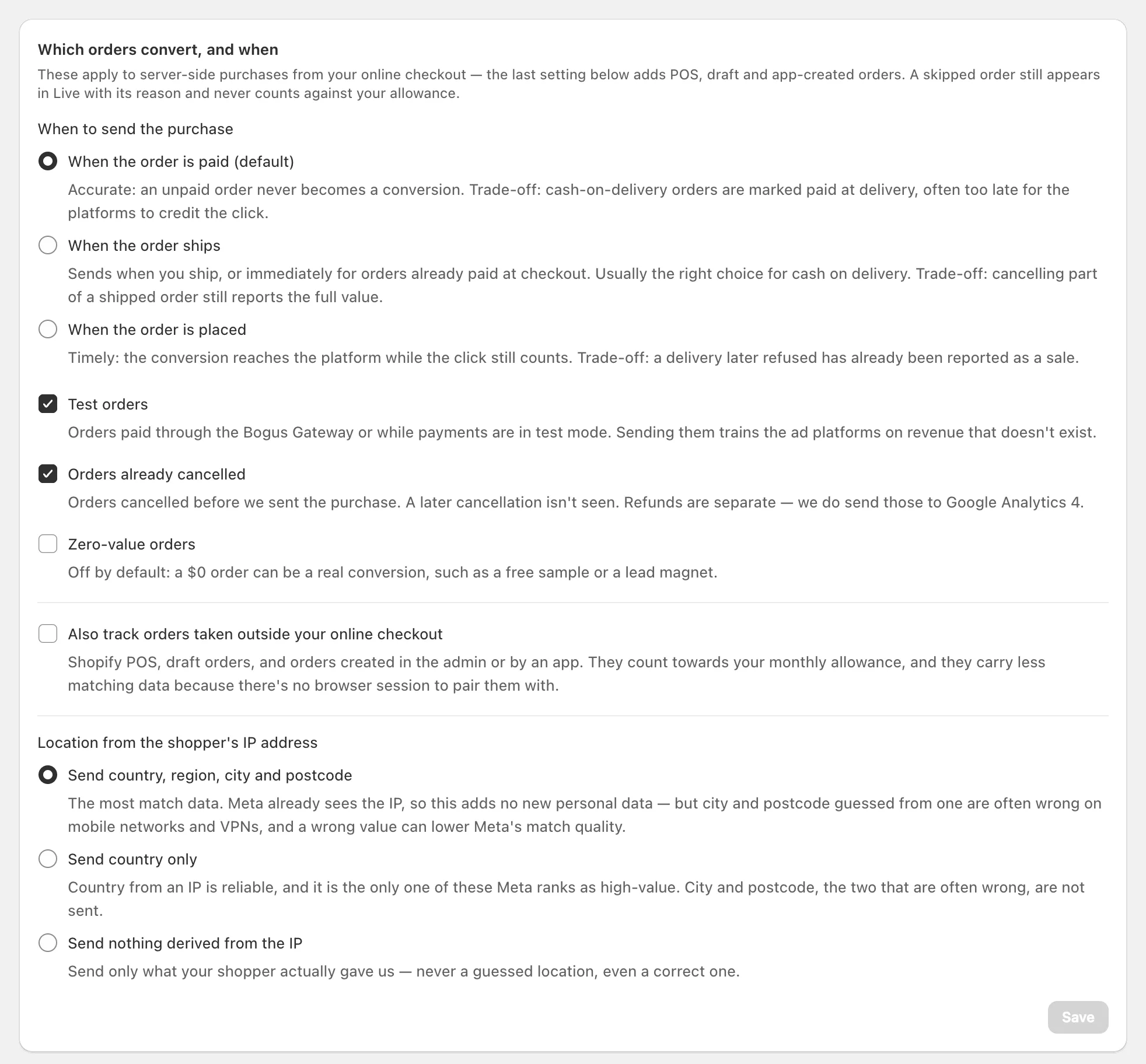
When is the purchase set to send?
When the order is paid, by default, so a cash-on-delivery purchase can arrive days after the ad click. When the order ships or When the order is placed, under Settings, sends it sooner: see order rules.
Note: Shopify’s 26 August 2026 Thank you page deadline doesn’t affect cPixel’s purchase, which is built from Shopify’s order: see Additional scripts stopped running.
Is the platform just slow to show it?
Often. Platforms take time to show a purchase, and Meta’s Test Events tab never shows cPixel’s real purchases: cPixel uses a test event code only for Test connection. Browser extensions such as Meta Ads Data Advisor can’t see them either while cPixel’s server sending to Meta is active, because cPixel then sends the Purchase from its server: see why Meta Pixel Helper finds no pixel.
| Platform | When a purchase should appear |
|---|---|
| Meta | In Events Manager within about 20 minutes |
| GA4 | In Realtime within minutes; in reports within 24–48 hours |
| Google Ads | About 3 hours for last-click attribution, 15 hours for other models |
| OpenAI Ads | Attributed conversions within 24–48 hours |
Sources, checked 24 September 2026: Meta, GA4, Google Ads, OpenAI.
Can I send a missed purchase again?
On paid plans, if a Live session caught it: open its Server row and click Resend event. It re-sends the purchase to every connected account under its original event ID, without using your allowance. Use it only for a purchase that didn’t arrive: Meta deduplicates within 48 hours and no longer.
Each night, cPixel also re-sends up to 50 of yesterday’s paid orders whose webhook never reached it, unless purchases are set to When the order is placed. Older orders, and any from before you installed cPixel or connected the platform, are never sent; on paid plans, Reconciliation counts orders that reached no platform.
Still stuck? On Home, click Get help → Contact support.
