Connect Google Analytics 4 to cPixel
How do I connect GA4 to cPixel?
In Google Analytics, go to Admin, Data collection and modification, Data streams, open your web stream and copy the Measurement ID, which starts with G-. On the same panel, open Measurement Protocol API secrets and create one. Paste both into cPixel, then confirm with a real order, because GA4 silently accepts a wrong secret.
Paste them into cPixel
- In cPixel, open Destinations and click the GA4 icon under Connect a platform. Set up Google Analytics 4 opens on Paste your IDs.
- Paste the Measurement ID into Measurement ID and the secret into Measurement Protocol API secret (optional). Name the account under Name this account (optional) if you like, then click Continue.
- On Choose options, keep Send events from the browser and Send events from our servers ticked. Keep No — cPixel handles Google Analytics 4 (recommended) unless another tool sends to this property: despite its label, Yes — keep it, and cPixel stops sending Google Analytics 4 server-side stops cPixel’s browser and server sends to it.
- Under Advanced settings, Data residency can send server-side events to Google’s EU endpoint; only the endpoint changes. Click Save and continue. Test it confirms Google Analytics 4 is connected.
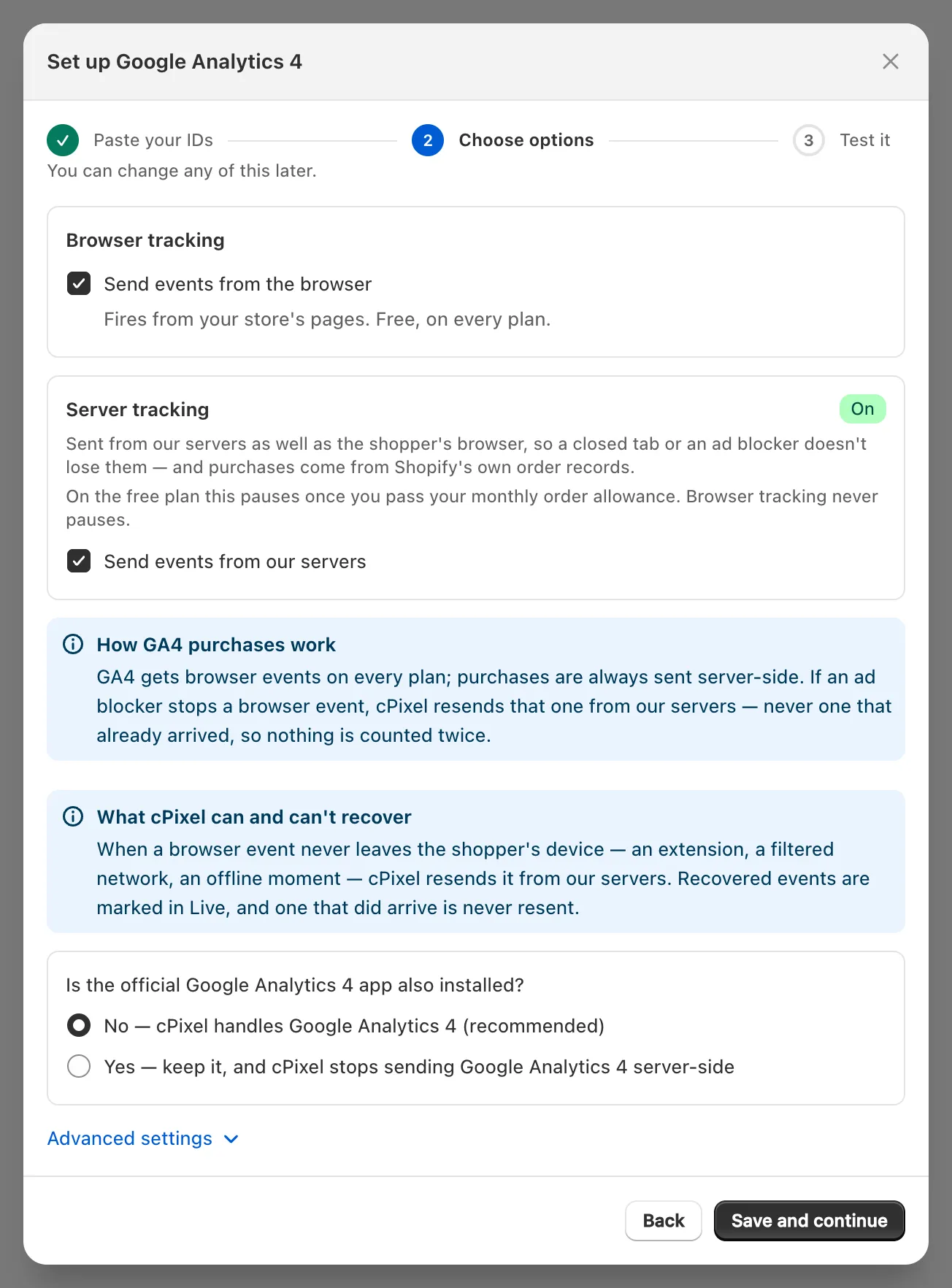
Important: The secret is optional in the wizard, but without it the account stays Browser only: browsing events, no purchases.
Where do I find my GA4 Measurement ID?
On your web stream’s details in GA4 Admin: G- followed by letters and digits, typically ten (Google).
In Google Analytics, pick your property, click Admin at the bottom left and, under Data collection and modification, click Data streams.
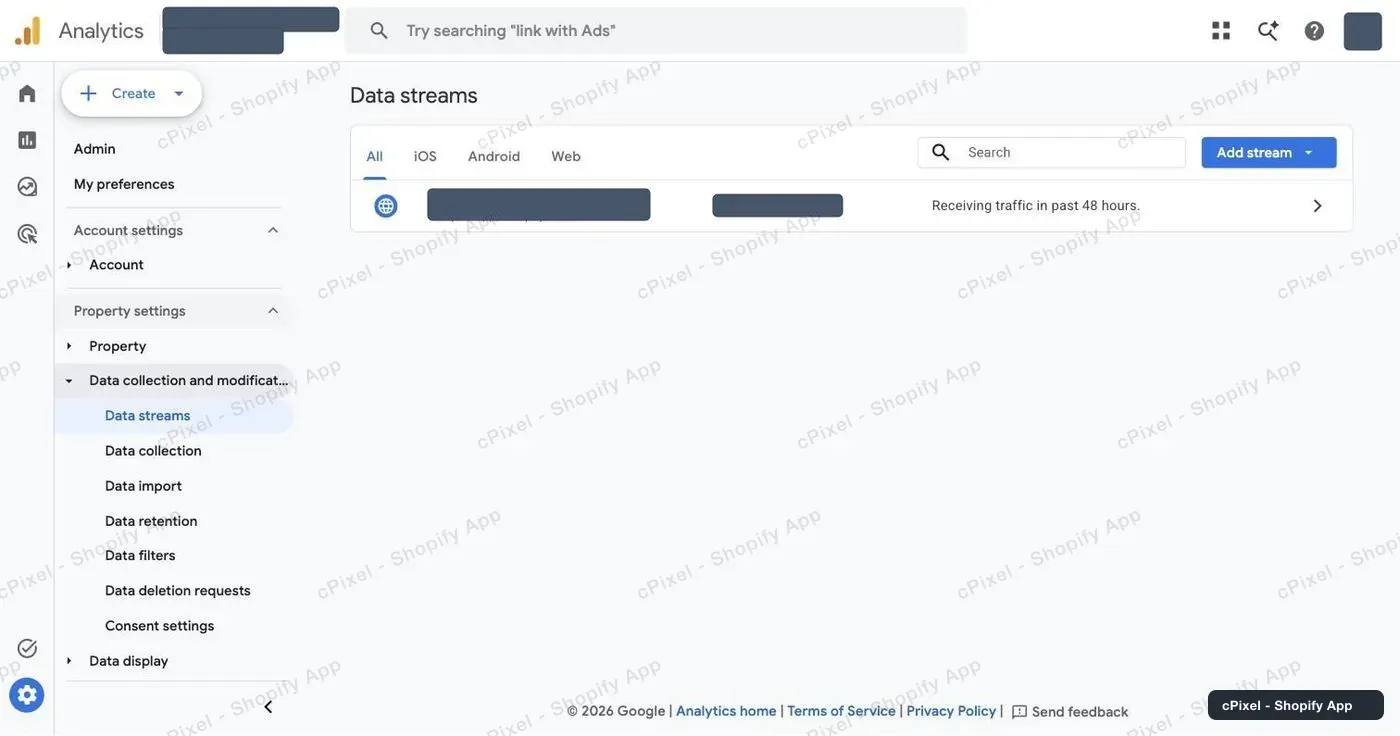
Click your store’s web stream. Measurement ID is in the first row of Stream details; use the copy icon beside it.
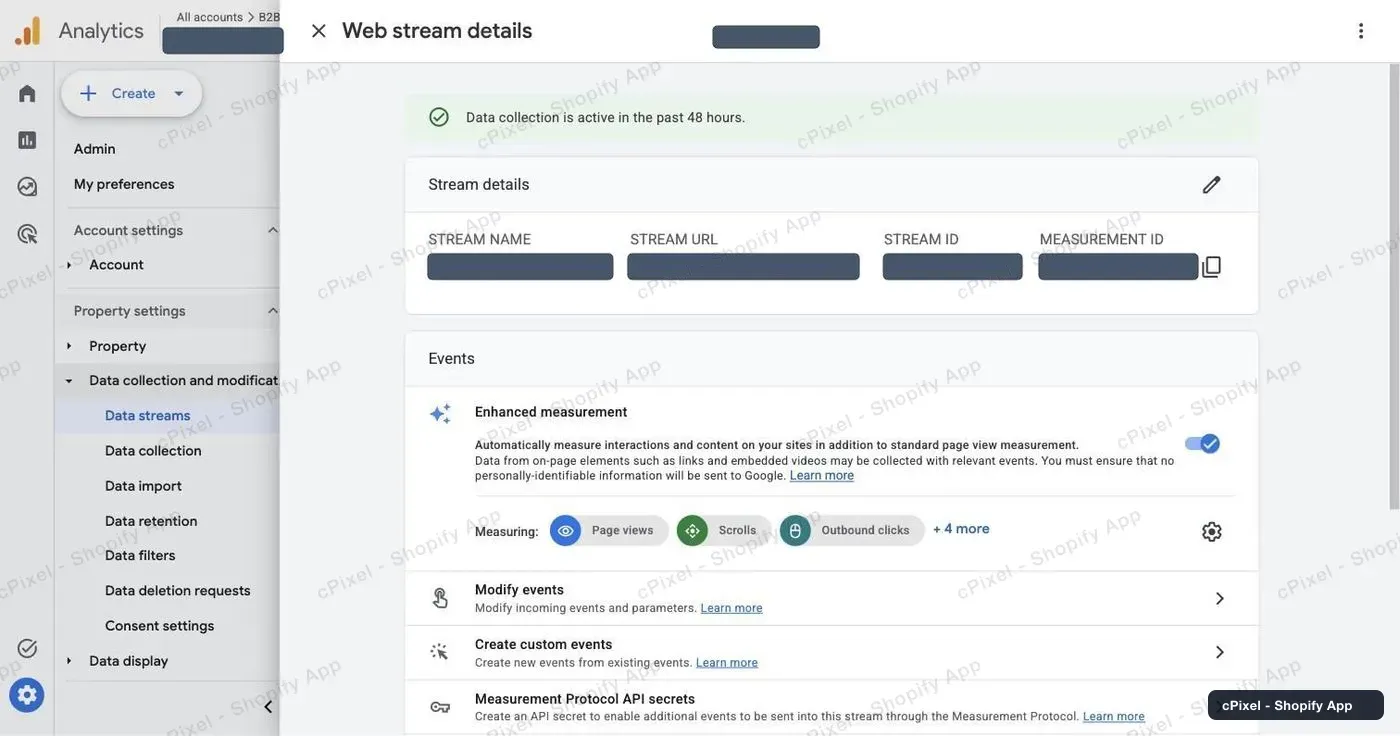
Note: The Measurement ID isn’t the Stream ID, a plain number on the same row, or the property ID. cPixel wants the one starting
G-.
How do I create a Measurement Protocol API secret?
On the same stream panel: open Measurement Protocol API secrets, create a secret and copy its value, about 22 characters. Google’s guide: Measurement Protocol for GA4.
Scroll to the Events block and click Measurement Protocol API secrets, its last row. Existing secrets are listed, and you can reuse one.
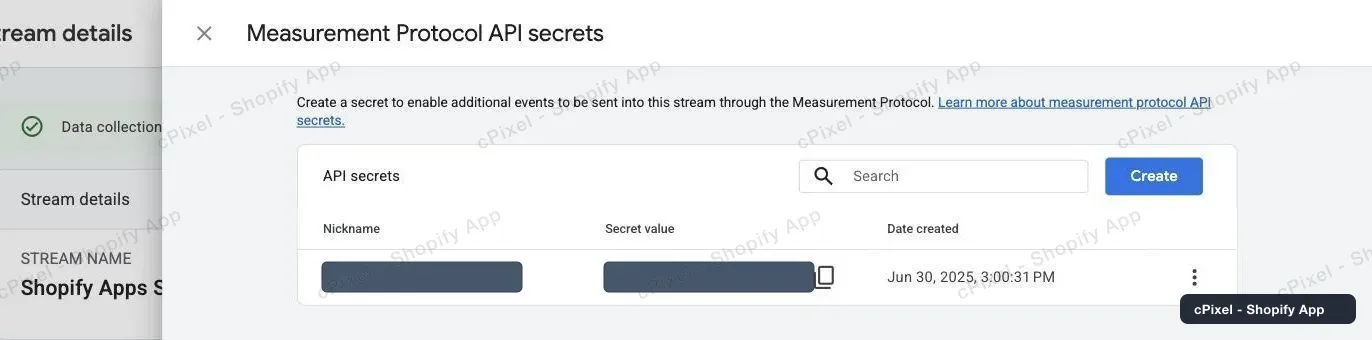
Click Create, give it a nickname such as cPixel, click Create again and copy the Secret value into cPixel.
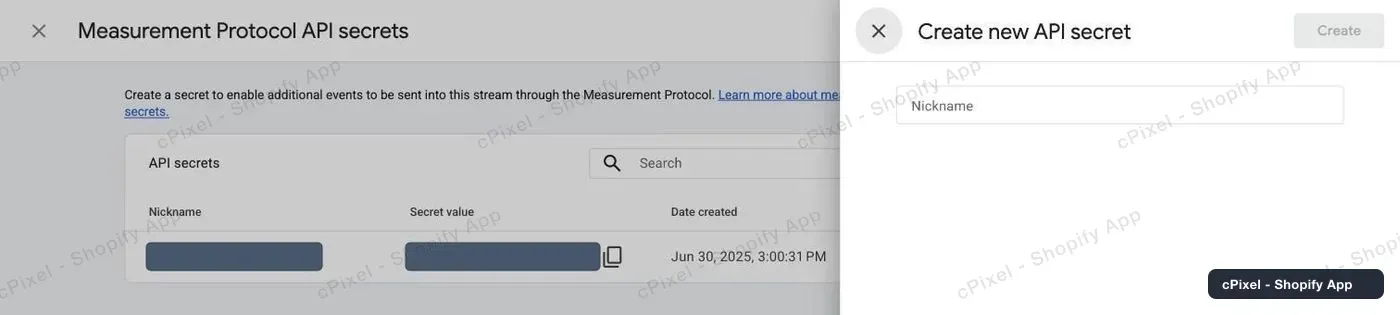
Google may first ask you to acknowledge its user data collection terms (Google).
Why doesn’t GA4 warn about a wrong secret?
Because the Measurement Protocol never reports errors. Google says it “does not return HTTP error codes, even if an event is malformed”, and its validation server doesn’t check the API secret (Google).
So a wrong secret looks like success everywhere: Live shows Accepted, the account reads Verified and no alert fires, while GA4 drops the data. Test connection uses Google’s validation server, so it checks the payload, not the secret.
What does cPixel send to GA4, and from where?
Purchases and refunds go from cPixel’s servers; everything else from the shopper’s browser, or from the server when the browser’s copy never left the device.
| Sent from | Events |
|---|---|
| Browser: Shopify’s web pixel, on every page including checkout | page_view, view_item, view_item_list, search, view_cart, add_to_cart, remove_from_cart, begin_checkout, add_shipping_info, add_payment_info |
| Server: the Measurement Protocol | purchase, with the order as transaction ID; refund, when you refund an order |
| Server, only when the browser couldn’t | A browser event that never left the shopper’s device, marked in Live as resending a blocked browser event |
GA4 deduplicates purchases by transaction ID on web streams (Google), but not other events, so cPixel sends each of those once. It can’t recover an event when a blocker also stopped cPixel’s own request, or see GA4 refuse a browser event.
A purchase needs the browser session cPixel’s pixel records at checkout. Without one, as when a blocker stopped cPixel’s request, Live shows “Not enough data to build the payload for this destination” and GA4 gets no purchase.
Server purchases carry GA4’s client and session IDs, hashed email and phone, and the Shopify customer ID, unhashed, as user_id. Both legs need the shopper’s analytics consent.
Note: GA4 gives a server event its visit’s source, medium and campaign only if it arrives within 24 hours of the session starting (Google). Purchases sent later, for example with When the order ships in Settings, can lose their campaign.
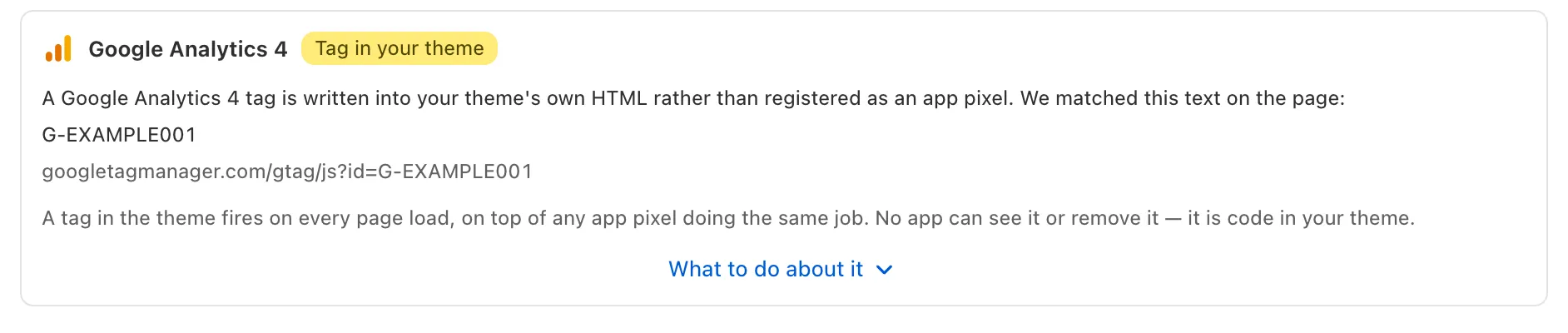
Shopify’s Google & YouTube app can also send page views and purchases to your property, so keep one sender per pixel. cPixel’s daily scan flags a GA4 tag pasted into your theme:
How do I check it worked?
Place a real order and find the purchase in cPixel’s Live and GA4’s Realtime report. Test orders are skipped by default: pay with a real method, or untick Settings → Test orders.
- In cPixel, open Live, click Start session, then place the order in another tab.
- Open the purchase’s Server row. Google Analytics 4 reads Accepted, which only means Google answered.
- In GA4, open the Realtime report and look for the purchase. Realtime typically takes a few minutes, other reports 24–48 hours (Google).
DebugView won’t show it: it lists only events sent in debug mode, which cPixel’s real sends aren’t (Google).
What if it doesn’t work?
Most failures show in cPixel’s Live; a wrong secret shows nowhere, so check GA4 itself.
| What you see | What it means | What to do |
|---|---|---|
| Accepted in Live, no purchase in GA4 after 48 hours | A wrong secret or Measurement ID, or one from another stream | Create a secret on the same stream and paste it under Manage Google Analytics 4 on Destinations, then Continue and Save and continue |
| Skipped, with a reason | cPixel chose not to send, for example no analytics consent or a test order | Pay for real, or untick Test orders |
| The account reads Browser only | No secret saved | Add one under Manage Google Analytics 4 |
| Page views doubled, revenue right | Another sender, such as the Google & YouTube app or a tag in your theme | Keep one sender per property |
Remove, in Manage Google Analytics 4, stops sends to that account and deletes its secret.
