Use cPixel with Shopify's Facebook & Instagram App
Can I keep Shopify’s Facebook and Instagram app?
Yes: keep Shopify’s Facebook & Instagram app for your catalogue and shop, but let only one tool send events to each Meta pixel, because the two create different event IDs for one purchase and Meta counts both. Either answer Yes to cPixel’s official-app question, which stops cPixel sending to that pixel, or connect cPixel to a different dataset.
Don’t uninstall the app to fix a duplicate: as cPixel’s notice warns, removing an app “can break catalog sync, product feeds or Shops”.
Why can’t the two be deduplicated?
Because Meta pairs up copies of an event by their event name and event ID, and each app makes its own IDs: cPixel’s come from your shop and the checkout, and neither app can see the other’s.
What the channel sends depends on its data sharing level, set under Sales channels → Facebook & Instagram → Settings → Data sharing settings (Shopify, checked 24 September 2026):
| Level | What the channel app uses |
|---|---|
| Standard | The Meta pixel in shoppers’ browsers |
| Enhanced | The Meta pixel and Meta’s Conversions API, plus customer details for matching |
| Maximum | Both, with Meta’s newest advertising features |
Shopify names the purchase as the event its Conversions API sends. The channel runs the pixel at every level, so Standard doesn’t stop it, and Shopify’s page describes no setting that turns the pixel off while the app stays connected.
How do I choose which one sends?
Give each Meta pixel, which Meta also calls a dataset, one sender. To keep the channel app sending, tell cPixel to step back for that pixel; to have cPixel send, connect it to a dataset the channel app doesn’t use.
Let the Facebook and Instagram app send
- In cPixel, open Destinations and click Manage on your Meta account.
- Click Continue to reach Choose options.
- Under Is the official Meta app also installed?, choose Yes — keep it, and cPixel stops sending Meta server-side. A warning, Why cPixel steps back, appears below it.
- Click Save and continue.
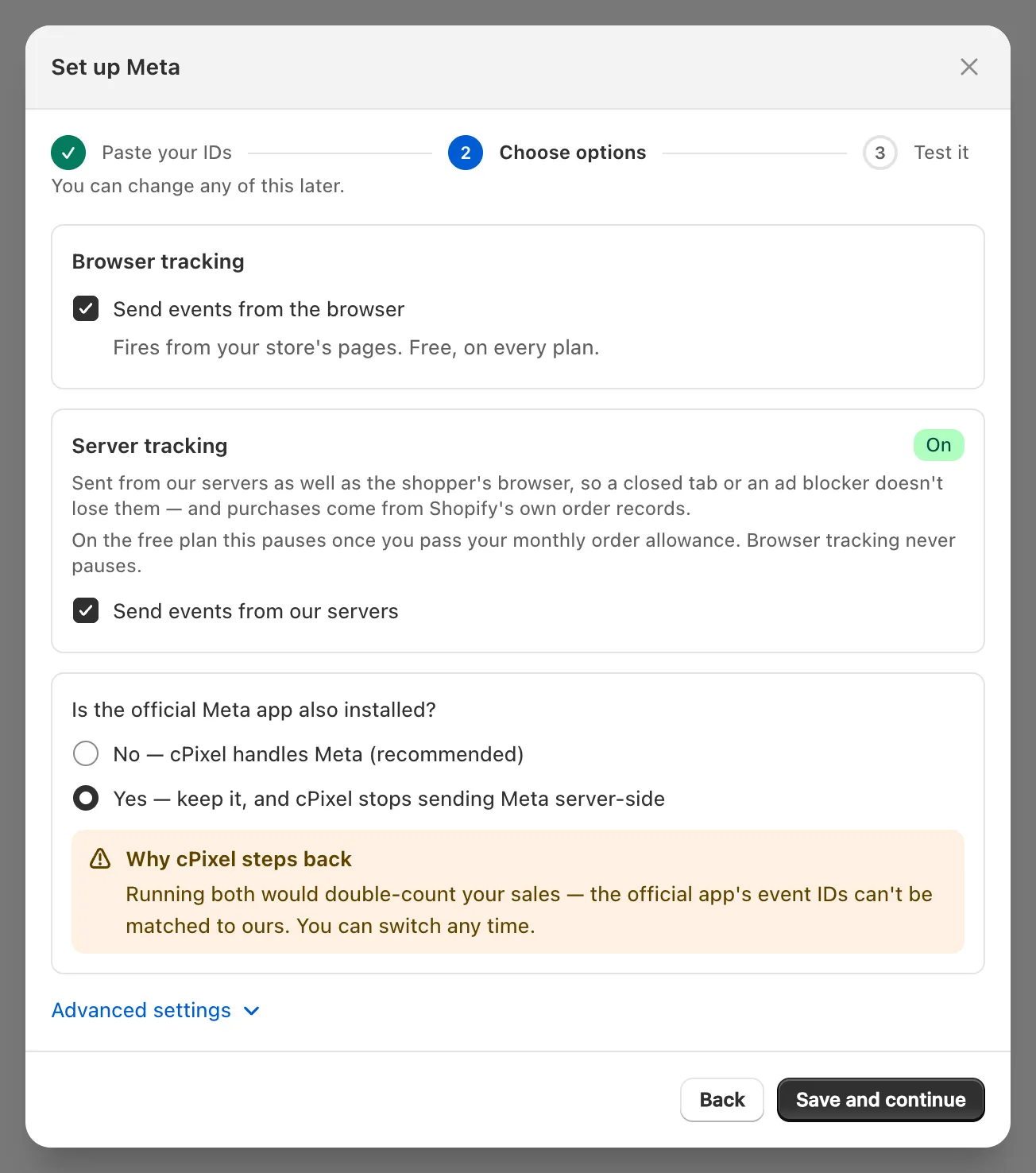
Important: Despite its label, Yes stops cPixel’s browser sends to that pixel as well as its server sends, while Send events from the browser and Send events from our servers stay ticked. Live shows the account skipped: “Set to run alongside the official app, so we didn’t send”. To send again, choose No — cPixel handles Meta (recommended).
Let cPixel send
Connect cPixel to a Meta dataset the channel app doesn’t send to, and keep the channel for your catalogue and shop (connect Meta to cPixel shows where to find a dataset’s ID).
What about the TikTok, Google and YouTube, and ChatGPT Ads apps?
The same rule applies: keep each platform’s app for what it does, and give each TikTok pixel, GA4 property, Google Ads conversion action and OpenAI pixel one sender. cPixel asks its official-app question for every platform, and Yes works the same way.
| App | What it sends, according to its maker | One sender per |
|---|---|---|
| TikTok | The TikTok pixel at Standard; Enhanced and Maximum add the Events API (TikTok, February 2025) | TikTok pixel |
| Google & YouTube | Google tags; purchase, add to cart and checkout started are the suggested conversions (Google) | GA4 property and Google Ads conversion action |
| ChatGPT Ads, by OpenAI | Web and server pixels, beside a catalogue synced to Ads Manager (App Store listing) | OpenAI pixel ID |
Google’s guide says to check for duplicate tags when both the Google & YouTube app and a storefront or custom pixel send conversions. A custom pixel is a sender too: Shopify says to remove or change existing pixels before adding one (Shopify). Setup guides: connect GA4 to cPixel, connect Google Ads to cPixel and connect OpenAI Ads to cPixel.
How does cPixel spot another sender?
Once a day, cPixel reads your storefront’s homepage for tags written into the theme and pixels Shopify has registered, and compares them with the platforms you’ve connected. Overlaps appear on Destinations under Another app is set up for a platform cPixel also sends to.
| Badge | What it means |
|---|---|
| Same account, two pixels | One ad account ID is set up in more than one registered pixel |
| Another pixel registered | Another app registers its own pixel for a platform cPixel sends to |
| Tag in your theme | A tag such as gtag.js is written into your theme |
| cPixel not sending | You’ve turned cPixel off for the account involved |
| cPixel switched off | You’ve turned cPixel off for every overlap listed |
Each finding’s What to do about it suggests turning off the overlapping conversion in the app that owns it, leaving that app installed, or clicking Turn off cPixel for this account, the same switch as Yes in the wizard. Resume cPixel sends undoes it; Manage account opens the account.
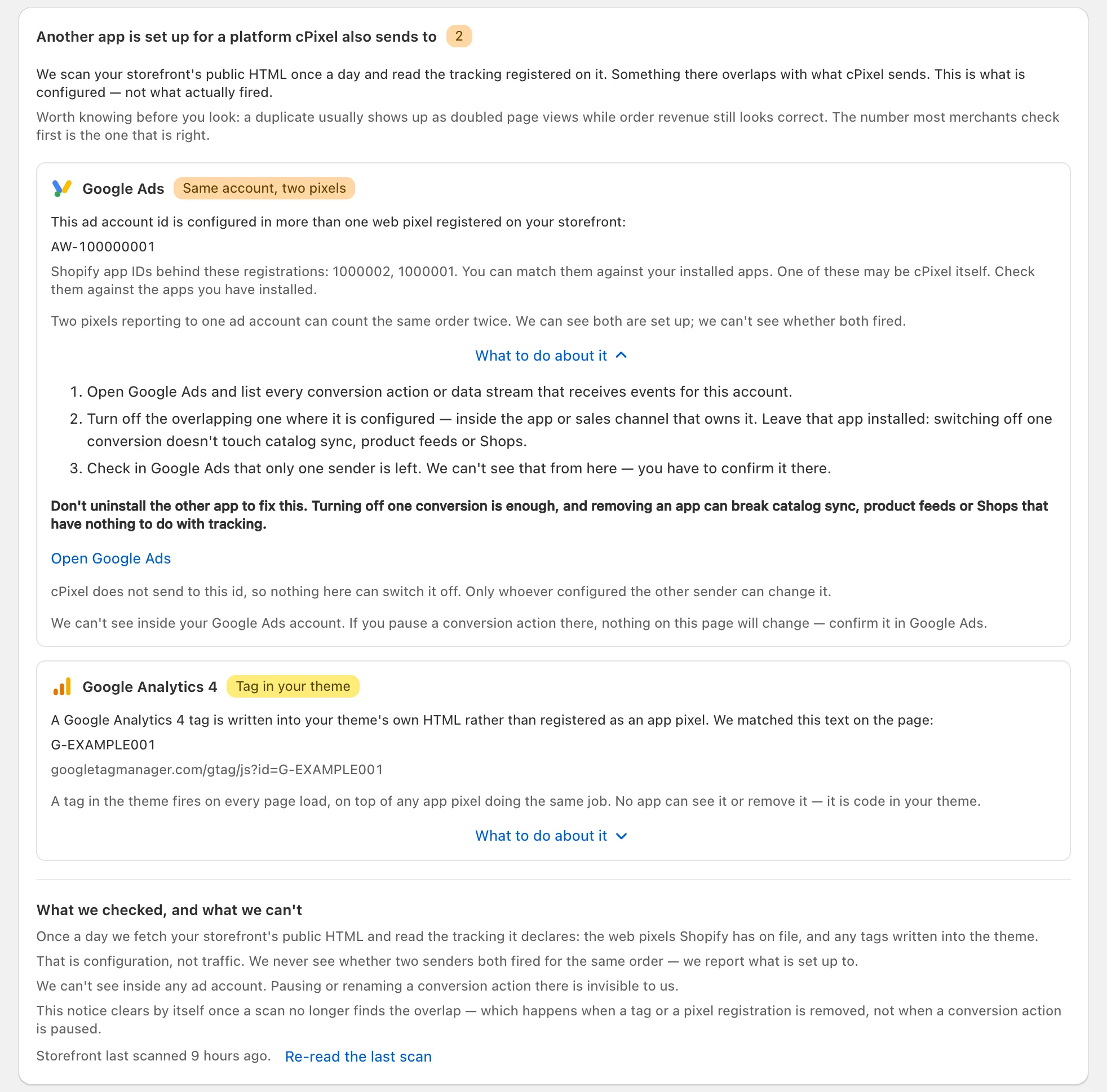
What we checked, and what we can’t sets out the limits: the scan sees configuration, not what fired. It never names the other app, only the Shopify app IDs behind a registration, which may include cPixel’s. A TikTok, OpenAI Ads, Snapchat or Pinterest tag in the page raises nothing, since cPixel’s app embed loads those tags, but another app’s registered pixel for them does. A password-protected store can’t be read.
Note: The Home alert for the same finding suggests setting the destination to “alongside official app”. No setting has that name: it means Yes in the wizard, or Turn off cPixel for this account.
How do I check nothing is counted twice?
Place a real order and compare both ends: cPixel’s Live shows what cPixel sent, and the platform shows what arrived. One order should make one purchase per pixel.
- In cPixel, open Live, click Start session and place a real order; test orders are skipped by default.
- Open the purchase’s Server row. An account you answered Yes for reads Skipped; the others should read Accepted.
- If cPixel sends to that Meta pixel from its servers, Events Manager should show the Purchase arriving through the Conversions API alone. A Purchase from the browser as well means another tool is still sending it.
