Connect Snap Pixel and Conversions API to cPixel
How do I connect Snapchat to cPixel?
In Snapchat Ads Manager, open Events Manager, then your Snap Pixel under Event Sources: the Pixel ID is printed under its name, dashes included. For the token, choose Set Up Conversions API, then Manual Setup. Paste both into cPixel, which fires the Snap Pixel on your Shopify storefront and sends checkouts, the payment step and purchases from its servers.
Paste them into cPixel
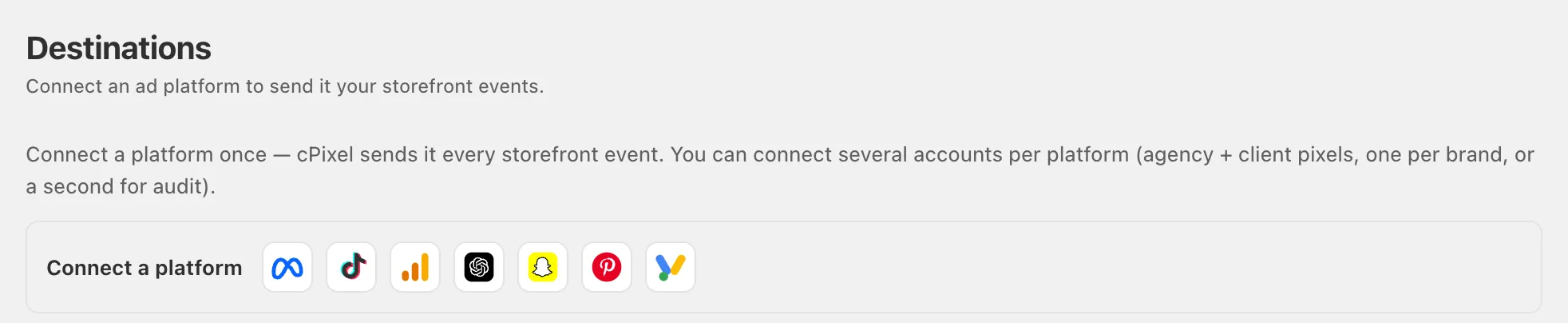
- In cPixel, open Destinations and click the Snapchat icon under Connect a platform. Set up Snapchat opens on Paste your IDs.
- Fill in Snap Pixel ID and Conversions API access token, both required. The grey hint above them, which says purchases aren’t tracked, predates cPixel’s Snapchat server connection. Name the account under Name this account (optional) if you like.
- Click Test connection: Snapchat checks the token against your pixel without recording an event, confirming access, not delivery.
- Click Continue. On Choose options, keep Send events from the browser and Send events from our servers ticked. Keep No — cPixel handles Snapchat (recommended) unless another tool sends to this pixel: despite its label, Yes — keep it, and cPixel stops sending Snapchat server-side stops cPixel’s browser and server sends to it.
- Click Save and continue. Test it confirms Snapchat is connected.
Important: Snapchat’s own Shopify app, Snapchat Ads, also sends to a Snap Pixel (Snapchat), so keep one sender per pixel.
Where do I find my Snap Pixel ID?
Under your pixel’s name in Snapchat’s Events Manager: a UUID of five groups of letters and digits joined by dashes, like xxxxxxxx-xxxx-xxxx-xxxx-xxxxxxxxxxxx.
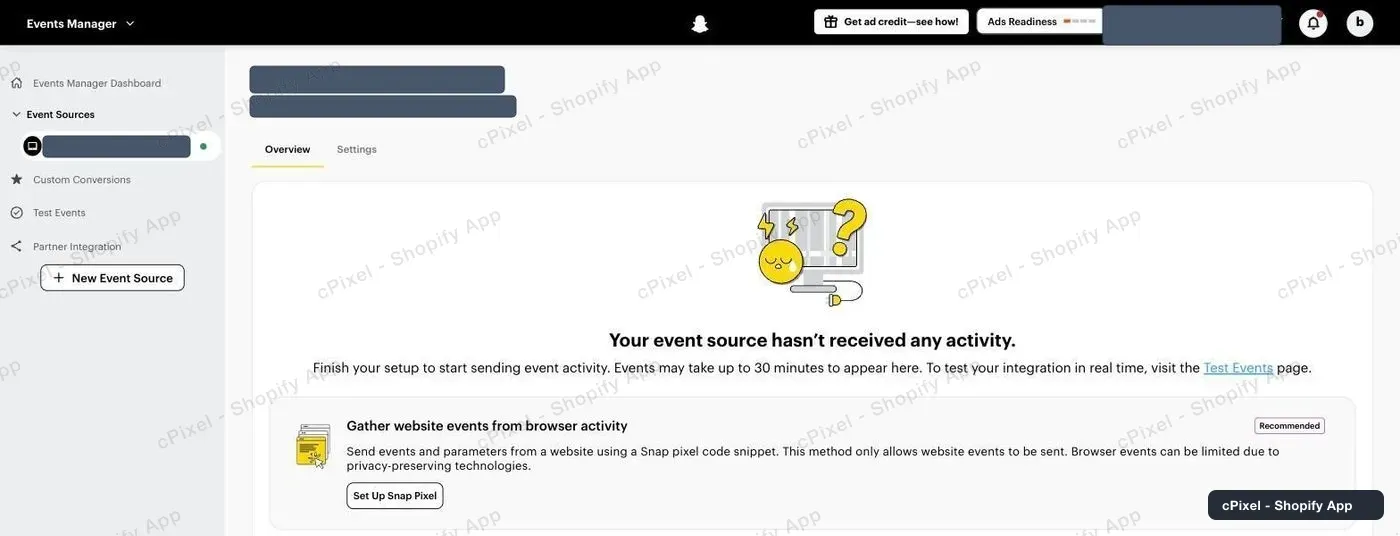
- In Snapchat Ads Manager, open the top-left menu (Create Ads or Manage Ads, depending on where you landed) and choose Events Manager.
- Under Event Sources in the left rail, open your Snap Pixel. If the account has none, use New Event Source.
- Copy the ID printed under the pixel’s name, dashes included, into cPixel’s Snap Pixel ID field. It’s also in the address bar, after
/events/pixel/.
- The ad account ID, also a UUID, is the first one in the address bar.
- Skip Set Up Snap Pixel: cPixel loads the Snap Pixel through its app embed, and a second copy of Snapchat’s code could count page views twice.
How do I get a Conversions API token?
Generate it in Snapchat Ads Manager, from your pixel’s own setup or, as an Organization Admin, under Business Details. It’s required.
From your Snap Pixel
- On your pixel’s page, under Send events from a server, click Set Up Conversions API.
- In Set Up Method, choose Manual Setup, not Partner Integration or Conversions API Gateway.
- Step through to the end and click Copy Access Token. Snapchat also shows the token’s endpoint,
https://tr.snapchat.com/v3/<pixel-id>/events, which should contain your Pixel ID.
From Business Details
This is the route Snapchat’s own guide gives (Snapchat):
- In Ads Manager, open the menu at the top left and go to Business Dashboard → Business Details.
- Under Conversions API Tokens, click Generate Token and copy it.
Snap says these tokens don’t expire and work only for pixels in the organisation that made them (Snap). cPixel stores yours and never shows it again.
What does cPixel send to Snapchat?
Storefront events from the Snap Pixel, which cPixel’s app embed loads, and checkouts, the payment step and purchases from cPixel’s servers through Snapchat’s Conversions API (version 3); each event goes one way only.
PAGE_VIEWandADD_CARTcome from the Snap Pixel, only while the app embed is on. If a browser blocks the pixel, cPixel sends that event from its servers.START_CHECKOUT,ADD_BILLINGandPURCHASEcome from cPixel’s servers: checkout started, payment details submitted, and the purchase, rebuilt from the Shopify order, since no theme code runs on checkout.
Server events carry hashed email, phone and Shopify customer ID when known, plus IP address and user agent; Snapchat’s click ID isn’t captured. Snapchat deduplicates on the event ID within 48 hours, and purchases also on the order ID for up to 30 days (Snap).
Note: cPixel’s Snapchat server connection is new: in production since September 2026, and not yet confirmed on a live ad account. Check your first checkout and purchase in Live.
How do I check it worked?
Watch a checkout and a purchase in cPixel’s Live, where server sends show Snapchat’s reply, then confirm in Snapchat’s Events Manager.
- In cPixel, open Live and click Start session.
- Browse your store in another tab and add to cart. Browser rows list Snapchat as Sent from the browser, with no reply: platforms don’t answer browser sends.
- Start a checkout and place a real order; cPixel skips test orders by default. Their Server rows should show Snapchat Accepted.
- In Events Manager, server events appear on the main screen marked “via Conversions API”; Snapchat says they can take 1–2 hours to show (Snapchat).
Destinations marks the account Verified after its first accepted server send, usually the first checkout. Events Manager also shows Snapchat’s own Event Quality Score; cPixel doesn’t read it.
What if it doesn’t work?
If Snapchat isn’t receiving cPixel’s events, open the Snapchat row in Live: a send that isn’t Accepted names its cause.
| What you see | What to do |
|---|---|
| Test connection rejects the token | Copy it again, and check that it comes from the organisation that owns the pixel |
| Rejected or Error | Read Snapchat’s reply in the row’s details; cPixel retries errors itself |
| Nothing reaches your pixel | Check the Pixel ID: it may have lost its dashes, or be the ad account ID |
| Fix Snapchat on Home: the token was rejected or deleted, server sends stopped and a critical alert was emailed | Generate a new token, click Fix Snapchat, or Manage beside the account on Destinations, paste it and save |
| No Browser rows name Snapchat | The app embed is off (the Browser badge reads Needs app embed): switch cPixel tracking on and save your theme, again after changing themes |
| A purchase is missing or Skipped | Read its reason, then see purchases not showing |
| Page views or purchases counted twice | Another tool, such as the Snapchat Ads app or pixel code in your theme, sends to this pixel |
Remove, in Manage Snapchat, stops sends to that account and deletes its token.
