Watch Every Send in cPixel's Live View
How do I watch cPixel’s sends live?
In your Shopify admin, open Live in cPixel and click Start session. For 10 minutes, each event cPixel sends appears as it happens: the time, the event, whether it went from the browser or the server, and how many matching details it carried. Open a row for its event ID, the platform’s reply to server sends and the redacted payload.
- Click Start session. The card shows Session active, a countdown and Stop session.
- Open your store in another tab and click around. Pages pick up the session within a page load or two.
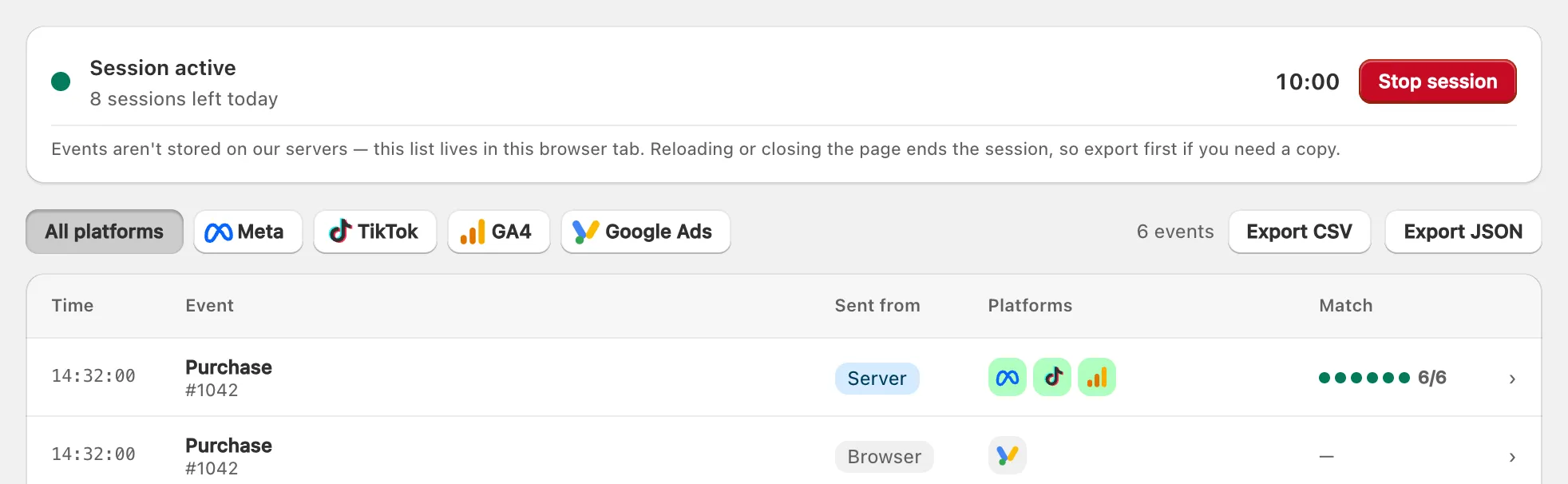
Live works on every plan, Free included. It shows real sends for your whole store, shoppers’ as well as yours; none is a test send.
What does each row show?
Each row is one event, with five columns: Time; Event, with a hint such as an order number; Sent from, Browser or Server; Platforms, one icon each, coloured by outcome; and Match, the identifiers attached, such as 6/6.
A row’s details show:
- Sent to: each account’s outcome and, for a server send, the HTTP status and the platform’s reply, or the skip reason. With several accounts on a platform, each is listed by name or ID, and the row’s icon shows the worst outcome.
- Match quality: each identifier, such as “Email”, “Click ID” or “City (guessed from IP)”, marked Included or Not provided.
- Event ID: the same on an event’s browser and server copies, so a platform that gets both can keep one.
- Payload (redacted): the event data behind the row.
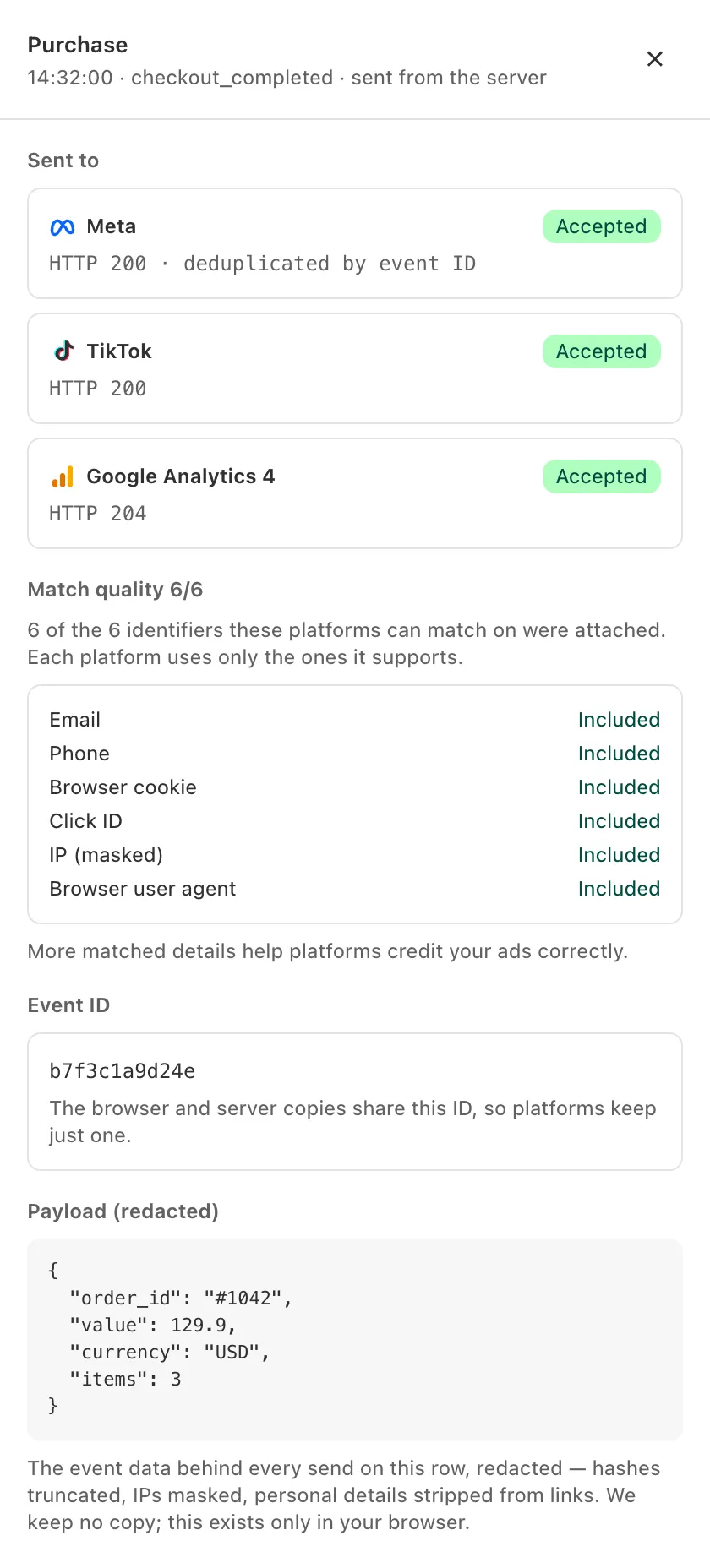
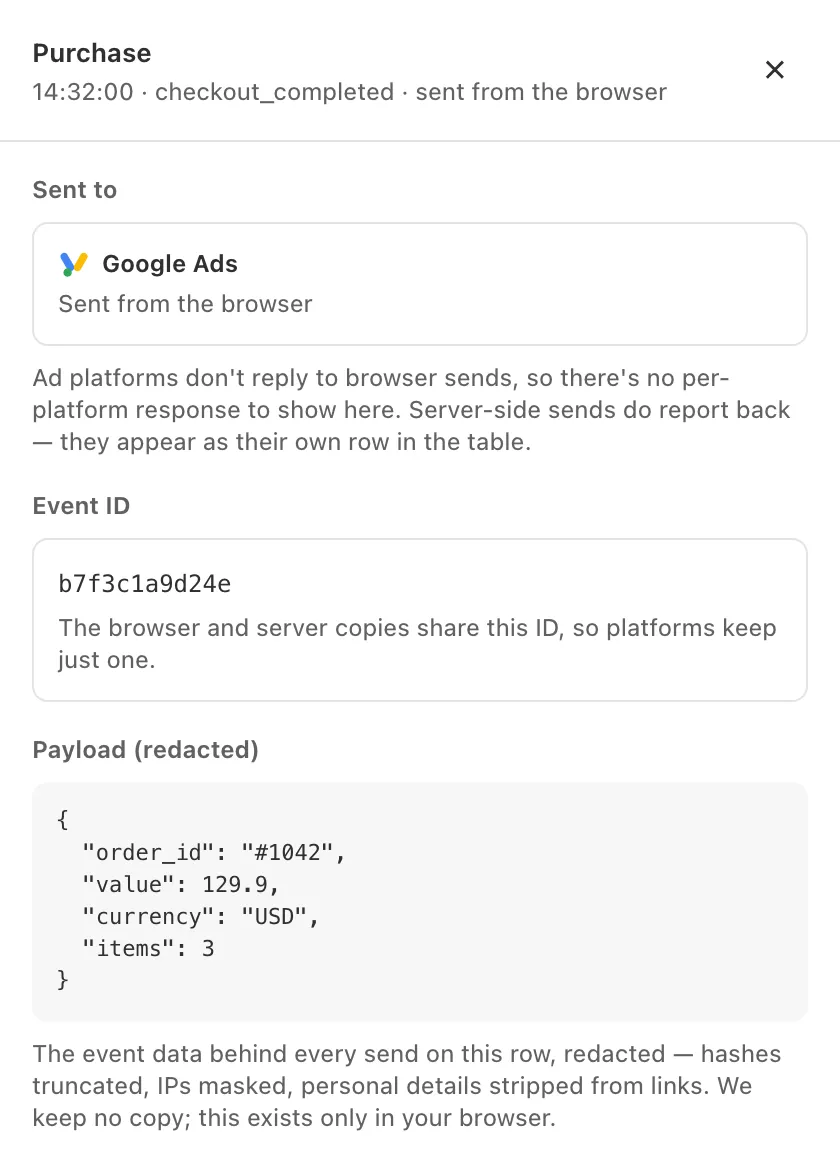
A purchase usually shows two rows under one event ID: Server, for the platforms cPixel’s servers send it to, and Browser, for Google Ads on the Thank you page, and for Meta only while cPixel’s server sending to that pixel is off or paused (how cPixel counts each purchase once).
Beside a completed server send, “deduplicated by event ID” names the key the platform matches copies on; it appears on every such send and doesn’t prove a duplicate was merged. “sent because the browser couldn’t” marks a browser event that cPixel’s servers sent instead.
What do Accepted, Rejected, Error and Skipped mean?
Each is the outcome of one send to one account. Only server sends have one: platforms reply to servers, never to a shopper’s browser.
| Outcome | Meaning |
|---|---|
| Accepted | The platform took the event. |
| Rejected | The platform refused it; the details quote its reason. |
| Error | The platform or the connection failed; cPixel retries. |
| Skipped | cPixel chose not to send it, and says why. |
| Waiting… | No answer yet. |
| Sent from the browser | Shown on browser rows instead of an outcome, since there’s no reply to show. |
If a platform rejects an access token, that account’s server sends stop and later events show Skipped: “The access token was rejected — reconnect this account”.
Resend a purchase that didn’t arrive
On paid plans, a purchase’s Server row offers Resend event. It rebuilds the purchase from the Shopify order and sends it again, under its original event ID and outside your allowance, to every connected account, not only one that failed. So resend only a purchase that never arrived: after 48 hours, a resend can count twice at Meta. On Free the button is off: “Resending is on paid plans”.
Why was an event skipped?
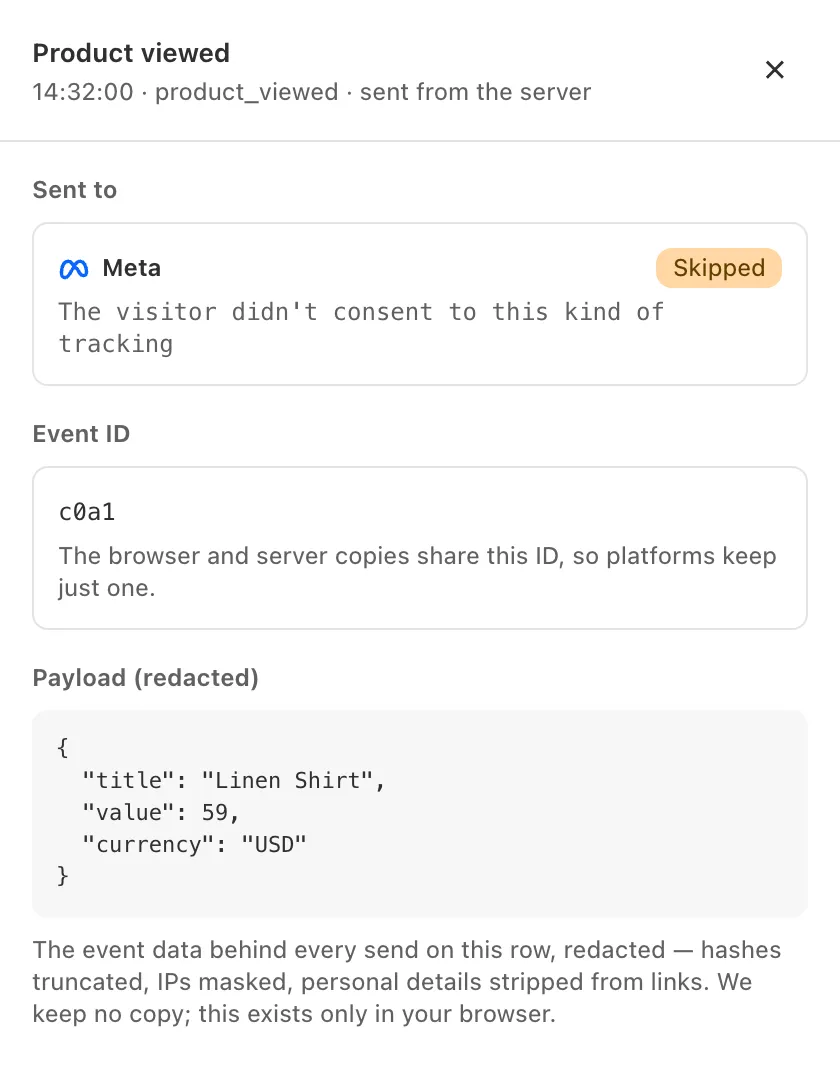
Because a setting or rule said not to send it: the row’s details name it. A skip is a decision, not a failure. Common reasons:
| Reason in Live | What it means |
|---|---|
| “The visitor didn’t consent to this kind of tracking” | The shopper declined this kind of tracking. |
| “Test order — never forwarded to ad platforms, and never billed” | Excluded by default (Settings → Test orders). |
| “No access token stored — add one to send server-side” | No token, so this account sends from the browser only. |
| “This account’s targeting rules excluded the event” | Where this pixel fires leaves it out. |
| “Set to run alongside the official app, so we didn’t send” | You let the platform’s own app send to this pixel. |
| “Paused — you’ve reached your plan’s event limit” | The Free plan has paused server sends: the month’s orders are used up or, rarely, its separate cap on server sends was reached. |
| “Not enough data to build the payload for this destination” | Something required is missing, such as the browser session a GA4 purchase needs. |
Cancelled, zero-value and off-checkout orders have reasons of their own (order rules). For a missing purchase, see purchases not showing.
How long does a session last, and how many do I get?
Up to 10 minutes. How many sessions you get a day, the Free plan’s total and a Free session’s event cap depend on your plan: compare plans.
- A session ends after 10 minutes, on Stop session, when the last tab watching it closes or reloads, or at a Free session’s event cap.
- Every start counts, including setup’s Start watching and sessions you stop early. Daily sessions reset at midnight UTC.
- The tab keeps the newest 500 rows.
- With none left, Start session shows “You’ve used today’s debug sessions” or, on Free, “You’ve used all of your included debug sessions”. Tracking carries on either way.
- On Starter and Growth, a store that stays past its monthly order allowance loses Live after a grace period (“The live stream is locked until you move up a plan”), while sending continues. Scale never locks.
Is anything stored?
No. Live keeps no copy of what it shows: the rows exist only in your browser tab, and closing or reloading it ends the session and clears them. Export first to keep them.
- Export CSV saves the rows as a spreadsheet; Export JSON also includes the payloads. The file “is the only copy — we keep none”.
- Rows reach you already redacted: hashes truncated, IP addresses masked, personal details stripped from links.
- cPixel does keep some short-lived records to send events, such as a checkout’s click IDs for 7 days, but never event payloads (what cPixel sends, and how consent changes it).
