Order Rules: Which Purchases cPixel Sends, and When
When does cPixel send a purchase?
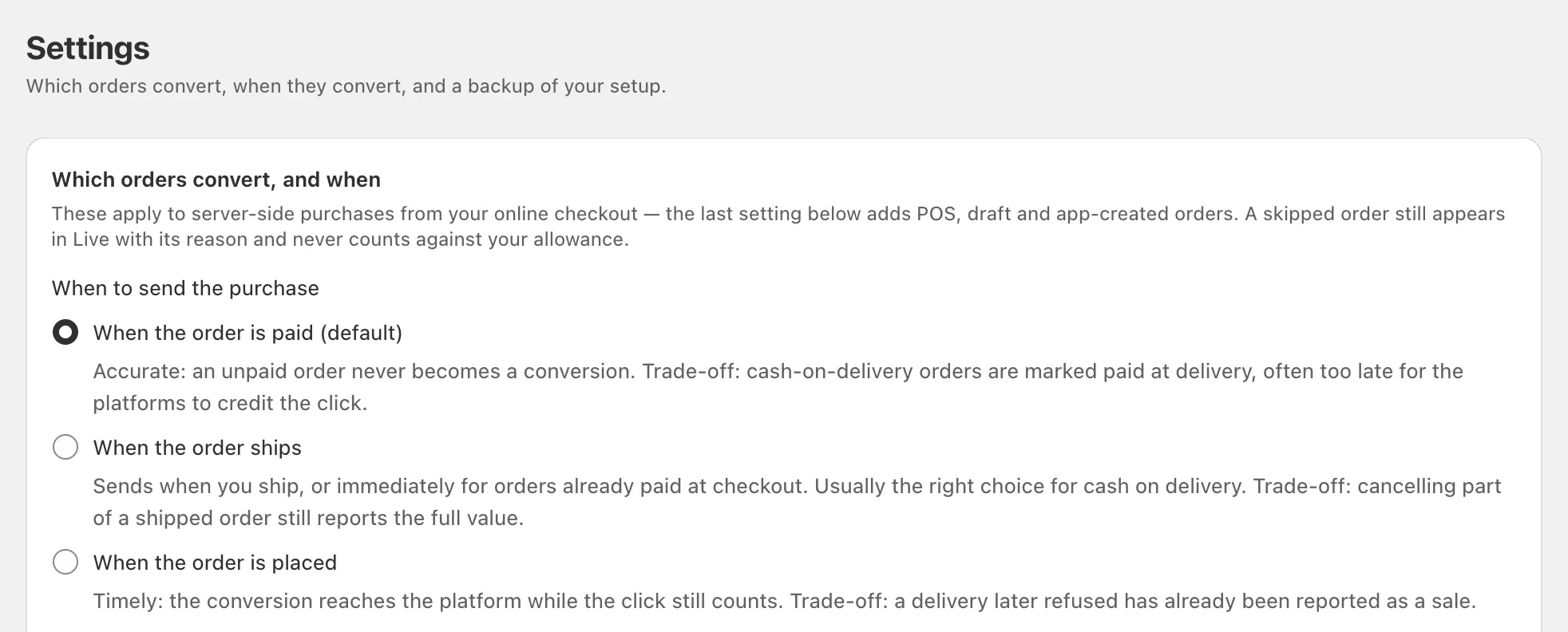
By default, cPixel sends a purchase to your ad platforms once a Shopify order is paid. Cash-on-delivery stores can pick When the order ships or When the order is placed, because a delivery-paid order may be marked paid days after the click. Test and cancelled orders are skipped by default; POS, draft and API orders stay off until switched on.
These rules live on cPixel’s Settings page, under Which orders convert, and when, and apply to the purchases cPixel sends from its servers.
| When to send the purchase | Sends | Trade-off |
|---|---|---|
| When the order is paid (default) | When Shopify marks the order paid | Cash-on-delivery orders are marked paid at delivery, often too late for the platforms to credit the click |
| When the order ships | At the first shipment, or at once for orders paid at checkout | Cancelling part of a shipped order still reports the full value, and slow shipping can miss platforms’ time limits |
| When the order is placed | As soon as the order is created | A delivery that’s later refused has already been reported as a sale |
To change it:
- In cPixel, open Settings.
- Under When to send the purchase, choose an option.
- Click Save. The next order follows the new rule.
Whichever you choose, each order is sent once, under the same event ID. Google Ads is unaffected: its browser tag fires on the Thank you page when the order is placed.
Which setting suits cash on delivery?
Usually When the order ships. Shopify marks a cash-on-delivery order unpaid until you mark it as paid, which can be days after the click. Shipping comes sooner, and orders already paid at checkout still go out at once, so a store taking both kinds doesn’t delay its prepaid sales.
When the order is placed reaches the platforms soonest, but it reports refused deliveries as sales. cPixel doesn’t see a cancellation made after the purchase was sent, and only GA4 receives refunds.
Note: A purchase always carries the time the order was placed, so slow shipping or late payment can mean it reaches some platforms late or not at all. Meta and OpenAI Ads refuse events more than 7 days old (Meta, OpenAI). GA4 credits a server event to the visit’s source and campaign only if it arrives within 24 hours of the visit starting (Google), and OpenAI Ads’ event quality check flags server events that arrive more than an hour late (OpenAI help).
Which orders does cPixel skip?
Test orders and orders already cancelled, unless you untick them; zero-value orders only if you tick them. Orders from outside your online checkout are skipped until you switch them on.
| Setting | Default | Covers |
|---|---|---|
| Test orders | Skipped | Orders paid through the Bogus Gateway or while payments are in test mode |
| Orders already cancelled | Skipped | Orders cancelled before cPixel sent the purchase |
| Zero-value orders | Sent | Orders totalling zero, which can be real conversions such as free samples |
| Also track orders taken outside your online checkout | Off | Shopify POS, draft orders, and orders created in the admin or by an app |
A skipped order never counts against your allowance, and Live shows why it was skipped, for example “Test order — never forwarded to ad platforms, and never billed”. Orders from outside the checkout, once switched on, do count, and they match less well because there’s no browser session to pair them with.
Tip: To test with a real purchase, pay with a real payment method, or untick Test orders for the test and tick it again afterwards.
Which value does cPixel report?
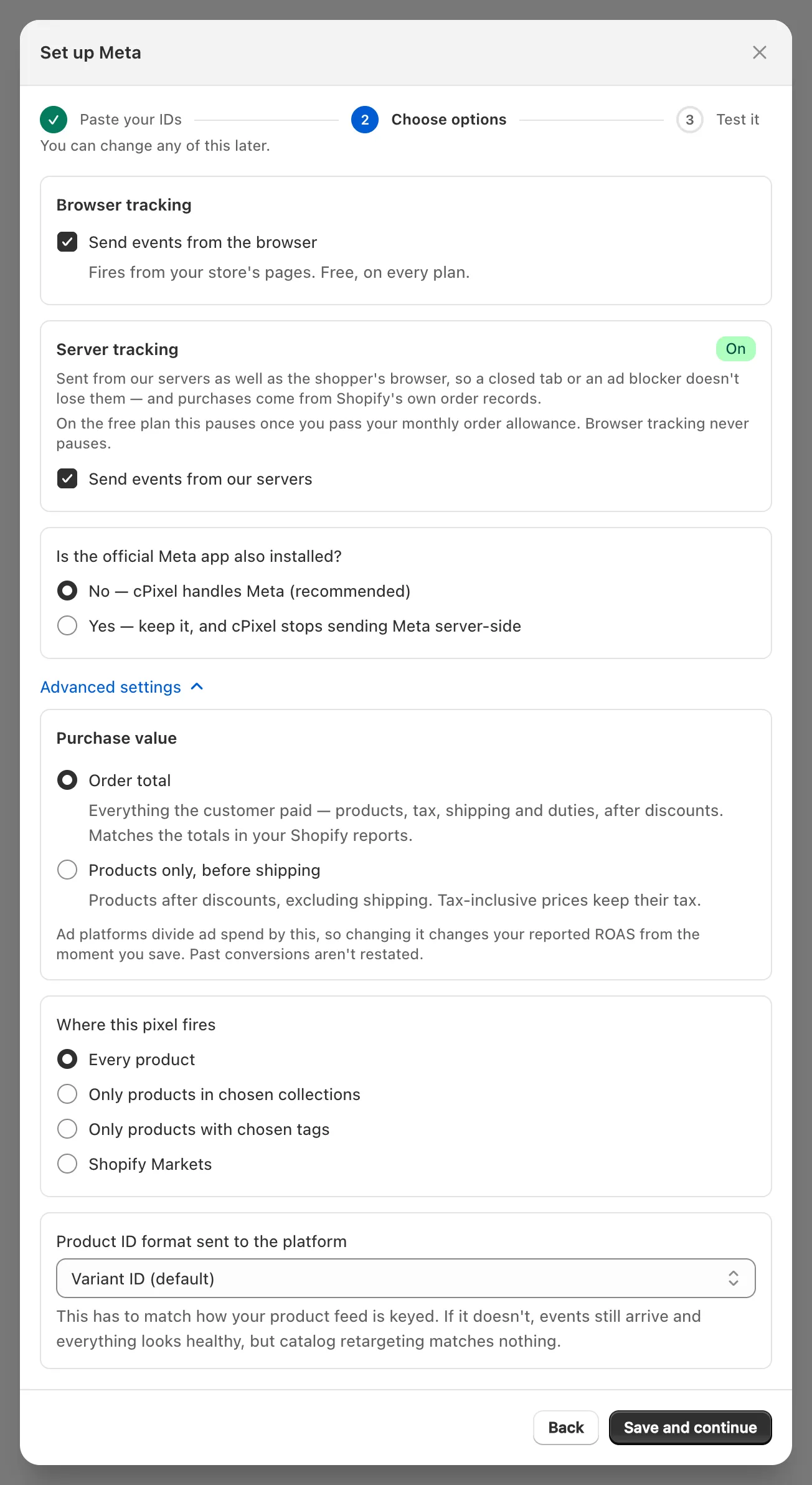
Order total by default: everything the customer paid, including tax, shipping and duties, after discounts, in your store’s currency. Each server platform account can switch to Products only, before shipping under Advanced settings in its connect wizard’s Choose options step.
Ad platforms divide ad spend by this value, so changing it changes your reported ROAS from the moment you save. Past conversions aren’t restated.
Can I connect more than one pixel per platform?
Yes. Each platform takes several accounts, such as an agency pixel beside a client’s, up to the limits in the plan table, which are the same on every plan. In Destinations, click Add another on the platform, and use Name this account (optional) to tell them apart in Live and in alerts.
Every account on a platform receives each purchase under the same event ID (how cPixel counts each purchase once). cPixel refuses to connect the same ID twice on one platform.
How do I send different orders to different pixels?
Scope each account with Where this pixel fires: Every product, Only products in chosen collections, Only products with chosen tags or Shopify Markets.
- In Destinations, click Manage on the account.
- Click Continue, then Advanced settings.
- Under Where this pixel fires, choose a scope and enter collection IDs, product tags or market handles, one per line. Market handles must match Shopify’s Settings → Markets exactly.
- Click Save and continue.
Events with no product, such as a home page view, don’t match a collection or tag scope, and an event cPixel can’t place in a market isn’t sent to a Markets-scoped pixel. Collection and tag scopes need cPixel’s app embed on for storefront events.
If you use catalogue ads, set Product ID format sent to the platform to match your product feed: Variant ID (default), Product ID, SKU, or Shopify’s sales-channel feed format with a Feed country code. With the wrong format, events still arrive but catalogue retargeting matches nothing.
How do I copy my setup to another store?
Use Backup & transfer on the Settings page. Export settings downloads your accounts and order rules as a file, and Import settings loads it into another store running cPixel. The file contains no access tokens.
After importing, add each account’s access token in Destinations, then check Where this pixel fires. Tag scopes carry over. Collection scopes reset to Every product, because collection IDs differ between stores, and cPixel lists the accounts it reset. Shopify Markets scopes also come back as Every product, without being listed.
